
Edit widget text
AI Overview
Change the words customers see in the Tipo booking widget, including buttons, labels, error messages, and calendar text, from the Translations settings. You edit the Default column of the translation table; no new language is needed to update default wording. Refresh your storefront to see the result.
View moreView less
- Open the app, click Settings > Translations.
- Find the text using the search bar or category tabs such as Button, Calendar, or Validation & Error.
- Edit the text directly in the Default column (Reference is the original text).
- Click Save, then refresh the storefront to review.
- Keep button text short (1-3 words), consistent, and keep error message meaning clear.
Summary generated by AI. It can make mistakes, so check the full guide below.
Use this to change the words customers see on your booking widget (buttons, labels, error messages, calendar text, etc.).
✏️ Steps to edit widget text
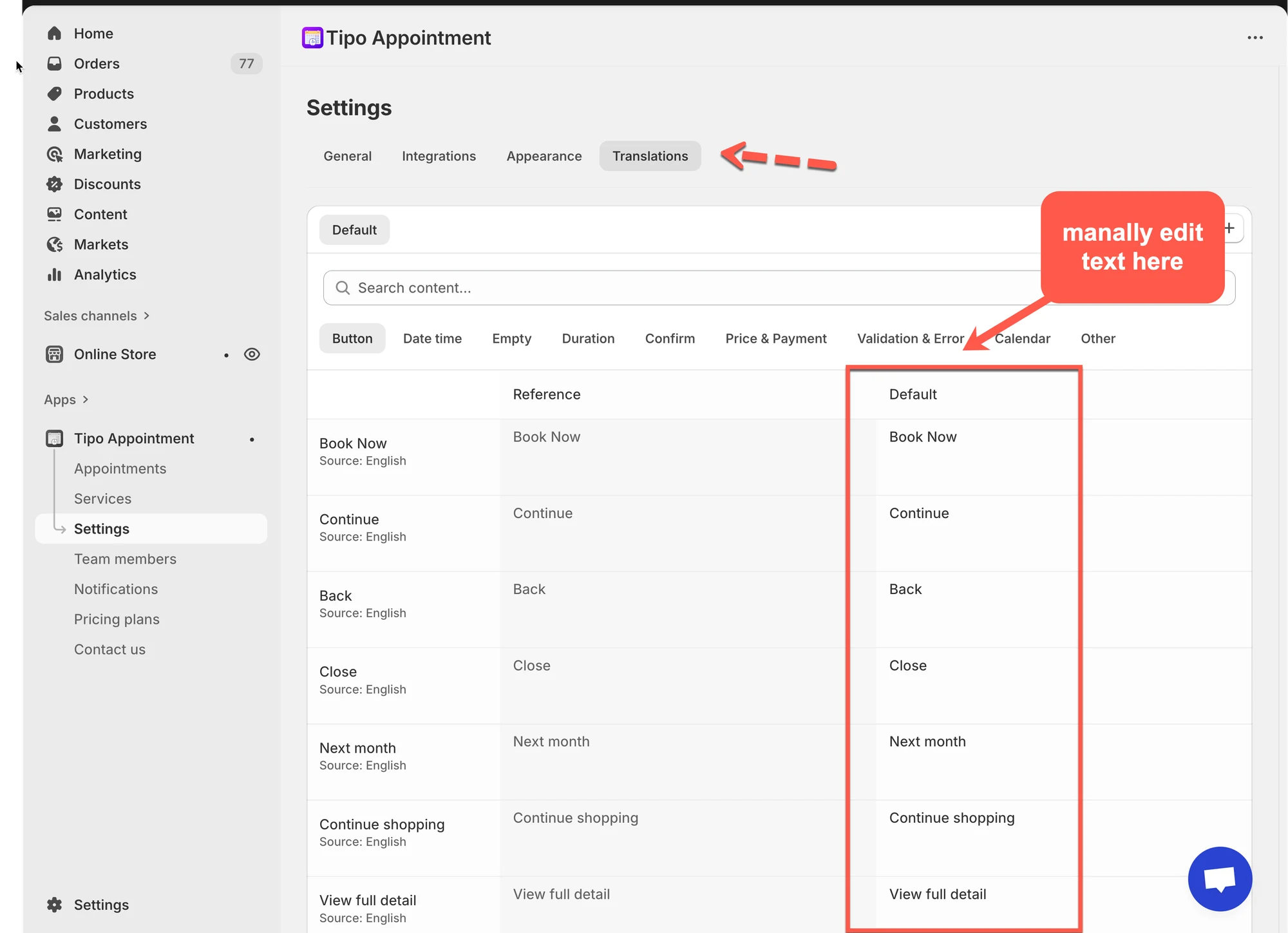
Section titled “✏️ Steps to edit widget text ”- Open the app > click Settings > Translations
- Find the text you want to change
- Edit text in the Default column directly. All editable text is listed under the Default column
Note: You do not need to add a new language if you’re only updating the default wording
- Use the search bar or category filters (e.g., Button, Calendar, Validation & Error) to locate specific phrases
- Click Save to update the changes
- review your changes on the storefront
Refresh your storefront to see the updated widget text.
💡 Understand the translation table
Section titled “💡 Understand the translation table”On this page, you’ll see:
- Search content…: quickly find any text (example: “Book”, “Confirm”, “Error”)
- Category tabs like:
Button, Date time, Empty, Duration, Confirm, Price & Payment, Validation & Error, Calendar, Other - A table with columns:
- Key / Item (example: Book Now, Continue, Close…)
- Reference (original text)
- Default (the text currently used on your widget — this is what you edit)
💡 Think of it like: Reference = original, Default = what customers will see.
Example Edits:
| Reference Text | Custom Text (Default) |
|---|---|
| Book Now | Reserve Now |
| Continue | Proceed |
| Back | Go Back |
| Add guest | Add another person |
| View full detail | See all details |
⭐ Best practices
Section titled “⭐ Best practices”Keep text short
Section titled “Keep text short”Buttons work best with 1–3 words:
- “Reserve”
- “Next”
- “Confirm”
Keep wording consistent
Section titled “Keep wording consistent”If you use “Reserve” on the first button, avoid switching to “Book” later.
Don’t change system meaning
Section titled “Don’t change system meaning”For error messages, keep the meaning clear so customers understand what to fix.
🙋 Still need support?
If you still need help, please feel free to contact us at hi@tipo.io. We’ll be happy to assist you further.