> For the complete documentation index, see [llms.txt](https://docs.tipo.io/llms.txt). Markdown versions of documentation pages are available by appending `.md` to page URLs; this page is available as [Markdown](https://docs.tipo.io/tipo-appointment-booking/appointment-management/create-an-appointment-manually.md).
# Create an appointment manually
Create an appointment on behalf of a customer directly from the admin, perfect for phone bookings, walk-ins, or manual adjustments.
### 🧭 When should you use this?
Use **manual booking** when:
* A customer calls or messages you to book
* You need to add a walk-in appointment
* You want full control over time, staff, and status
* You’re fixing or recreating a booking
***
### 🛠️ Step-by-Step: Create a Booking Manually
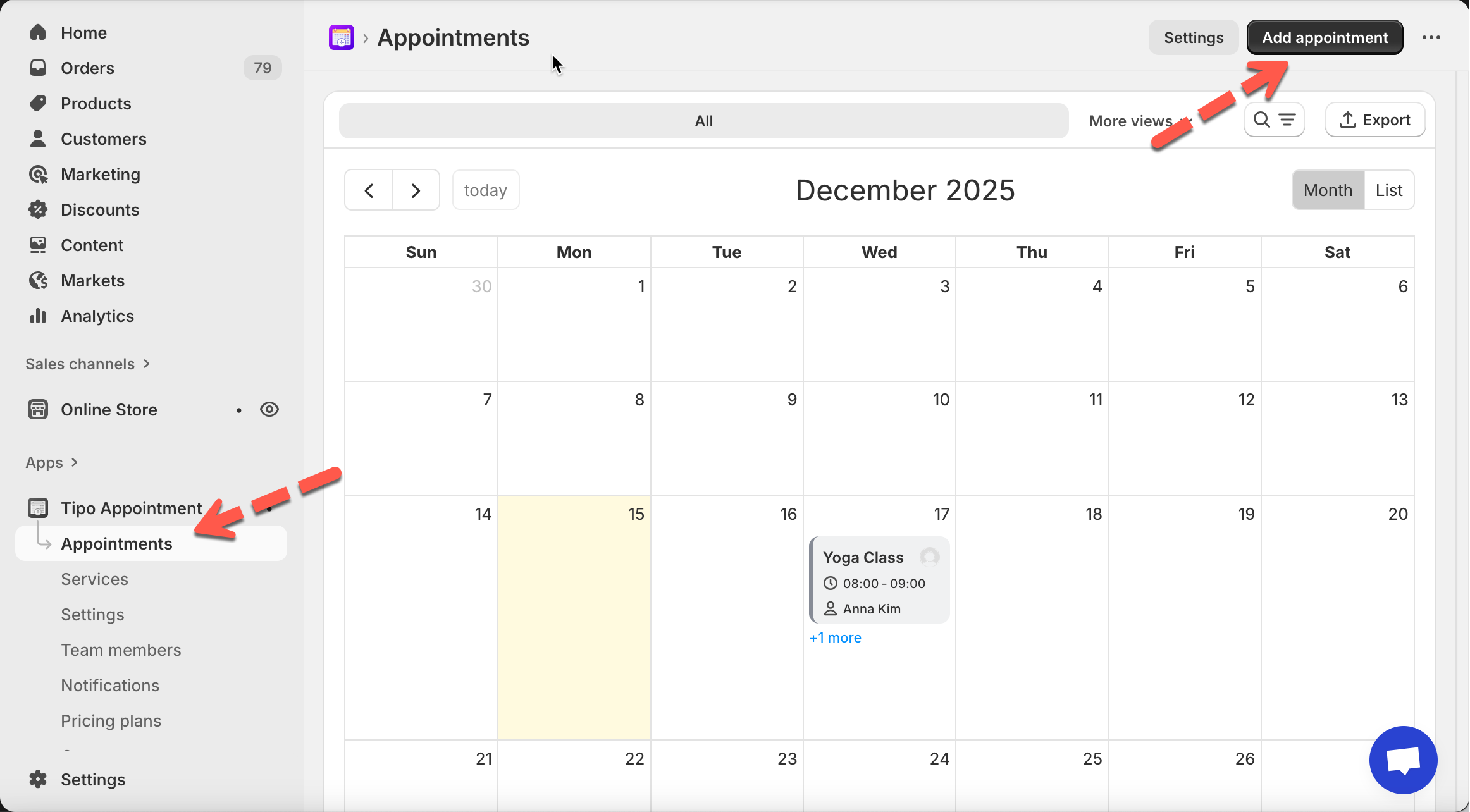
1. Open the app > click **Appointments**
2. Click **Add appointment** (top-right corner). The Create Appointment form opens
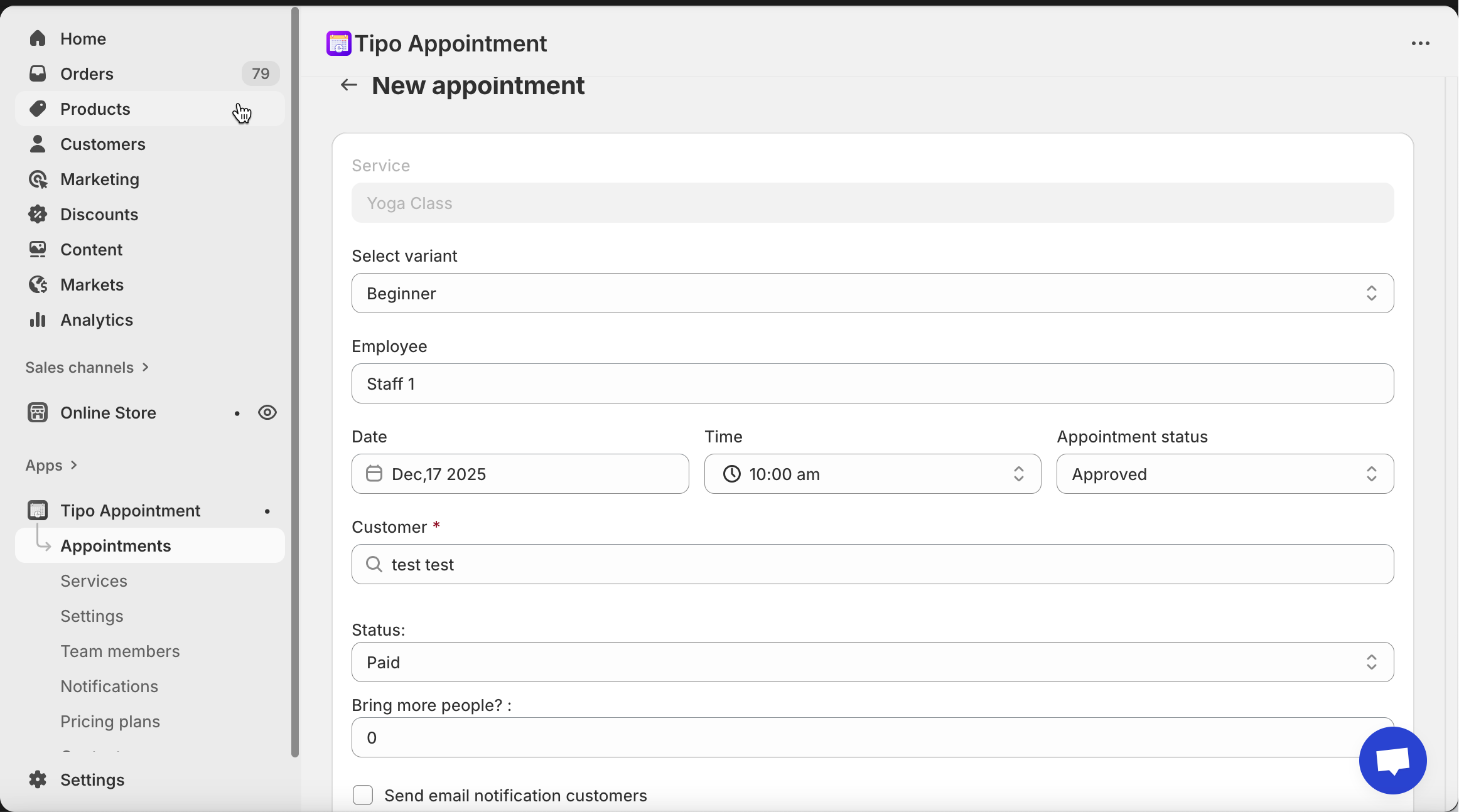
3. Select the service & variant
* **Service**: Choose the service (e.g. *Yoga Class*)
* **Variant** (if available): Choose the service option (e.g. *Beginner*)
> The service duration will automatically apply.
4. Assign a team member. Available times depend on this staff’s availability
5. Choose date & time
* Pick the **Date**
* Select the **Start time**
⏱️ End time is calculated automatically based on service duration.
6. Select a customer
* Search and select an **existing customer**
* Customer is required to save the booking
📌 Tip: Create the customer in Shopify first if they don’t exist.
7. Set appointment & payment status
* **Appointment status**
* Approved (default)
* Pending
* **Payment status**
* Paid
* Unpaid (for free or pay-later services)
8. Optional settings
* **Bring more people** (for group bookings)
* **Send email notification** to the customer
* **Add internal notes** (not visible to customer)
9. Save the appointment
🎉 The booking now appears on the calendar.
***
### ✅ What happens after creation?
Once created:
* The appointment appears in the **calendar**
* You can:
* **Reschedule**
* **Cancel**
* **Delete**
* View full booking details
* Customer details, service info, and time are all visible on the appointment page
***
### 📘 Example: Walk-in booking
**Scenario:**
* Customer Anna Kim walks in
* Wants a **Yoga Class – Beginner**
* Dec 17, 2025 at **11:00 AM**
* Payment collected in store
**Admin action:**
1. Click **Add appointment**
2. Select **Yoga Class → Beginner**
3. Assign **Staff 1**
4. Set **Dec 17, 2025 – 11:00 AM**
5. Select **Anna Kim**
6. Set status to **Approved**
7. Set payment to **Paid**
8. Save
✅ Booking is instantly confirmed and visible in the calendar.
***
### ▶️ Tutorial video
{% embed url="" %}
***
**🙋 Still need support?**
If you still need help, please feel free to contact us at . We’ll be happy to assist you further.