> For the complete documentation index, see [llms.txt](https://docs.tipo.io/llms.txt). Markdown versions of documentation pages are available by appending `.md` to page URLs; this page is available as [Markdown](https://docs.tipo.io/tipo-appointment-booking/mail-notification/reschedule-notifications.md).
# Reschedule notifications
When you reschedule an appointment in Tipo, you can choose whether to send an email update to customers. This helps customers stay informed when the time or team member changes.
### 💡 How reschedule notifications work
Reschedule notifications have **two required parts**:
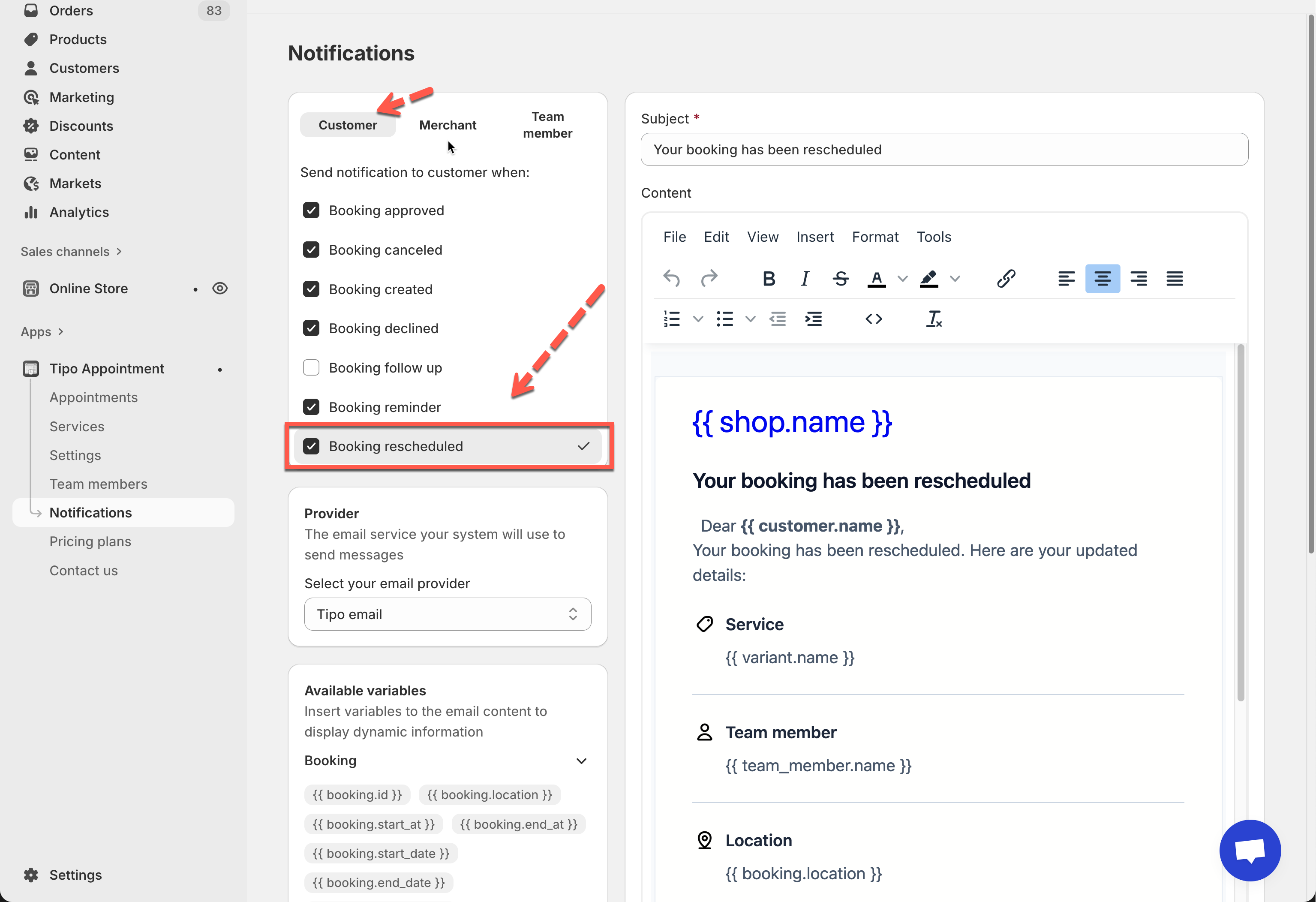
1. The **Rescheduled email** must be enabled in **Notifications**
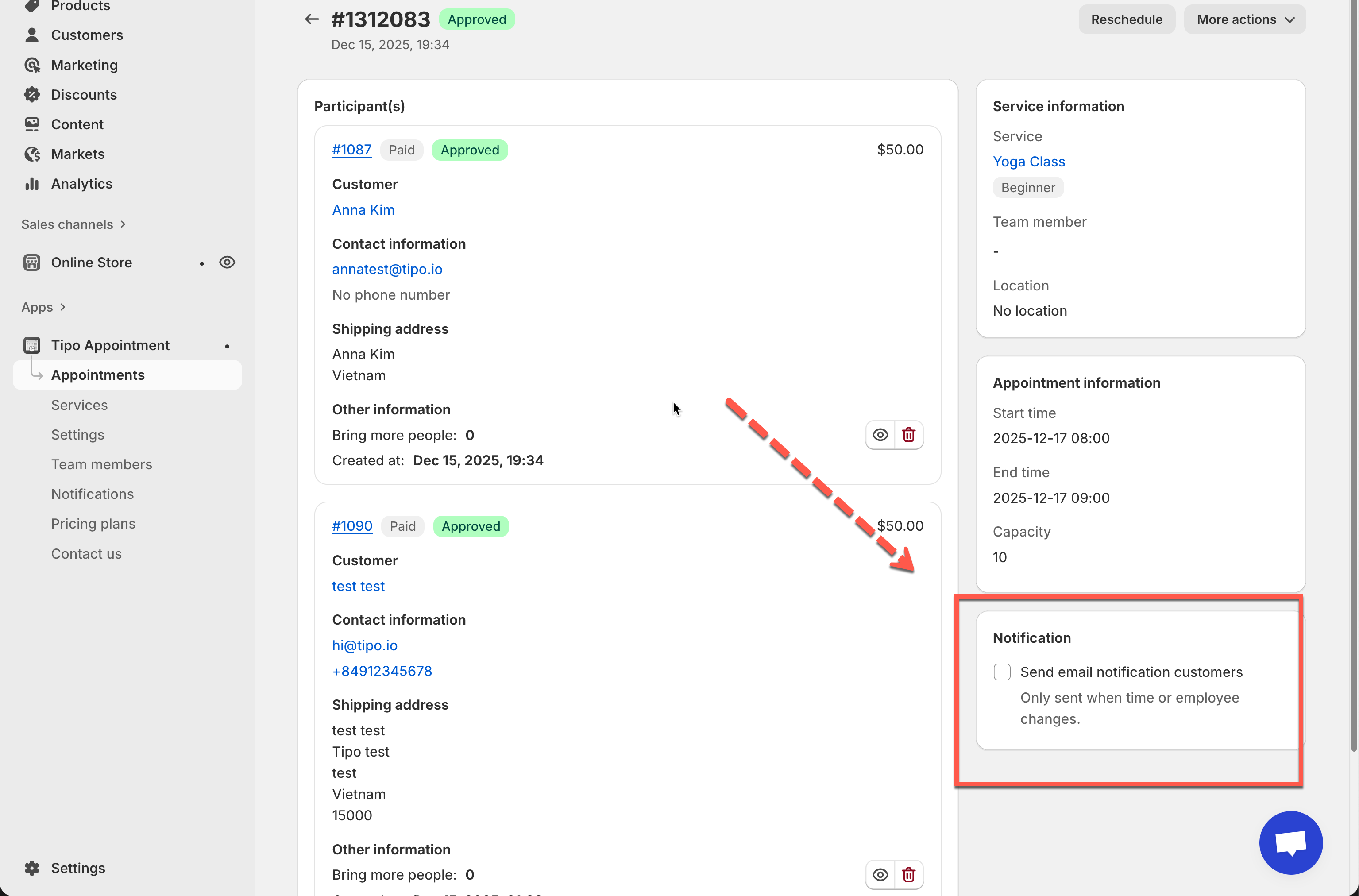
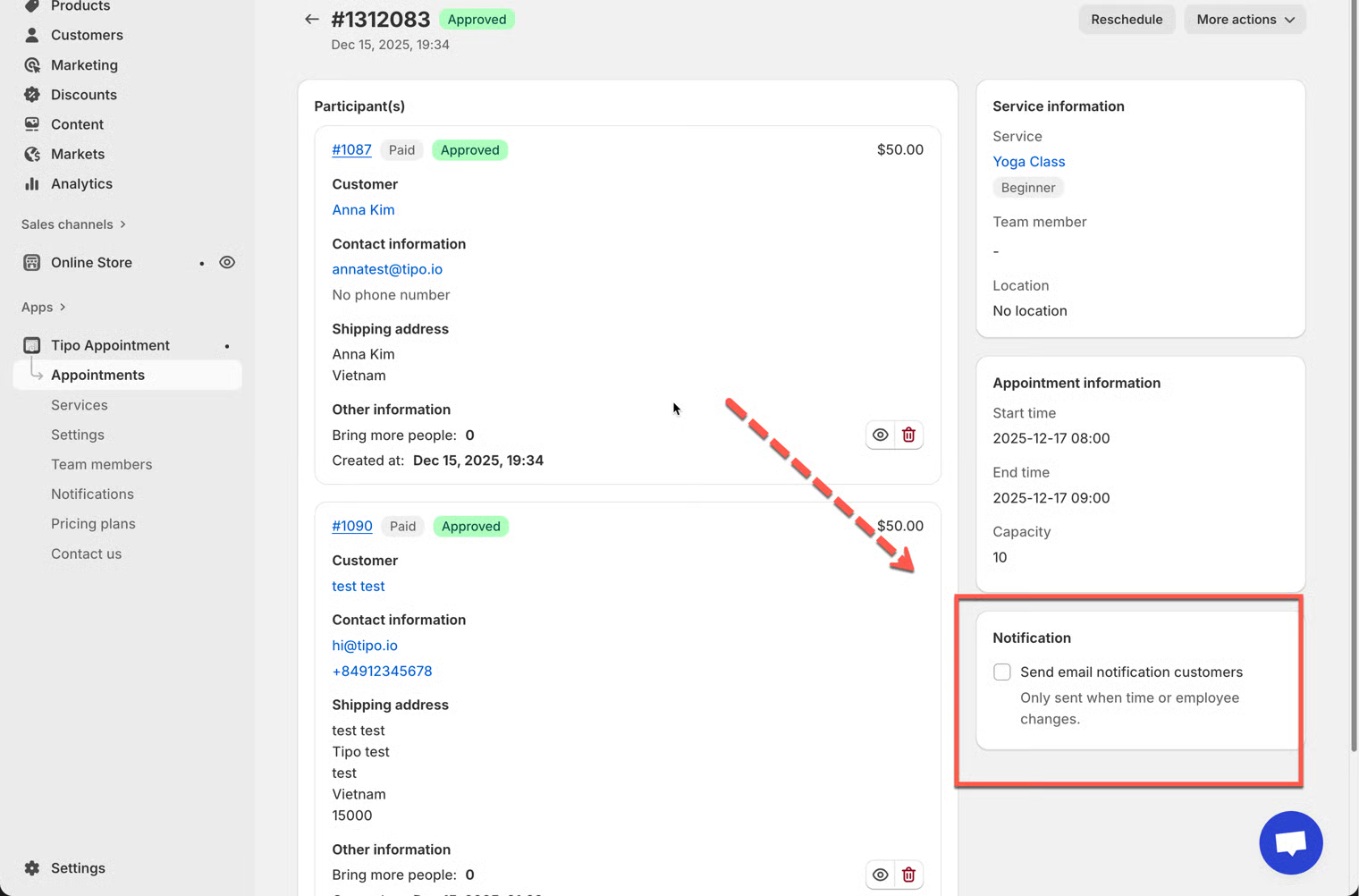
2. The **Send email notification customers** checkbox must be checked when you reschedule an appointment
If either step is missing, **no email will be sent**.
***
### ⚙️ Step 1: Enable “Booking rescheduled” email
Before rescheduling any appointment, make sure the email template is turned on.
#### How to set
1. Go to the app > go to **Notifications > o**pen the **Customer** tab
2. Make sure **Booking rescheduled** is checked
3. Edit email content as you want
4. Click **Save** after making changes.
***
### 📝 Step 2: Reschedule an appointment
1\. Open the app > click **Appointments** > click on the appointment you want
Choose a view:
* **Month** view = quick overview
* **List** view = easier filtering/searching
1. Select the appointment to open **Appointment details**
2. Tick on **Send email notification customers** checkbox (optional)
3. Click **Reschedule** (top-right)
* In the popup:
* Select **Team member** (if available)
* Pick a **new date**
* Pick a **new time** in **Date range**
* Click **Reschedule** to confirm
***
### 🌟 Best practices
* Turn on customer notifications when:
* you change the time/date
* you assign a different team member
* the customer needs to prepare (location, online link, etc.)
* Leave it off when:
* you’re making internal adjustments (testing, admin cleanup)
* the change doesn’t affect the customer experience
***
**🙋 Still need support?**
If you still need help, please feel free to contact us at . We’ll be happy to assist you further.