
Block off specific dates or times
Use this feature to temporarily make a service unavailable, even if staff normally works during that time.
This is useful for holidays, vacations, sick days, private events, or last-minute changes.
ℹ️ What does “Block off” mean?
Section titled “ℹ️ What does “Block off” mean?”Blocking off time tells the system:
❌ “Do NOT allow bookings during this period”
Even if:
- the staff is available
- the service is active
- overlapping time slots are enabled
Blocked time always takes priority.
ℹ️ When should you block off time?
Section titled “ℹ️ When should you block off time?”Common examples:
- Holidays (Christmas, New Year)
- Staff vacation
- Sick leave
- Training or internal meetings
- One-off closures or emergencies
📌 How blocking works
Section titled “📌 How blocking works ”Availability is calculated in this order:
1️⃣ Staff working hours
2️⃣ Service duration & rules
3️⃣ Booking date range
4️⃣ Blocked dates/times (highest priority)
⇒ If time is blocked → customers will NOT see those slots
⚙️ How to block off dates or times
Section titled “⚙️ How to block off dates or times”There are 2 ways to block off time on the booking app.
- Use Block specific dates setting
- Set up employee availability
Option 1: Use Block specific dates setting
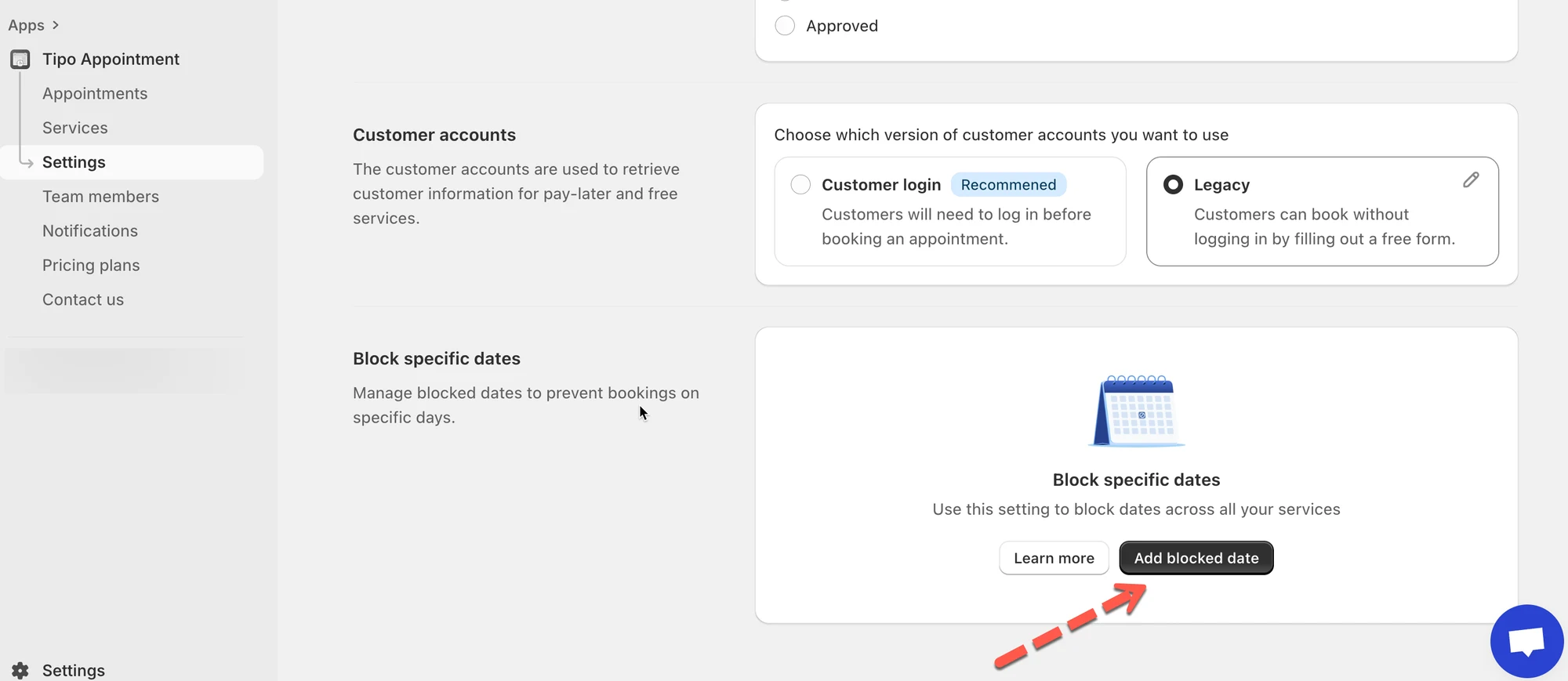
Section titled “Option 1: Use Block specific dates setting”1. Open the app > click Settings > srcoll down to Block specific dates > click Add blocked date
- Set the time range you want to block, select services to apply the blocked date
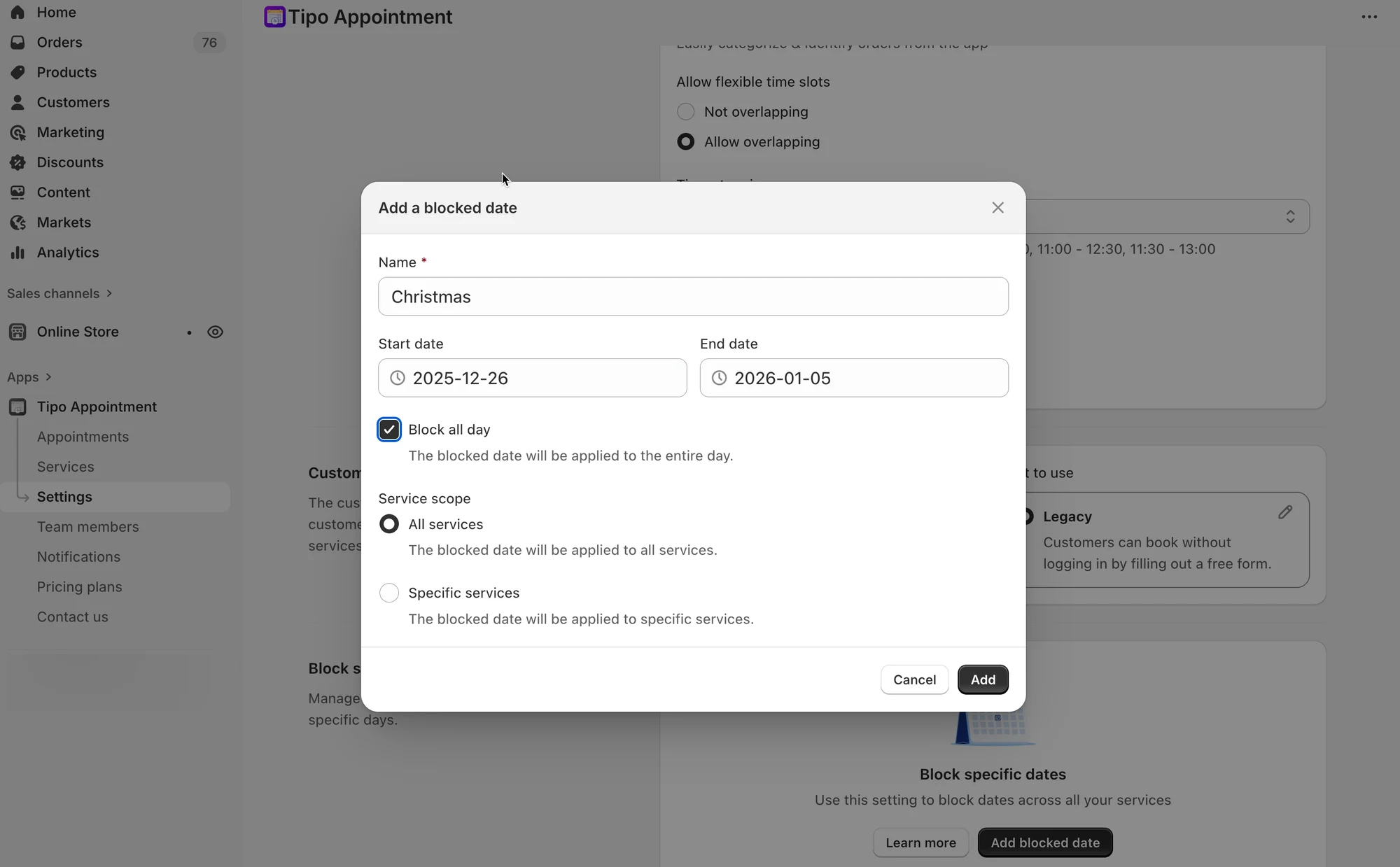
- Click Save
Example: What customers will see
Section titled “Example: What customers will see”Setup
- Staff A works: 8:00 – 16:00
- Service duration: 1 hour
- Blocked: Dec 22–30 (holiday)
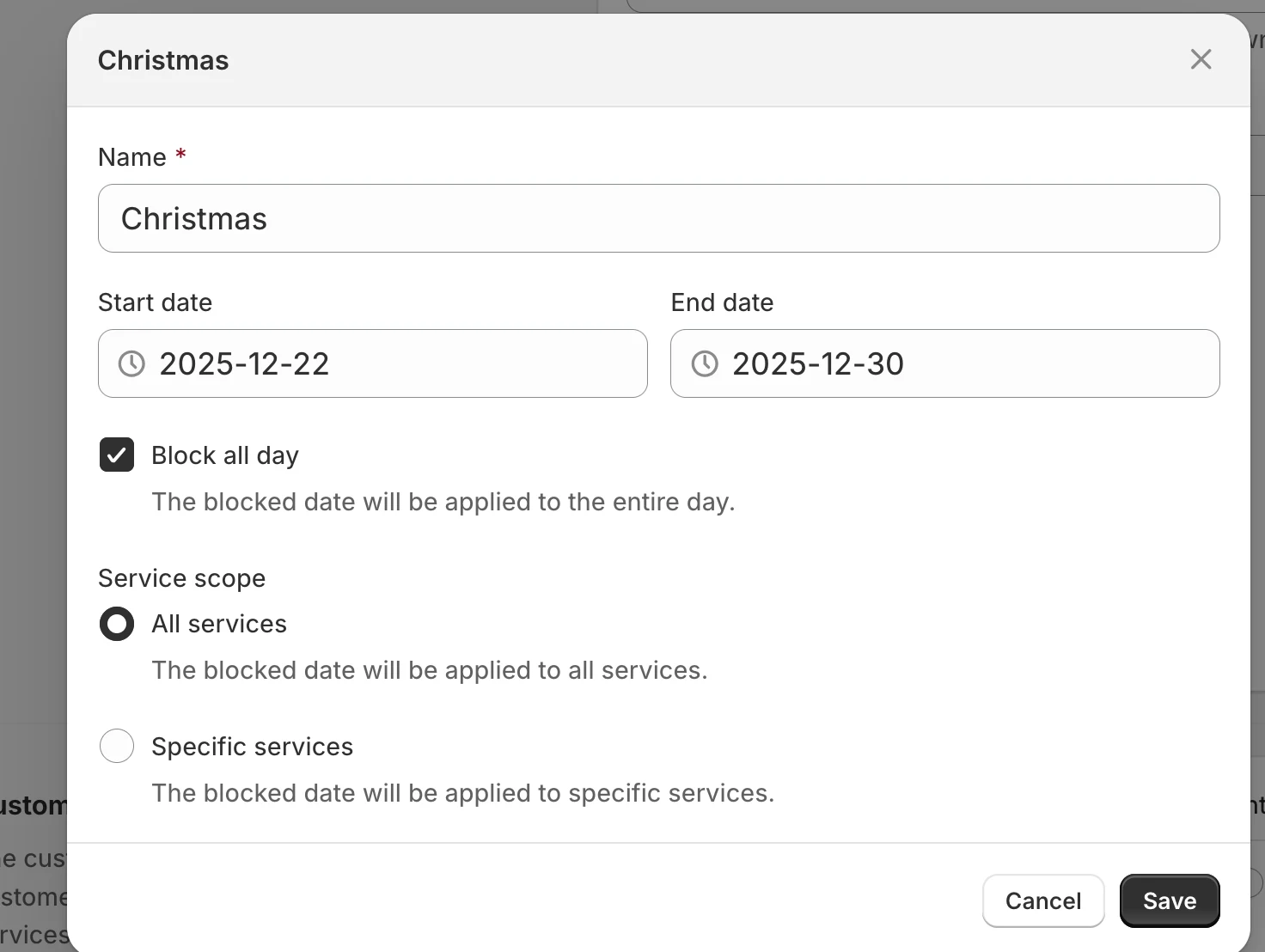
Result
- ❌ No slots shown between Dec 22–30
- ✅ Slots resume on Dec 31
Customers never see blocked dates on the booking popup.
Notes:
⚠️ Blocking time does not cancel existing bookings
(You’ll need to reschedule or cancel them manually.)
⚠️ Blocked time overrides:
- overlapping time slots
- booking date range
- staff availability
Option 2: Set up employee availability
Section titled “Option 2: Set up employee availability”The available time of the service depends on available time of the team member.
If you want to edit the available time of a specific service. you need to
- create a team member
- edit availability time of team member to block off certain dates or time
- assign team member to the service
Steps to manage
Section titled “Steps to manage ”1. Open the app > click Services on the left menu > open the service you want to edit
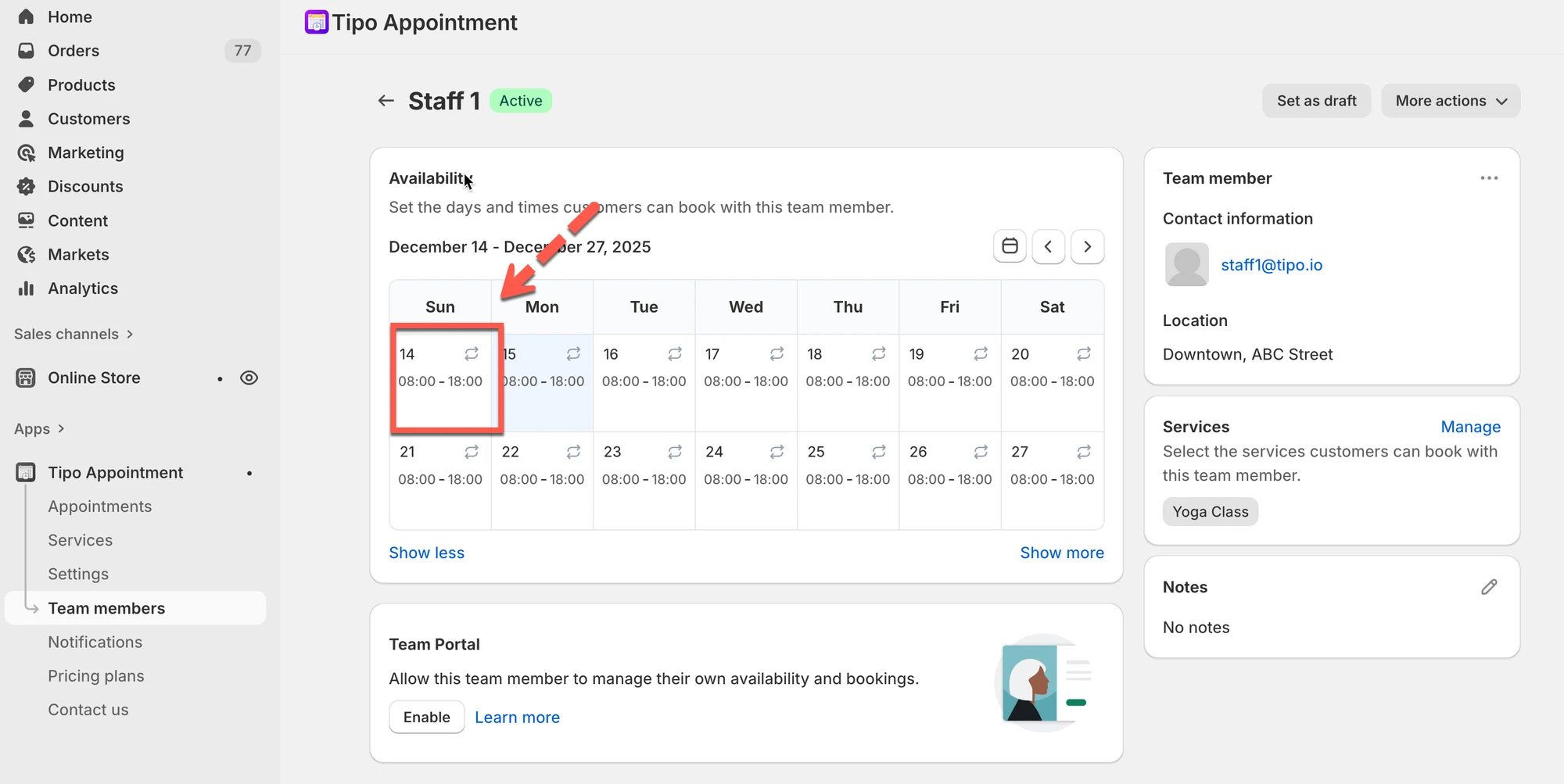
2. In the service detail > Availability > click on team member name or create a new team member > it directs to team member detail
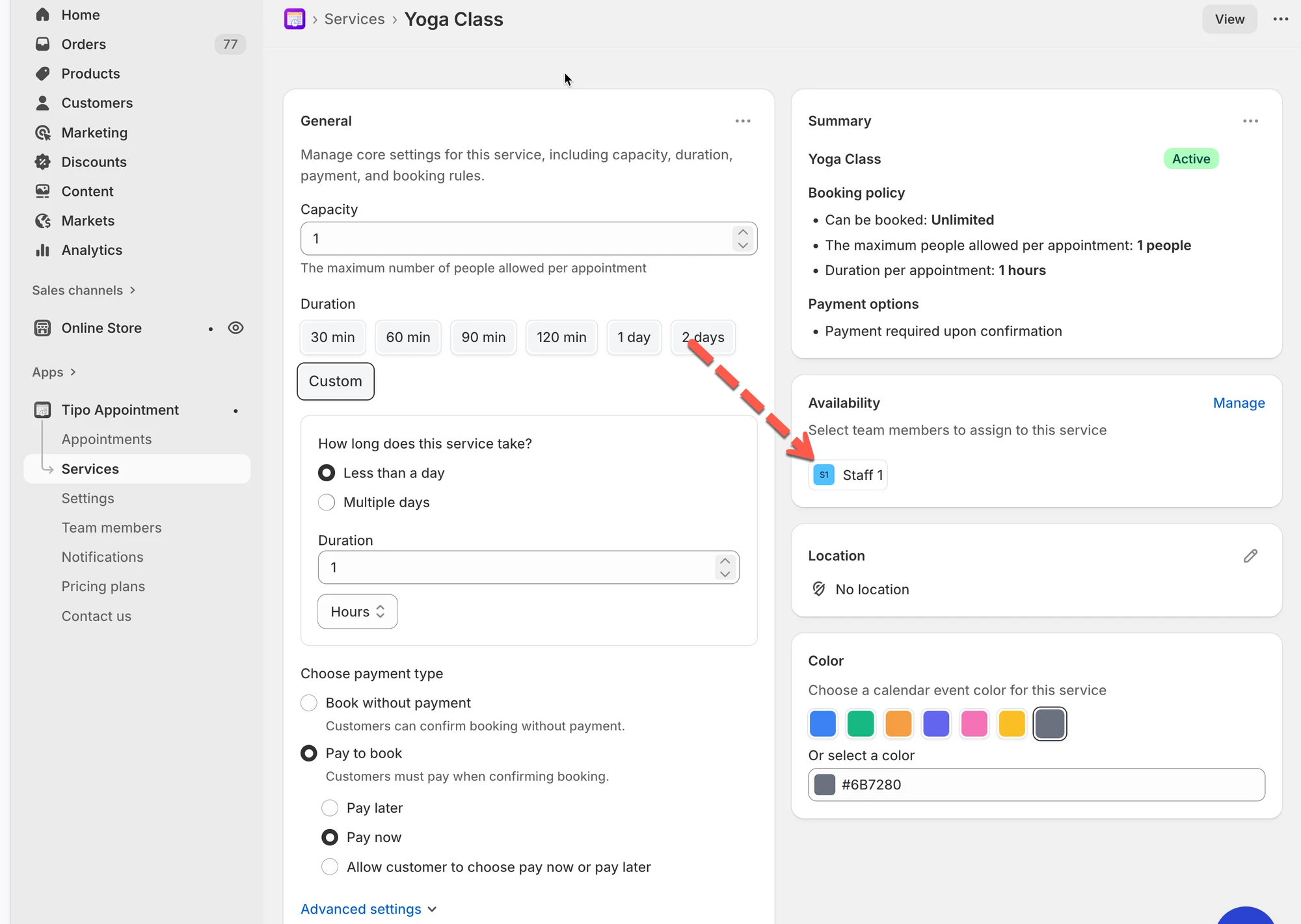
Another approach: Open the app > click Team Members > open the team member detail you want
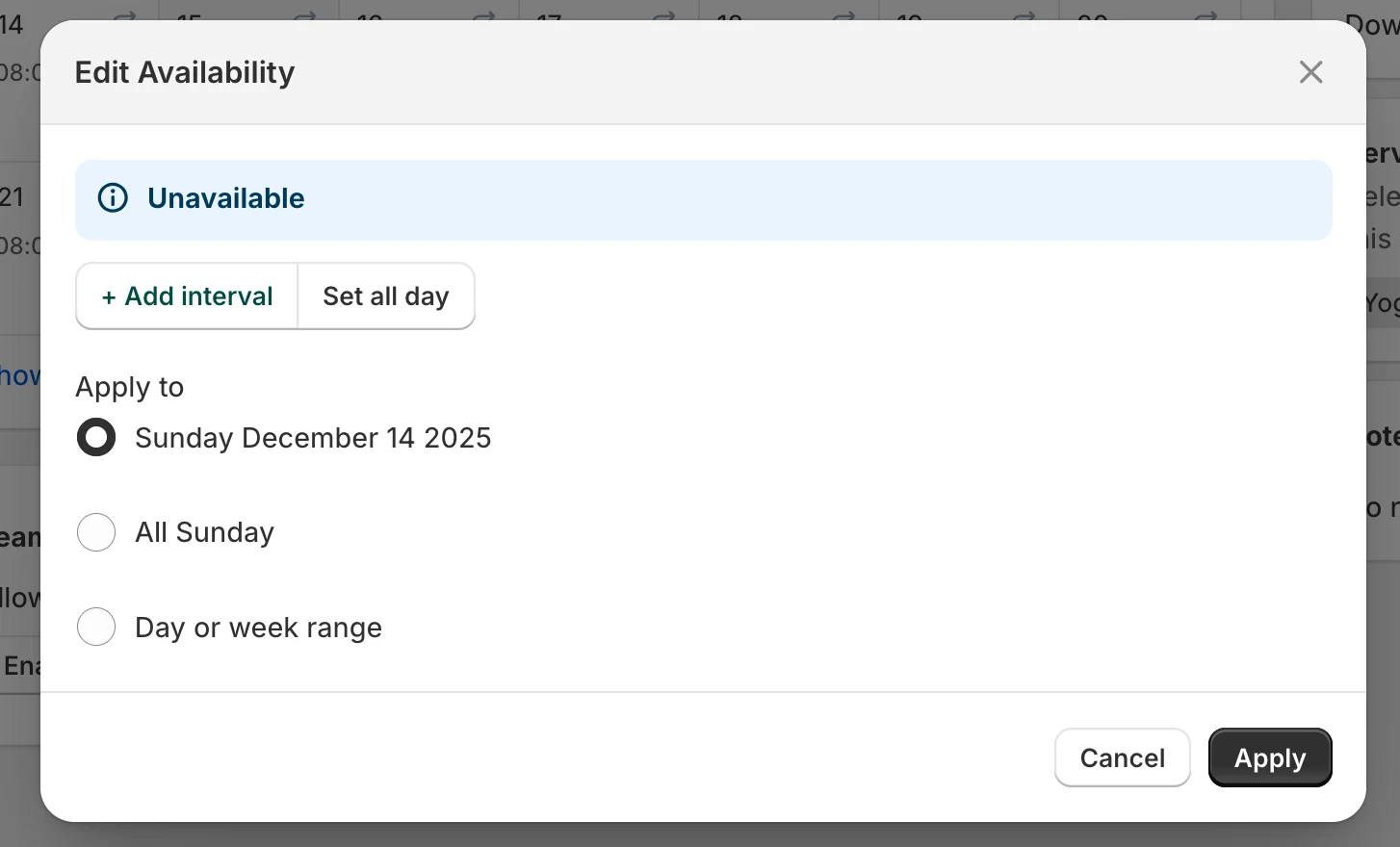
3. In Availability section, click on a date you want to edit > The Edit Availability popup will appear > click Unavailable
4. Select date(s) to apply the time
- click Sunday Dec 14, 2025, to apply the time to a specific date only
- or click All Sunday to all time to all sundays
- or click Day or week range > select multiple days you want to be unavailable
5. click Save
The blocked time will immediately disappear from customer booking options
What Customers Will See
Section titled “What Customers Will See”When a time is blocked:
- The time slot will not appear in the booking popup
- Customers cannot select or book during unavailable periods
- Only valid, available slots are shown
Example:
Section titled “Example:”Stylist “Maria” is unavailable on March 8, 2026 because of a seminar.
- In Maria’s availability: select March 8 → mark as Unavailable (all day).
- Only Maria is unavailable; other team members remain bookable.
🙋 Still need support?
If you still need help, please feel free to contact us at hi@tipo.io. We’ll be happy to assist you further.