> For the complete documentation index, see [llms.txt](https://docs.tipo.io/llms.txt). Markdown versions of documentation pages are available by appending `.md` to page URLs; this page is available as [Markdown](https://docs.tipo.io/tipo-appointment-booking/mail-notification/customize-email-content.md).
# Customize email content
You can customize your email Subject and Content, and insert variables (placeholders) that automatically show booking/customer/service info in real emails.
### 🛠️ Steps to edit email template
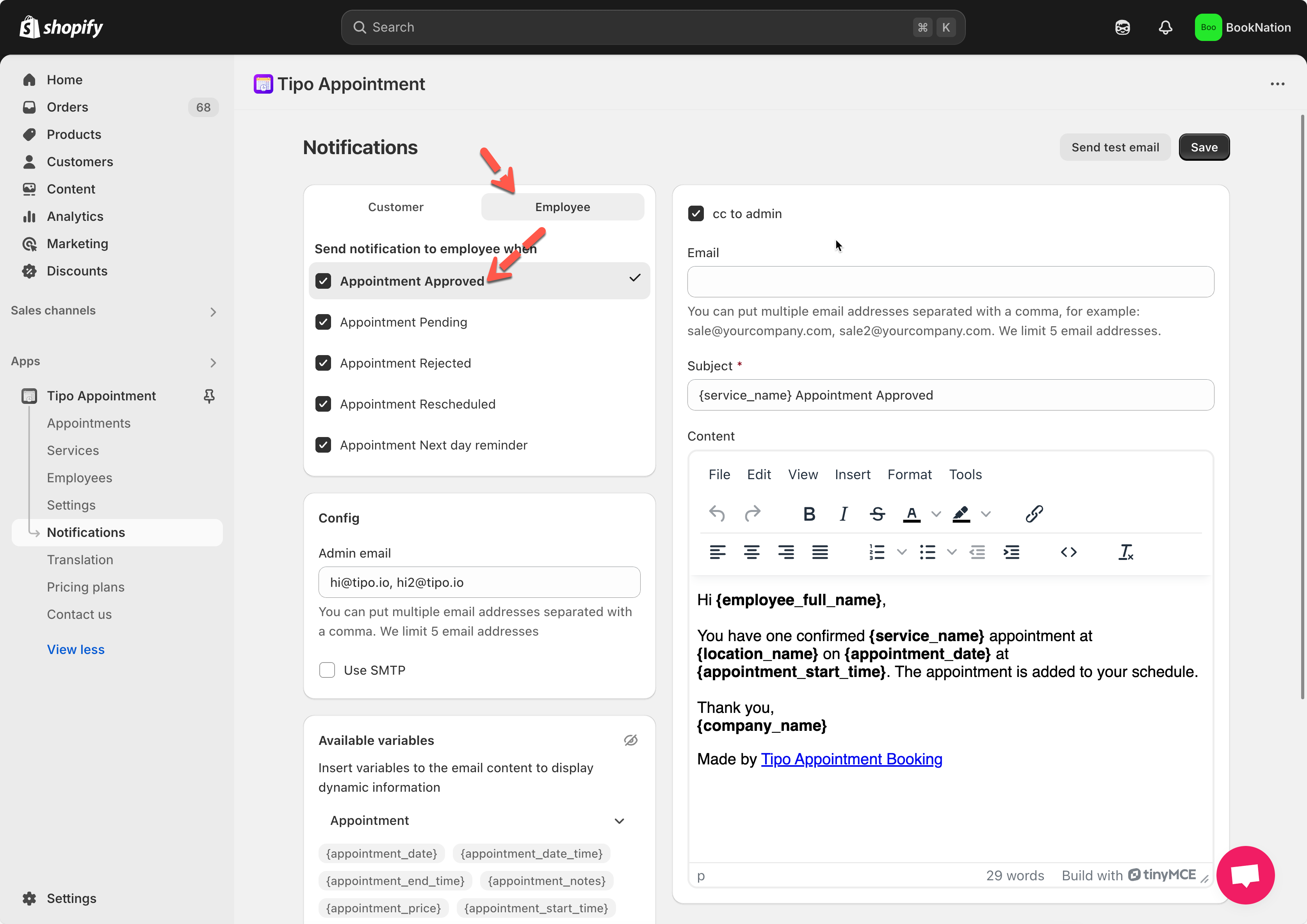
1. Open the app > click **Notifications**
2. Select **Customer** or **Team member** or **Merchant**
3. Click the email template you want to edit
3. Inside the template editor:
* Update **Subject**
* Update **Content** (email body)
4. Click **Save**
***
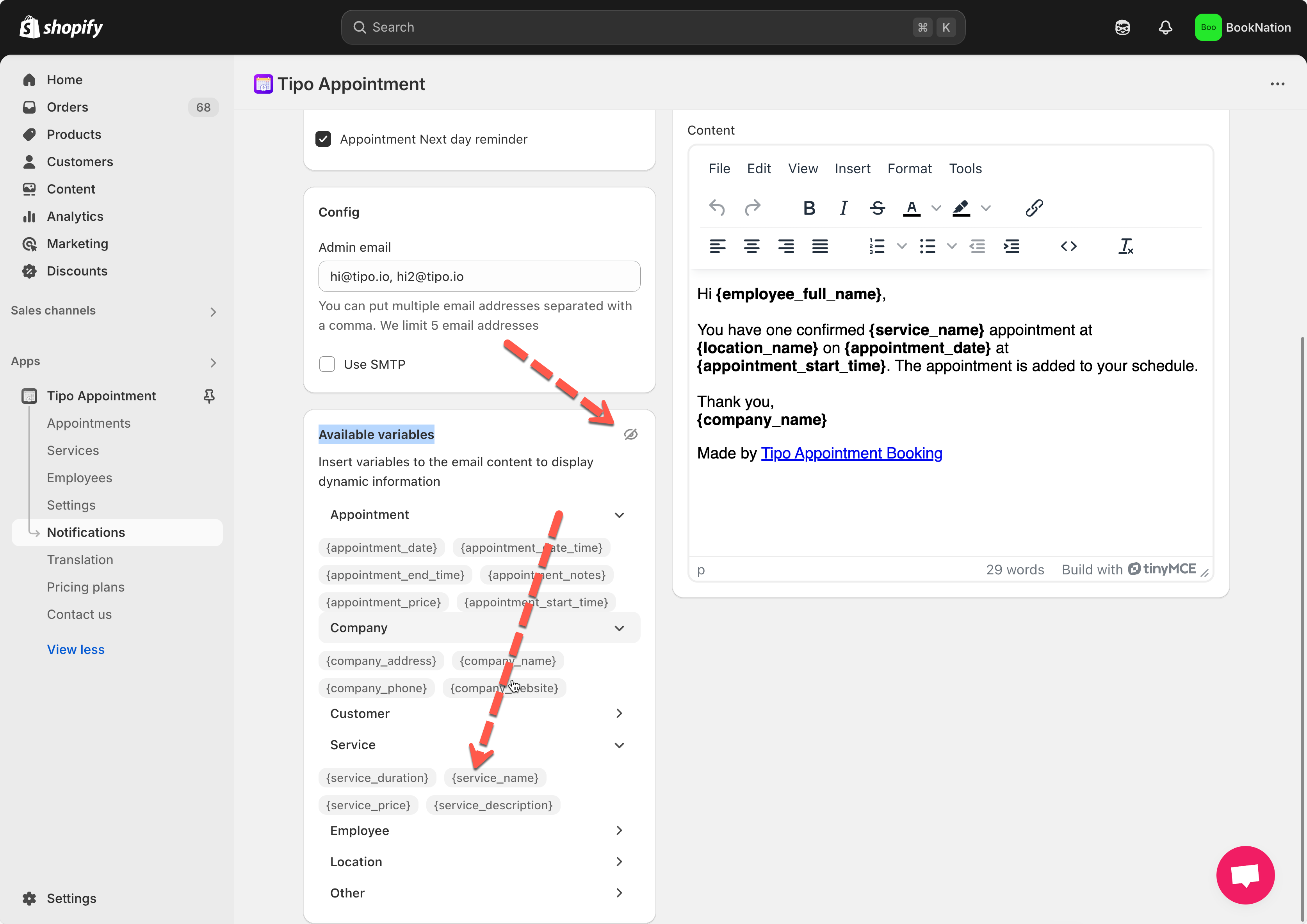
### 🧩 Insert variables (dynamic data)
Variables let you automatically show **real booking information** in your emails, such as the customer name, service name, date, time, and location.
When the email is sent, Tipo replaces each variable with the **actual data from the booking**.
#### 📌 What is a variable?
A variable is a placeholder wrapped in double curly braces, for example:
* `{{ customer.name }}`
* `{{ variant.name }}`
* `{{ booking.start_at }}`
⇒ Customers and staff will never see the variable code, they only see the final value.
#### ➕ How to insert a variable
* Copy the variable (example: `{{ booking.start_time }}`)
* Paste it into the **Subject** or **Content**
***
#### ✉️ Example: Customer confirmation email
**Subject**
```
Your booking for {{ variant.name }} is confirmed
```
**Email content**
```
Hi {{ customer.name }},
Your booking has been confirmed. Here are the details:
Service: {{ variant.name }}
Date: {{ booking.start_date }}
Time: {{ booking.start_time }} – {{ booking.end_time }}
Location: {{ booking.location }}
We look forward to seeing you!
```
📌 **Result the customer sees:**
Hi Anna,\
Your booking for Yoga Class is confirmed\
Date: Dec 17, 2025\
Time: 08:00 – 09:00\
Location: Hanoi Studio
***
**🙋 Still need support?**
If you still need help, please feel free to contact us at . We’ll be happy to assist you further.