> For the complete documentation index, see [llms.txt](https://docs.tipo.io/llms.txt). Markdown versions of documentation pages are available by appending `.md` to page URLs; this page is available as [Markdown](https://docs.tipo.io/tipo-appointment-booking/mail-notification/how-email-notifications-work.md).
# How email notifications work
Tipo Appointment can automatically send emails when a booking is created or updated. This guide explains **who receives emails, when they’re sent, and how to customize them.**
### ℹ️ The basics
Email notifications in Tipo are based on 4 things:
1. **Recipient** — Who should get the email (Customer / Merchant / Team member)
2. **Trigger** — What event sends the email (Approved, Canceled, Reminder, etc.)
3. **Content** — Subject + email body (you can edit both)
4. **Provider** — How the email is delivered (Tipo email or your SMTP)
***
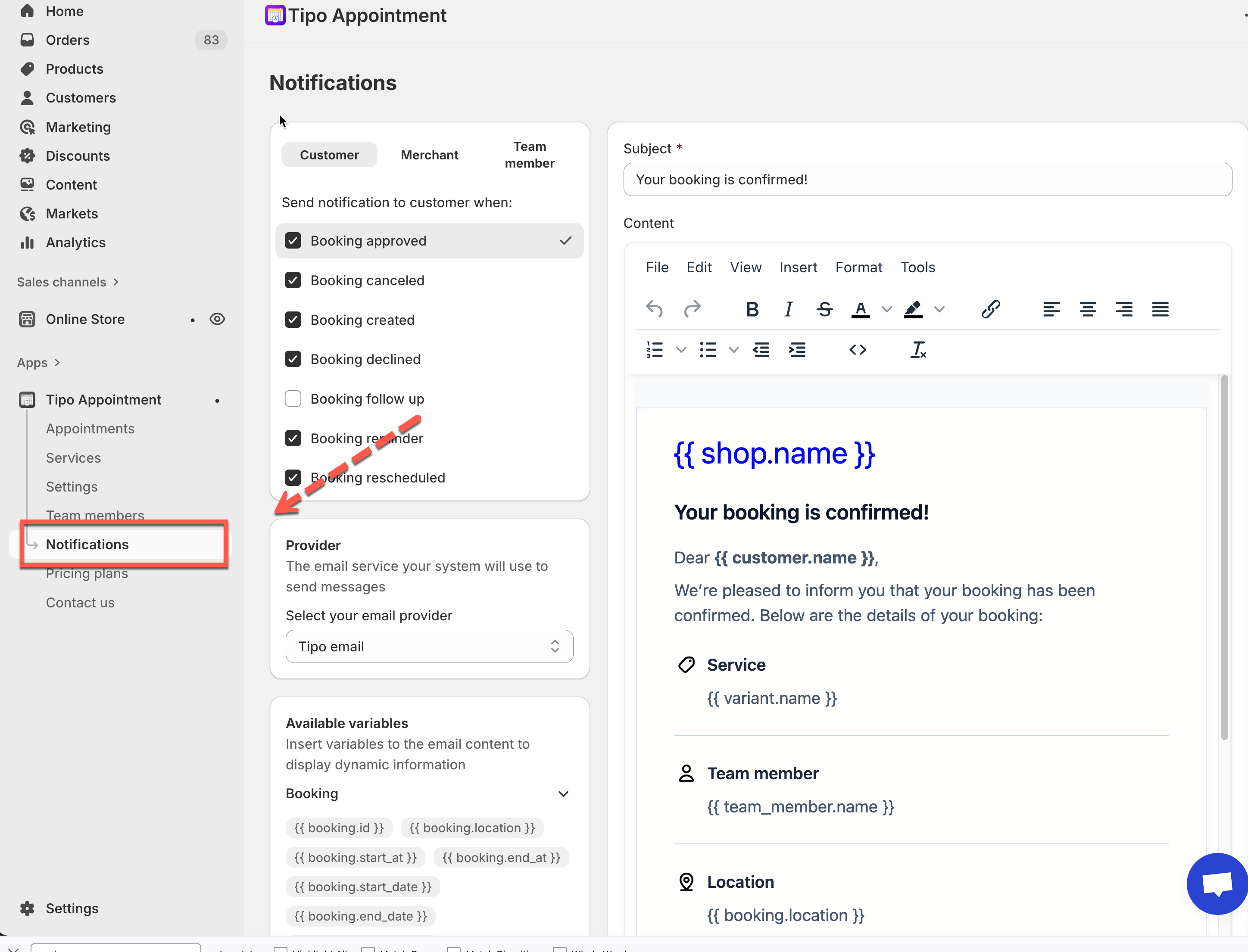
### 📍 Where to manage email notifications
Open the app > click **Notifications**
***
### 👥 Who can receive emails
At the top of the **Notifications** page, you’ll see 3 tabs:
* **Customer:** emails sent to the person who books
* **Merchant:** emails sent to the store/admin email
* **Team member:** emails sent to the assigned staff/provider (if your booking uses team members)
Tip: If you want different wording for customers vs staff, switch tabs and edit each template separately.
***
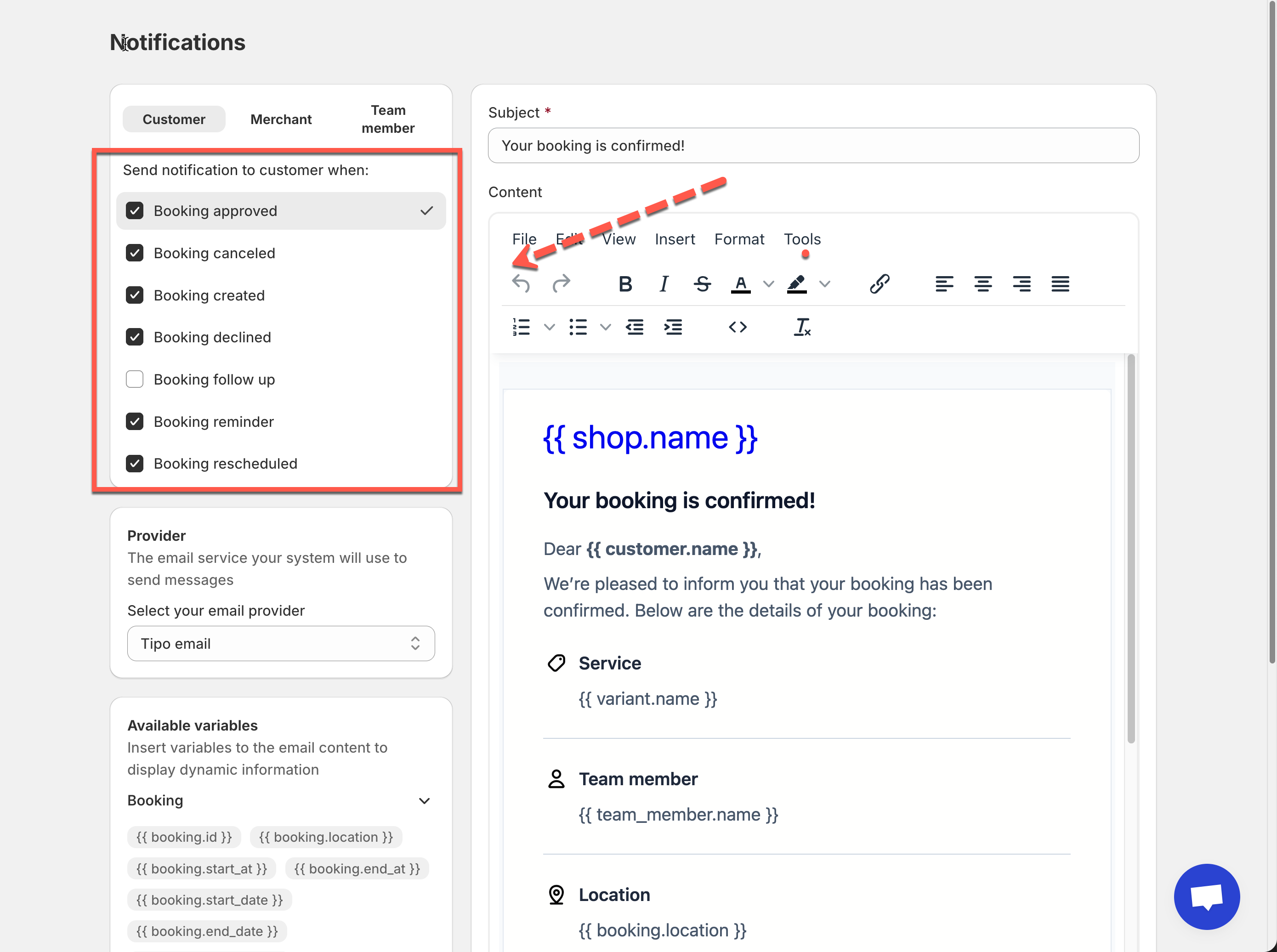
### ⚡ What triggers an email
Inside each tab, you can turn on/off notifications for events like:
* **Booking created**
* **Booking approved**
* **Booking canceled**
* **Booking declined**
* **Booking reminder**
* **Booking rescheduled**
If a checkbox is enabled, Tipo will send that email when the event happens.\
If it’s disabled, no email will be sent for that event.
***
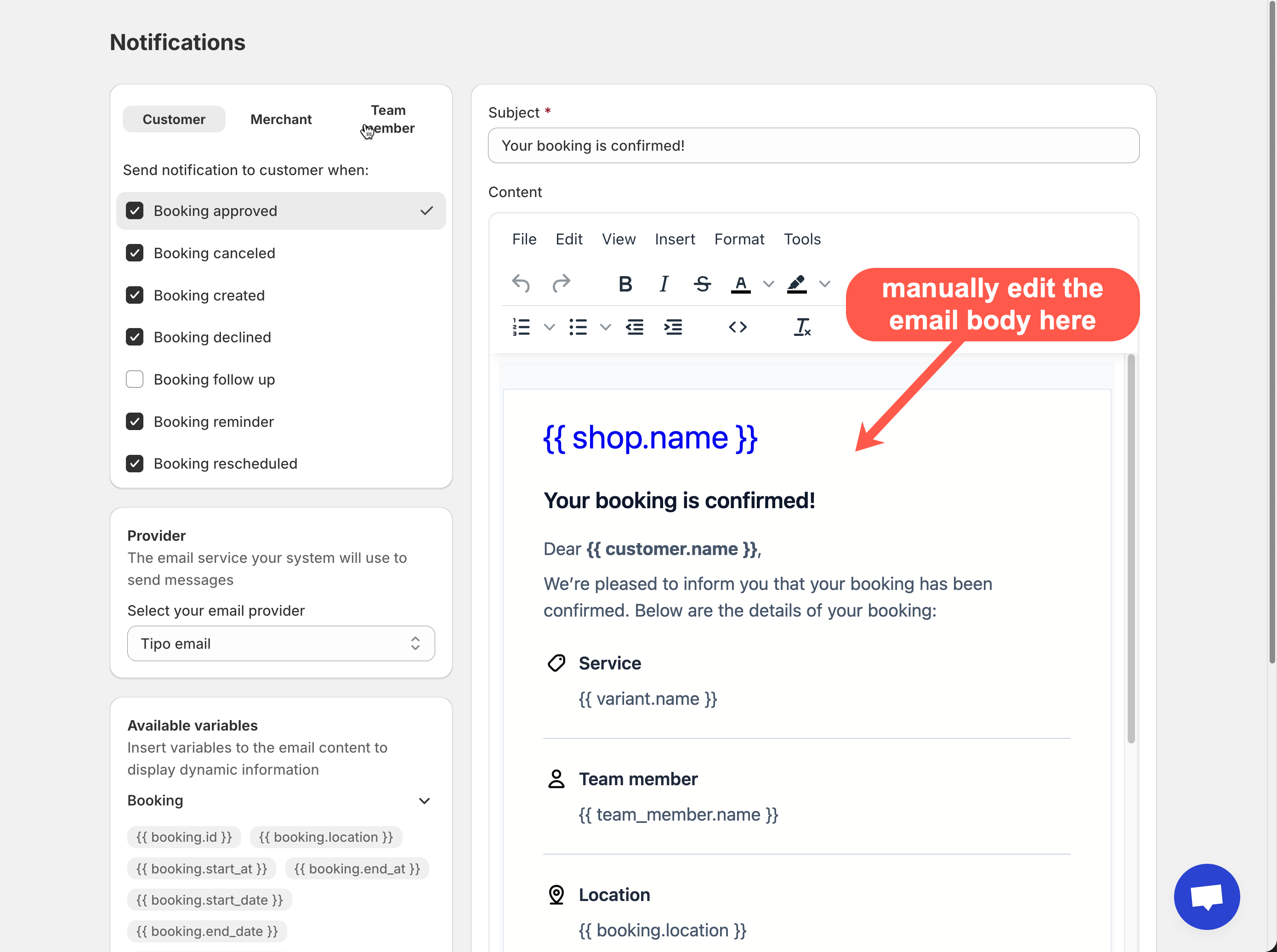
### ✍️ What the email looks like
For each trigger, you can customize:
* **Subject** (the email title)
* **Content** (the email body)
You can also insert **variables** (placeholders) like:
* `{{ customer.name }}`
* `{{ booking.start_at }}`
* `{{ variant.name }}`
Variables automatically pull real booking data when the email is sent.
On the left side, look for **Available variables** to copy/insert into your template.
***
### 🚚 How emails are delivered (Email Provider)
In the Notifications page, you’ll also see **Provider** settings.
* **Tipo email** (default): quickest setup, works for most stores.
Sender name: store name
Sender email address: ****
* **SMTP** (optional): use your own email server if you need a custom sending domain, stricter control, or deliverability rules
***
### ✅ Typical setup
For most stores, start with:
1. **Customer tab**
* Enable: Booking created / approved / canceled
* Enable: Booking reminder (if you use reminders)
2. **Team member tab**
* Enable: Booking created (so staff know when they get a new booking)
3. **Merchant tab**
* Enable: Booking created / canceled (so you can monitor changes)
Then customize subject/content after you confirm emails are sending correctly.
***
### 🧩 Related email guides (suggested next reads)
* [Customer emails](https://docs.tipo.io/tipo-appointment-booking/~/revisions/rcdVRgVNJz9Wp06kuZfo/mail-notification/customer-emails)
* [Team member emails](https://docs.tipo.io/tipo-appointment-booking/~/revisions/rcdVRgVNJz9Wp06kuZfo/mail-notification/team-member-emails)
* [Admin (merchant) emails](https://docs.tipo.io/tipo-appointment-booking/~/revisions/rcdVRgVNJz9Wp06kuZfo/mail-notification/admin-emails)
* [Customize email content](https://docs.tipo.io/tipo-appointment-booking/~/revisions/rcdVRgVNJz9Wp06kuZfo/mail-notification/customize-email-content)
* [Email provider (SMTP)](https://docs.tipo.io/tipo-appointment-booking/~/revisions/rcdVRgVNJz9Wp06kuZfo/mail-notification/email-provider-smtp)
***
**🙋 Still need support?**
If you still need help, please feel free to contact us at . We’ll be happy to assist you further.