> For the complete documentation index, see [llms.txt](https://docs.tipo.io/llms.txt). Markdown versions of documentation pages are available by appending `.md` to page URLs; this page is available as [Markdown](https://docs.tipo.io/tipo-appointment-booking/availability-team-members/managing-team-members.md).
# Managing Team Members
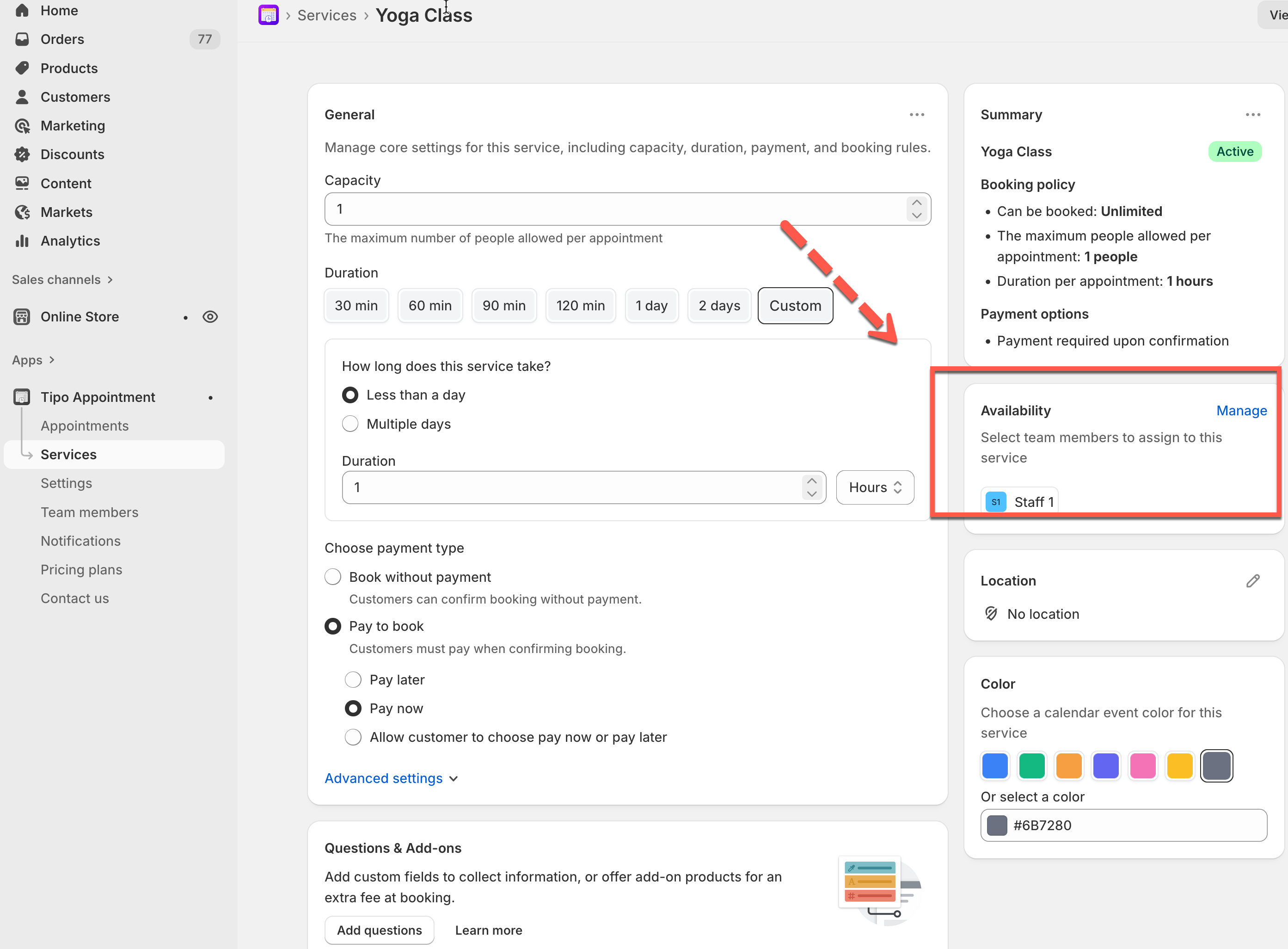
Add staff, set their schedules, and connect them to services so customers can book the right person at the right time.
### ℹ️ What Team Members are
**Team Members** are the staff who deliver your services. Each member can have:
* Their own **availability schedule**
* Assigned **services**
* Assigned **locations**
* Optional **Team Portal** access to view appointments
***
### ✅ Before you start
Make sure you already have:
* At least **1 service** created (example: “Yoga Class”)
* Your **store locations** set up in Shopify (if you take bookings by location)
***
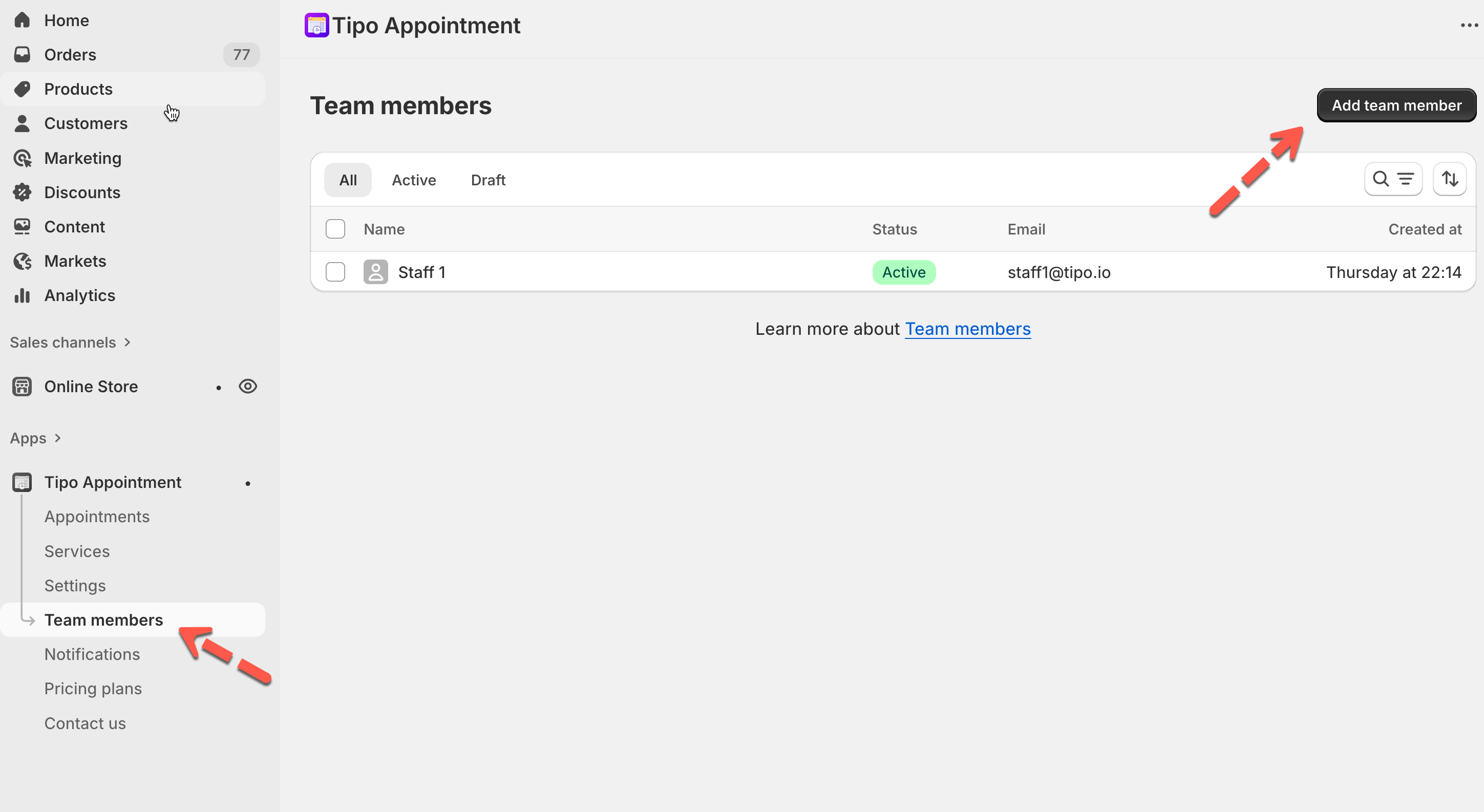
### 🔎 Open the Team Members page
1. Open the app > go to **Team members**
On the list, you’ll see:
* **Name** (display name customers may see)
* **Status** (Active or Draft)
* **Email** (notifications + login if Team Portal is enabled)
* **Created at** (when the member was added
**Tip:** Use **Draft** while you’re still setting availability/services. Switch to **Active** when ready to accept bookings.
***
### ➕ Add a new team member
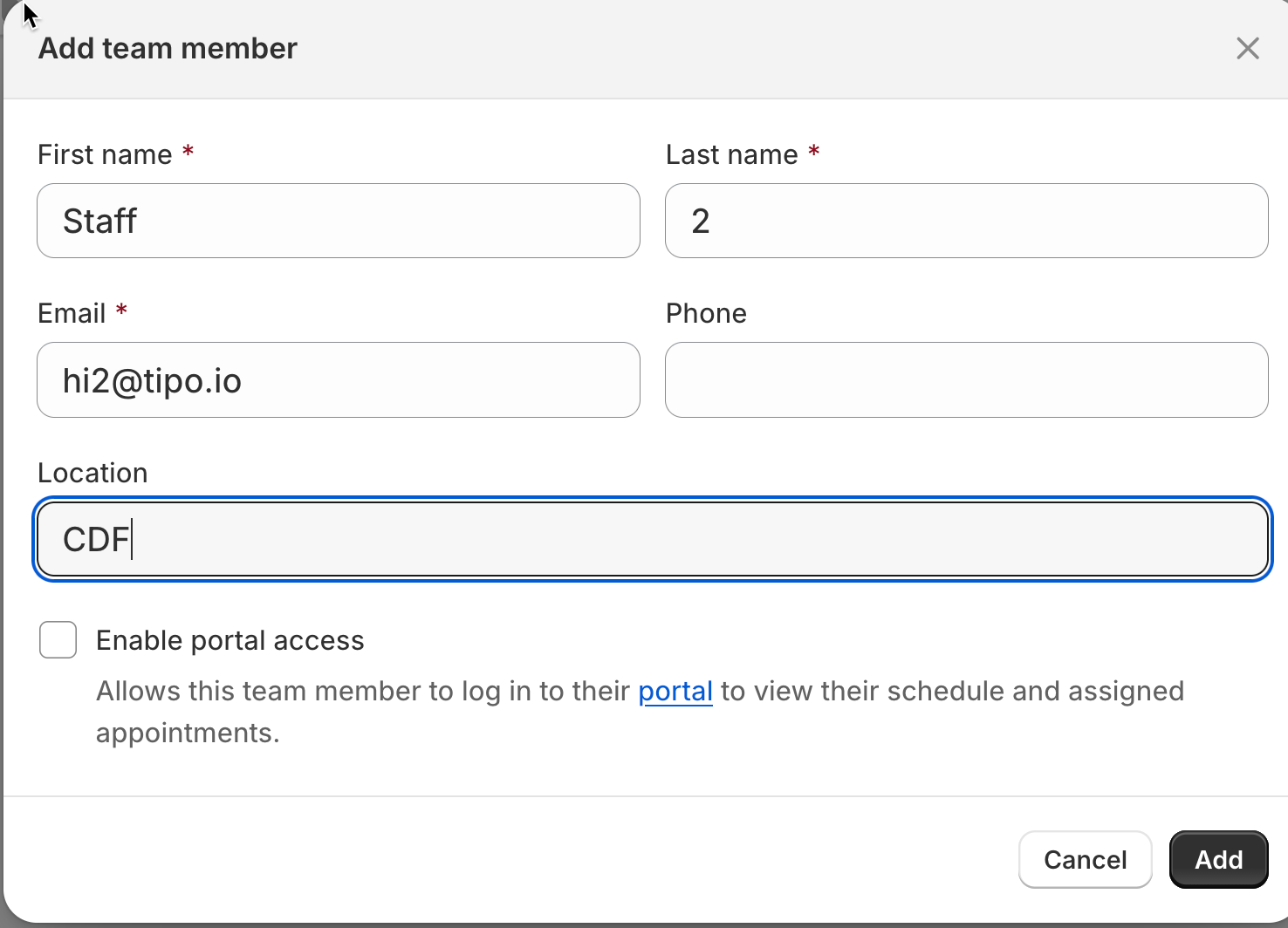
1. Open the app > click **Team Members** > Click **Add Team** **member** button
2. Add basic info (name, email, avatar if needed)
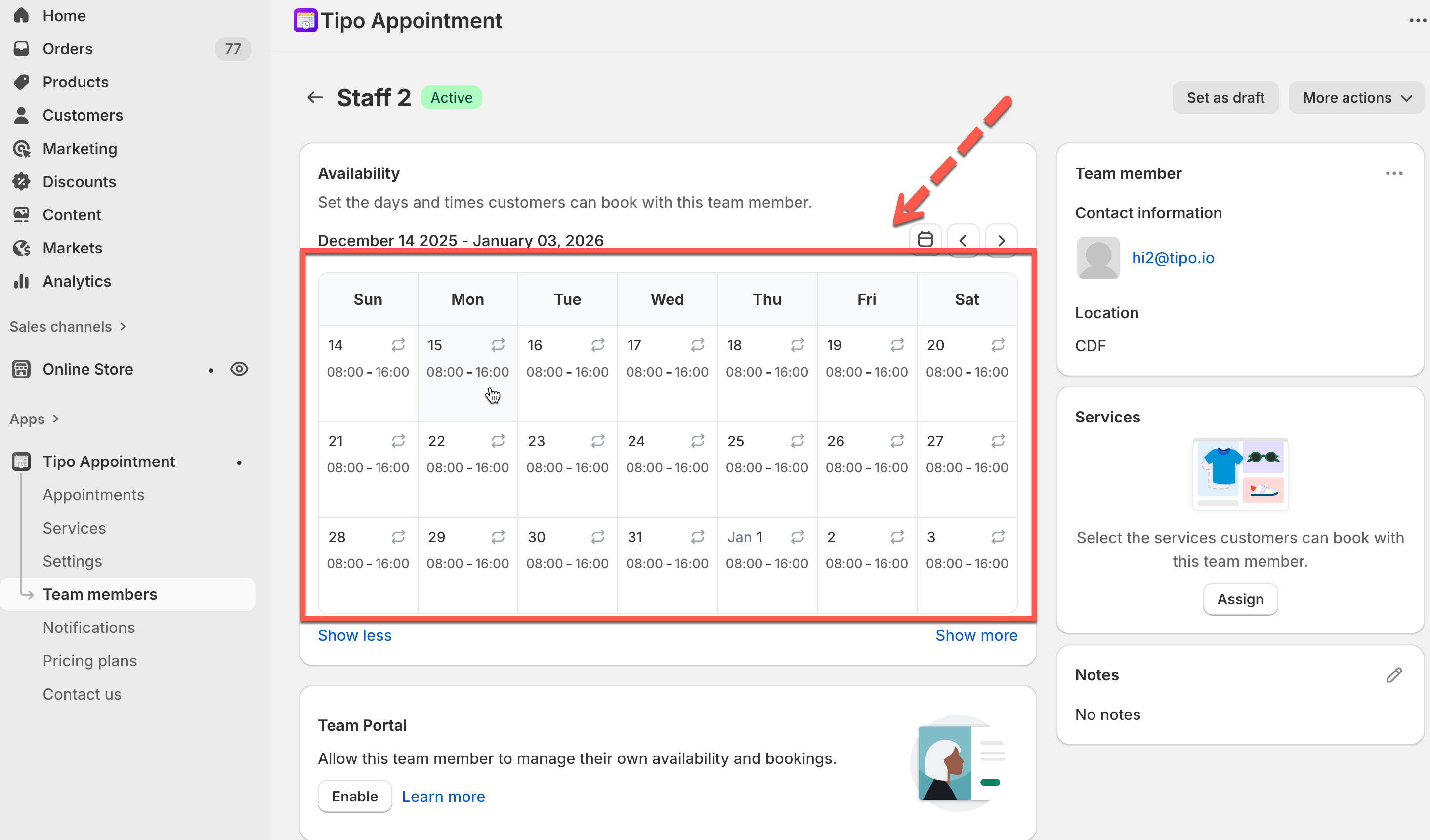
3. Set up the **Availability** and Day Offs of the team member. [Learn more](https://docs.tipo.io/tipo-appointment-booking/availability-team-members/set-availability-for-services)
4. In **Location** part, enter this employee to locations
5. In **Service** part, select the service(s) that this employee will serve
6. Enable Team Portal Access (Optional)
7. Click **Save**
***
### 🕒 Set up Availability of a team member
Availability controls which time slots customers will see.
Use the dedicated guide for full steps: [**Set Availability for services**](https://docs.tipo.io/tipo-appointment-booking/availability-team-members/set-availability-for-services).
***
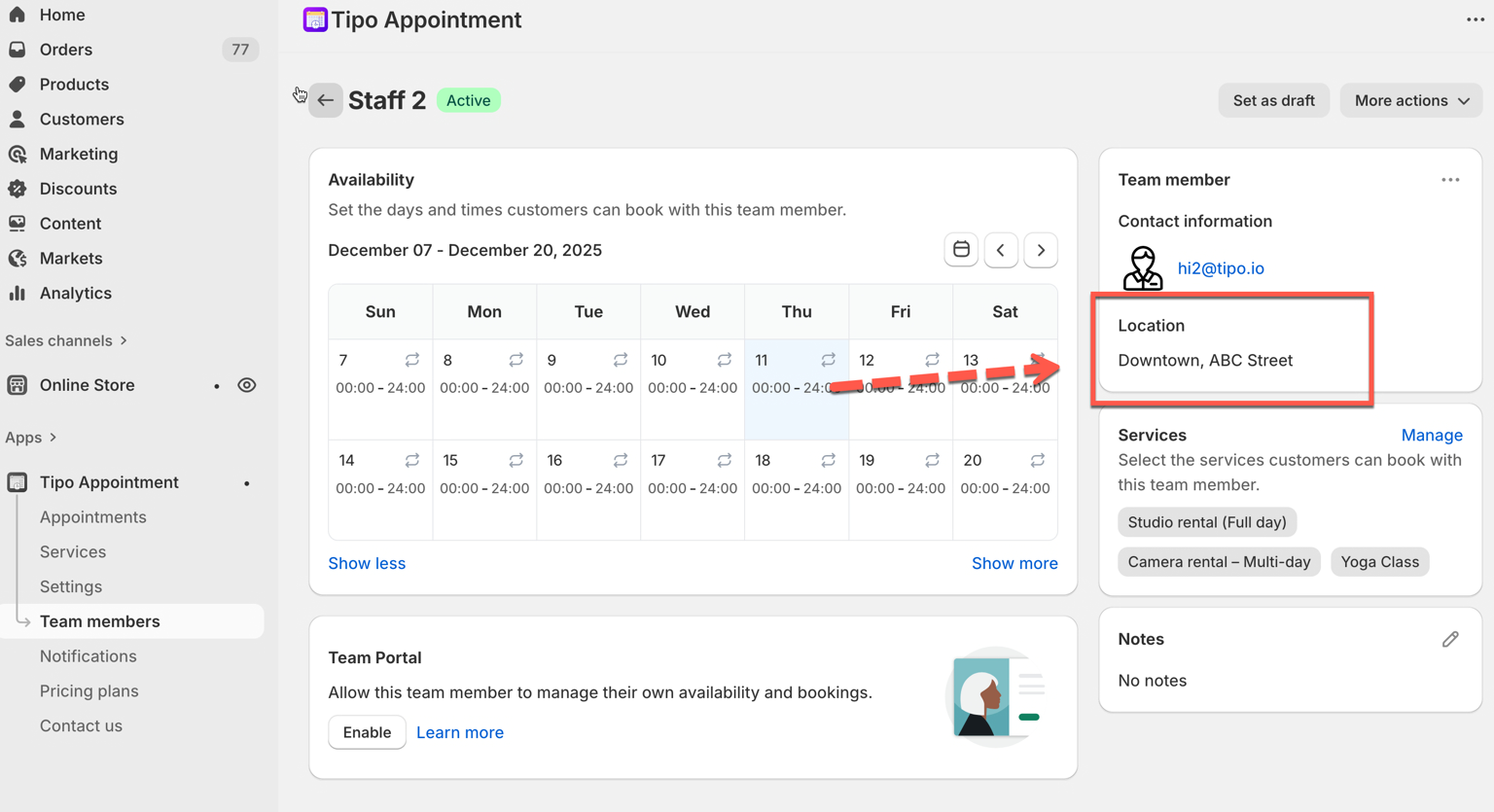
### 📍 Add locations to a team member
Use this when staff work at specific locations (e.g., Uptown, ABC street or Downtown, ABC street).
1\. Open the app > click **Team members** > open the a team member detail you want to edit
2\. In the **Location** field, enter the location detail
3\. Click **Save**
More detail [here](https://docs.tipo.io/tipo-appointment-booking/service-setup/assign-locations#using-multiple-locations)
***
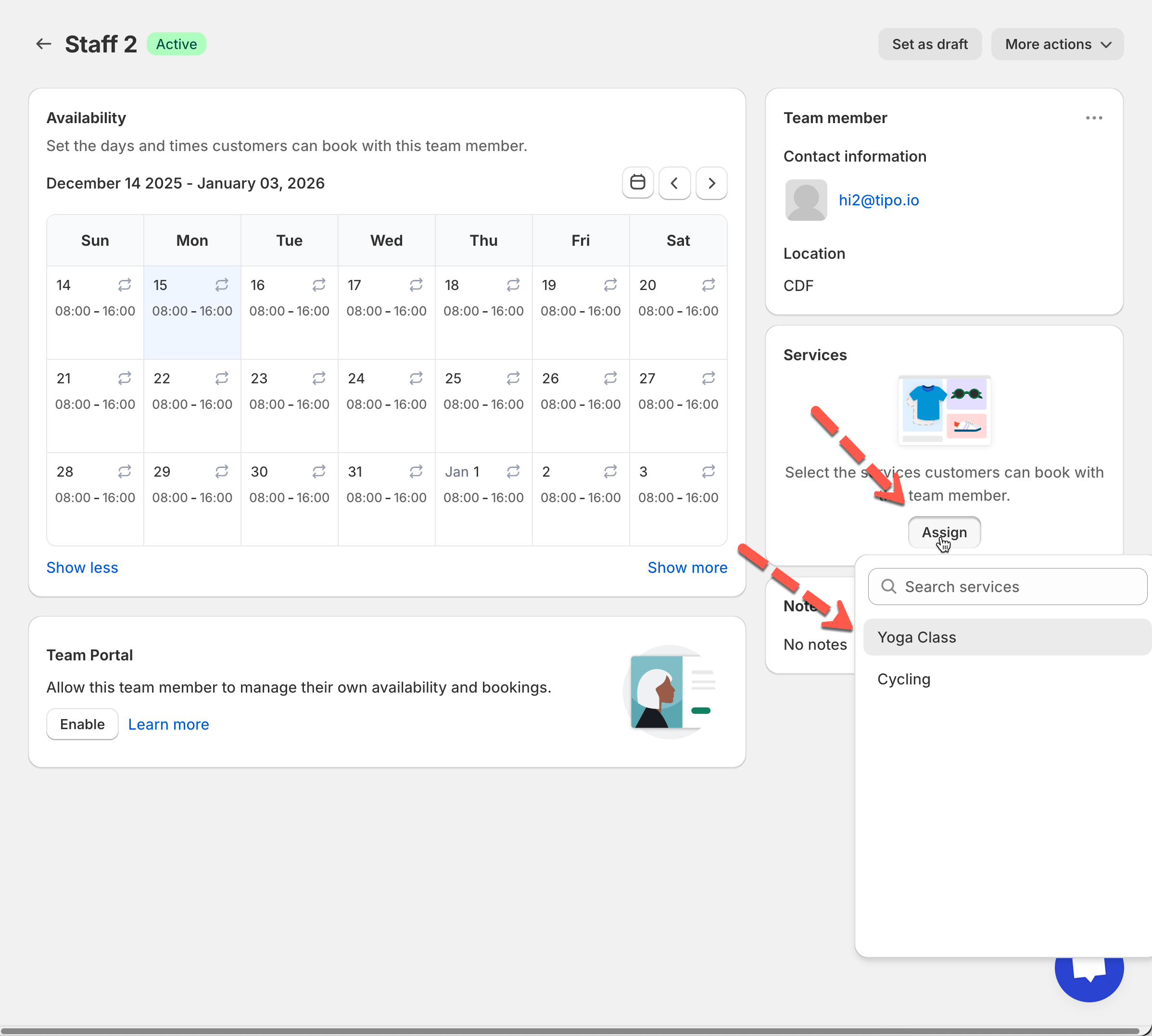
### 🧾 Assign services to a team member
Only assigned services can be booked with that staff member.
1\. Open the app > click **Team members** > open the employee detail you want to edit
2\. In **Service** section, select service(s) that the Team member will serve
3\. Click **Save**
***
### 🔐 Team Portal access (optional)
Turn this on if staff should log in and view their own bookings.
Learn more in [**Team Portal (Employee Login Access)**](https://docs.tipo.io/tipo-appointment-booking/availability-team-members/team-portal-employee-login-access)
***
### ✅ Example setup
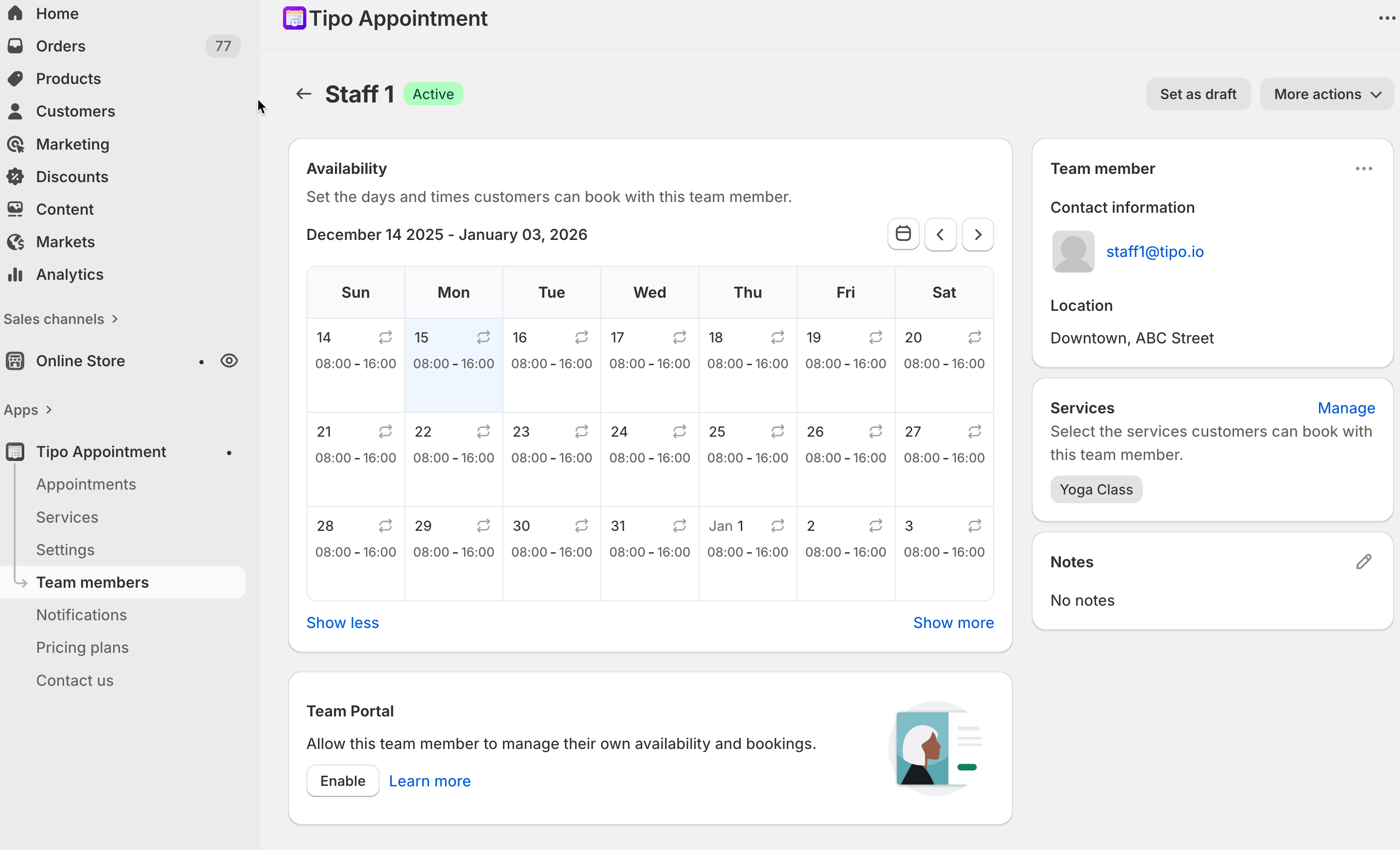
**Goal:** Customers can book “Yoga Class” with “Staff 1” at “Downtown, ABC street”.
1. Create **Staff 1**
2. Assign **Yoga Class** in Services
3. Assign **Downtown, ABC street** in Locations
4. Set availability: Mon–Fri, 8:00–16:00
5. Save → set status **Active**
**Result:** Customers will see Staff 1’s available time slots when booking Yoga Class.
***
### 🛠 Common issues
* **No time slots shown** → Check staff availability + day offs
* **Service not bookable with a staff member** → Staff is not assigned to that service
* **Wrong location appears** → Staff not assigned to the correct location
***
**🙋 Still need support?**
If you still need help, please feel free to contact us at . We’ll be happy to assist you further.