> For the complete documentation index, see [llms.txt](https://docs.tipo.io/llms.txt). Markdown versions of documentation pages are available by appending `.md` to page URLs; this page is available as [Markdown](https://docs.tipo.io/tipo-appointment-booking/availability-team-members/troubleshooting-scheduling-and-availability.md).
# Troubleshooting Scheduling & Availability
Use this guide when customers can’t find time slots, the wrong slots appear, or staff calendars don’t match what you expect.
### ⚡ Quick checklist
* **Is the service Active?**\
If the service is Draft/Inactive, customers won’t be able to book it.
* **Is at least 1 team member assigned to the service?**\
No assigned team member = no availability to show.
* **Does the team member have availability for that day/time?**\
If there are no working hours set, customers won’t see slots.
* **Is the date blocked off?**\
Blocked dates/times override normal availability.
* **Are you restricting the booking window?**\
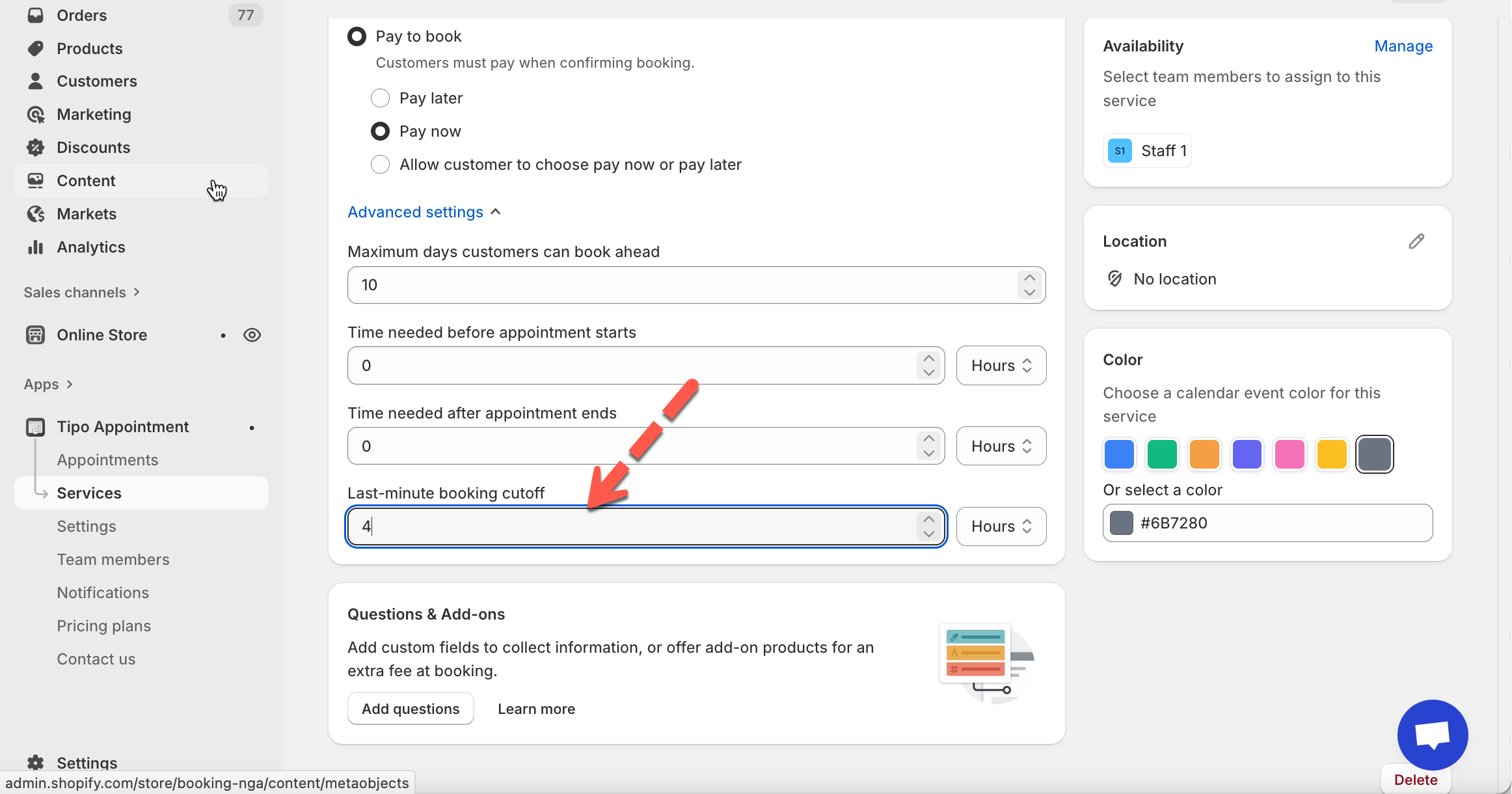
Rules like *booking date range*, *max days ahead*, or *last-minute cutoff* can hide slots.
1. Rules like *booking date range*, *max days ahead*, or *last-minute cutoff* can hide slots.
***
### 🔍 Common problems & fixes
#### 1) “No available time slots” on the storefront
**Most likely causes**
* No team members assigned to the service
* Team member has no availability set
* Date range/booking window is too narrow
* The day is blocked off
**Fix**
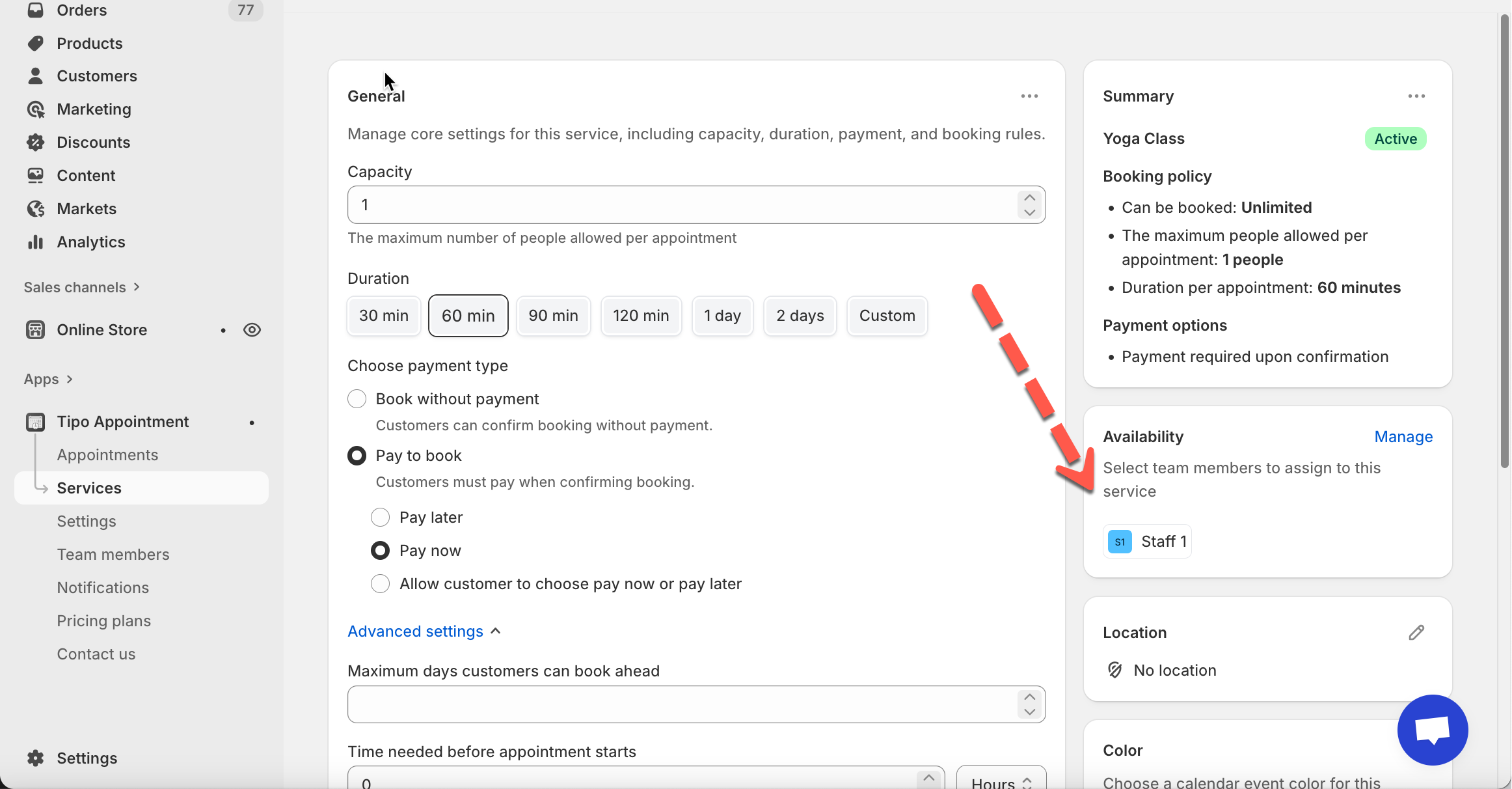
* Open the service → **Availability** tab → confirm at least one team member is assigned
* Open the team member calendar → set working hours (try **Set all day** to test quickly)
* Check **Booking date range / max days ahead / cutoff** settings
* Remove or adjust blocks for that period
#### Example Case: Staff availability is shorter than service duration
**What’s happening**
A time slot can only be shown if the **entire service duration fits inside the staff’s available time**.
If the service takes **longer** than the available window, **no slots will appear**, even though the staff looks “available”.
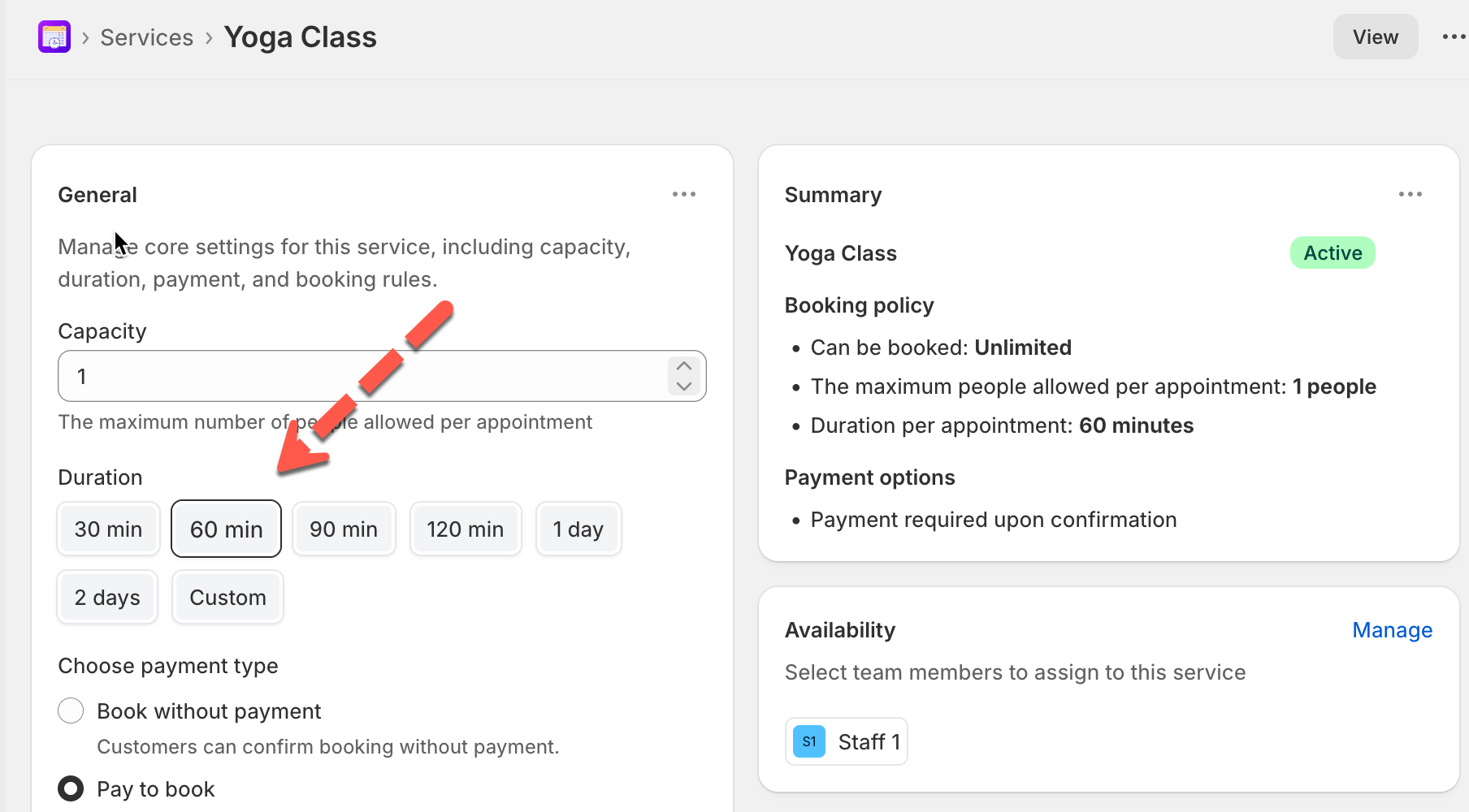
**Service settings**
* Service duration: **1 hour**
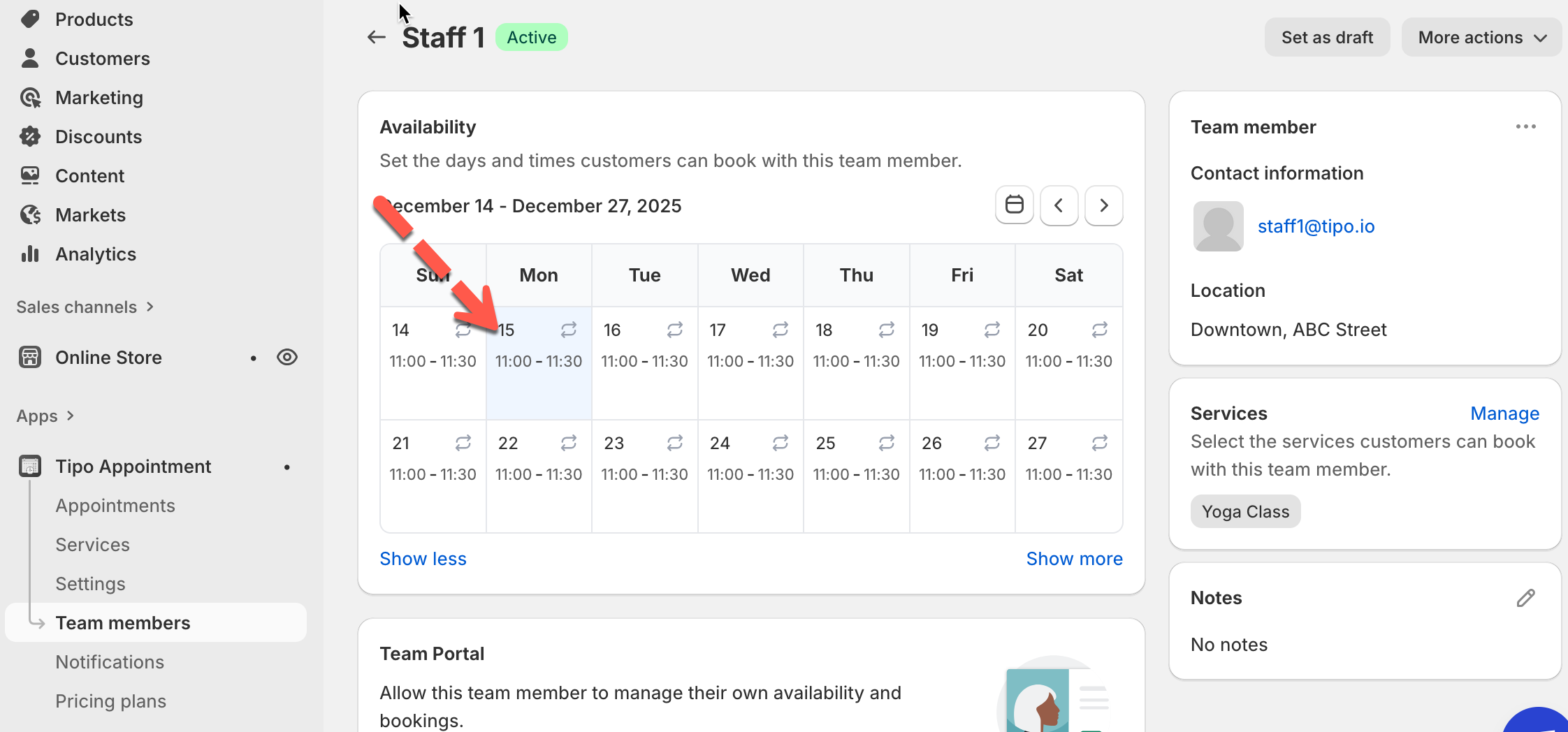
**Team member availability**
* Available time: **11:00 – 11:30** (30 minutes)
#### ❌ Result on storefront
* No available time slots shown
#### 🤔 Why?
* The service needs **60 minutes**
* The staff is only available for **30 minutes**
* There is **no continuous 1-hour window**, so the system cannot create a valid booking slot
**How the system checks availability**
> **Available time ≥ Service duration**
If this rule is not met → **no slots are shown**
**How to fix it**
Choose **one** of the following:
**Option 1: Extend staff availability**
Example:
* Change availability from `11:00 – 11:30`
* To `11:00 – 12:00` (or longer)
⇒ A **1-hour slot** can now be created
**Option 2: Shorten the service duration**
Example:
* Change service duration from **1 hour**
* To **30 minutes**
✅ The `11:00 – 11:30` slot will now appear
***
**Option 3: Use buffers carefully**
If you have:
* Time needed **before** or **after** appointment
Make sure availability is **long enough to cover:**
```
Service duration
+ buffer before
+ buffer after
```
***
#### 2) Customers only see a few dates (or only this week/month)
**Most likely causes**
* **Booking date range** is limited (ex: Dec 1–Dec 31)
* **Maximum days customers can book ahead** is set low
**Fix**
* Increase your booking date range
* Raise “maximum days ahead” to match your policy (ex: 60–90 days)
***
#### 3) Customers can book too soon / too late
**Most likely causes**
* **Time needed before appointment starts** is 0 (allows last-minute bookings)
* **Last-minute booking cutoff** is too small
**Fix**
* Add preparation time (ex: 2–24 hours)
* Increase last-minute cutoff if you need more lead time
***
#### 4) Overlapping bookings happen (double-booking)
**Most likely causes**
* **Allow overlapping time slots** is enabled
* Capacity is set higher than intended
**Fix**
* Disable “Allow overlapping time slots” if you want one booking per slot
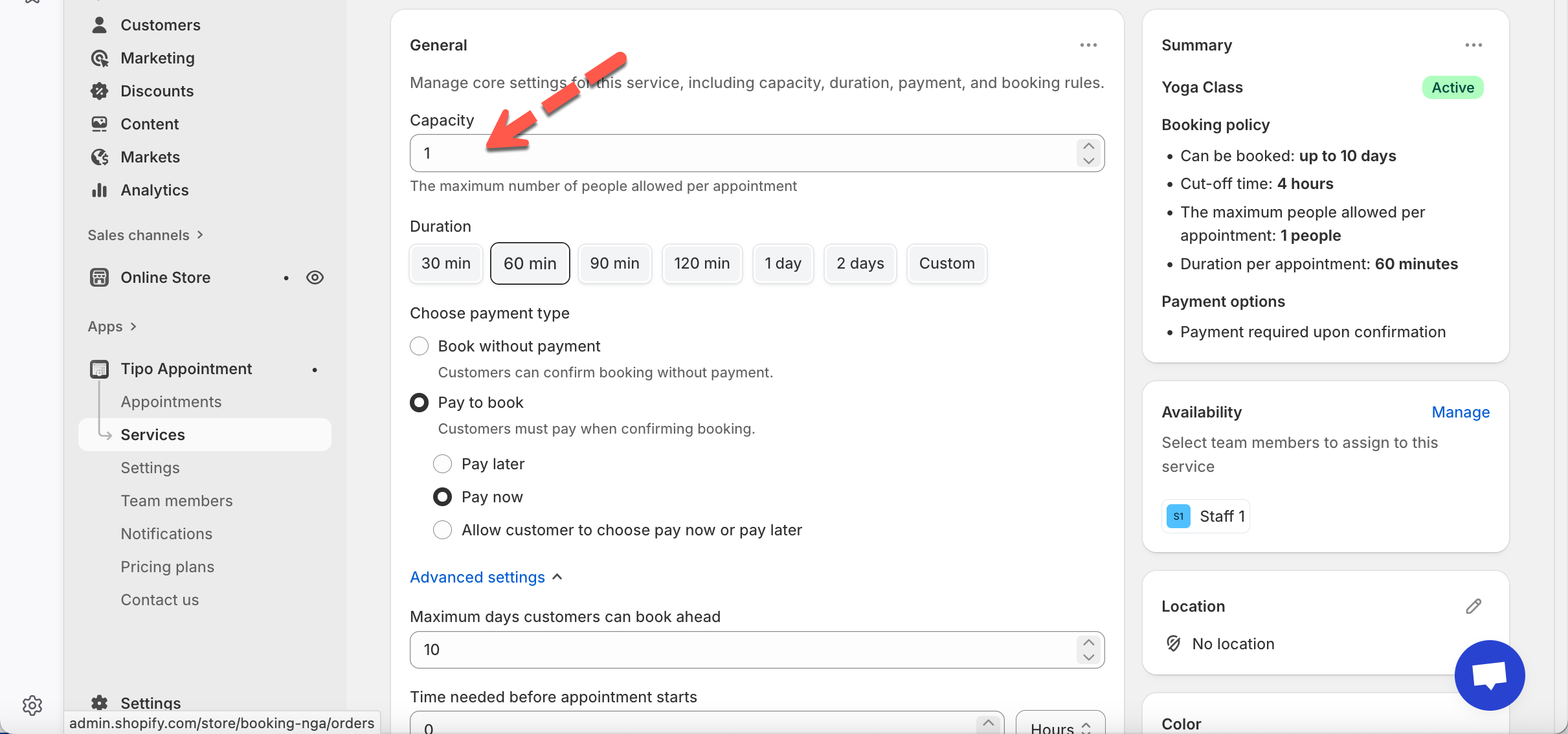
* Set **Capacity = 1** for 1:1 services
***
#### 5) Slots look wrong (spacing, length, or start times)
**Most likely causes**
* Service duration doesn’t match your intended session length
* Buffer time before/after appointment changes slot spacing
**Fix**
* Confirm **Duration** in the service settings
* Check **Time needed before/after** to ensure buffers aren’t creating gaps
***
#### 6) A staff member is “available” but customers still can’t book them
**Most likely causes**
* Staff is not assigned to the service
* Staff availability exists, but the specific date is blocked
* Time zone mismatch (store vs staff/customer expectation)
**Fix**
* Service → Availability → assign the staff member
* Staff calendar → remove “Unavailable” blocks on that date
* Double-check time zone settings and location time zone (if used)
***
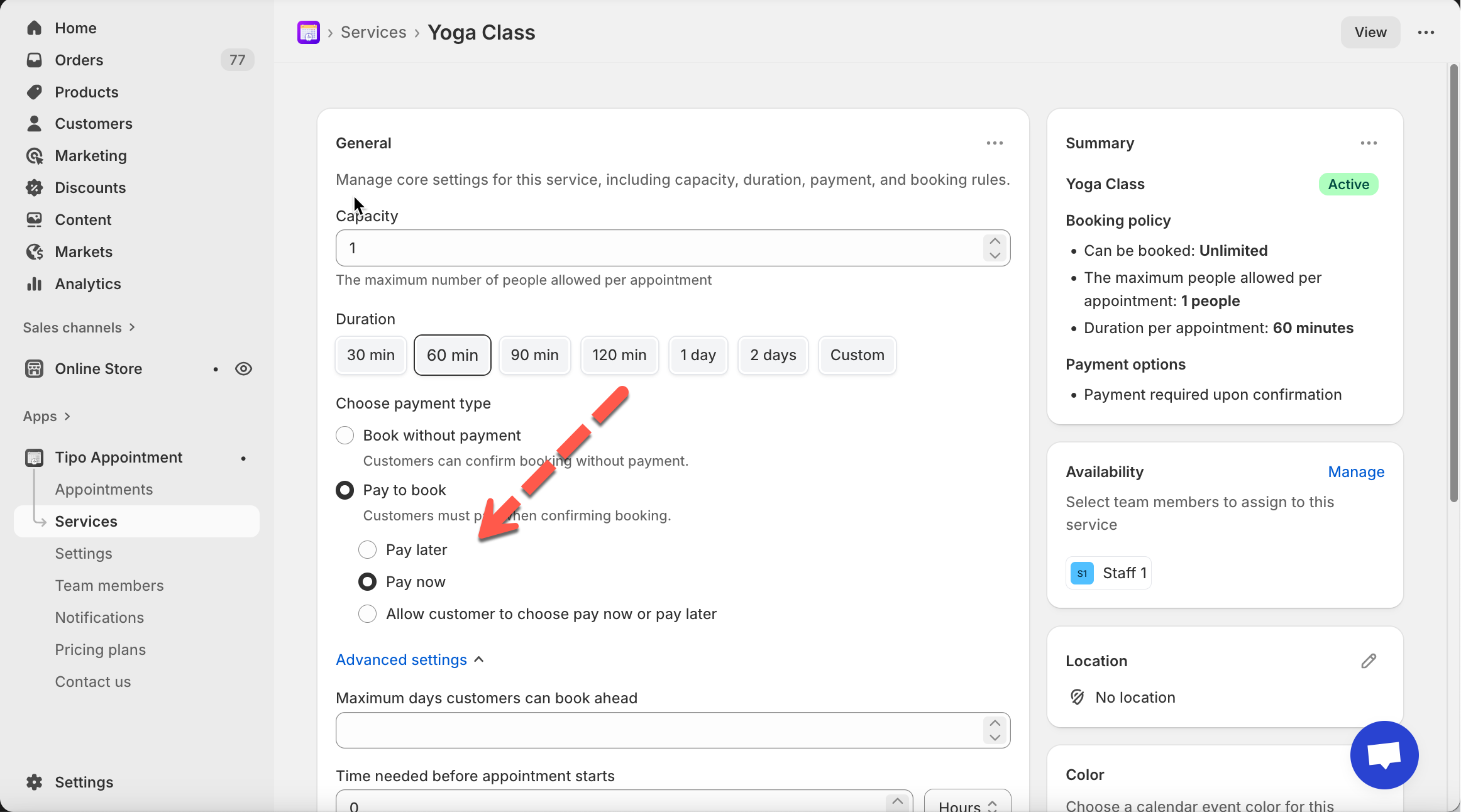
#### 7) Customer can’t choose Pay now / Pay later
**Most likely causes**
* Service is not set to **Pay to book**
* “Allow customer to choose pay now or pay later” is not selected
**Fix**
* Service → **Choose payment type** → select **Pay to book**
* Select **Allow customer to choose pay now or pay later**
* Test on storefront booking popup to confirm the “Payment method” options appear
***
### 🧷 What to include when contacting support
Copy/paste this info to speed things up:
* Service name + link/screenshot of its settings (Duration, Capacity, Payment type)
* Team member name + screenshot of their availability week
* Exact date/time you expected to be bookable
* Storefront link + screenshot of the booking popup result
***
**🙋 Still need support?**
If you still need help, please feel free to contact us at . We’ll be happy to assist you further.