> For the complete documentation index, see [llms.txt](https://docs.tipo.io/llms.txt). Markdown versions of documentation pages are available by appending `.md` to page URLs; this page is available as [Markdown](https://docs.tipo.io/tipo-appointment-booking/service-setup/create-a-service.md).
# Create a service
Create a service in Tipo Appointment Booking so customers can book time slots (or full-day / multi-day services) and you can manage availability, payments, and booking rules.
The Tipo Booking app creates service based on Shopify products. After creating a service in the app, the booking form will show up on the product page on the online store.
### ✅ Before you start
* You’ve installed **Tipo Appointment Booking app**
* You know what type of booking you want (time slots, full day, multi-day
***
### 🛠️ Step 1: Open Services
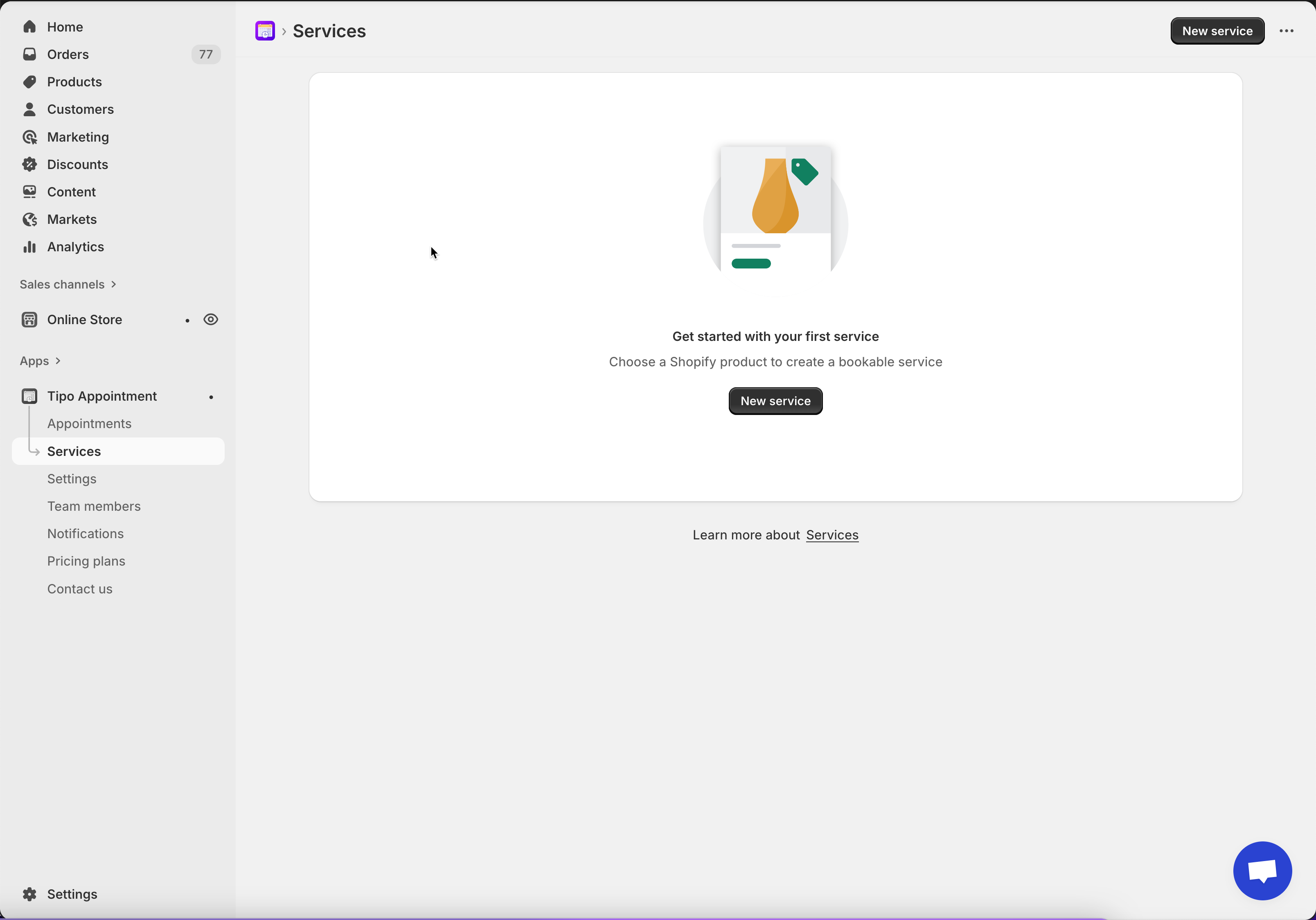
* Open the app > click **Services**
* Click **New service** button
***
### 🛠️ Steps 2: Choose a service type
On **Choose service type**, select one of these:
**A. Book by Time Slot**
Best for services that happen within a day and have a set duration.
* Examples: \* Barber Shop: 30-minute haircut slots.
* Customer View: A list of specific times (e.g., 10:00 AM, 10:30 AM) showing available slots.
**B. Book for a Full Day**
Used for services where the customer occupies the entire date from start to finish.
* Examples: \* Photography Studio: Renting the space for a full day shoot.
* Car Rental: Hiring a vehicle for a 24-hour period.
* Customer View: A calendar where they select one specific day.
**C. Book Across Multiple Days**
Best for services that span several consecutive days.
* Examples: \* Summer Camp: A 5-day youth program.
* Customer View: A date-range picker where they select a Start Date and End Date.
***
### 🛠️ Step 3: Create the service product in Shopify
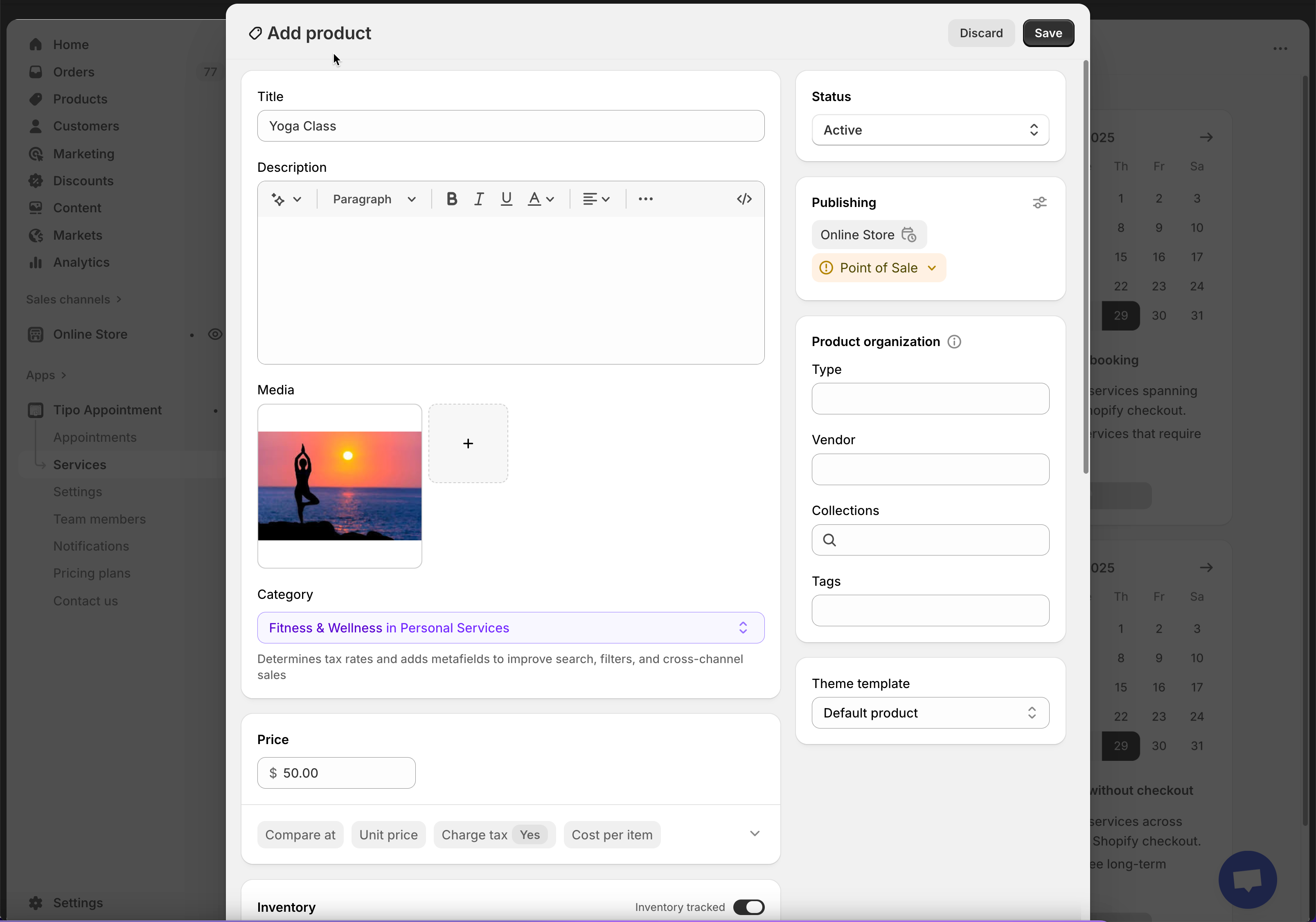
The app creates/uses a Shopify Product for your service. In the **Add product** screen:
* **Title**: e.g., Yoga class
* **Status**: Active
* **Category**: choose the closest match (optional)
* **Price**: set your service price (for checkout services)
Click **Save**.
### 🛠️ Step 4: Configure service settings
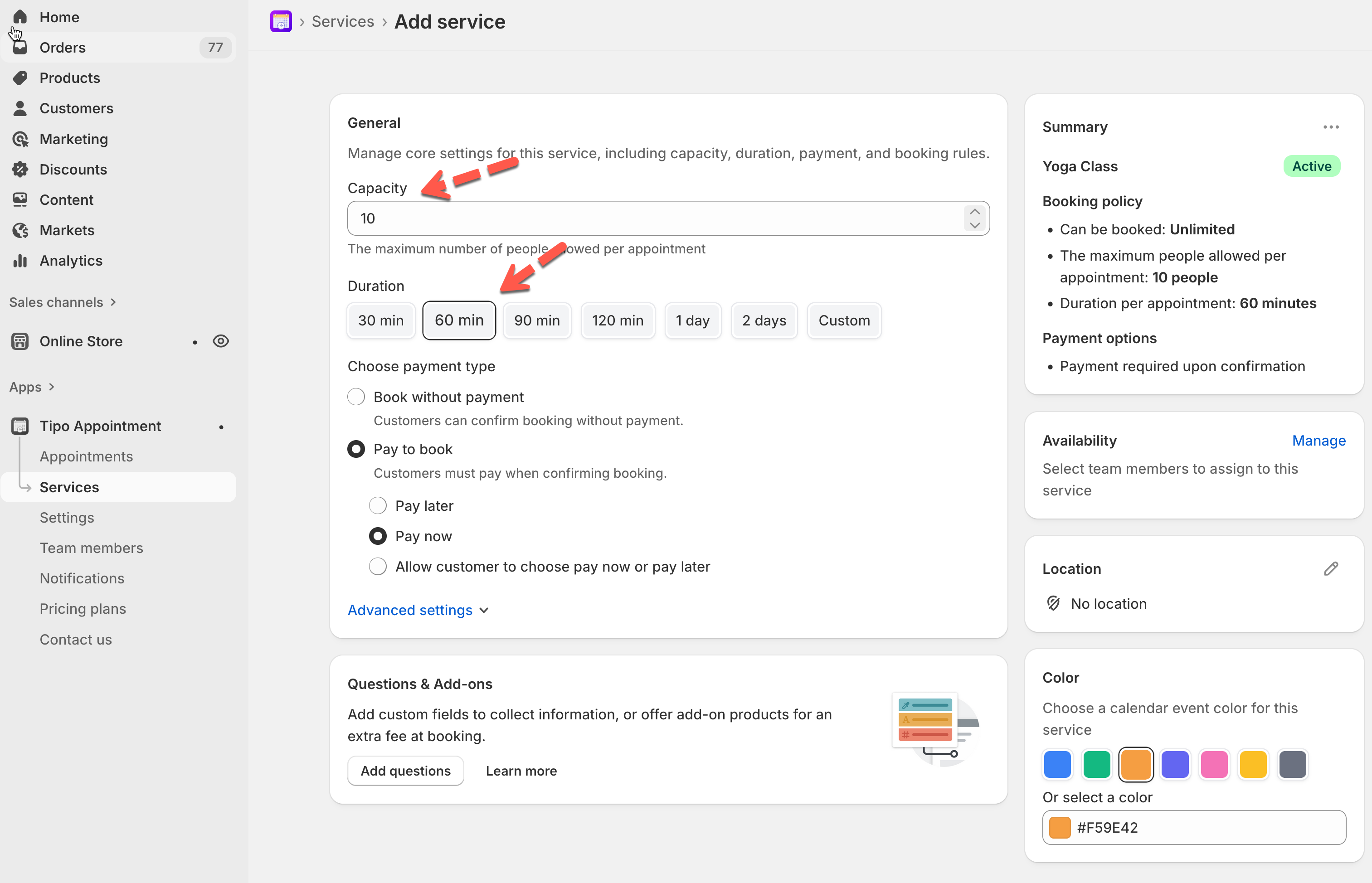
#### 👥 Capacity
Set how many people can book the same time slot.
* Example: `1` for 1-on-1 appointments
* Example: `5` for group sessions
#### ⏱️ Duration
Choose how long each booking takes:
* Quick buttons (30, 60, 90, 120 min…)
* Or **Custom**
* If your service supports it, you can choose:
* **Less than a day**
* **Multiple days**
**Example**: Haircut = `60 min`
***
### 🛠️ Step 5: Choose payment type
Under **Choose payment type**, pick one:
| Option | What it means | Best for | Example |
| ----------------------------------------- | ----------------------------------------------------------- | -------------------------------------------- | -------------------------------- |
| ✅ No payment required | Customers can confirm the booking **without paying online** | Free bookings, pay in person, pay by invoice | Consultation (free booking) |
| 💰 Pay to book → **Pay now** | Customers must **pay immediately** to confirm the booking | High-demand slots, deposits, paid services | Salon appointment (Pay now) |
| 💰 Pay to book → **Pay later** | Customers confirm now, and **pay later** (offline/manual) | Pay at store, bank transfer, manual payment | Repair service (Pay later) |
| 💰 Pay to book → **Let customers choose** | Customers choose **Pay now or Pay later** at booking time | Mixed payment preferences | Class booking (customer chooses) |
### 🛠️ Step 6: Set Availability
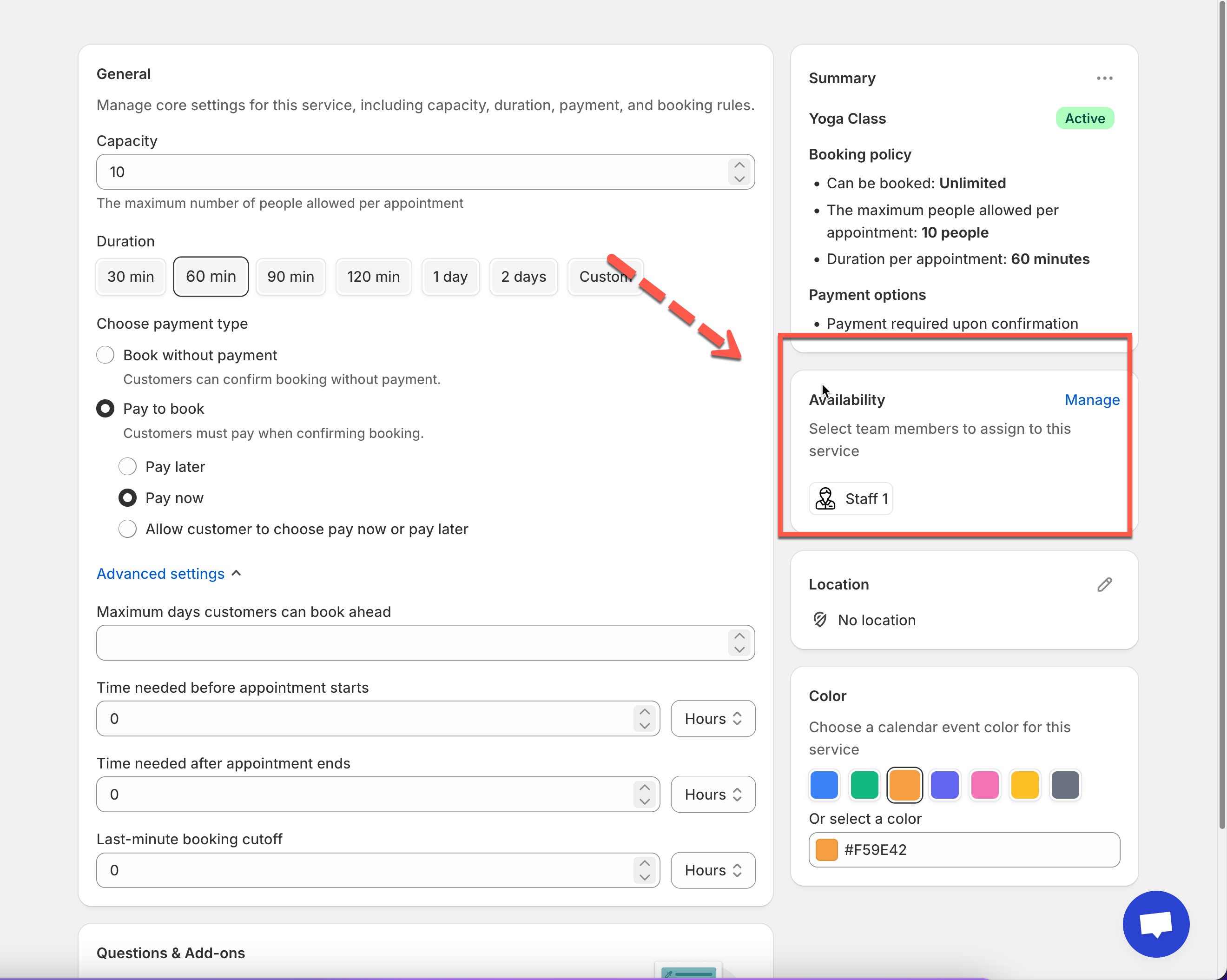
In the **Availability** section, click **Manage**
* Assign team members to this service (required). If you have not had a team member, create a new one.
* Their schedules determine what time slots are available
[Learn more](https://docs.tipo.io/tipo-appointment-booking/availability-team-members/set-availability-for-services#how-to-set-availability)
***
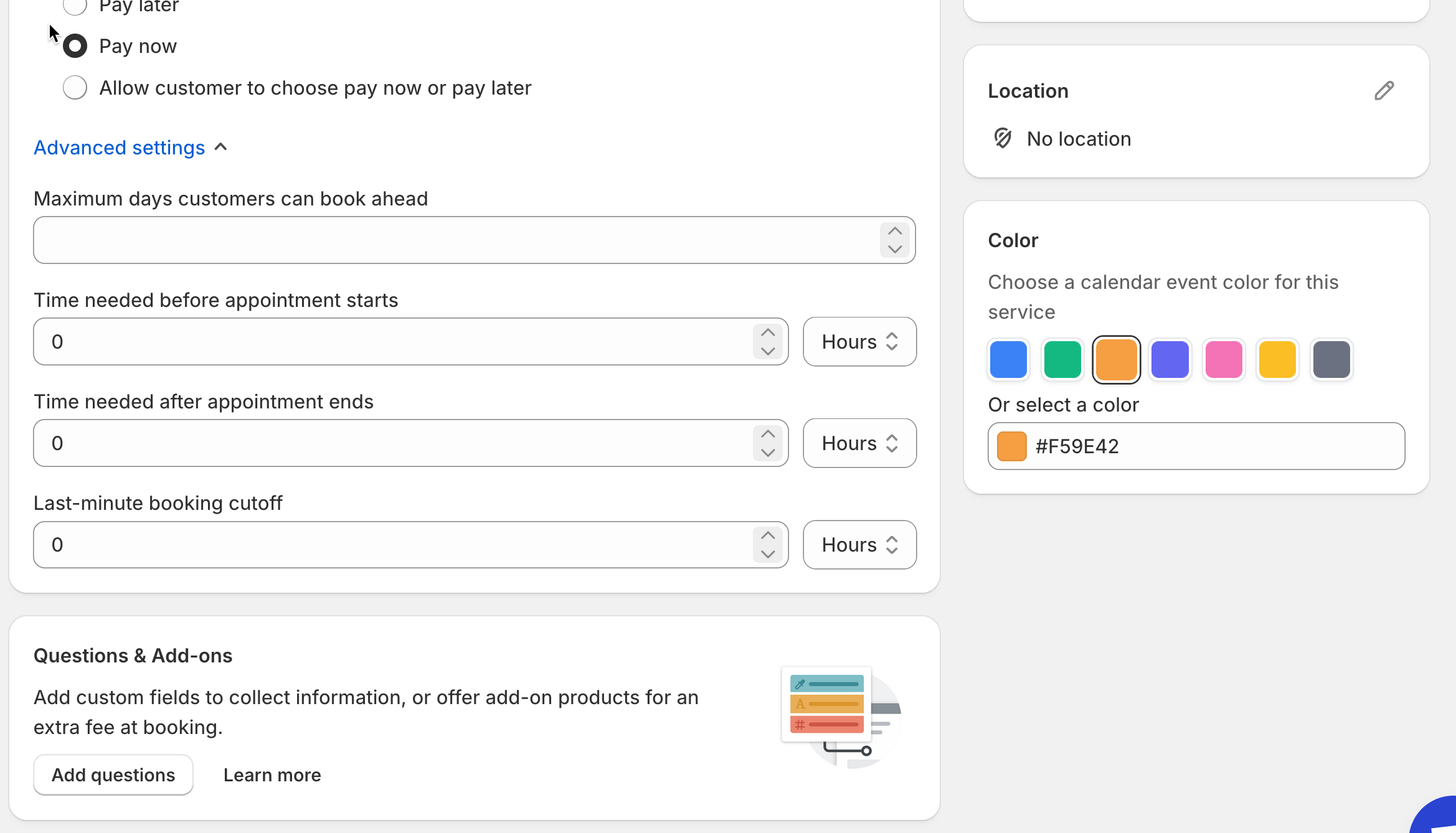
### 🛠️Step 7: Customize more settings (Optional)
* In **Location** field, enter the location of the service
* **Color**: helps identify bookings in the calendar
* **Questions & Add-ons**: collect info (name, preferences) or sell add-ons
* **Advanced settings**: booking rules, lead time, buffer time, etc. (if available)
***
### 🛠️ Step 8: Save your changes
Click **Save** button.
***
### 🌐 How the service works on your storefront
After you create and save a service in **Tipo Appointment Booking**, the app automatically turns it into a bookable product on your Shopify storefront.
What customers will see
**1) A “Book” button appears on the product page**\
Once the service is published, customers will see a booking button (for example: **Book now**) on the service product page.
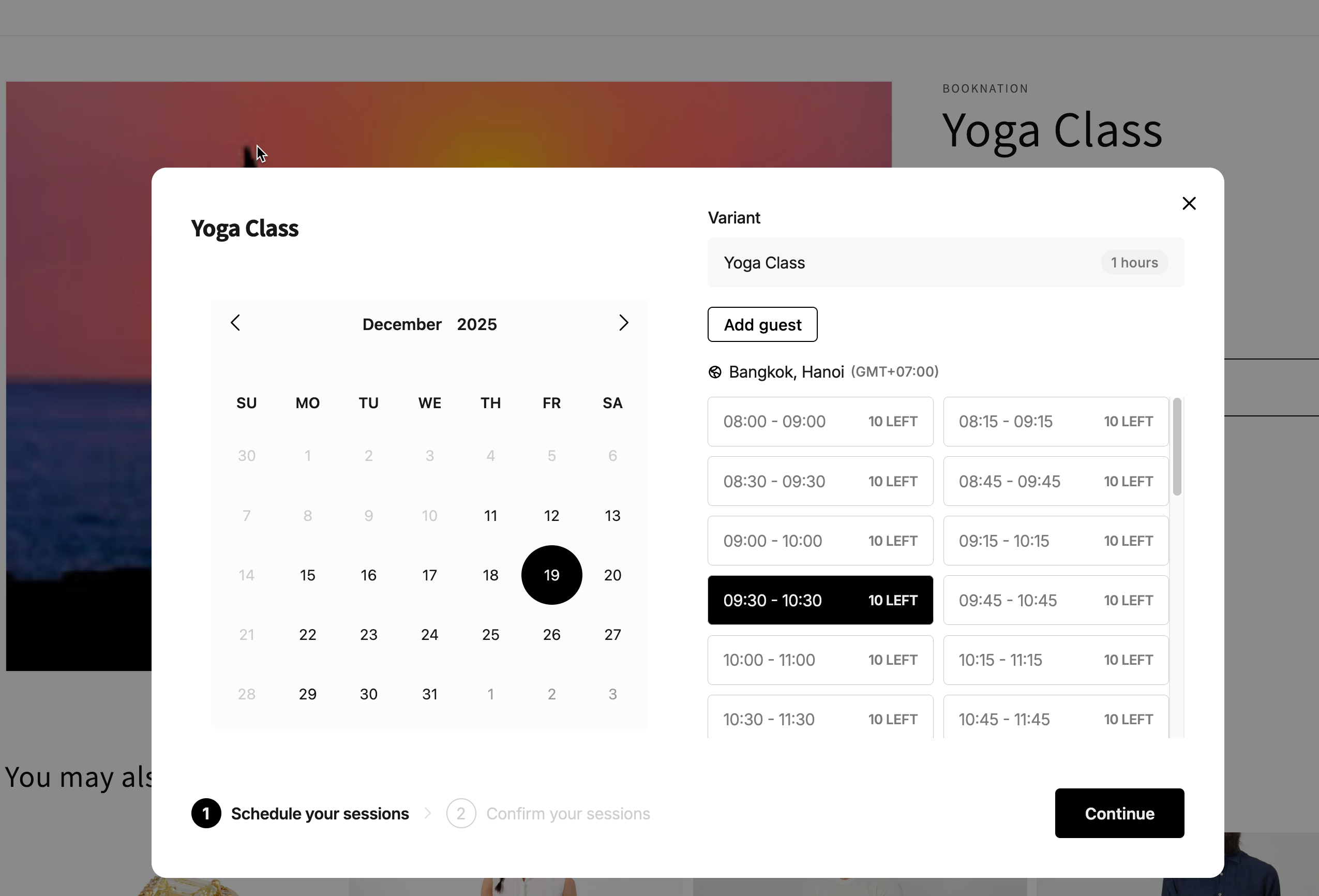
**2) Customer clicks the button → booking popup opens**\
A popup will appear where customers can:
* Pick a **date**
* Choose an **available time slot**
* Select the correct **variant** (if your service has variants)
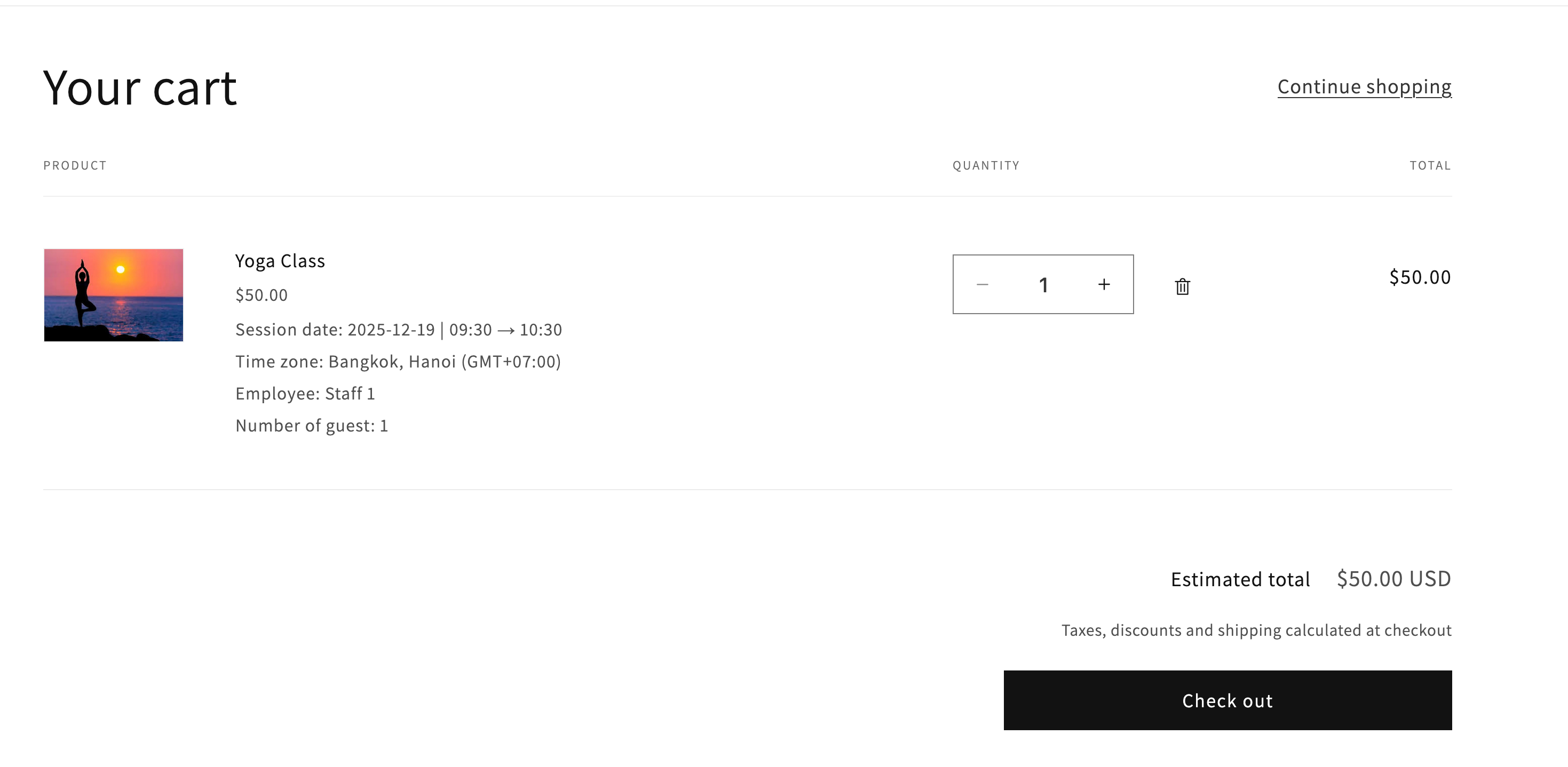
**3) Customer confirms the booking**\
What happens next depends on your payment type:
* If it’s a Paid service (Pay to book): When the customer clicks Continue, Shopify checkout is required.
* If it’s a Free service (Book without payment): Customers can confirm the booking without checkout.
**Note**:
To make sure the booking form works on the site, please activate the app on the theme [here](https://tipo.io/index.php/kb/integrate-uninstall-the-app-to-a-theme/)
Also, the book button of the app works based on buy button on the theme. Please check and make sure the buy button (add to cart button) is enabled in the current theme.
***
### ▶️ Tutorial video
{% embed url="" %}
***
**🙋 Still need support?**
If you still need help, please feel free to contact us at . We’ll be happy to assist you further.