> For the complete documentation index, see [llms.txt](https://docs.tipo.io/llms.txt). Markdown versions of documentation pages are available by appending `.md` to page URLs; this page is available as [Markdown](https://docs.tipo.io/tipo-appointment-booking/third-party-integration/shopify-pos-integration.md).
# Shopify POS integration
Shopify POS integration lets you create Tipo appointments directly inside the Shopify POS app so in-store staff can book services and add them to the cart during checkout.
Download the Shopify point of sale app and be able to book appointments quickly and easily using Tipo Appointment Booking.
***
### ⚙️ How it works in Shopify POS
In Shopify POS, staff will:
1. Choose a service from Tipo
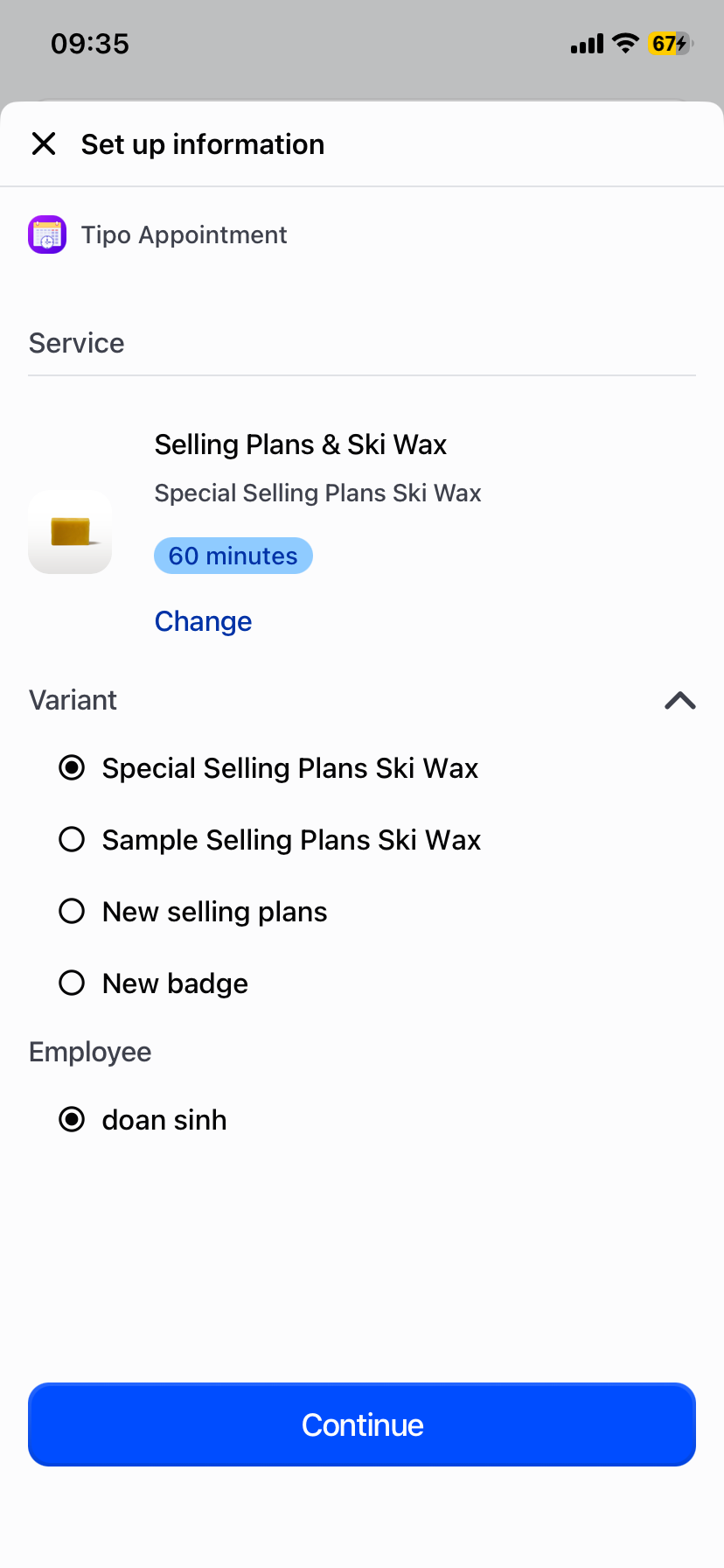
2. Select service options (variant) and employee (if enabled)
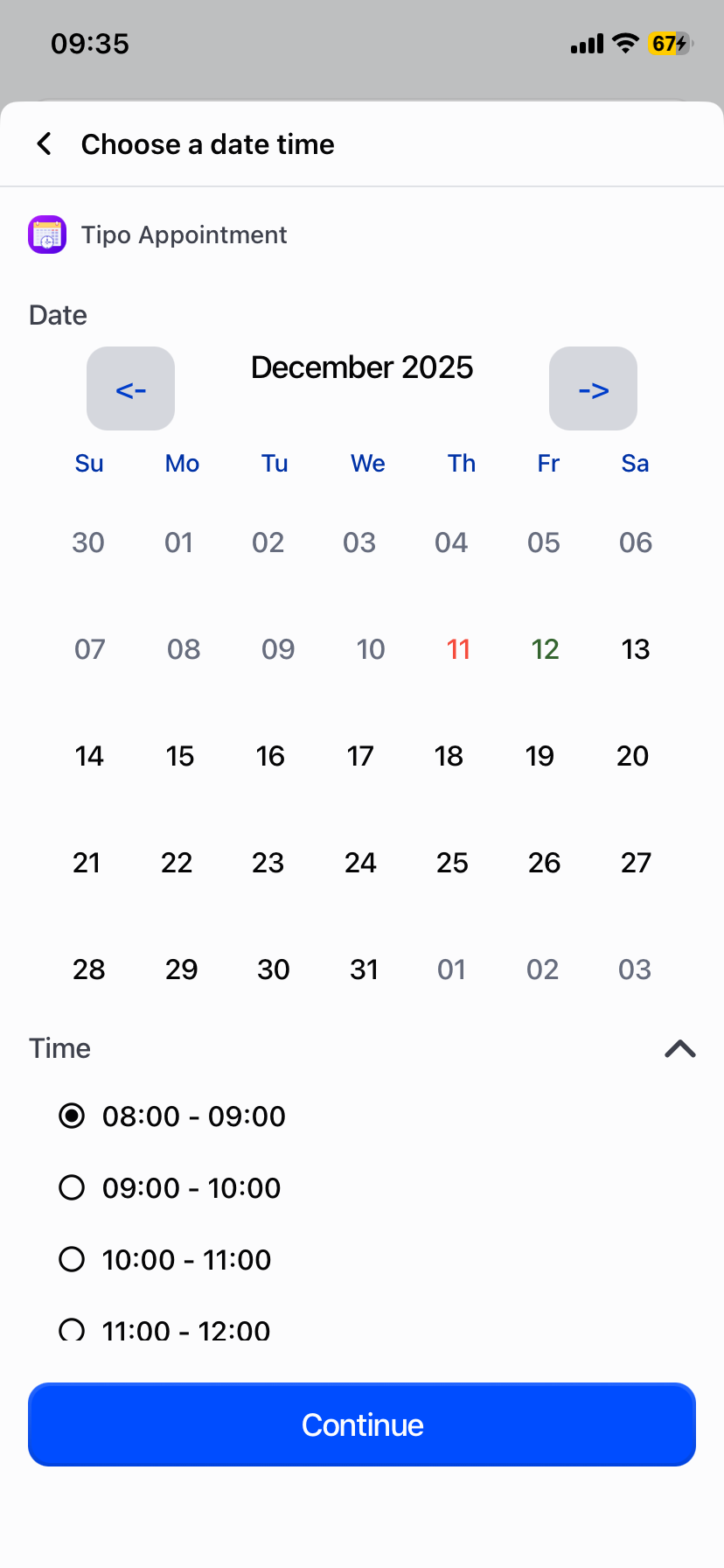
3. Pick date & time
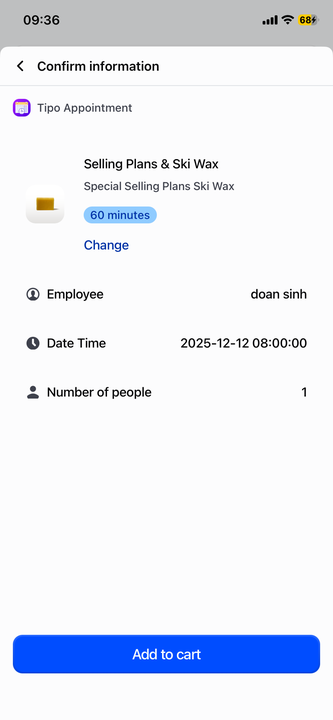
4. Confirm details
5. Tap **Add to cart**
This creates an appointment linked to the POS checkout flow.
***
### 🛒 Create an appointment in Shopify POS
#### Step 1: Choose a service
Open Tipo Appointment inside Shopify POS, then select the service you want to book.

#### Step 2: Select service options (variant) and employee
Choose the variant (if your service has multiple options) and select the employee/team member (if applicable), then tap **Continue**.
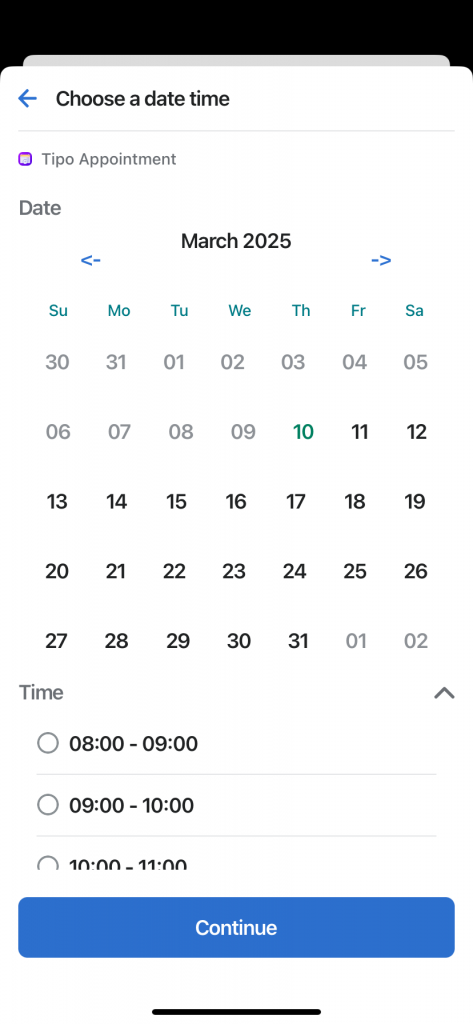
#### Step 3: Choose date & time
Pick the appointment date and available time slot, then tap **Continue**.
***
#### Step 4: Confirm and add to cart
Review the booking summary, then tap **Add to cart**.
***
### ✅ Best practices for in-store booking
* Use POS integration for walk-ins and in-store scheduling
* Confirm the **team member** is correct before adding to cart
* Double-check the **date & time** at the confirmation step
***
### 🛠️ Troubleshooting
#### Tipo Appointment doesn’t show in Shopify POS
* Confirm Shopify POS integration is Activated in Tipo settings
* Make sure you’re logged into the correct Shopify store in POS
* Restart the device and test again
#### No available time slots
* Check your service availability settings in Tipo (working hours, capacity, blocked dates)
* Confirm the selected team member has availability (if team member scheduling is enabled)
***
**🙋 Still need support?**
If you still need help, please feel free to contact us at . We’ll be happy to assist you further.