> For the complete documentation index, see [llms.txt](https://docs.tipo.io/llms.txt). Markdown versions of documentation pages are available by appending `.md` to page URLs; this page is available as [Markdown](https://docs.tipo.io/tipo-appointment-booking/settings/block-off-specific-dates-or-times.md).
# Block off specific dates or times
Use this feature to **temporarily make a service unavailable**, even if staff normally works during that time.
This is useful for **holidays, vacations, sick days, private events, or last-minute changes**.
***
## ℹ️ What does “Block off” mean?
Blocking off time tells the system:
> ❌ “Do NOT allow bookings during this period”
Even if:
* the staff is available
* the service is active
* overlapping time slots are enabled
Blocked time **always takes priority**.
***
***
## ℹ️ When should you block off time?
Common examples:
* Holidays (Christmas, New Year)
* Staff vacation
* Sick leave
* Training or internal meetings
* One-off closures or emergencies
***
## 📌 How blocking works
Availability is calculated in this order:
1️⃣ Staff working hours\
2️⃣ Service duration & rules\
3️⃣ Booking date range\
4️⃣ **Blocked dates/times (highest priority)**
⇒ If time is blocked → customers will NOT see those slots
***
## ⚙️ How to block off dates or times
There are 2 ways to block off time on the booking app.
* Use Block specific dates setting
* Set up employee availability
### Option 1: Use **Block specific dates setting**
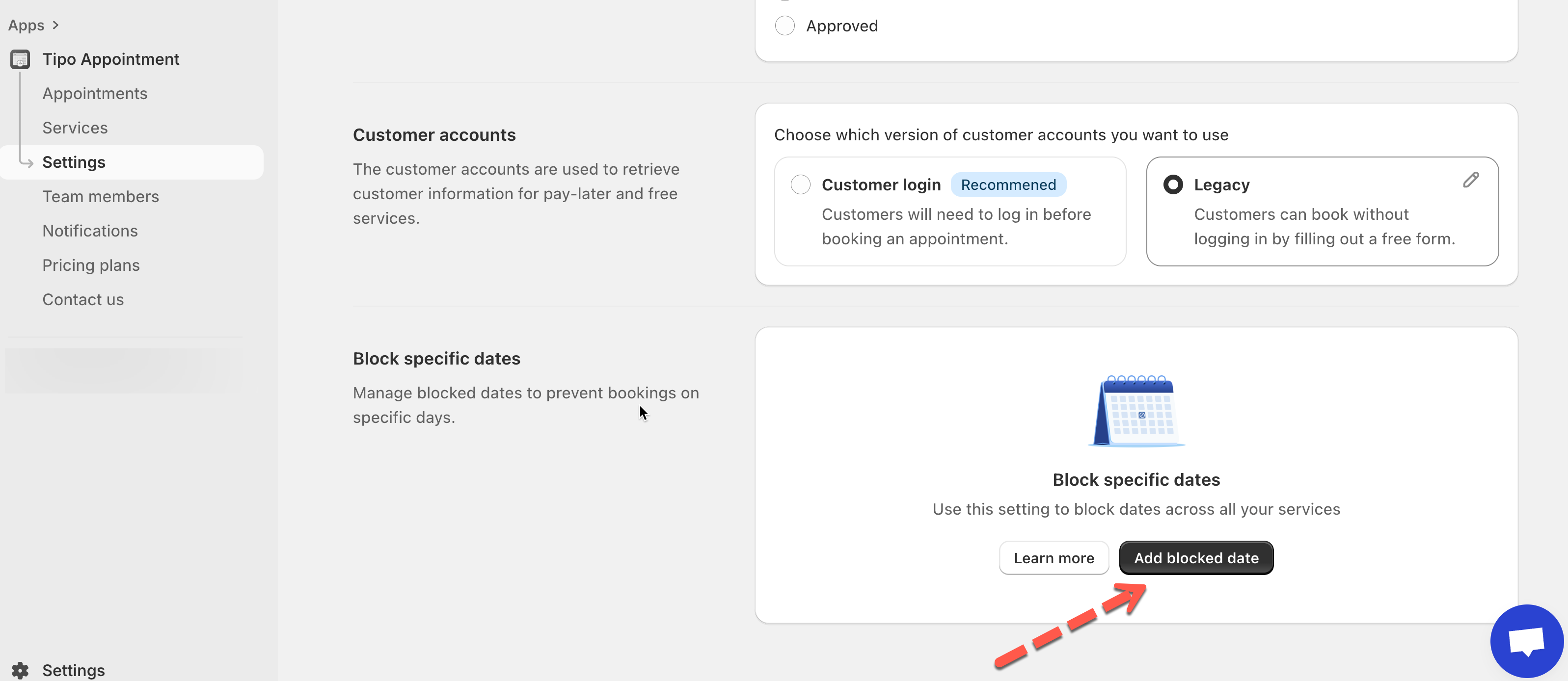
1\. Open the app > click **Settings** > srcoll down to **Block specific dates** > click **Add blocked date**
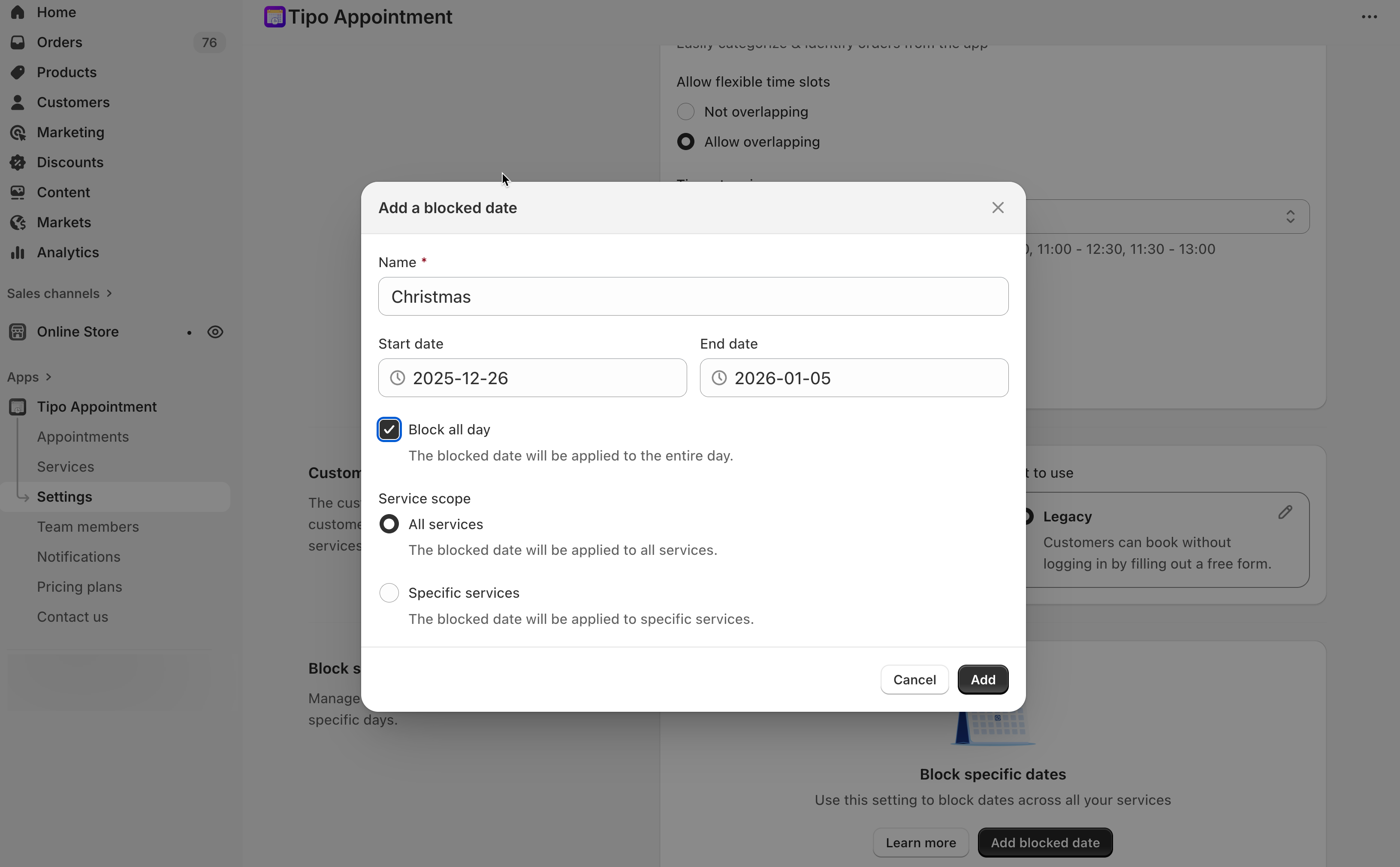
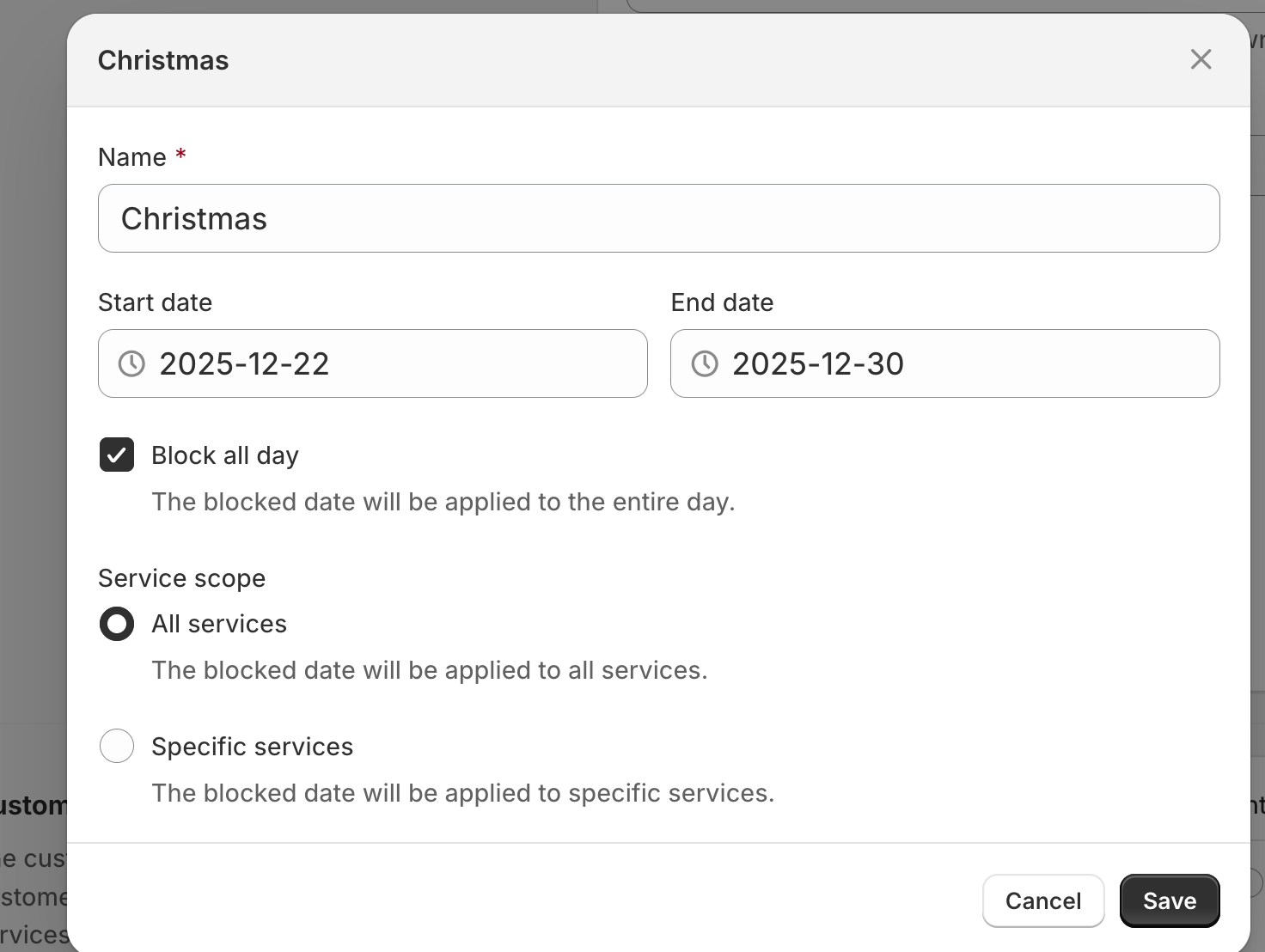
2. Set the time range you want to block, select services to apply the blocked date
3. Click **Save**
#### **Example: What customers will see**
**Setup**
* Staff A works: 8:00 – 16:00
* Service duration: 1 hour
* Blocked: Dec 22–30 (holiday)
**Result**
* ❌ No slots shown between Dec 22–30
* ✅ Slots resume on Dec 31
Customers never see blocked dates on the booking popup.
**Notes:**
⚠️ Blocking time does **not cancel existing bookings**\
(You’ll need to reschedule or cancel them manually.)
⚠️ Blocked time overrides:
* overlapping time slots
* booking date range
* staff availability
***
### Option 2: Set up employee availability
The available time of the service depends on available time of the team member.
If you want to edit the available time of a specific service. you need to
* create a team member
* edit availability time of team member to block off certain dates or time
* assign team member to the service
#### **Steps to manage**
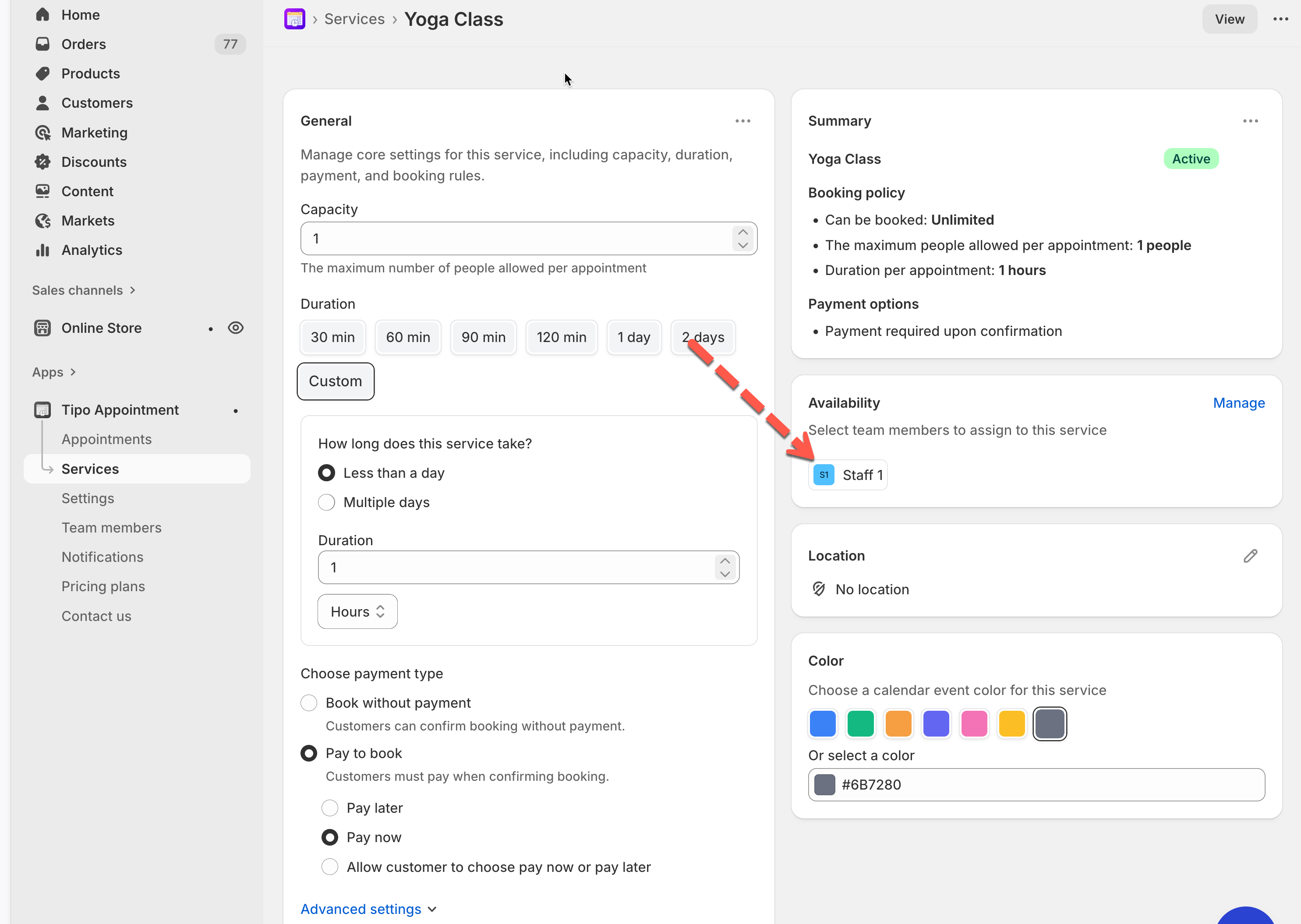
1\. Open the app > click **Services** on the left menu > open the service you want to edit
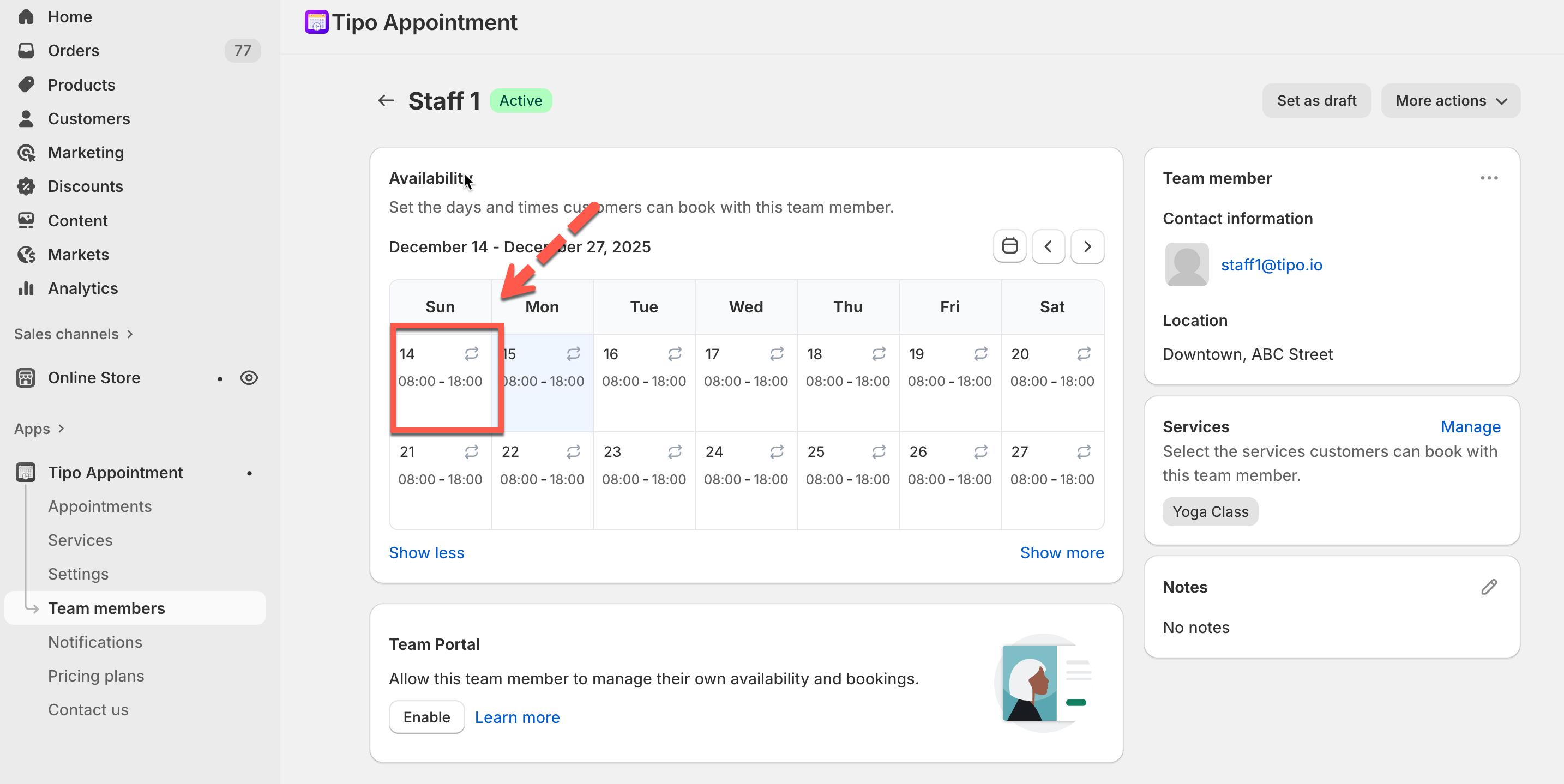
2\. In the service detail > **Availability** > click on team member name or create a new team member > it directs to team member detail
Another approach: Open the app > click **Team Members** > open the team member detail you want
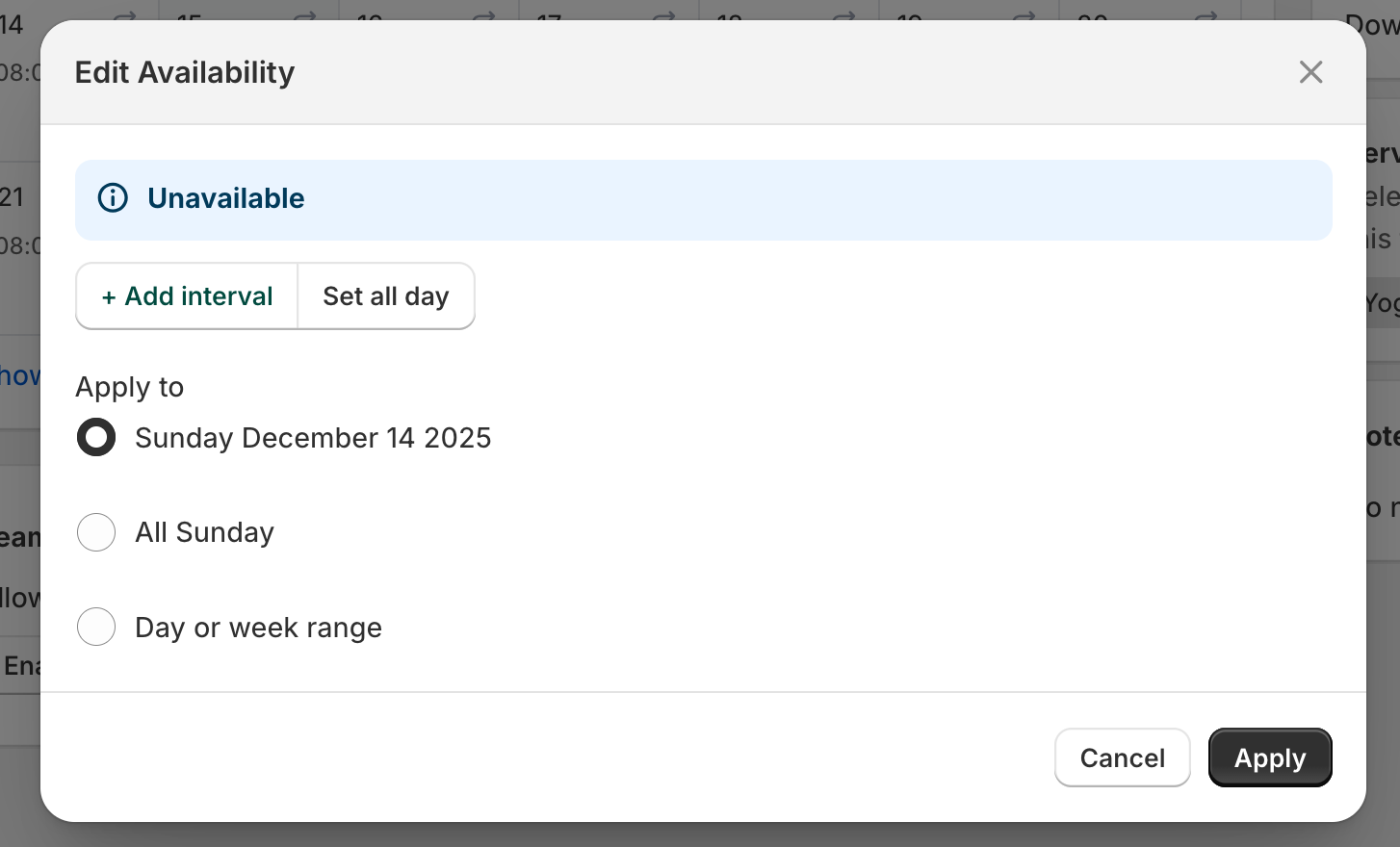
3\. In **Availability** section, click on a date you want to edit > The Edit Availability popup will appear > click **Unavailable**
4\. Select date(s) to apply the time
* click **Sunday Dec 14, 2025**, to apply the time to a specific date only
* or click **All Sunday** to all time to all sundays
* or click **Day or week range** > select multiple days you want to be unavailable
5\. click **Save**
The blocked time will immediately disappear from customer booking options
#### What Customers Will See
When a time is blocked:
* The time slot will not appear in the booking popup
* Customers cannot select or book during unavailable periods
* Only valid, available slots are shown
#### **Example:**
Stylist “Maria” is unavailable on March 8, 2026 because of a seminar.
* In Maria’s availability: select March 8 → mark as Unavailable (all day).
* Only Maria is unavailable; other team members remain bookable.
## ▶️ Tutorial video
{% embed url="" %}
***
**🙋 Still need support?**
If you still need help, please feel free to contact us at . We’ll be happy to assist you further.