> For the complete documentation index, see [llms.txt](https://docs.tipo.io/llms.txt). Markdown versions of documentation pages are available by appending `.md` to page URLs; this page is available as [Markdown](https://docs.tipo.io/tipo-appointment-booking/settings/default-appointment-status.md).
# Default Appointment status
This setting controls what status a new appointment starts with in Tipo, and (optionally) whether it should follow the Shopify order status.
### ⚙️ How to set
1. Open the app > click **Settings > General**
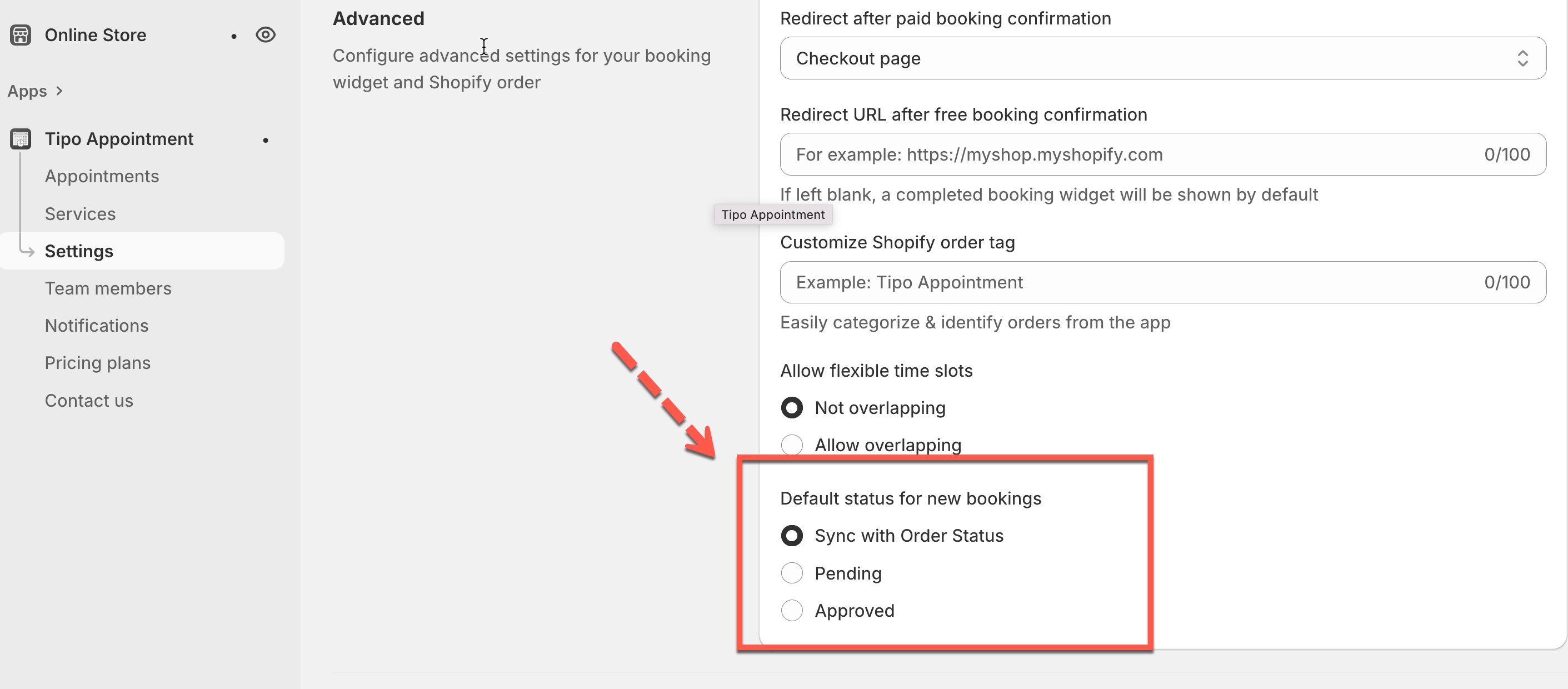
2. In **Advanced**, scroll to **Default status for new bookings**
3. Select an option
* **Sync with Order Status**
* **Pending**
* **Approved**
4. Click **Save**
***
### 🔄 Option 1: Sync with Order Status
When **Sync with Order Status** is enabled, Tipo will automatically update the **appointment status** based on the **Shopify order status**.
#### Status mapping
| **Shopify Order Status** | **Appointment Status (Tipo)** |
| ------------------------ | ----------------------------- |
| Paid | Approved |
| Pending | Pending |
| Cancelled | Cancelled |
| Draft | Pending |
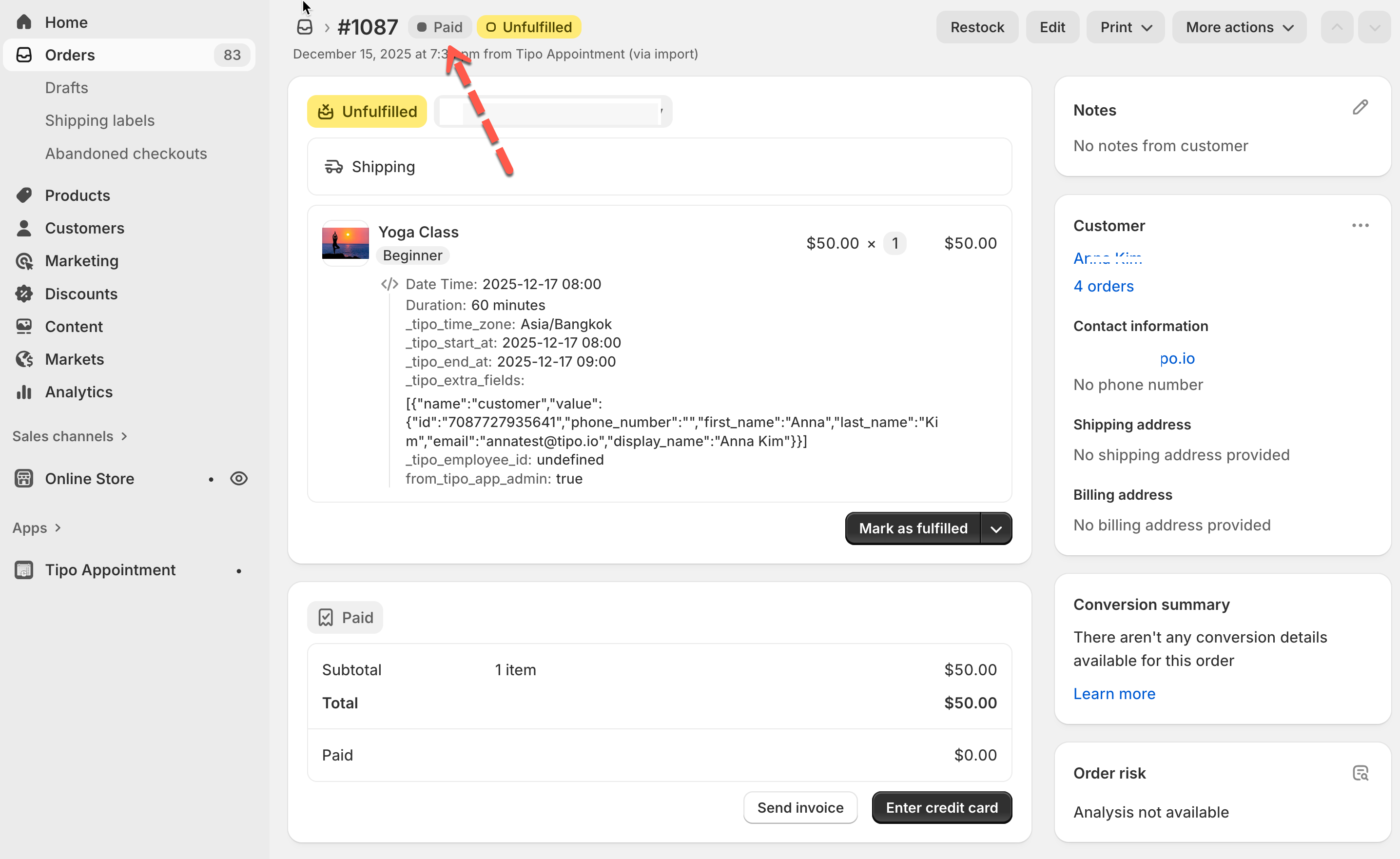
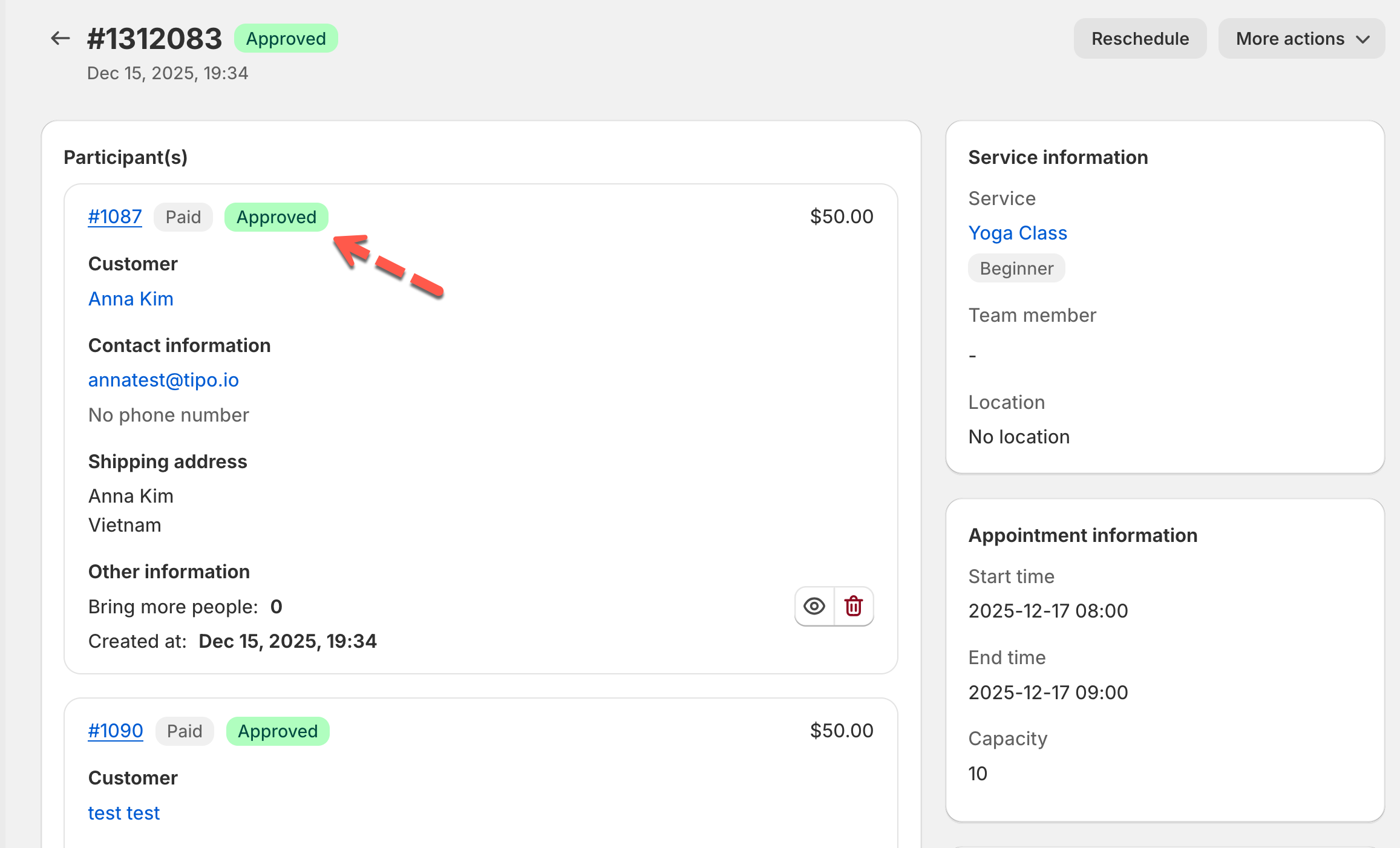
#### Example (Paid → Approved)
Shopify order shows **Paid**:
Tipo appointment becomes **Approved**:
***
### ⚙️ Option 2: Set a fixed default status (Pending or Approved)
If you select **Pending** *or* **Approved** as the default status:
* New appointments will always be created with that status
* The appointment will NOT follow Shopify order status anymore, even if the order later becomes Paid / Pending / Cancelled
Use this if you want full manual control (for example, you approve appointments yourself regardless of payment).
***
### 💡 Tips
* Choose **Sync with Order Status** if your workflow is payment-driven (paid bookings auto-approved).
* Choose **Pending** if you need to review or confirm appointments before approving.
* Choose **Approved** if most bookings should be confirmed immediately.
***
**🙋 Still need support?**
If you still need help, please feel free to contact us at . We’ll be happy to assist you further.