> For the complete documentation index, see [llms.txt](https://docs.tipo.io/llms.txt). Markdown versions of documentation pages are available by appending `.md` to page URLs; this page is available as [Markdown](https://docs.tipo.io/tipo-appointment-booking/mail-notification/admin-emails.md).
# Admin emails
Admin (merchant) emails are notifications sent to your store/admin email address so you can track bookings. You can also **CC admin** on team member emails.
***
### 📩 How to set
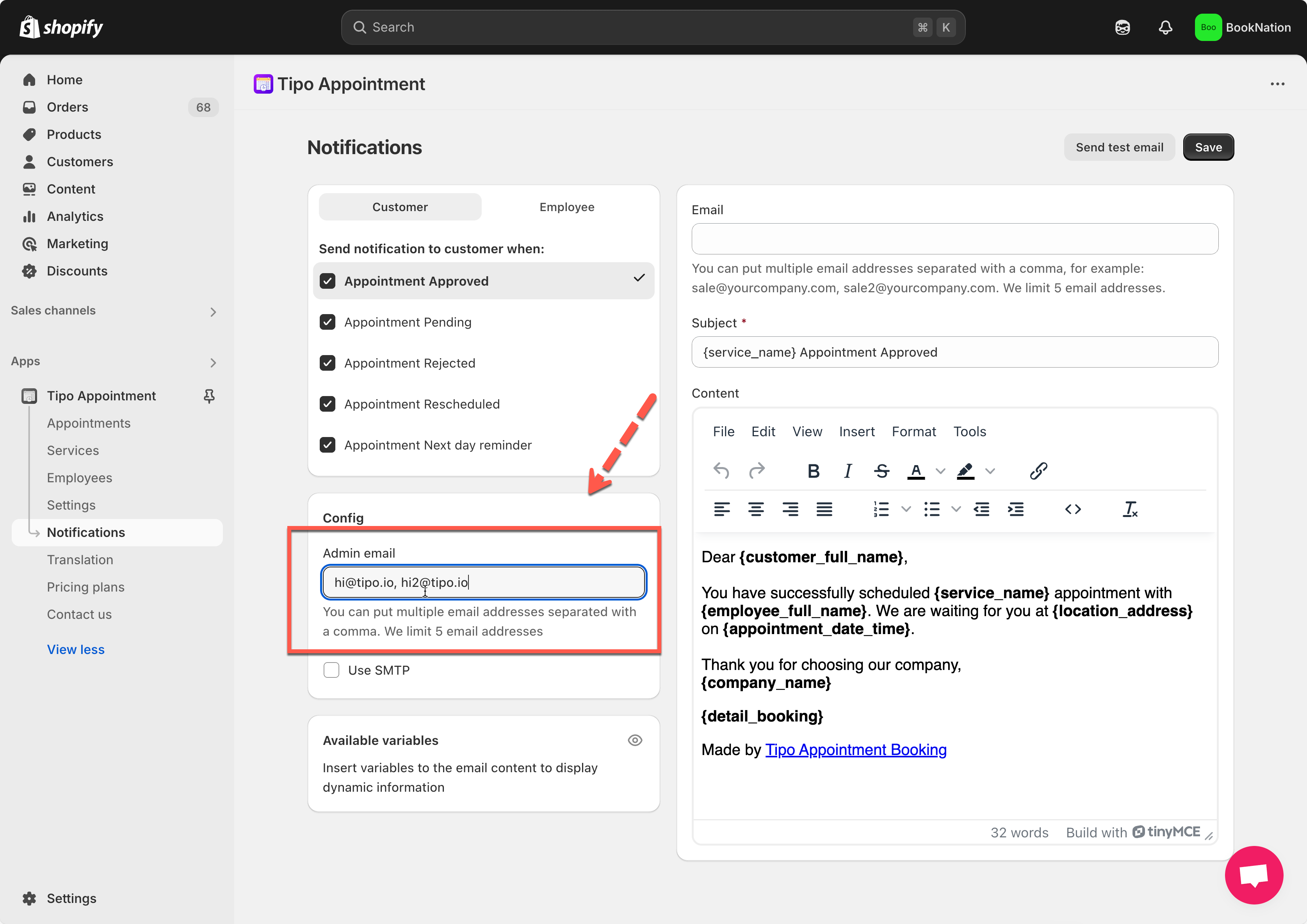
1\. Open the app > click **Notifications** > click **Merchant** tab
2\. Enter email address(es) to the **Admin email** field
**Note**: you can add multiple admin email addresses, separate email by comma character, for example: `sale@yourcompany.com, sale2@yourcompany.com`
3. In the list of triggers (e.g. “Appointment Approved,” “Appointment Pending”), make sure the checkbox next to the template is ticked
4. Click the template name to open its editor:
* Update the **Subject** line.
* Modify the **Content:** you can add text, variables, links, or formatting as needed.
5. Save the settings
***
### ✅ **What Happens Next?**
Whenever the selected notification fires (e.g., an appointment is approved), the email is sent to the admin email address(es).
***
**🙋 Still need support?**
If you still need help, please feel free to contact us at . We’ll be happy to assist you further.