> For the complete documentation index, see [llms.txt](https://docs.tipo.io/llms.txt). Markdown versions of documentation pages are available by appending `.md` to page URLs; this page is available as [Markdown](https://docs.tipo.io/tipo-appointment-booking/service-setup/multi-day-service.md).
# Multi-day service
A Multi-day Service lets customers book a date range (start date → end date). This is perfect for rentals or events that last multiple days.
***
### ✅ What this service type does
With **Multi-day booking**, customers:
* choose a **start date**
* choose an **end date**
* book the whole date range
* (optional) pay online depending on payment settings
You control:
* booking rules (min/max days, if available)
* capacity (how many bookings can happen at the same time)
* paid vs free booking
* availability and location
***
### 🎯 When should I use Multi-day Service?
Use **Multi-day booking** when:
* customers need to reserve multiple consecutive days
* it’s not tied to specific time slots
**Examples**
* Equipment rental (3 days)
* Workshop ticket (2 days)
* Hotel-like rental for a product/service
* Multi-day event passes
***
### 🛠️ Step-by-step: Create a Multi-day Service
#### 1) Open Services
* Open the app > click **Services**
* Click **New service** button
#### 2) Choose a service type
Select **Book across multiple days**
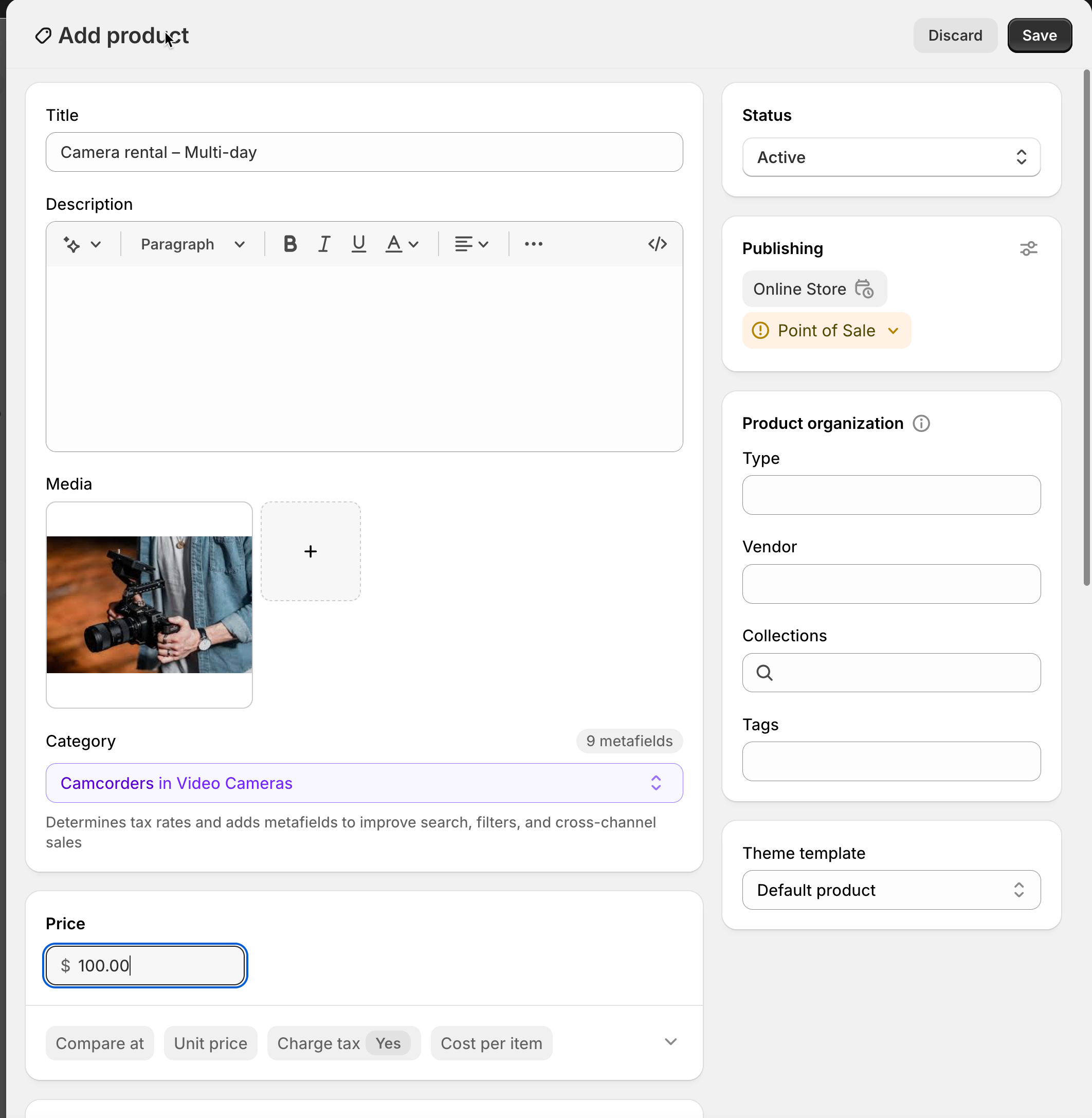
**3) Create product (for service)**
Fill in:
* **Title** (example: *Camera rental – Multi-day*)
* **Status**: Active (or Draft)
* Price (if paid)
Click **Save**
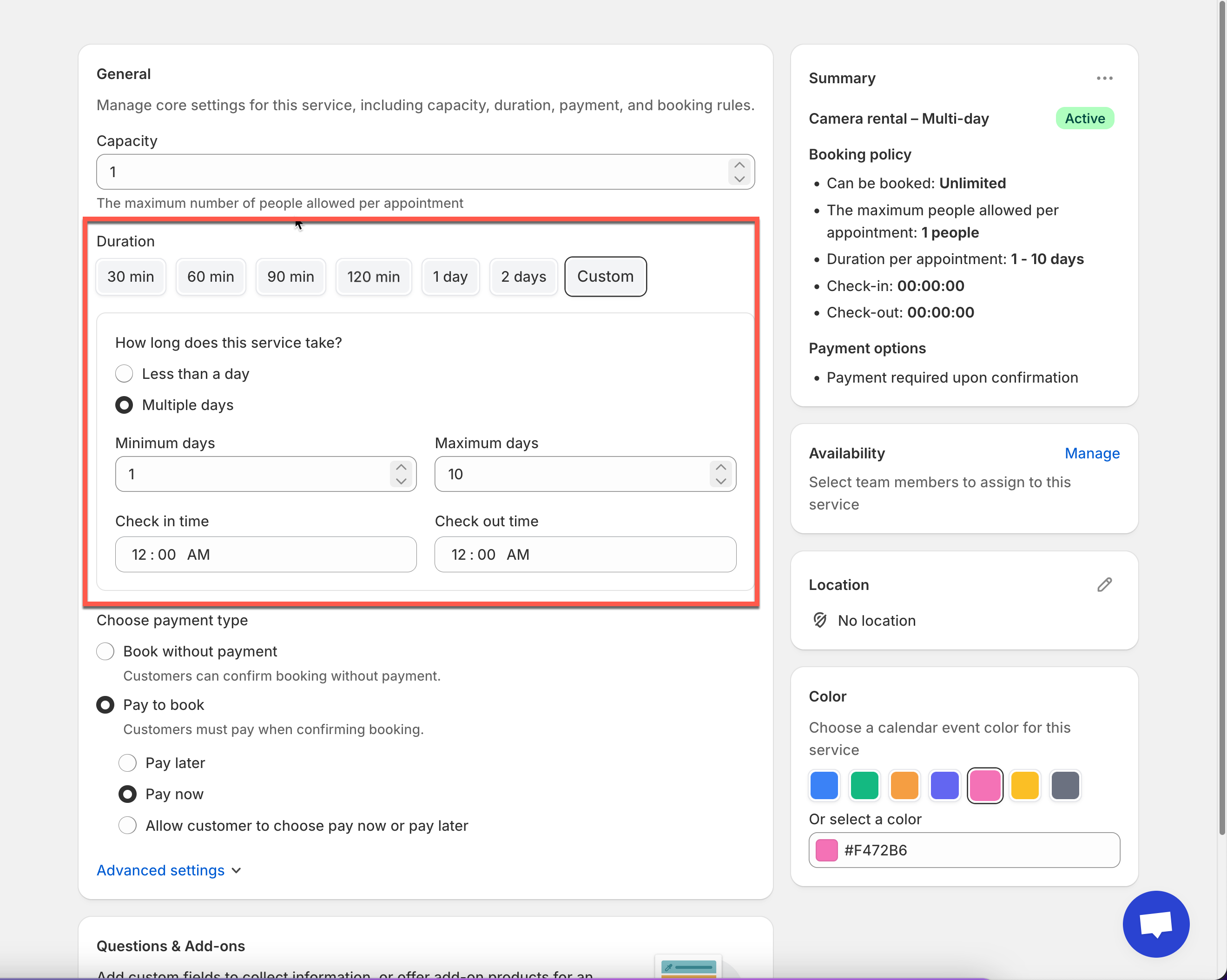
#### **4) C**onfigure service settings
* Set duration: Depending on your app settings, you may be able to set:
**Minimum days** (example: 1 day minimum)
**Maximum days** (example: up to 10 days)
Set **Check in time** and **Check out time**
* **Set capacity:**
**Capacity = 1 ⇒** only one booking for a date range at a time (common for rentals)
**Capacity** = **2+** ⇒ allow multiple simultaneous bookings (if you have multiple units)
**5) Choose payment type**
| Option | What it means | Best for |
| ------------------------- | --------------------------- | ---------------------- |
| ✅ **No payment required** | Book without online payment | Pay later/offline |
| 💰 Pay to book | Paid booking flow | Rentals/events |
| Pay now | Charge immediately | Deposits/confirmations |
| Pay later | Confirm now, pay later | Invoices |
| Customer chooses | Customer selects | Flexible |
**6) Configure availability**
Set:
* available date range for employee
* As it is the full day service, the employee must be available from **00:00-24:00.**
[Learn more](https://docs.tipo.io/tipo-appointment-booking/availability-team-members/set-availability-for-services#how-to-set-availability)
#### 7) Customize more settings (Optional)
* In **Location** field, enter the location of the service
* **Color**: helps identify bookings in the calendar
* **Questions & Add-ons**: collect info (name, preferences) or sell add-ons
* **Advanced settings**: booking rules, lead time, buffer time, etc. (if available)
#### 8) Save
Click **Save** to finish creating the service.
***
### 🌐 How it works on your storefront
After publishing:
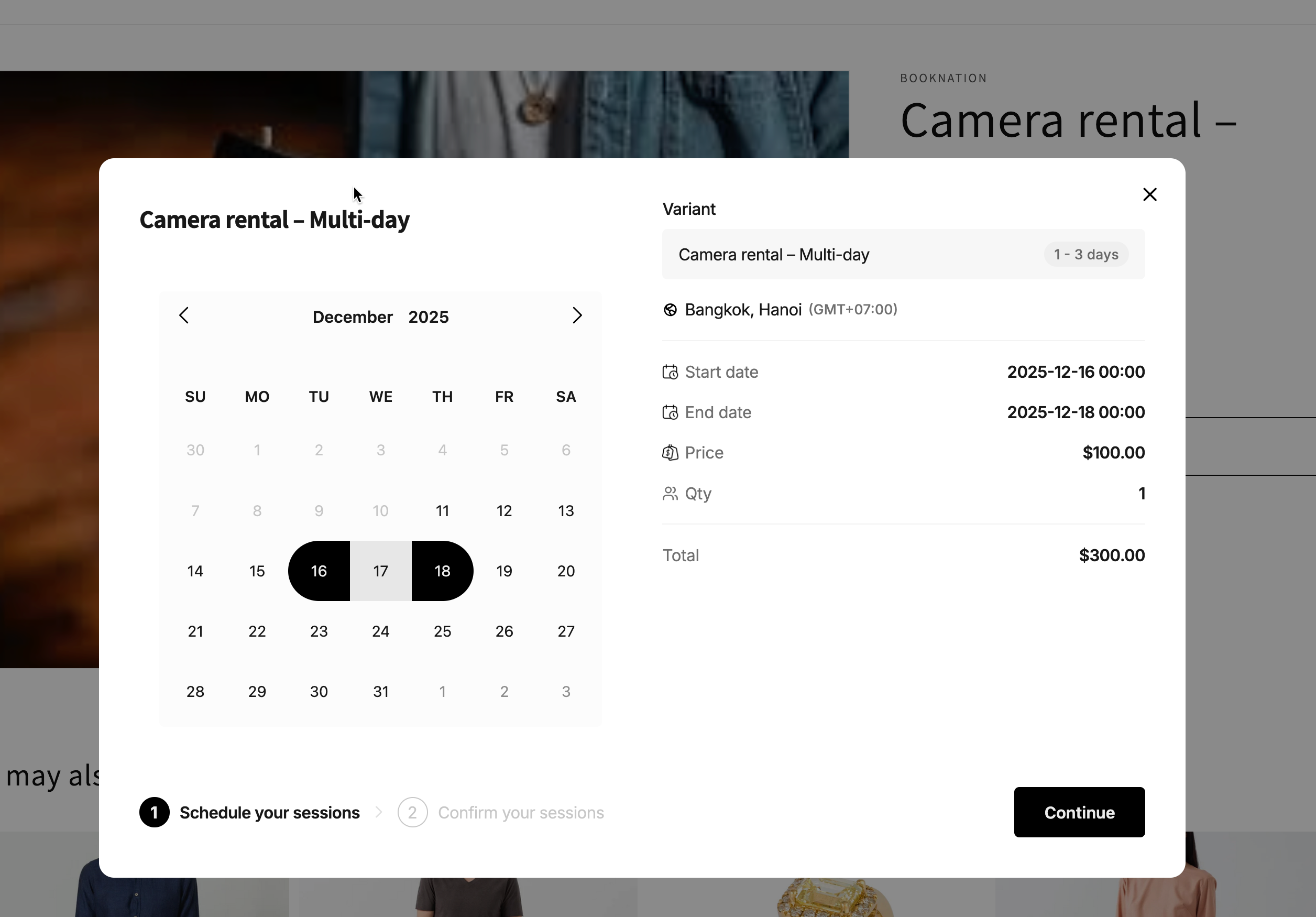
1. A **Book** button appears on the service product page
2. Customer selects **start date + end date**
3. If paid → customer goes to **checkout**
4. Booking appears in **Appointments**
5. The app automatically calculates the total booking price based on:
* **Service price** (price per day)
* Number of booked days
* Number of customers in an appointment
**Formula**
> **Final price = Service price × Number of booked days × Number of customers**
***
#### 🧪 Example
**Service:** Camera rental (Multi-day)
* Customer selects: Dec 16- Dec18
* That reserves 3 days
* Capacity: 1 (so no overlapping rental ranges)
* Service price: $100/day ⇒ the total price = $300
***
### ⚙️ Set the charge rule
For multi-day services, you can choose how customers are charged based on the length of their booking.
Under **How customers will be charged**, select the pricing rule that best fits your service.
You can choose from:
#### Per participant, per day
Each participant is charged for every day of the booking.
**Example**
Service price: **$100**
Booking: **Dec 16 – Dec 18**\
Participants: **1**
The booking covers 3 days:
`$100 × 3 days = $300`
This option works well for services such as:
* Equipment rental
* Daily workspace rental
* Multi-day activities
***
#### Per participant, per night
Each participant is charged for every night between check-in and check-out.
**Example**
Service price: **$100**
Check-in: **Dec 16**\
Check-out: **Dec 18**\
Participants: **1**
The booking includes 2 nights:
`$100 × 2 nights = $200`
This option is useful for services such as:
* Accommodation
* Overnight rentals
* Retreats
* Camping or lodging services
***
#### Per participant
Each participant is charged only once, regardless of how many days the booking lasts.
**Example**
Service price: **$100**
Booking: **Dec 16 – Dec 18**\
Participants: **1**
Total:
`$100 × 1 participant = $100`
The booking duration does not increase the service price.
This option works well for:
* Multi-day event passes
* Retreat registration fees
* Courses with one fixed price
***
### ▶️ Tutorial video
{% embed url="" %}
***
**🙋 Still need support?**
If you still need help, please feel free to contact us at . We’ll be happy to assist you further.