> For the complete documentation index, see [llms.txt](https://docs.tipo.io/llms.txt). Markdown versions of documentation pages are available by appending `.md` to page URLs; this page is available as [Markdown](https://docs.tipo.io/tipo-appointment-booking/widget-customization/edit-widget-text/edit-confirm-button-text.md).
# Edit “Confirm” Button Text
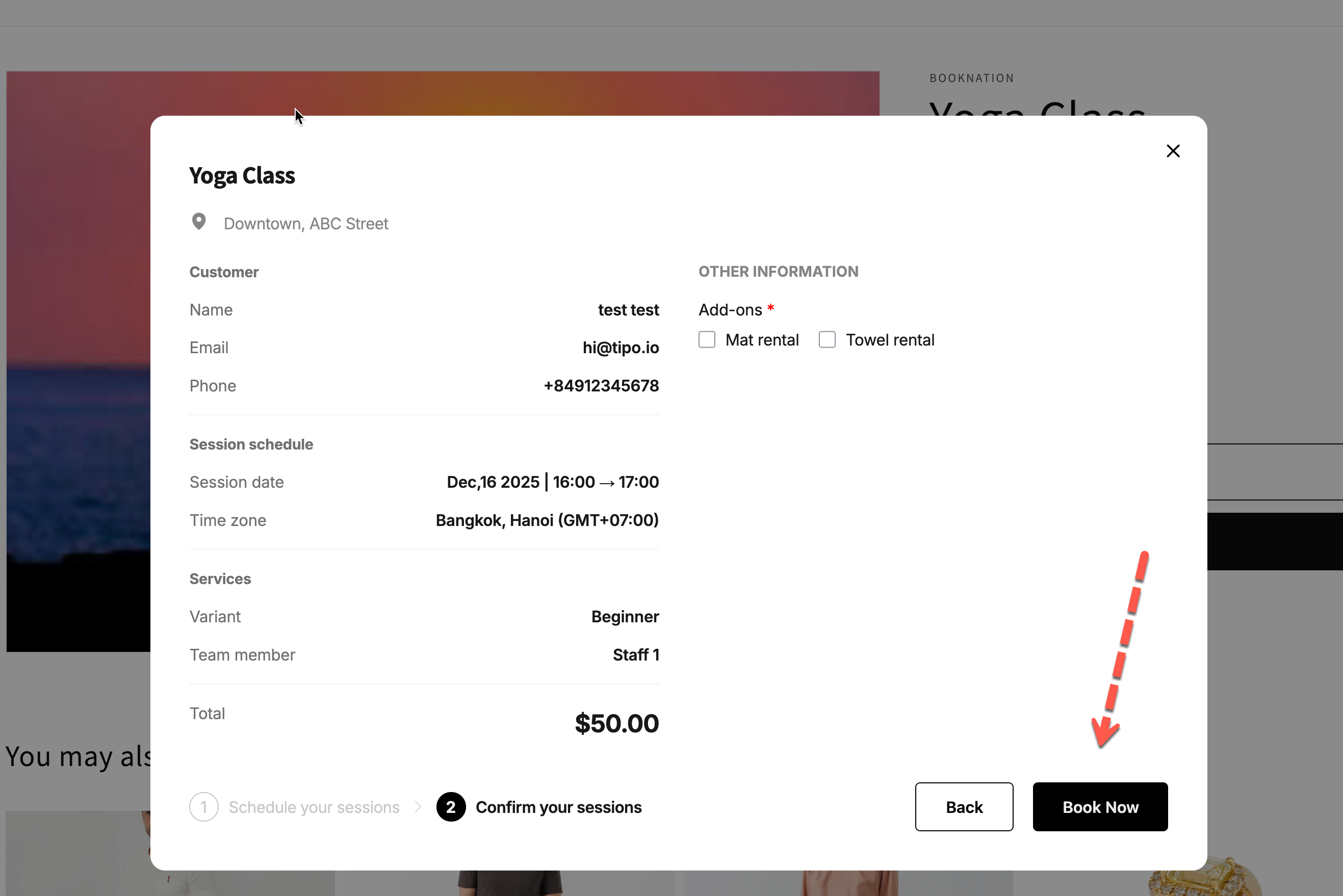
The **Book Now button** is the final action customers click to complete their booking.\
Customizing this text helps match your brand tone and makes the booking flow clearer for customers.
***
### 📍 Where this text appears
* On the **last step** of the booking widget
* Right before the booking is completed
* Used for both **free** and **paid** bookings
Typical default text:
> **Book Now**
***
### 🛠️ How to edit the Confirm button text
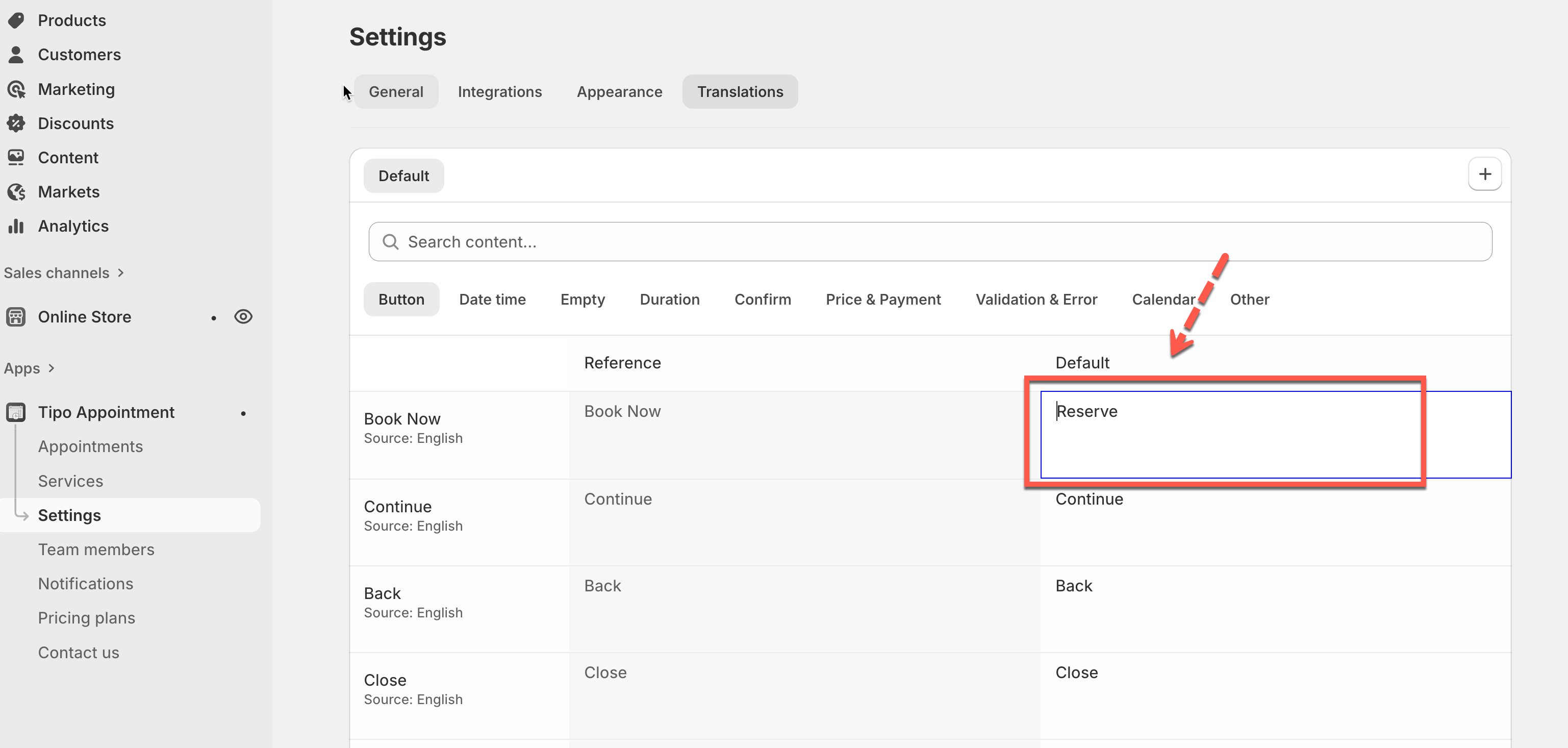
1. Open the app > click **Settings**
2. Open the **Translations** tab
3. Make sure you are editing the correct **language** (example: *English – United States*)
4. Edit text of the **Book** **Now** row, **Default** column
**✏️ Example changes**
| Default text | Custom text idea |
| ------------ | ------------------- |
| Book now | Complete booking |
| Book now | Pay & confirm |
| Book now | Reserve appointment |
> 💡 Keep it short (1–3 words) so the button looks clean on mobile
4. Click Save.
***
### 🧪 Example (what customers see)
**Before**
> Button: **Book Now**
**After**
> Button: **Pay & confirm**
This makes it clearer that payment is required before finishing the booking.
***
### ⚠️ Important notes
* This setting affects **all services** using the same widget language
* The **Book** **Now** button text does not change:
* Shopify checkout buttons
* Email notifications
* Only the booking widget UI is updated
***
### ✅ Best practices
✔ Use action-based wording (Book, Pay, Reserve)\
✔ Match wording with your payment flow\
✔ Avoid long sentences on buttons
❌ Don’t use unclear text like “Submit” or “OK”
***
### 🔧 Troubleshooting
#### “The button text didn’t change”
Try the following:
* Refresh the storefront page
* Make sure you edited the **Book Now** field (not confirmation messages below)
* Check you’re editing the correct language
***
**🙋 Still need support?**
If you still need help, please feel free to contact us at . We’ll be happy to assist you further.