> For the complete documentation index, see [llms.txt](https://docs.tipo.io/llms.txt). Markdown versions of documentation pages are available by appending `.md` to page URLs; this page is available as [Markdown](https://docs.tipo.io/tipo-appointment-booking/appointment-management/manage-appointments.md).
# Manage appointments
Use the Appointments page to view, approve, reschedule, cancel, and export bookings.
### ✅ What you can do here
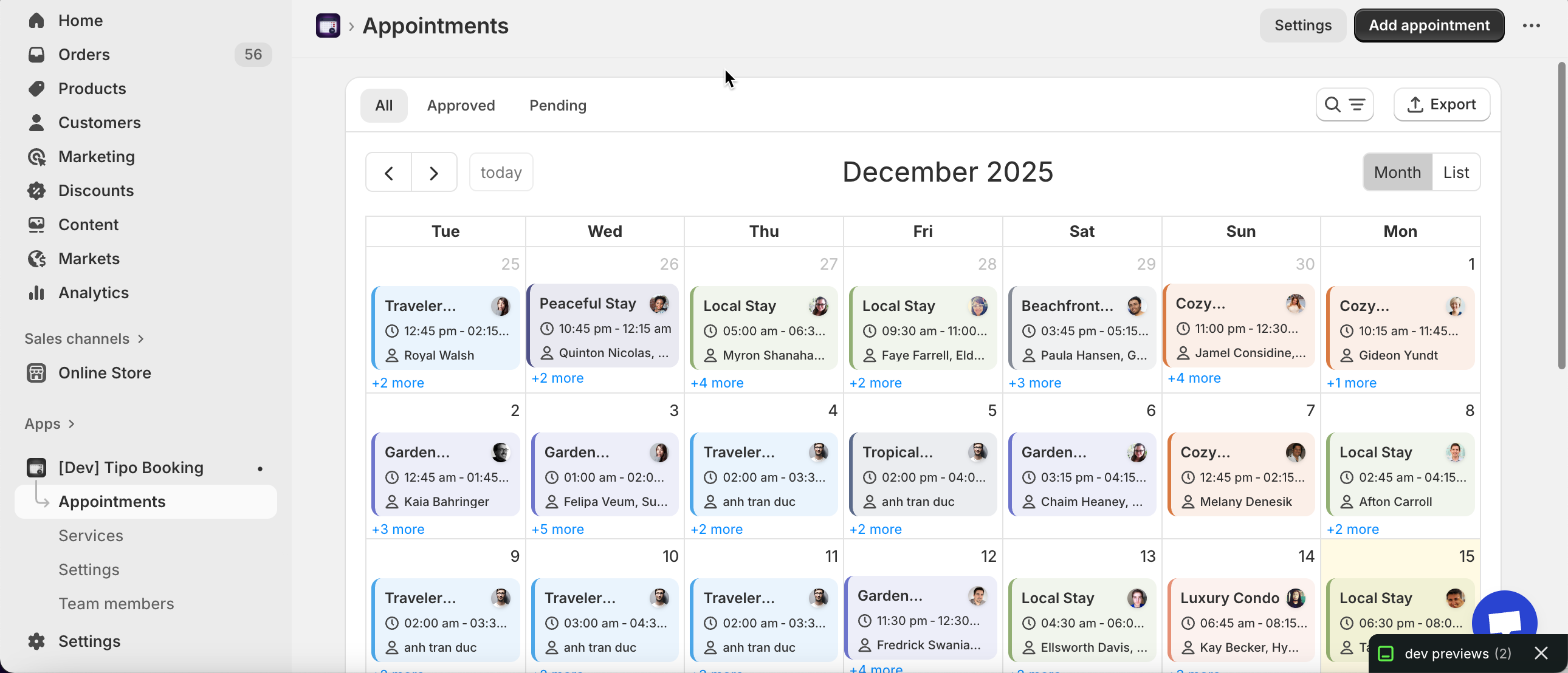
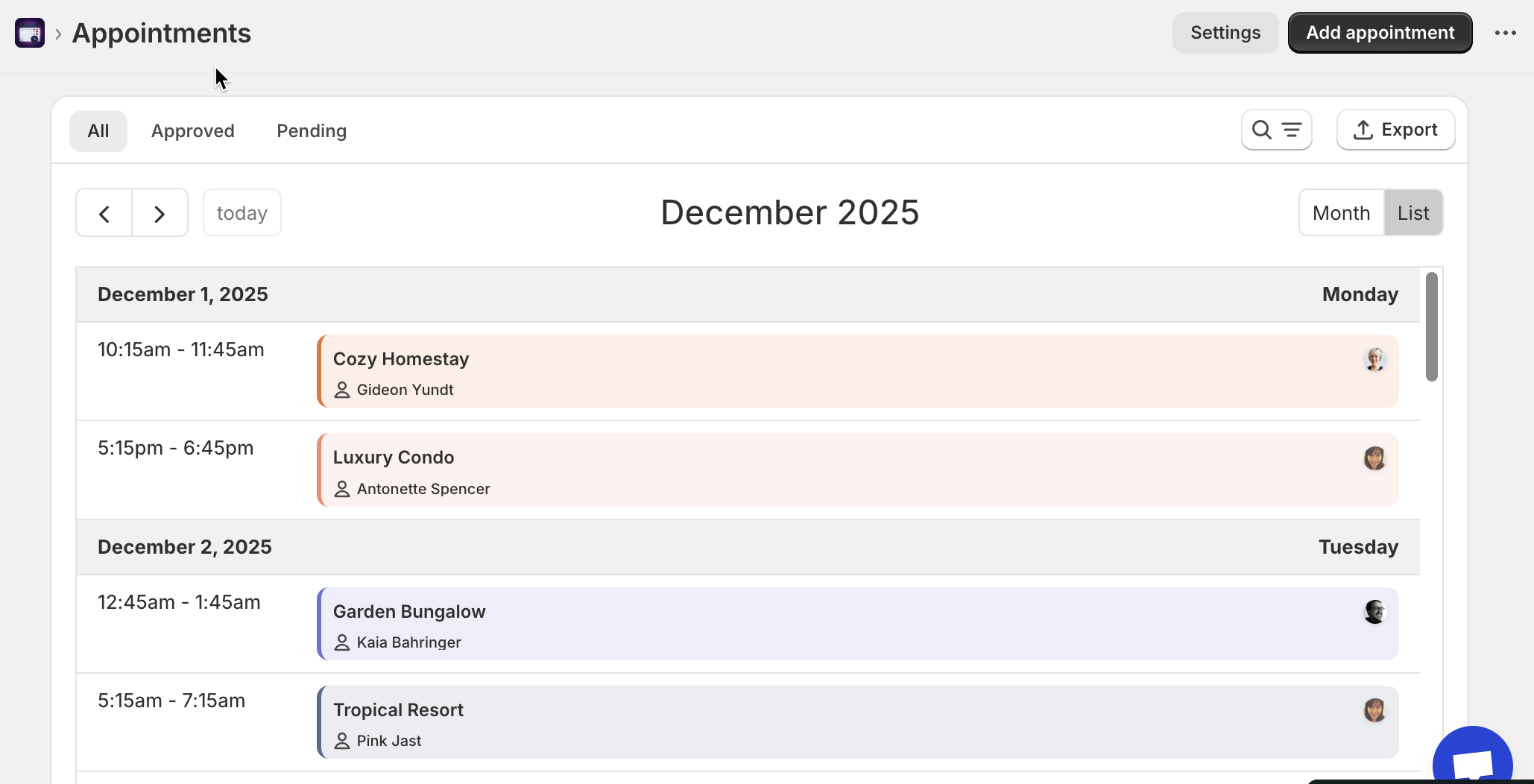
* View appointments in a **Calendar (Month)** or **List** view
* Filter by status (**All / Approved / Pending**)
* Open an appointment to see details (customer, order, time, service)
* **Reschedule** or take actions (approve / cancel / delete)
* **Export** appointments to a file (CSV)
***
### 📂 Open the Appointments page
Open the app > go to **Appointments.**
What you’ll see:
* Tabs: **All / Approved / Pending**
* A calendar header (Month + navigation)
* Top-right buttons: **Settings**, **Add appointment**, **Export**
***
### ⚙️ Choose how you want to view appointments
#### Month view (Calendar)
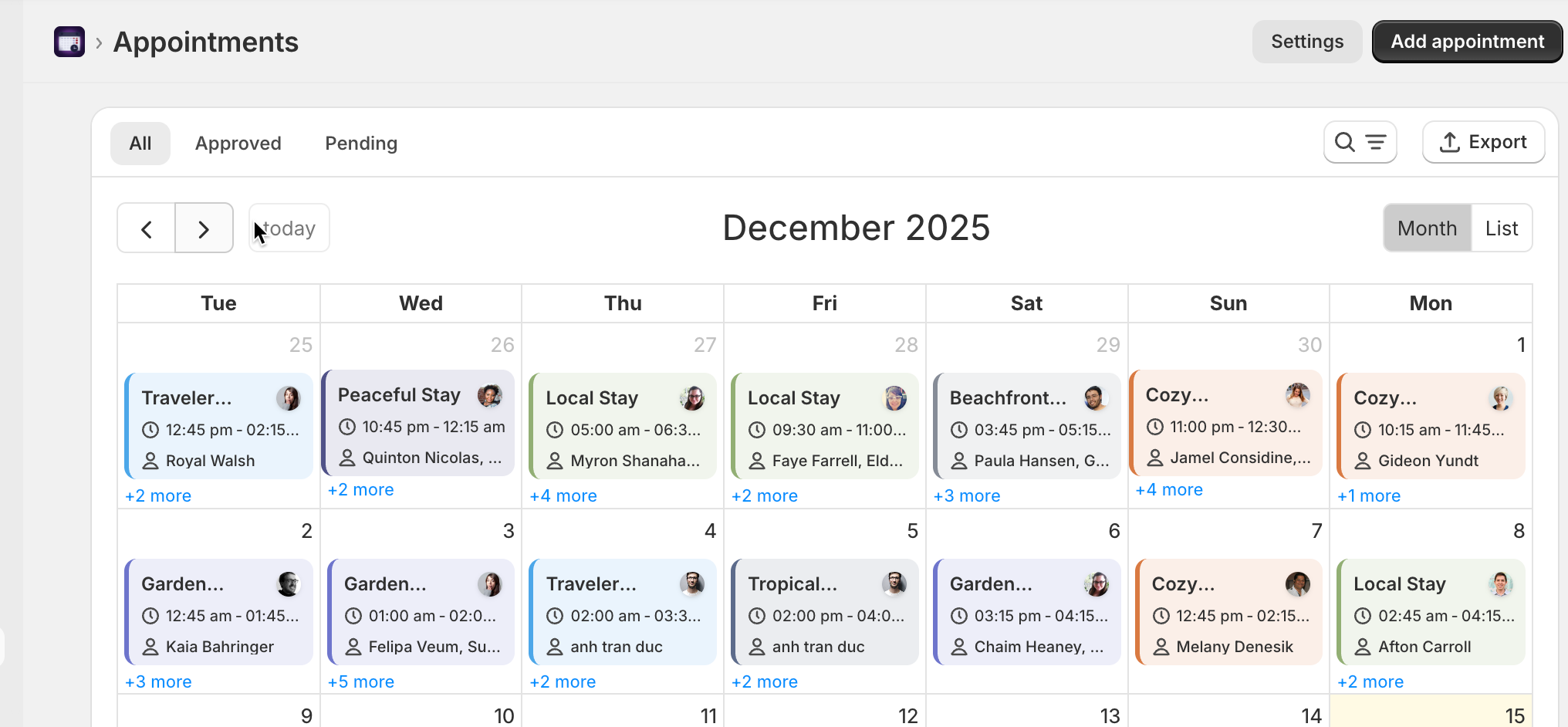
Best for seeing your schedule at a glance and spotting busy days.
* Click **Month** (top right)
* Click an appointment block on the calendar to preview details (service, status, date/time, participants).
#### List view
Best for scanning lots of appointments quickly.
* Click **List** (top right)
* Use filters/search to narrow down results.
**Tip:** Use **Approved** when you want only confirmed bookings, and **Pending** when you want to review requests.
***
### 🔍 Filter appointments by status
At the top of the page, choose one:
* **All** – everything
* **Approved** – confirmed bookings
* **Pending** – waiting for your approval (if your store uses approval)
This helps you focus on the right workload (review vs. manage).
***
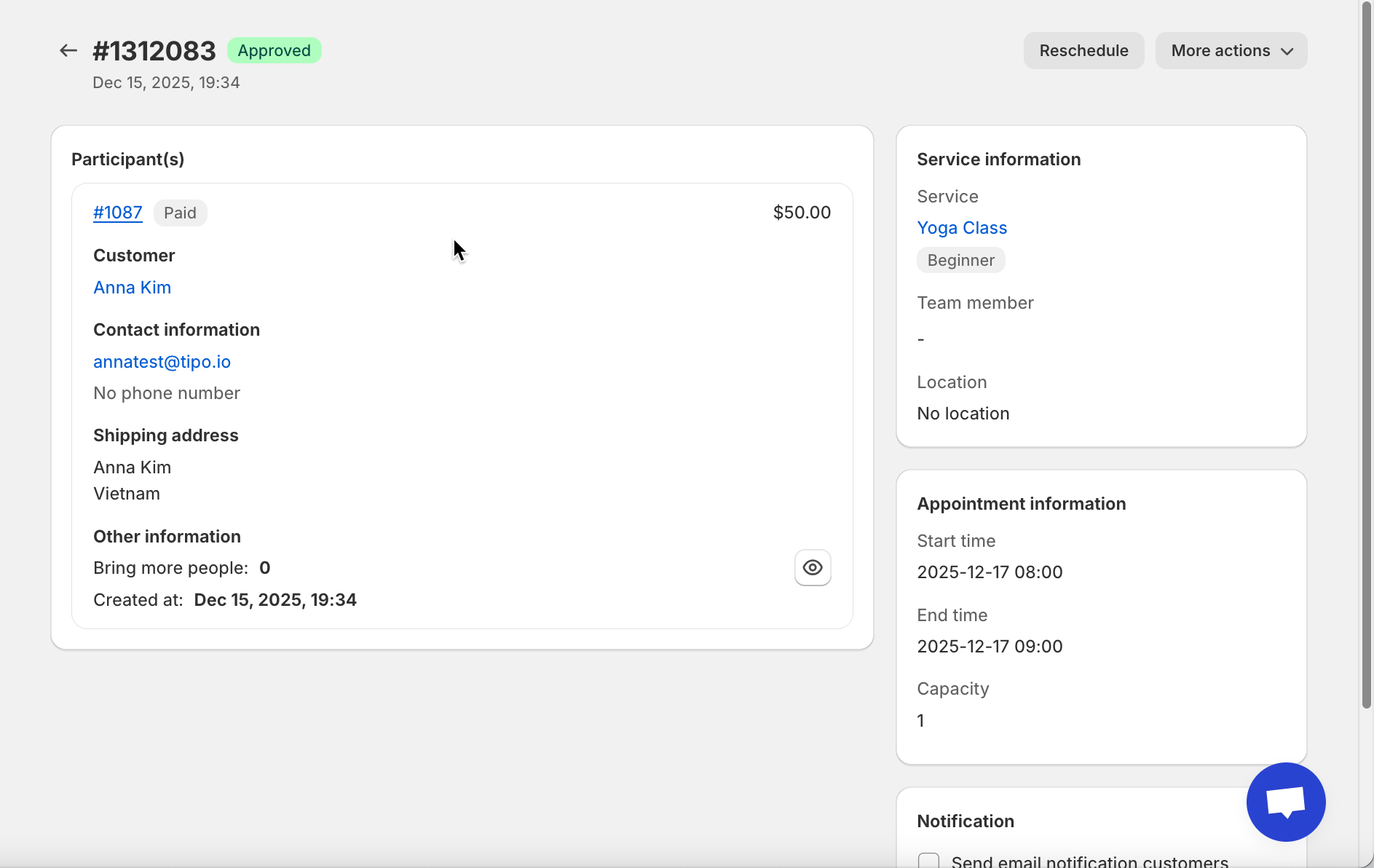
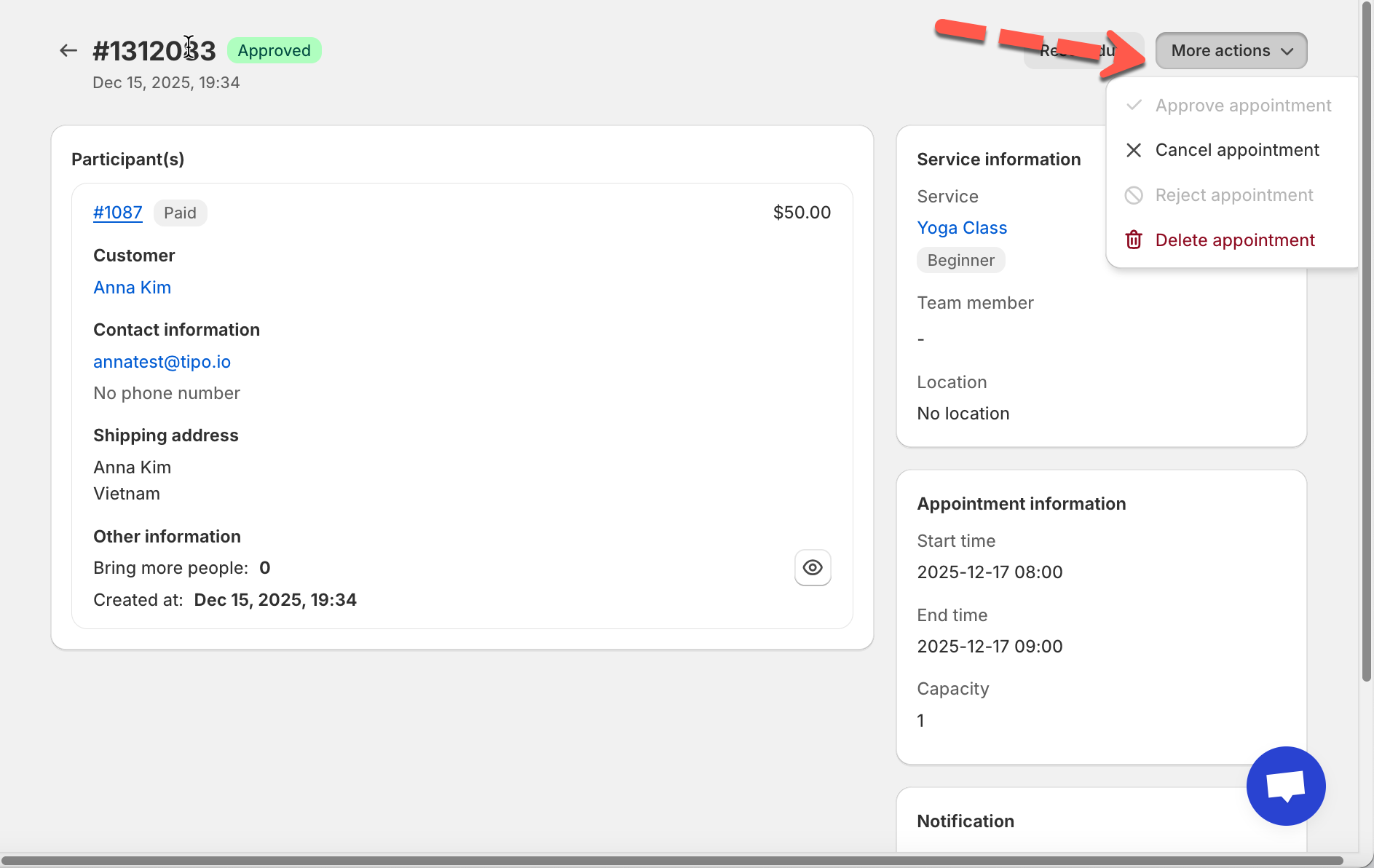
### 📋 View appointment details
Click an appointment on the calendar (or list) to open it.
Inside the appointment detail page, you’ll typically see:
#### Participant(s)
* Customer name + contact info
* Linked order number (if paid)
* Payment label (example: **Paid**) and amount
#### Service information
* Service name + variant (if any)
* Team member (if assigned)
* Location (if used)
#### Appointment information
* Start time / End time
* Capacity
***
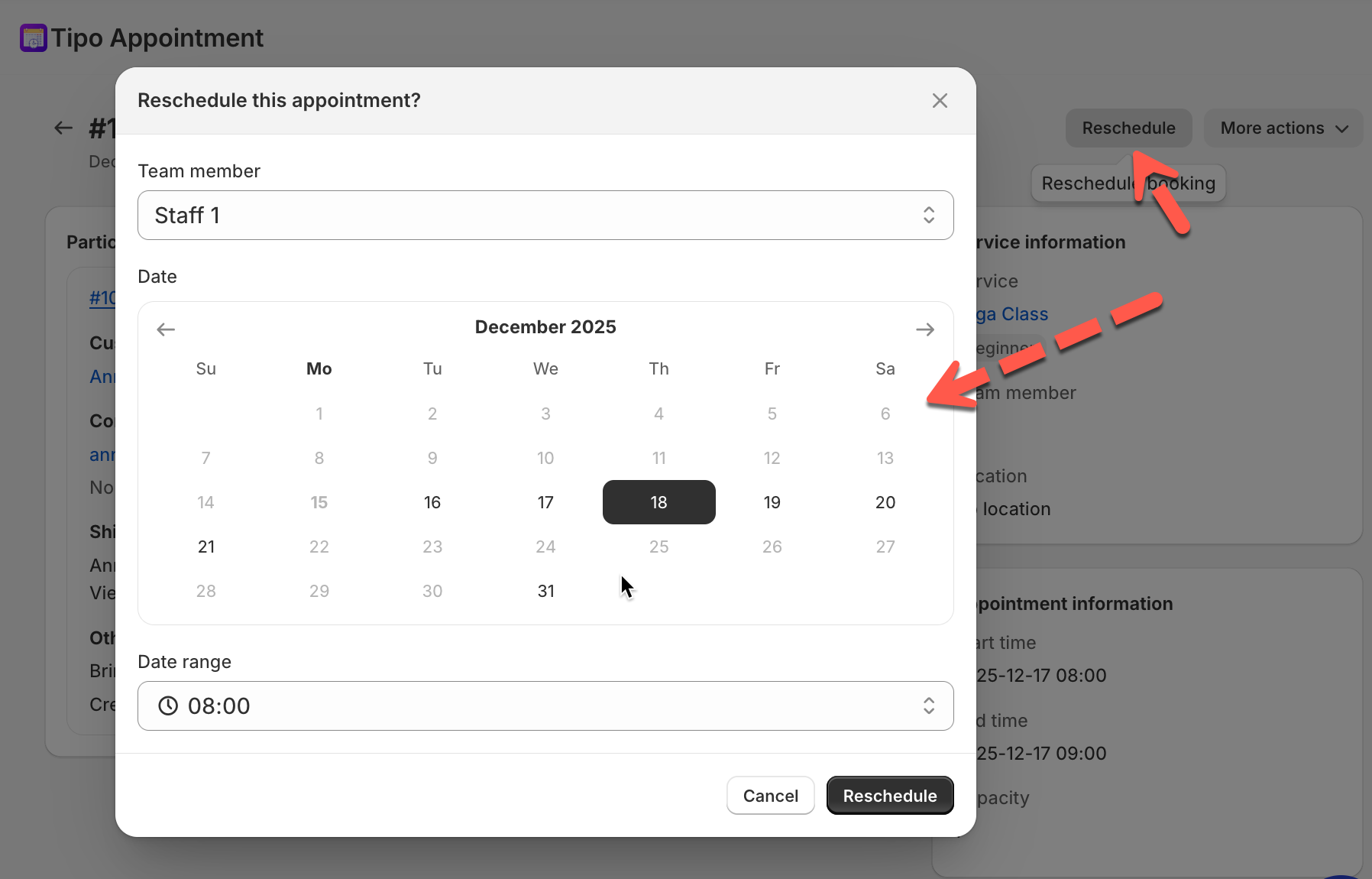
### 🔁 Reschedule an appointment
On the appointment detail page, click **Reschedule** (top right).
A reschedule form will open where you can:
* Select **Team member**
* Pick a **Date**
* Choose a new **Time** (time range)
Rescheduling must follow availability rules (team member schedule + blocked times + booking date range).
***
### ✏️ Take actions: approve, cancel, delete appointments
On the appointment detail page, click **More actions**.
Common actions you may see:
* **Approve appointment** (for pending bookings)
* **Cancel appointment** (keep record but mark it canceled)
* **Delete appointment** (remove it entirely)
**Suggested guidance text**
* Use **Cancel** when you want to keep history/reporting.
* Use **Delete** only when you truly want it removed (ex: test bookings).
***
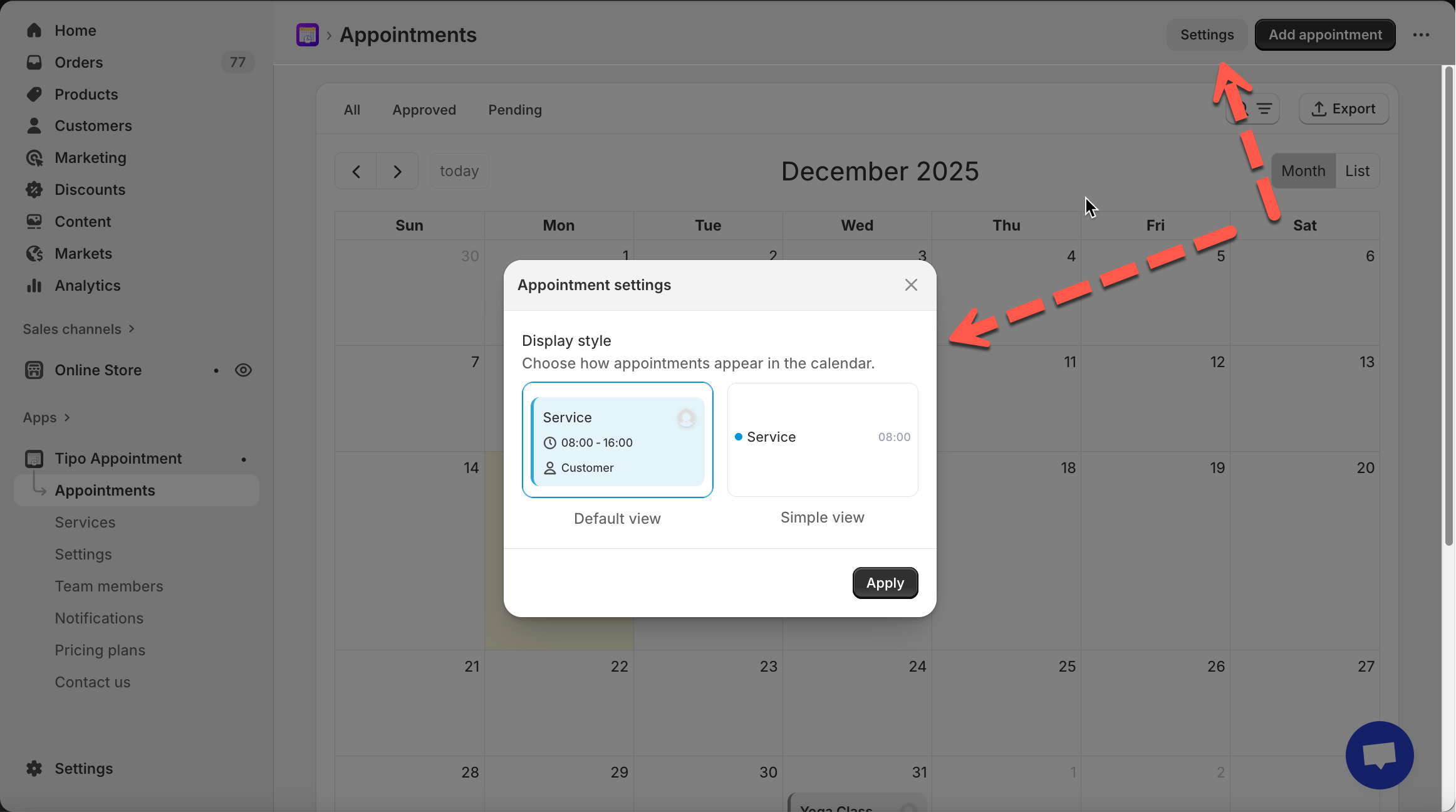
### ⚙️ Appointment settings (display style)
From the main **Appointments** page, click **Settings** (top right).
You can choose how appointments appear on the calendar, for example:
* **Default view** (shows more details like service + time + customer)
* **Simple view** (more compact display)
Click **Apply** to save.
***
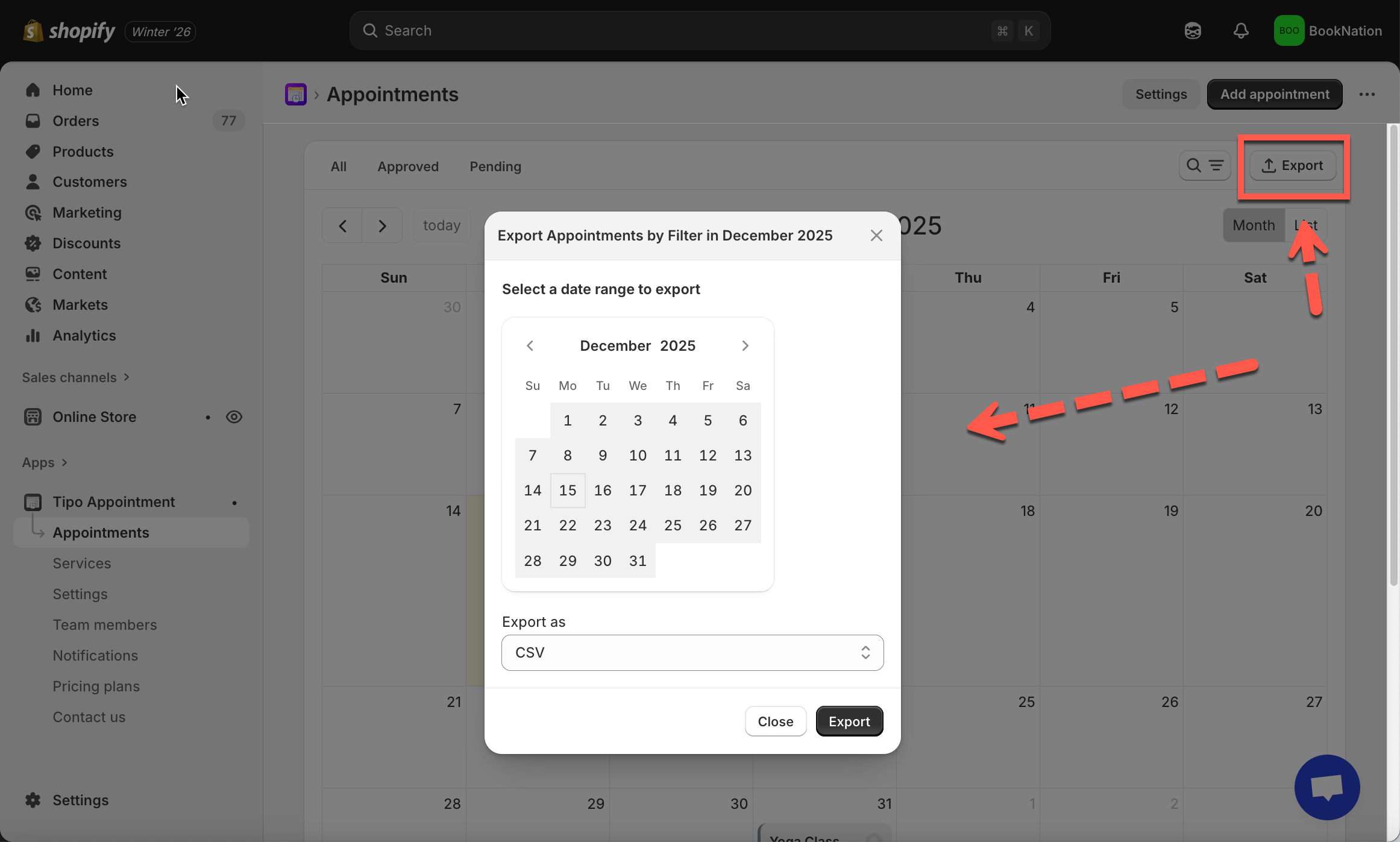
### 📤 Export appointments
From the main Appointments page, click **Export** (top right).
In the export popup:
1. Select a **date range** (calendar picker)
2. Choose **Export as** → usually **CSV**
3. Click **Export**
***
**🙋 Still need support?**
If you still need help, please feel free to contact us at . We’ll be happy to assist you further.