> For the complete documentation index, see [llms.txt](https://docs.tipo.io/llms.txt). Markdown versions of documentation pages are available by appending `.md` to page URLs; this page is available as [Markdown](https://docs.tipo.io/tipo-appointment-booking/widget-customization/edit-widget-text.md).
# Edit widget text
Use this to change the words customers see on your booking widget (buttons, labels, error messages, calendar text, etc.).
### ✏️ **Steps to** edit widget text
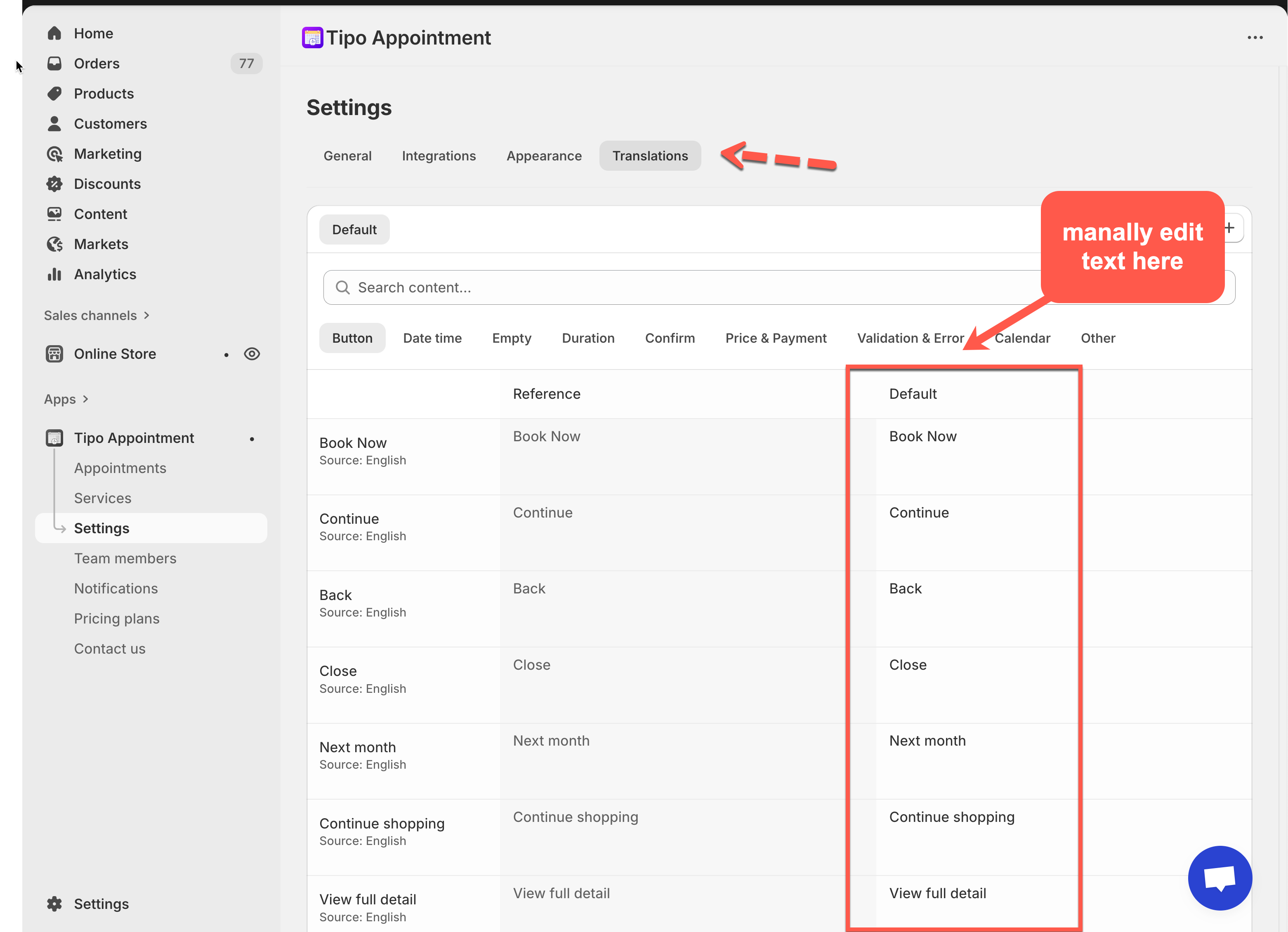
1. Open the app > click **Settings** > **Translations**
2. Find the text you want to change
3. Edit text in the **Default** column directly. All editable text is listed under the **Default** column
Note: You do **not** need to add a new language if you're only updating the default wording
3. Use the **search bar** or category filters (e.g., Button, Calendar, Validation & Error) to locate specific phrases
4. Click **Save** to update the changes
5. review your changes on the storefront
Refresh your storefront to see the updated widget text.
***
### 💡 Understand the translation table
On this page, you’ll see:
* **Search content…**: quickly find any text (example: “Book”, “Confirm”, “Error”)
* Category tabs like:\
**Button**, **Date time**, **Empty**, **Duration**, **Confirm**, **Price & Payment**, **Validation & Error**, **Calendar**, **Other**
* A table with columns:
* **Key / Item** (example: Book Now, Continue, Close…)
* **Reference** (original text)
* **Default** (the text currently used on your widget — this is what you edit)
> 💡 Think of it like: **Reference = original**, **Default = what customers will see**.
**Example Edits:**
| Reference Text | Custom Text (Default) |
| ---------------- | --------------------- |
| Book Now | Reserve Now |
| Continue | Proceed |
| Back | Go Back |
| Add guest | Add another person |
| View full detail | See all details |
***
### ⭐ Best practices
#### Keep text short
Buttons work best with 1–3 words:
* “Reserve”
* “Next”
* “Confirm”
#### Keep wording consistent
If you use “Reserve” on the first button, avoid switching to “Book” later.
#### Don’t change system meaning
For error messages, keep the meaning clear so customers understand what to fix.
***
**🙋 Still need support?**
If you still need help, please feel free to contact us at . We’ll be happy to assist you further.