
Getting started
Welcome to Tipo Related Products, Upsell!
This app helps you increase sales by showing related products, upsells, and cross-sells on key pages like Product, Cart, Search, and Thank you pages.
✨ Key Features
Section titled “✨ Key Features”- Show related products widget automatically based on tags, collections, vendor, product type, etc.
- Select related products manually for full control (handpick what you want to recommend)
- Use popular recommendation layouts like:
- “You may also like”
- “Frequently bought together”
- Customize the design layout, number of products, colors, buttons, spacing of the widget
- Track performance: impressions, clicks, conversions
- Support multiple languages: translate widget text
🚀 Quick start
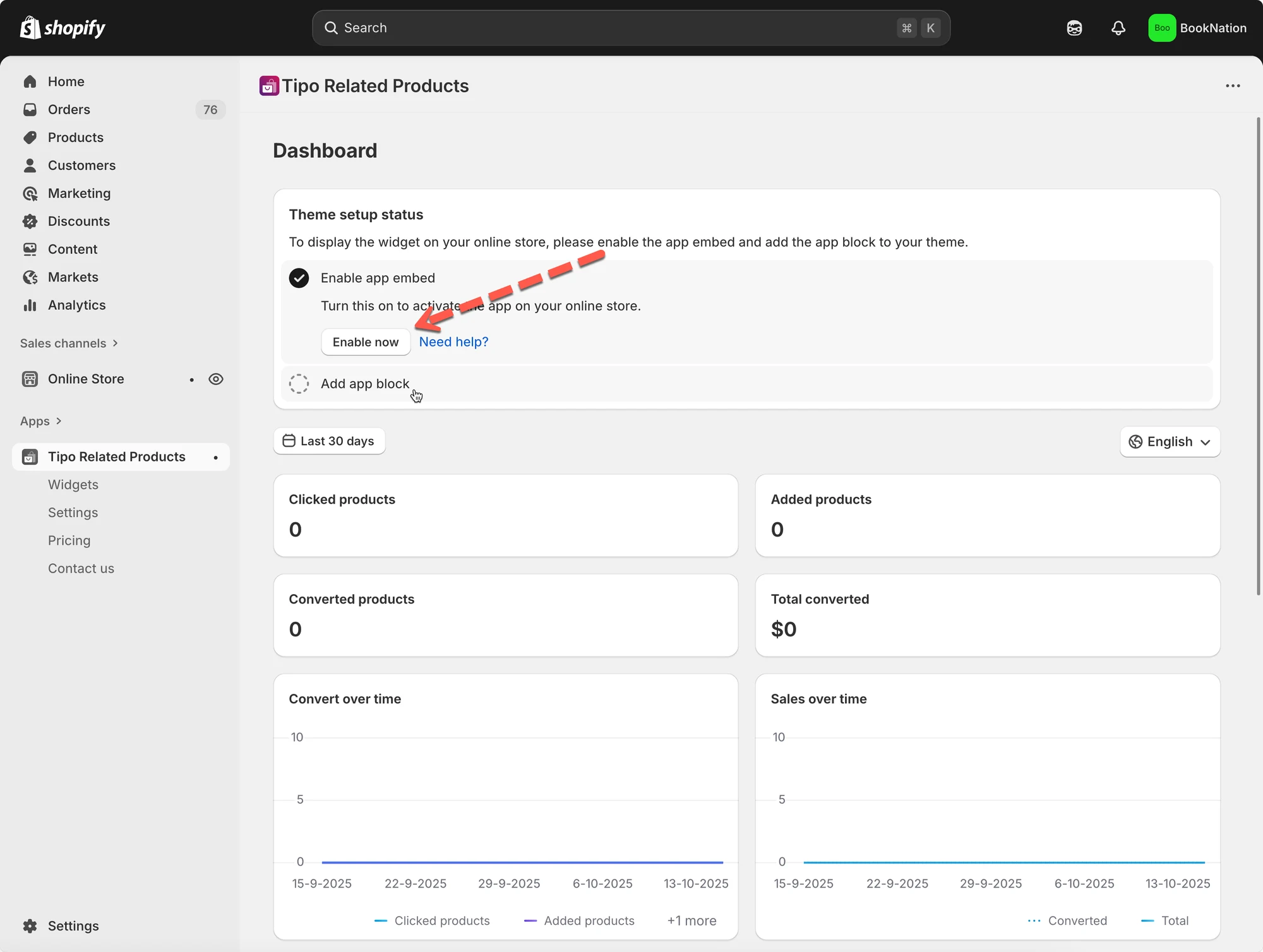
Section titled “🚀 Quick start ”Step 1: Enable the app in your theme
Section titled “Step 1: Enable the app in your theme”You can activate the app embed of Inventory Sync, Multi store TP app in the theme editor.
More detail here
Step 2: Create your first widget
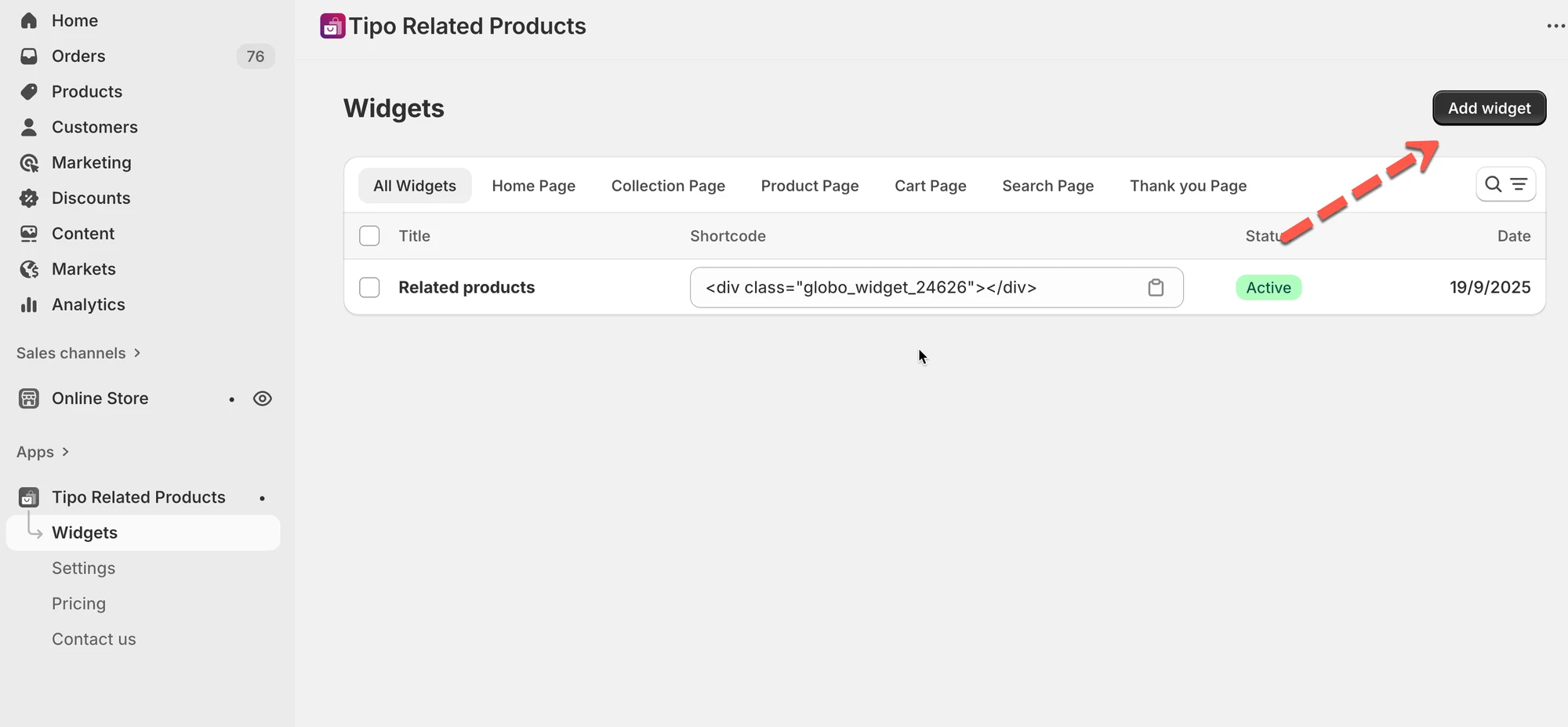
Section titled “Step 2: Create your first widget”- Go to Widgets.
- Click Add widget.
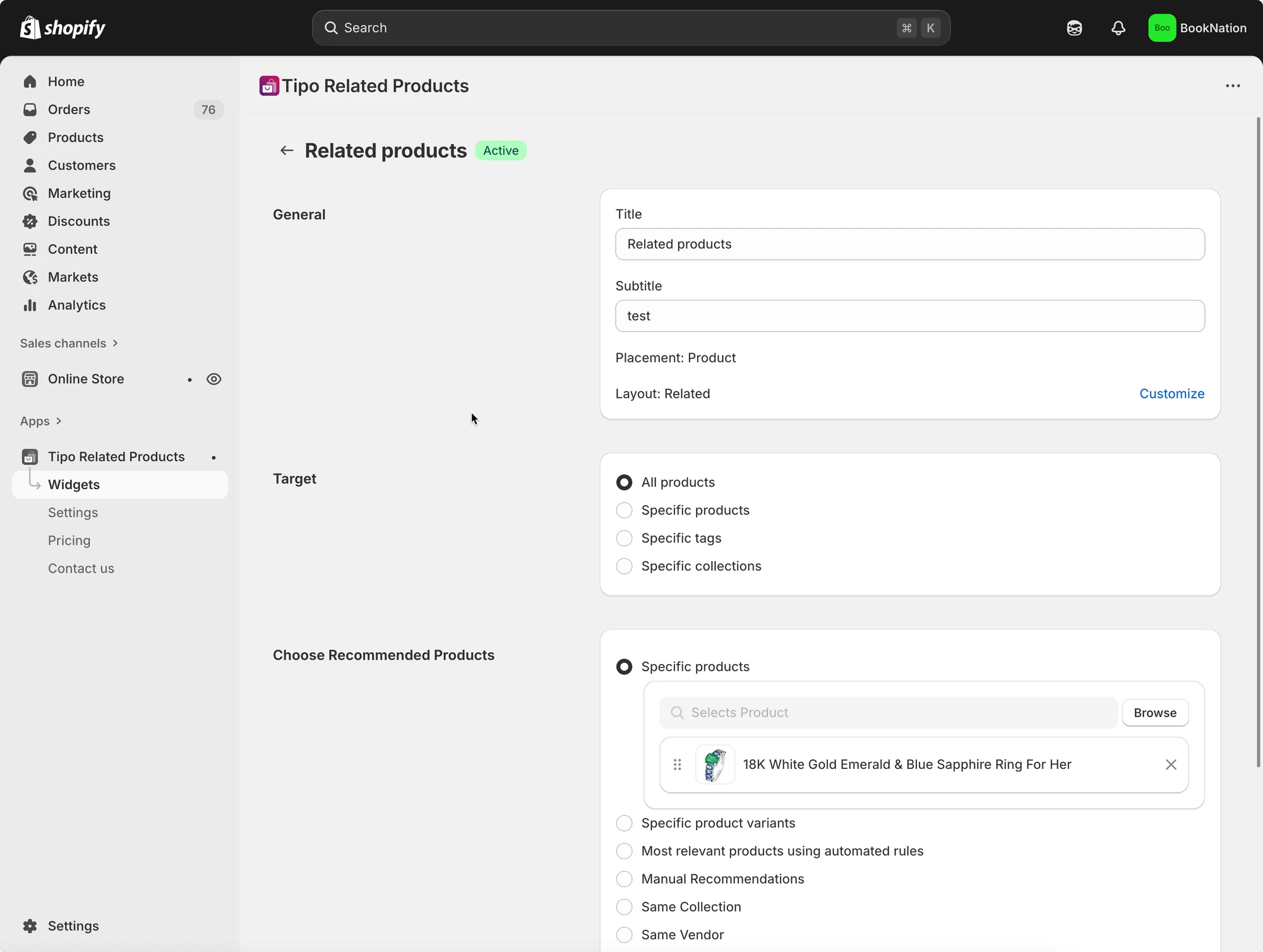
- Choose:
- Placement (Product page, Cart page, etc.)
- Layout (Related, Frequently Bought Together, Add-on, Recently viewed…)
- Set up products in widget detail
Learn more here
Widget types (where you can show recommendations)
Section titled “Widget types (where you can show recommendations)”Tipo supports widgets on these pages:
- Product page
- Home page
- Collection page
- Cart page
- Search page
- Thank you page
Choose what products to recommend
Section titled “Choose what products to recommend”When editing a widget, you’ll usually set 2 things:
1) Target (where this widget applies)
- All products
- Specific products
- Specific tags
- Specific collections
2) Recommendation rule (what to show)
Examples:
- Same collection / tag / vendor / product type
- Manual recommendations
- Automated “most relevant” rules (when supported by the layout)
Step 3: Configuring Appearance
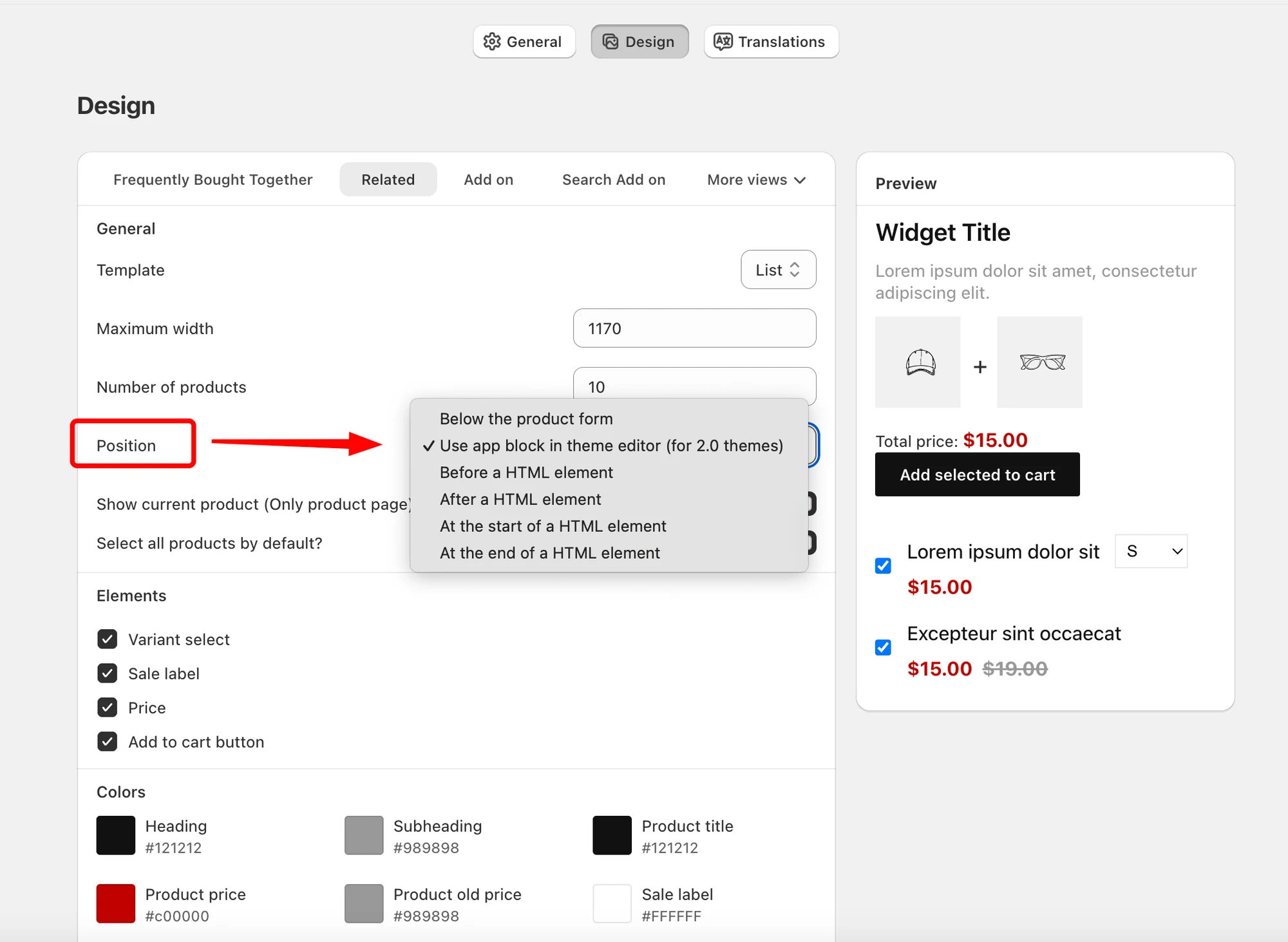
Section titled “Step 3: Configuring Appearance ”Go to the app Settings > Design page. Set the product limit, widget position, elements,configure colors.
Step 4: Publish the widget on your storefront
Section titled “Step 4: Publish the widget on your storefront”How you add widgets depends on your theme type:
- Online Store 2.0 themes: Add the app block in Theme Editor (recommended)
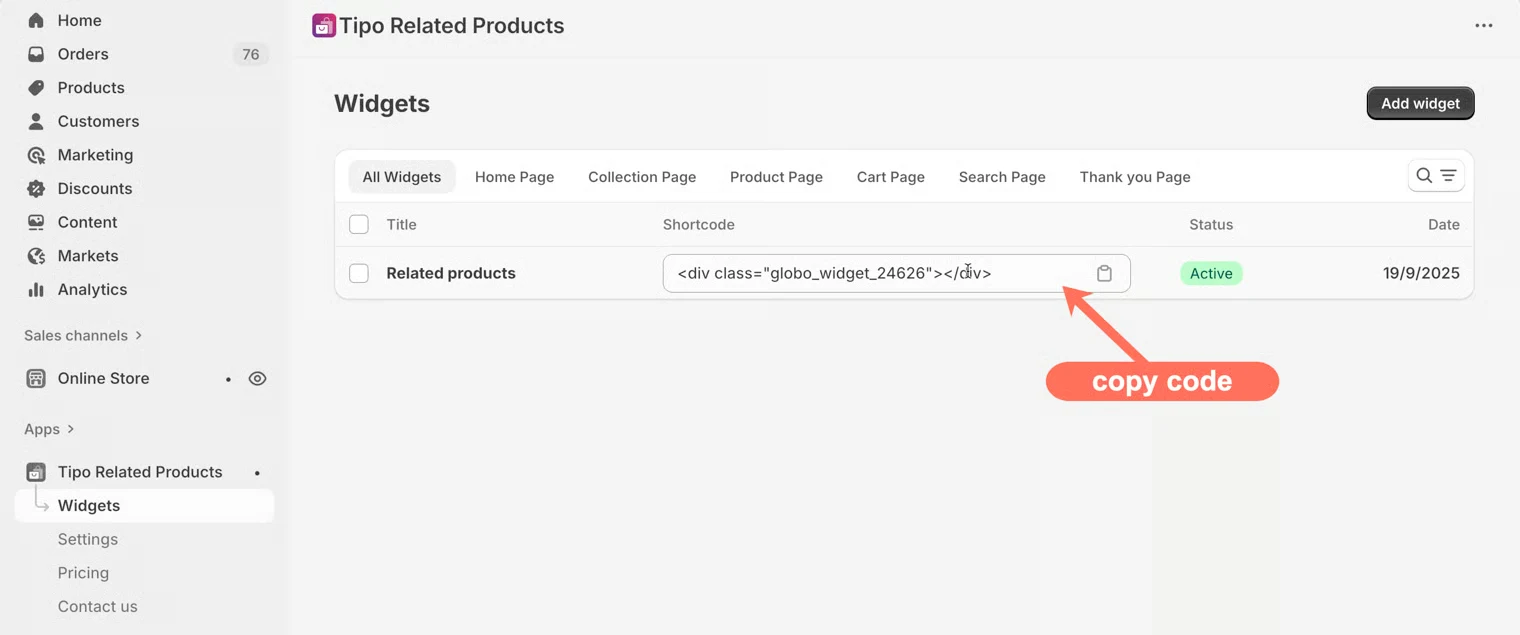
- Vintage themes: Paste the widget shortcode into your theme code
📚 Reference
Section titled “📚 Reference”Support email: hi@tipo.io
▶️ Reference videos
Section titled “▶️ Reference videos ”What the app can do:
How to set:
🙋 Still need support?
If you still need help, please feel free to contact us at hi@tipo.io. We’ll be happy to assist you further.