> For the complete documentation index, see [llms.txt](https://docs.tipo.io/llms.txt). Markdown versions of documentation pages are available by appending `.md` to page URLs; this page is available as [Markdown](https://docs.tipo.io/overview/getting-started-with-muti-store-sync.md).
# Getting started with Muti-store sync
### 🚀 Getting started with Multi-store sync
Welcome to **Inventory Sync, Multi store TP (Multi-store mode)**, a simple way to sync data between two or more Shopify stores.
Multi-store sync is ideal when you:
* run multiple regional stores (US / EU / AU)
* separate B2C and B2B stores
* want one “main store” to manage products and inventory, and other stores to receive updates
***
### 🔑 Key Features
* **Connect stores**: Link one Source store to one or more Destination stores
* **Inventory** **sync**: Sync inventory across stores (One-way or Two-way)
* **Product** **sync**: Import new products and keep product data updated (title, images, variants, metafields, etc.)
* **Order sync**: When an order is created in a Destination store, it can be created in the Source store
* **Flexible sync options**: Choose what you want to sync (products, price, metafields, inventory, etc.)
* **CSV Import**: Import products/inventory using CSV when needed
***
### 🛠️ Getting Started
#### 1) Install the App and select Multi-store mode
Install [here](https://apps.shopify.com/multi-store-sync-tipo)
**Important**: You must install Tipo Sync in both stores:
* Install in your **Source store**
* Install in your **Destination store**
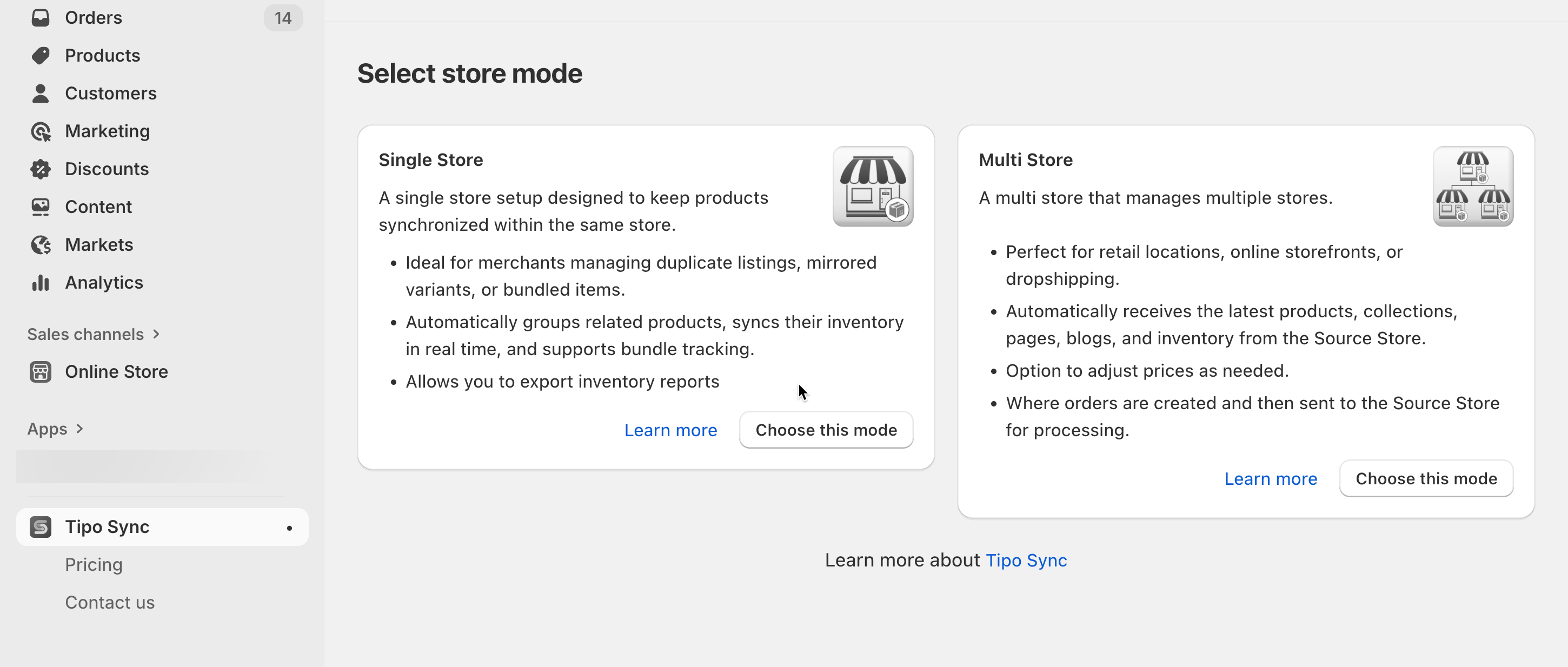
Select one of store mode you need:
* **Single Store**: A single store setup designed to keep products synchronized within the same store. Learn more
* **Multi Store**: A multi store that manages multiple stores.
Select the correct store role:
* **Source store**: the “main” store where you manage products and inventory
* **Destination store**: the store that receives synced updates
#### 2) Configure app settings (both stores)
After installation, open **Settings** in each store and confirm your sync preferences.
**In the Source store**
* Decide what data you want to sync ( products, pages, collections,etc.)
**In the Destination store**
* Decide what product data you want to sync (example: title, images, price, metafields, etc.)
#### 3) Connect a Destination store to a Source store
Select the products you want to sync and complete the setting in the connection detail. [Lean more](/overview/general-steps-to-connect-stores.md)
#### 4. Monitor the Sync
Once you've set up the connection between the Source and Destination, check the sync logs regularly to verify that all products and information are being transferred as expected.
***
### 📚 Additional Resources
* Tuto[rial video](https://youtu.be/MqcVsaFUj7o?si=j2E39WosZMzz3GI_)
* [General steps to connect stores](https://docs.tipo.io/overview/general-steps-to-connect-stores)
* [Select products to sync](https://docs.tipo.io/product-syncs/select-products-to-sync)
* [Sync product inventory only](https://docs.tipo.io/inventory-sync/sync-product-inventory-only)
* Contact support team via email