> For the complete documentation index, see [llms.txt](https://docs.tipo.io/llms.txt). Markdown versions of documentation pages are available by appending `.md` to page URLs; this page is available as [Markdown](https://docs.tipo.io/csv-import/import-with-csv-files.md).
# Import with CSV Files
Use CSV Import to quickly create or update products (and inventory) in your Shopify store using a spreadsheet file.
## ✅ Before you start (requirements)
#### 📌 Prepare your CSV file
Make sure your CSV has:
* **Column headers** in the first row (ex: `Handle`, `Title`, `Vendor`)
* A **unique key** you can use to match records (recommended: **Handle**)
* Correct format (CSV file)
#### 🔑 Recommended primary key
* **Product Handle** (best for most imports)
* You may also see other keys depending on your data (ex: Product ID, Variant SKU)
***
## 🛠️ Steps to upload file
### Open CSV Uploads in Tipo app
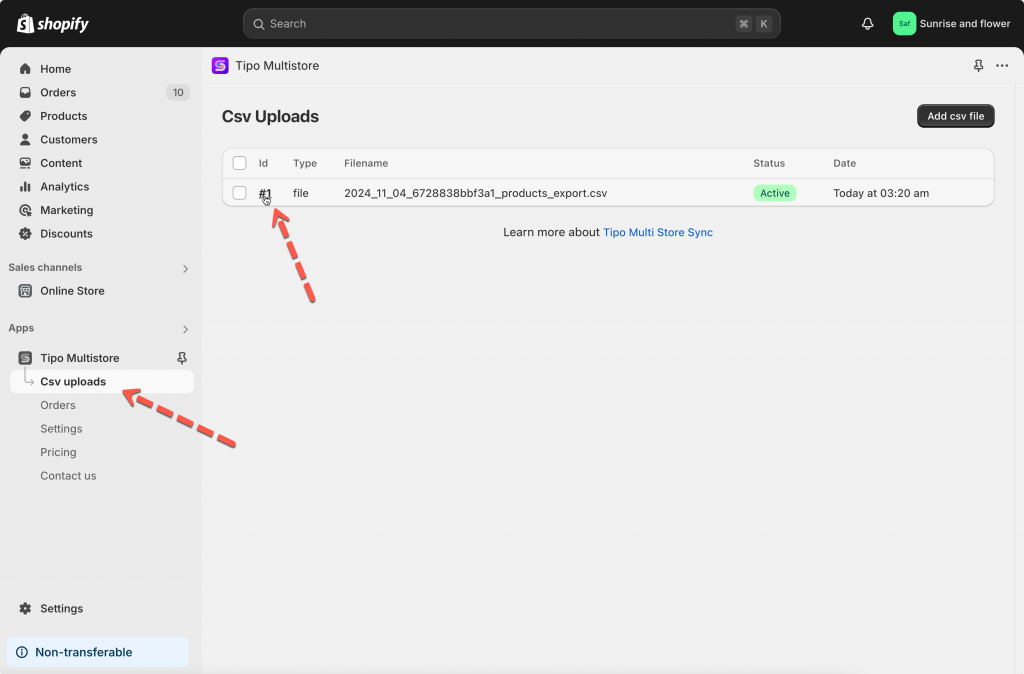
1. In Shopify Admin, open **Apps → Tipo Sync**
2. Click **CSV uploads**
3. Click **Add csv file**
You’ll be taken to the import wizard (**1/3 progress**).
***
### 📤 Step 1/3 — Upload CSV
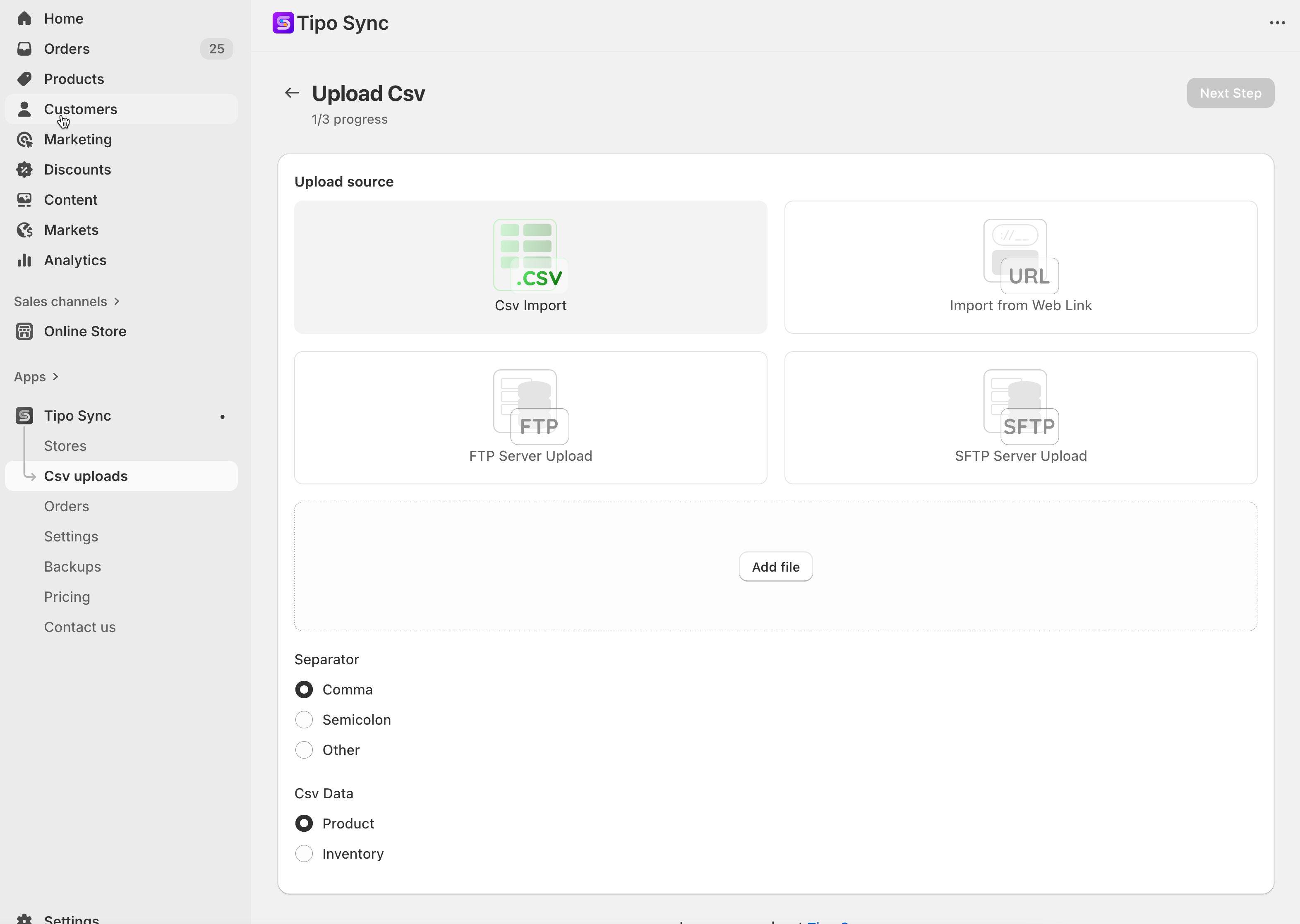
#### **Choose your upload source**
You can upload CSV from:
* **CSV Import** (upload file from your computer)
* Import from Web Link (URL)
* FTP Server Upload
* SFTP Server Upload
#### **Choose CSV options**
**Separator**
* Comma (most common)
* Semicolon
* Other
**CSV Data**
* **Product** (for product fields like title, description, vendor…)
* **Inventory** (for inventory quantities)
Then click **Next Step**.
***
### 🧩 Step 2/3 — Map Fields
**A) Primary Key mapping**
This tells the app how to match rows in your CSV to products in Shopify.
* **Primary Key**: choose what your Shopify store will match by\
Example: **Product Handle**
* **Column heading**: choose the column in your CSV\
Example: **Handle**
> If your Primary Key doesn’t match, the app may create duplicates or fail to update the correct product.
**B) Map your CSV columns to Shopify fields**
You’ll see tabs like:
* **Product**
* **Variant**
* **Image**
* **Metafield**
* **Inventory**
For each row:
* **Import to Shopify** = Shopify field (ex: Title)
* **Column heading** = CSV column (ex: Title)
You can click **➕ Add mapping** to import more fields.
Then click **Next Step**.
***
### ⚙️ Step 3/3 — Import Settings
#### **Step 3.1. Matching & Imports (how to update Shopify)**
Choose one:
✅ **Create new items**
* Only creates new products (no updating existing ones)
✅ **Only update current items that have the same primary key**
* Updates existing products only
* Does NOT create new ones
✅ **Create new items if not exist and update current items that have the same primary key** *(common choice)*
* Creates missing products
* Updates existing products that match (by Handle/SKU/etc.)
***
#### **Step 3.2. Upload specification (how much to import)**
* **Import All**: import everything in the file
* **Specify import**: import only a selected range of rows (useful for testing)
***
#### **Step 3.3. Filter data (optional)**
* **Only import data containing …** (include rule)
* **Exclude data containing …** (exclude rule)
Use this if you want to import only certain rows (ex: only rows that include `SYNC`).
***
#### **Step 3.4. Image data (if your CSV includes images)**
Choose one:
* **Add new images** (adds images without removing old ones)
* **Upon creation product only** (only add images for new products)
* **Overwrite current images** (replaces existing images)
***
#### **Step 3.5. Email notifications (optional)**
Choose when you want emails:
* On upload start
* On upload completion
* On upload error
***
#### **Step 3.6. Schedule upload**
* **Run now** (import immediately)\
(Other schedule options may appear depending on your plan/settings.)
Finally click **Save** (top-right).
***
## 🧪 Example: Update existing products + create new ones
**CSV sample**
| Handle | Title | Vendor |
| ------------------- | ------------------- | ---------- |
| ceramic-table-lamp | Ceramic Table Lamp | ModernHome |
| wooden-floor-mirror | Wooden Floor Mirror | ModernHome |
**Settings to choose**
* **Primary Key**: Product Handle
* **Column heading**: Handle
* **Matching & Imports**: Create new items if not exist and update current items that have the same primary key
**Result**
* If `ceramic-table-lamp` already exists → it will be updated
* If `wooden-floor-mirror` does not exist → it will be created
***
**🙋 Still need support?**
If you still need help, please feel free to contact us at . We’ll be happy to assist you further.