> For the complete documentation index, see [llms.txt](https://docs.tipo.io/llms.txt). Markdown versions of documentation pages are available by appending `.md` to page URLs; this page is available as [Markdown](https://docs.tipo.io/settings-source-store/order-sync.md).
# Order sync
The **Inventory Sync, Multi store TP** app enables seamless synchronization of orders from your Destination Stores to your Source Store.
When **Order Sync** is enabled:
1. A customer places an order in the **Destination store**
2. Tipo app creates a matching order in the **Source store**
### ✅ What information is synced to the Source order
The order created in the Source store includes:
* **Order number**
* **Customer information**
* **Product details** (only for products that are already synced/mapped)
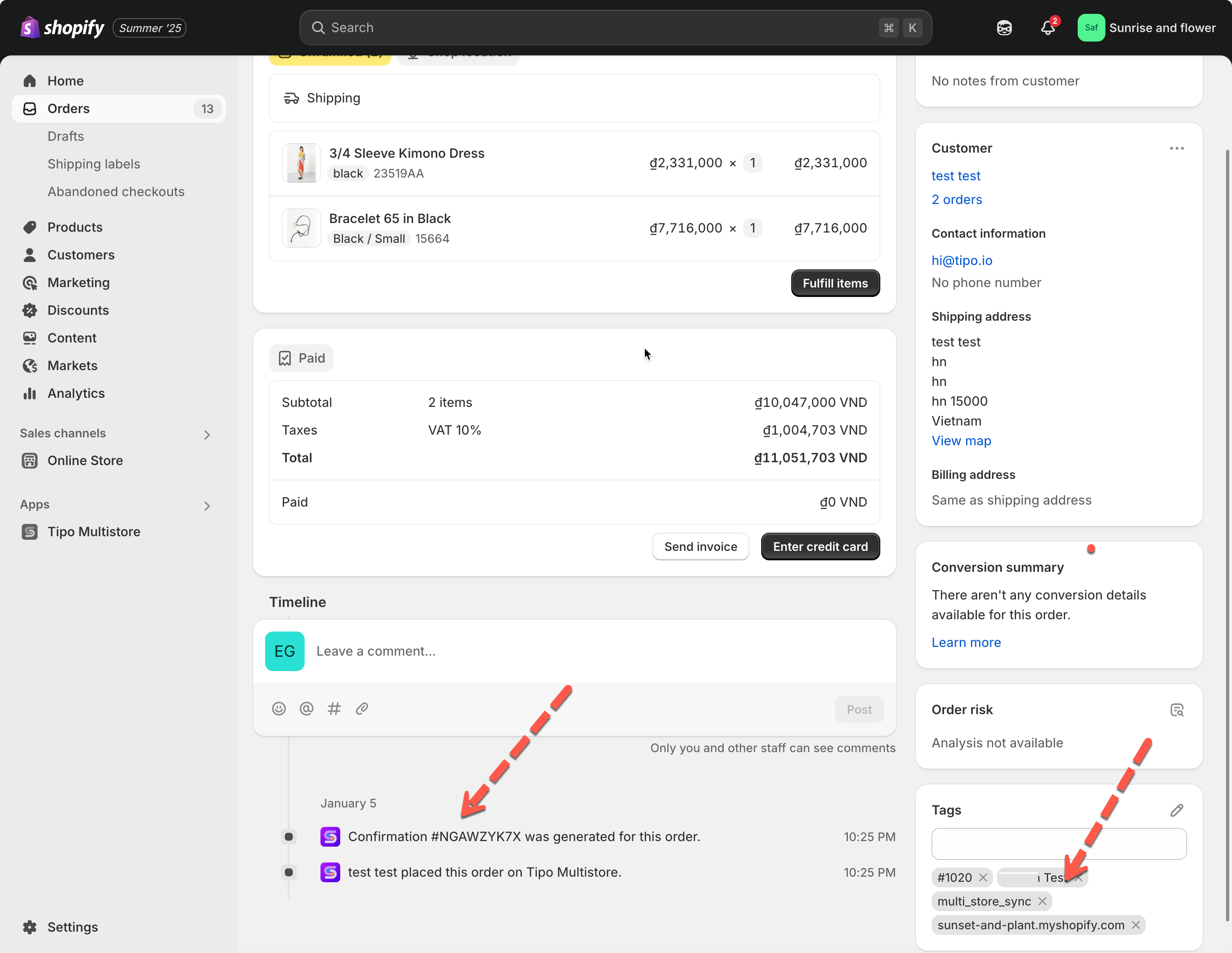
* **Order tag** showing where it came from (example: `From: urbanwear-us`)
📌 **Note:** The tag helps you quickly identify which Destination store created the order.
***
#### ⚠️ Important considerations
**Product matching (required)**
For accurate order sync:
* Products should have consistent handles across stores
* Only synced products in the order will be synced
**Inventory behavior**
* Orders are synced to the Source store
* Inventory is typically synced **one-way: Source → Destination**\
(So Destination sales may not reduce Source inventory automatically unless your inventory setup supports it.)
**Fulfillment & order updates (one-time sync)**
The app syncs the order only when it’s newly created.\
After the first sync:
* changes like fulfillment status or order status updates are not synced
* example: if you update the order status in Destination, it won’t update in Source
Payments & discounts (not synced)
* Payment/charge stays in the Destination store
* Discount information is not currently synced
***
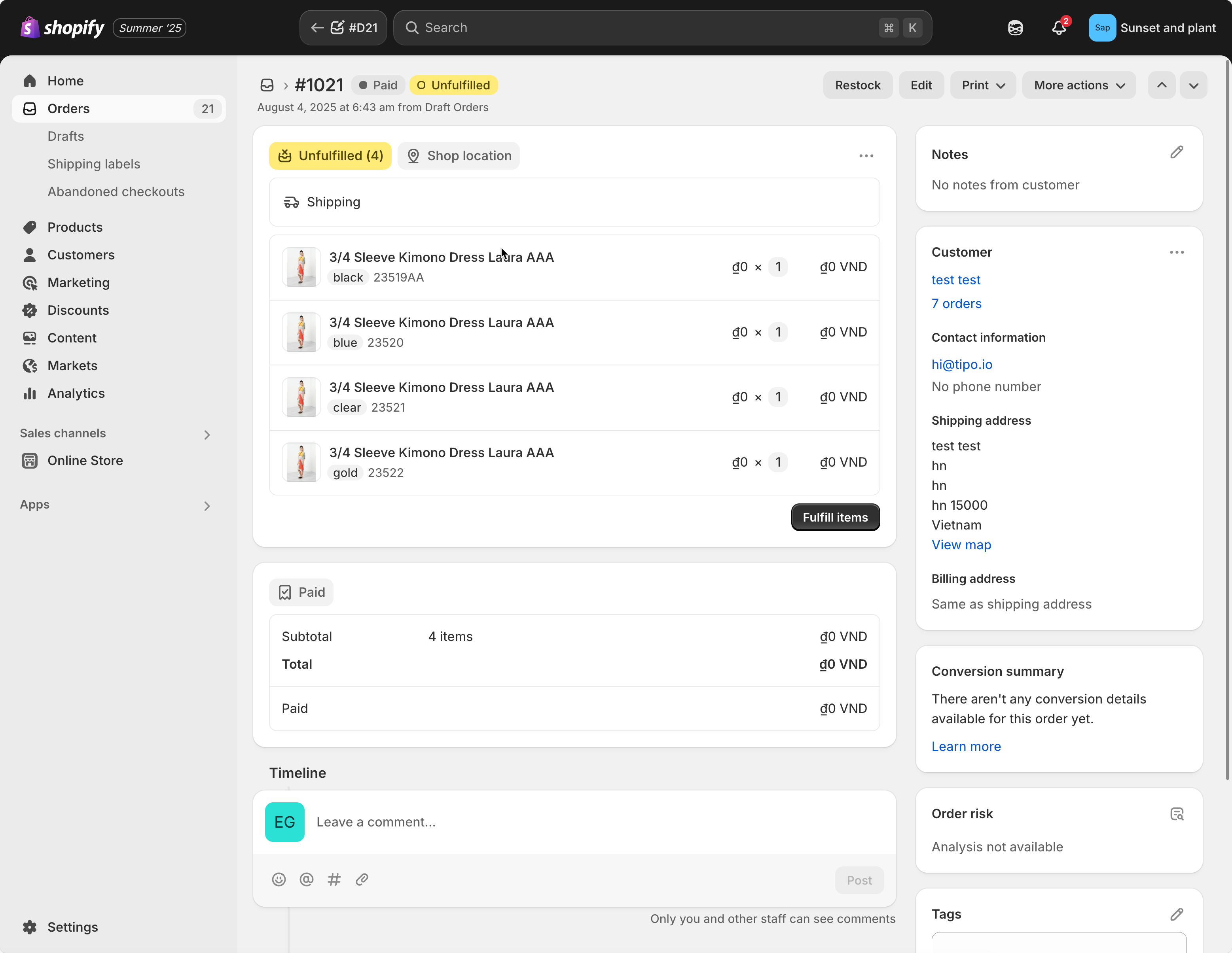
Destination store:
Order is created
Source store
A new order with the same information (customer, product) is automatically created too. Our app adds custom tag to the synced order that includes: order ID from Destination store, app name (multi\_store\_sync), destination store URL (xxx.myshopify.com)
Email notification is sent to admin of Source store.
***
### 🛠️ Setting up Order sync in Source store
1\. In **Source** stores, open the app > click **Settings** > turn on **Sync inventory and orders**
2\. Select **Order Sync and One-Way Inventory Sync**
3\. Control how the order data display in Source store: select Payment status, edit Order name, The behaviors to use when updating inventory
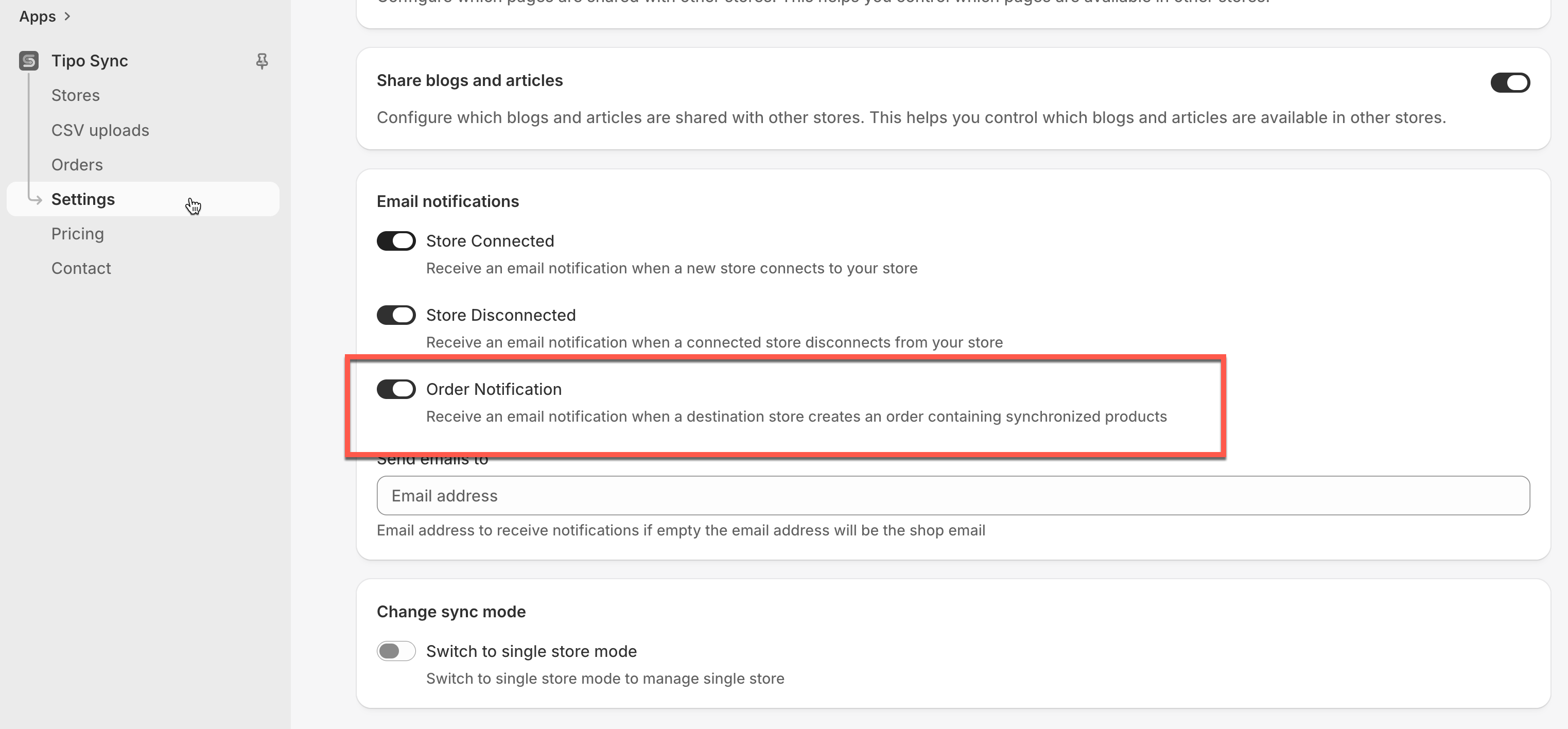
4\. Scroll to **Email notifications** part > turn on Order Notification (optional)
5\. Click **Save**
***
### 🛠️ Create connection in Destination store
Guide [here](https://tipo.io/index.php/kb/general-steps-to-connect-stores/)
***
### 🧪 Example Scenario
Stores:
* Source Store: `https://urbanwear-eu.myshopify.com`
* Destination Store: `https://urbanwear-us.myshopify.com`
**Process**:
1. A customer places an order for a “Slim Fit Denim Jacket” in the Destination Store.
2. Tipo automatically creates a corresponding order in the Source Store, tagged as “From: urbanwear-us”.
***
**🙋 Still need support?**
If you still need help, please feel free to contact us at . We’ll be happy to assist you further.