> For the complete documentation index, see [llms.txt](https://docs.tipo.io/llms.txt). Markdown versions of documentation pages are available by appending `.md` to page URLs; this page is available as [Markdown](https://docs.tipo.io/settings-destination-store/unsync-products.md).
# Unsync products
This guide explains how to **unsync** products between your **Source store** and **Destination store**. Unsyncing removes the link (mapping) so the product will no longer receive updates from the Source store.
### ❓ What happens when you unsync?
When you unsync a product:
* The mapping between Source and Destination is removed
* Future updates from Source will no longer apply to that product in Destination
* The product may remain in the Destination store
***
### 🛠️ **Steps to unsync specific product**
1\. Go to the **Destinations** store, open the app Dashboard > click **Stores** > click **Products** to see the synced product list of the connection
2\. Click this icon to stop sync for each product
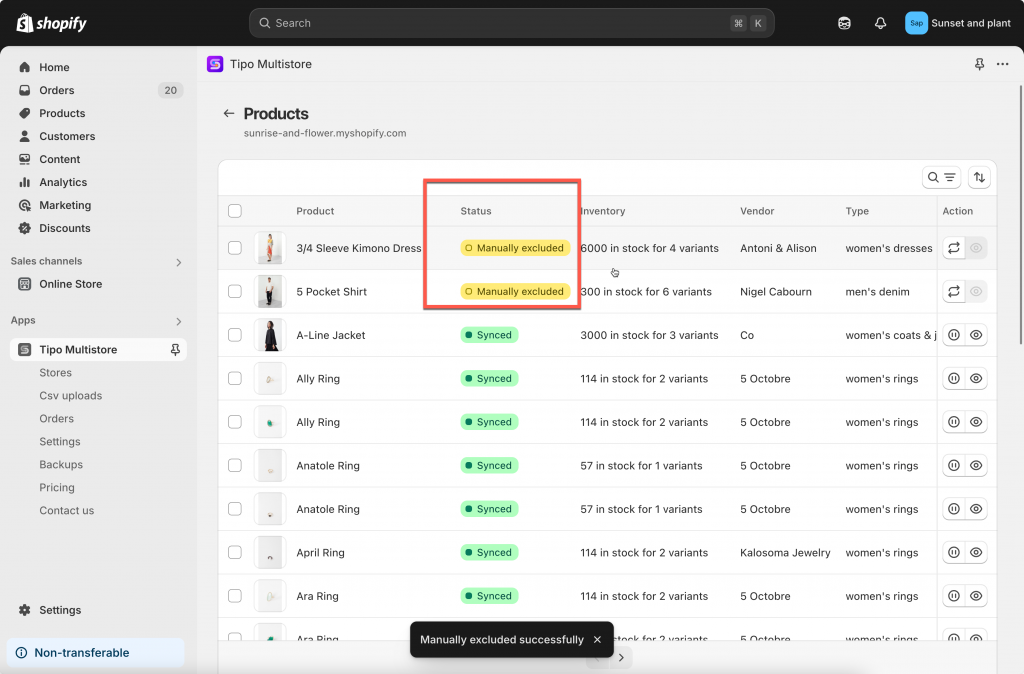
3\. For bulk action: select the products you want to sync. Select **Select all 25+ products** if you want to select all products in the list > click **Unsync** button on the right side
After unsyncing, these products will be marked as **Manually Excluded**, indicating they are no longer synchronized with the Source Store.
If you want to continue the sync again, select the products again and click **Sync** button instead of **Unsync** button.
**📝 Note**
> **Unsyncing does not delete the product.**\
> It only stops future updates from the **Source store** from syncing to the **Destination store**. The product will still remain in your Destination store unless you manually delete it.
***
#### 🙋 Still need support?
If you still need help, please feel free to contact us at **\[your support email or link]**. We’ll be happy to assist you further.