
Connect stores
This guide shows how to connect two Shopify stores so Tipo Sync can sync products, inventory, and other data between them.
In Multi-store sync, you will connect:
- Source store (sends data)
- Destination store (receives data)
🛠️ Step 1: Install the app and select store types
Section titled “🛠️ Step 1: Install the app and select store types ”Install Tipo Sync on both stores. Then open the app in each store to start the setup.
- Store 1: install the app and set it as the Source store
- Store 2: install the app and set it as the Destination store
🧭 Step 2: Complete the setup
Section titled “🧭 Step 2: Complete the setup”When you open the app for the first time, a 3-step setup guides you through. A live preview of your sync map updates as you choose.
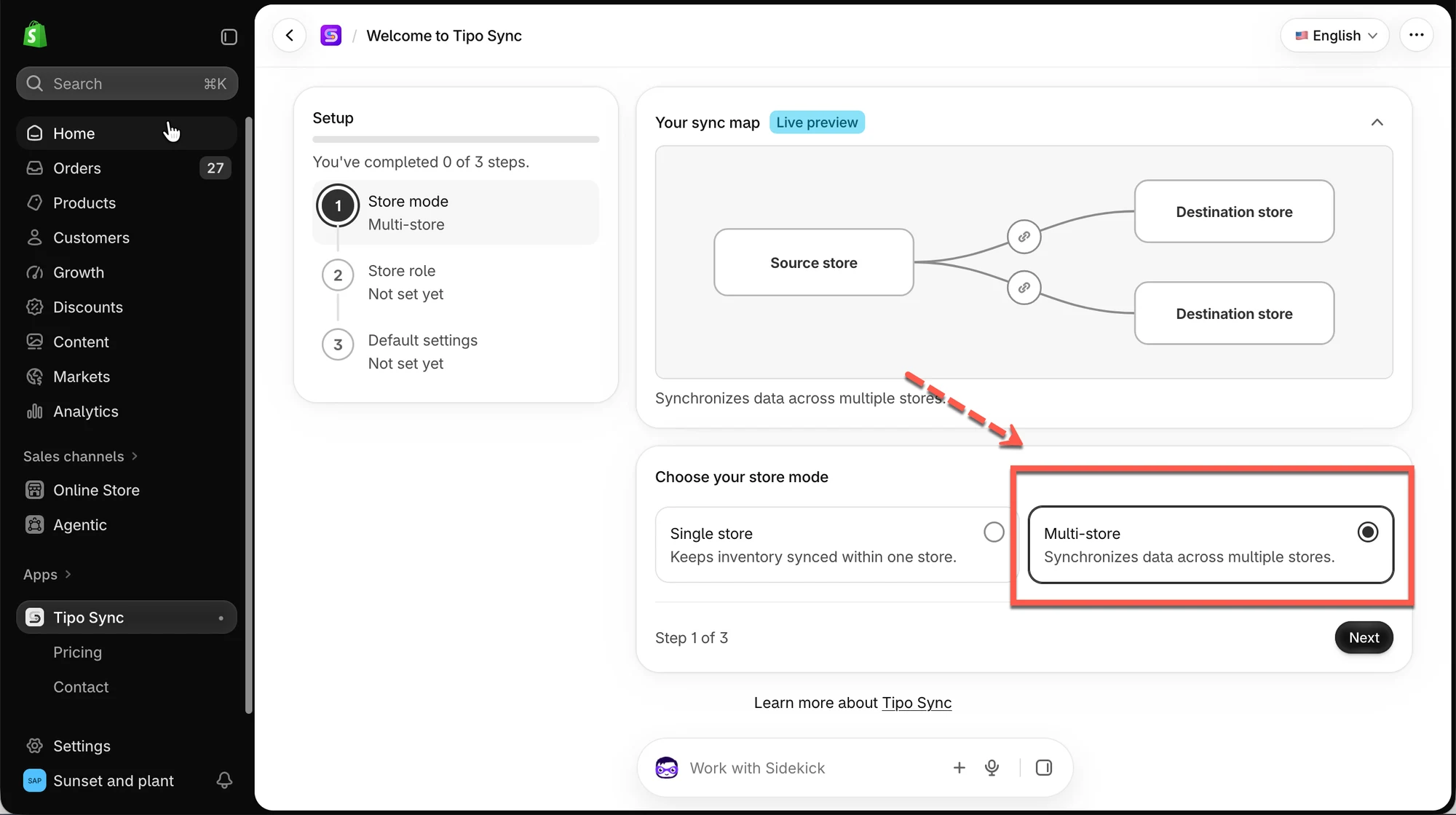
1️⃣ Store mode
Section titled “1️⃣ Store mode”Choose how you want to use the app:
- Single store: keeps inventory synced within one store.
- Multi-store: synchronizes data across multiple stores.
To connect two stores, select Multi-store, then click Next.
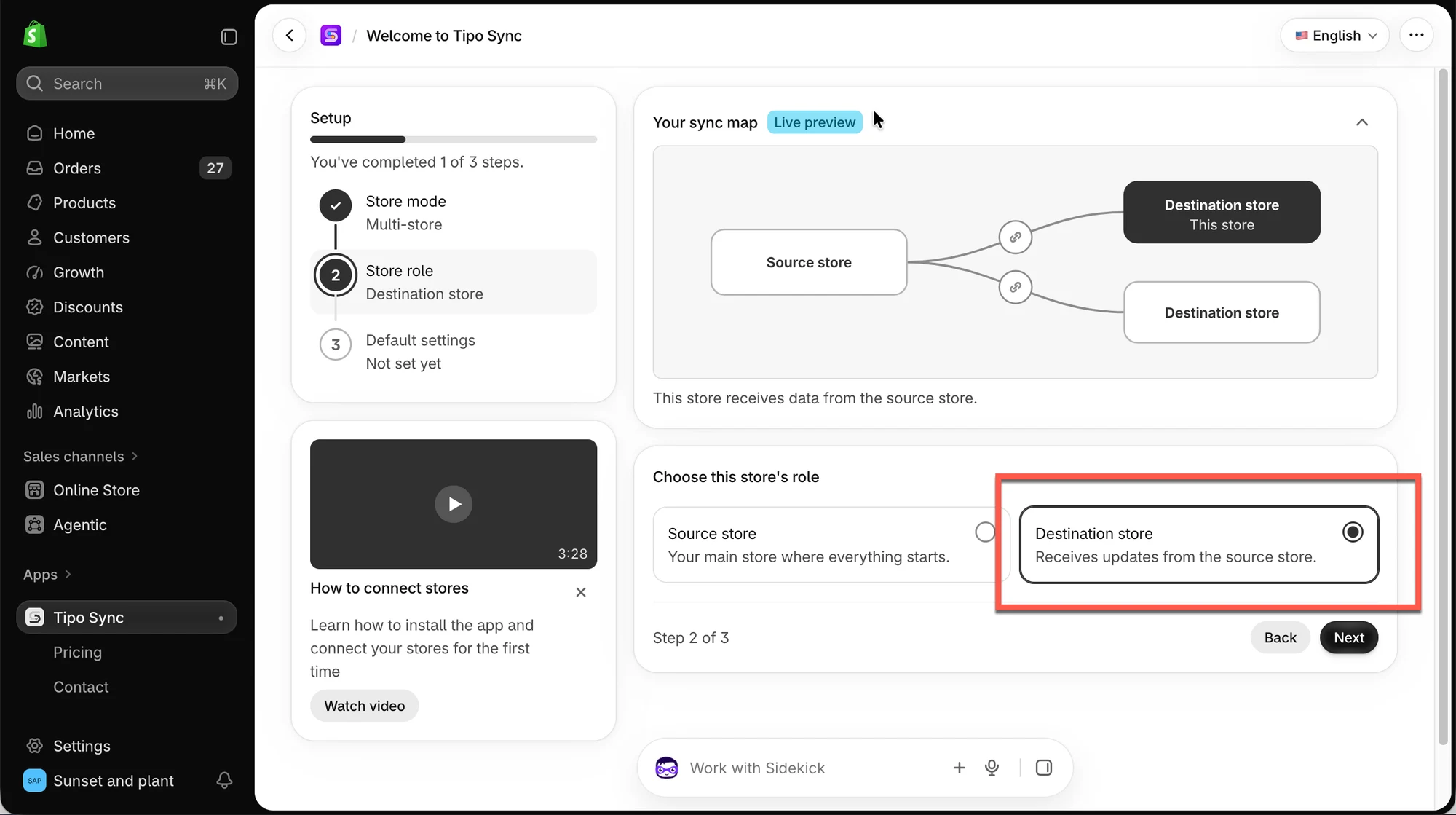
2️⃣ Store role
Section titled “2️⃣ Store role”Choose the role of the store you are in:
- Source store: your main store where everything starts.
- Destination store: receives updates from the source store.
Select the role, then click Next.
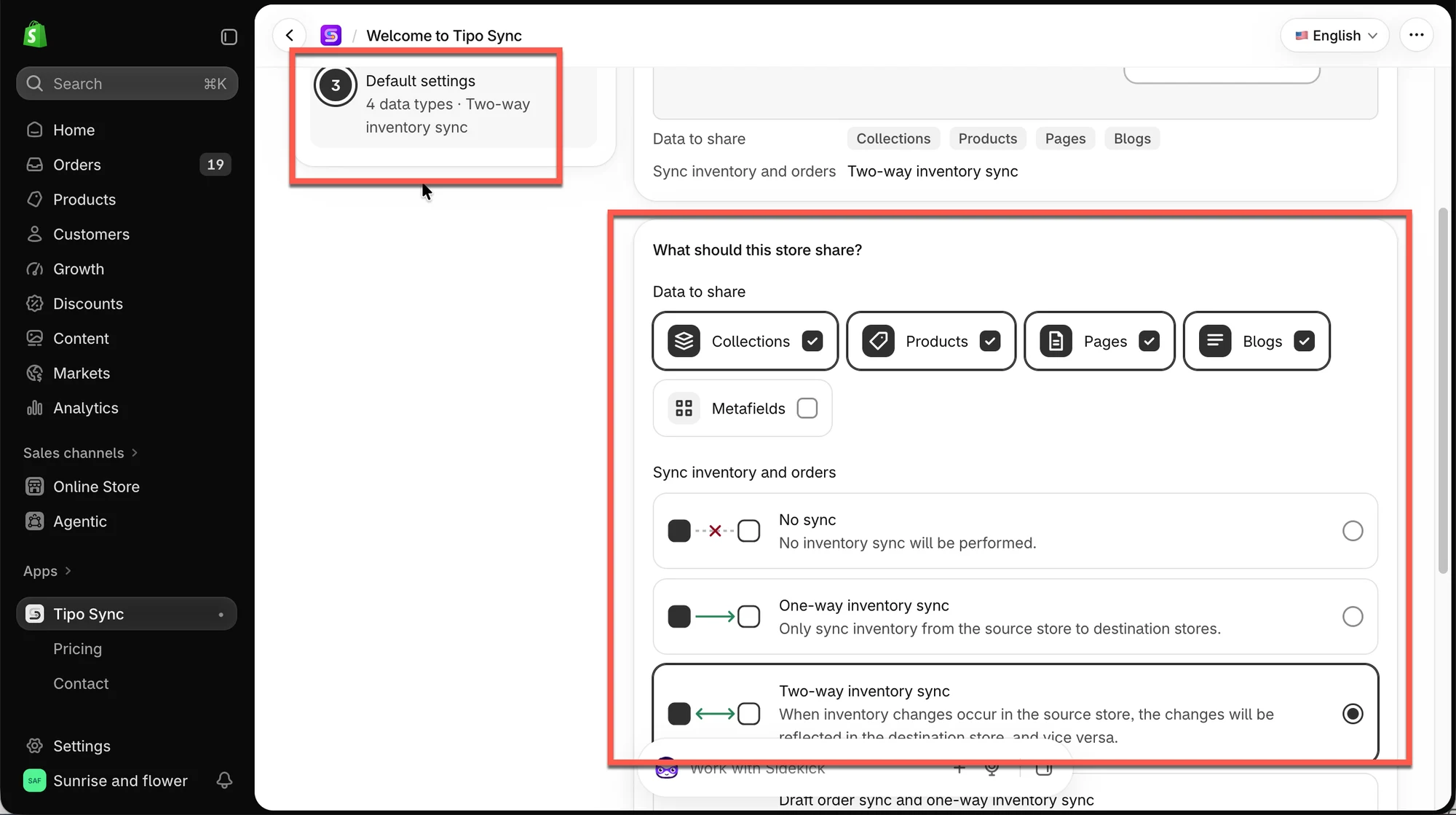
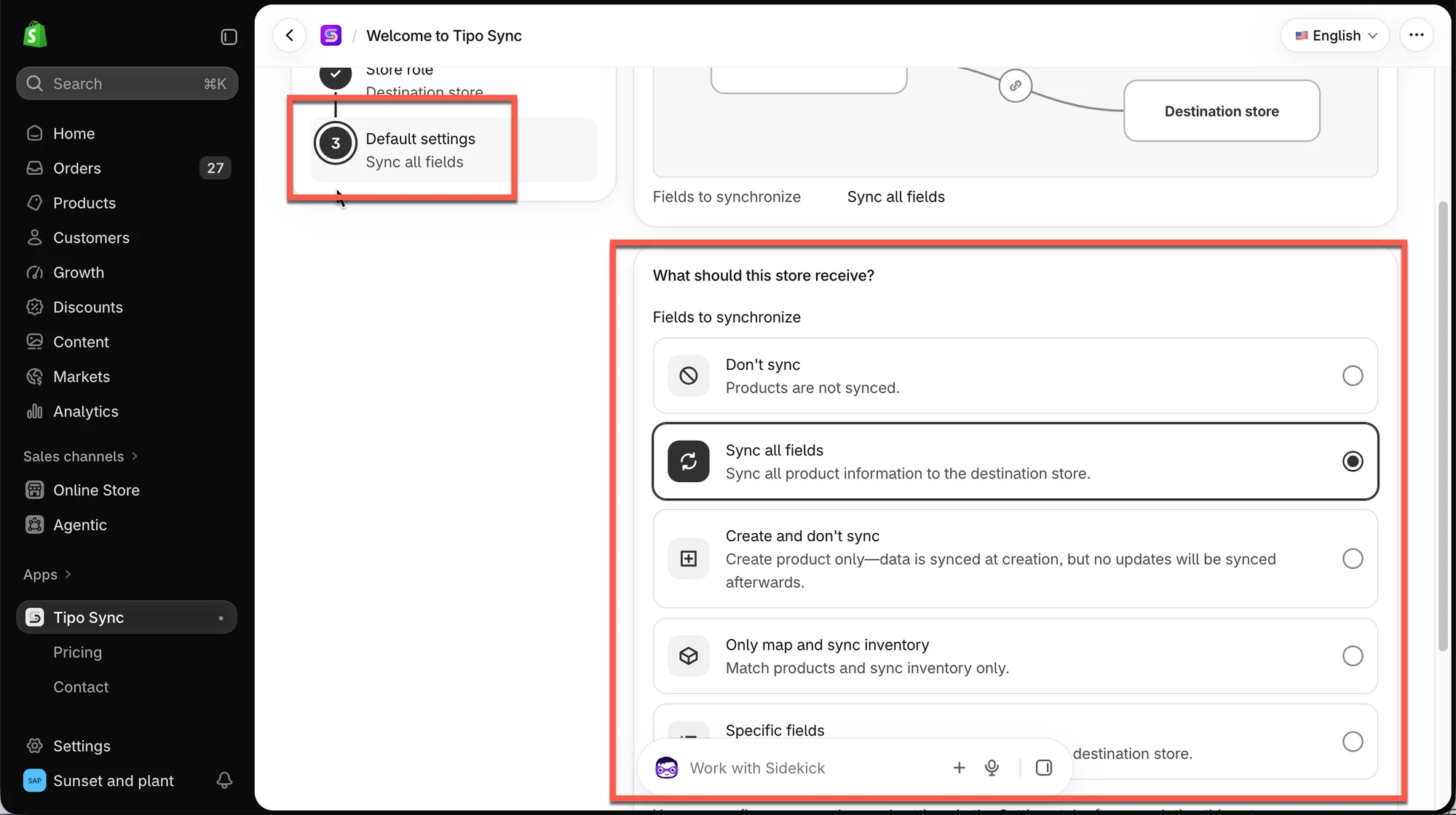
3️⃣ Default settings
Section titled “3️⃣ Default settings”Choose what store should sync to other stores (for source store)
Choose what the store should receive (for Destination store).
Click Finish to complete the setup.
💡 Tip: You can change these options and set up more advanced options later in the Settings tab.
🔑 Step 3: Connect the stores
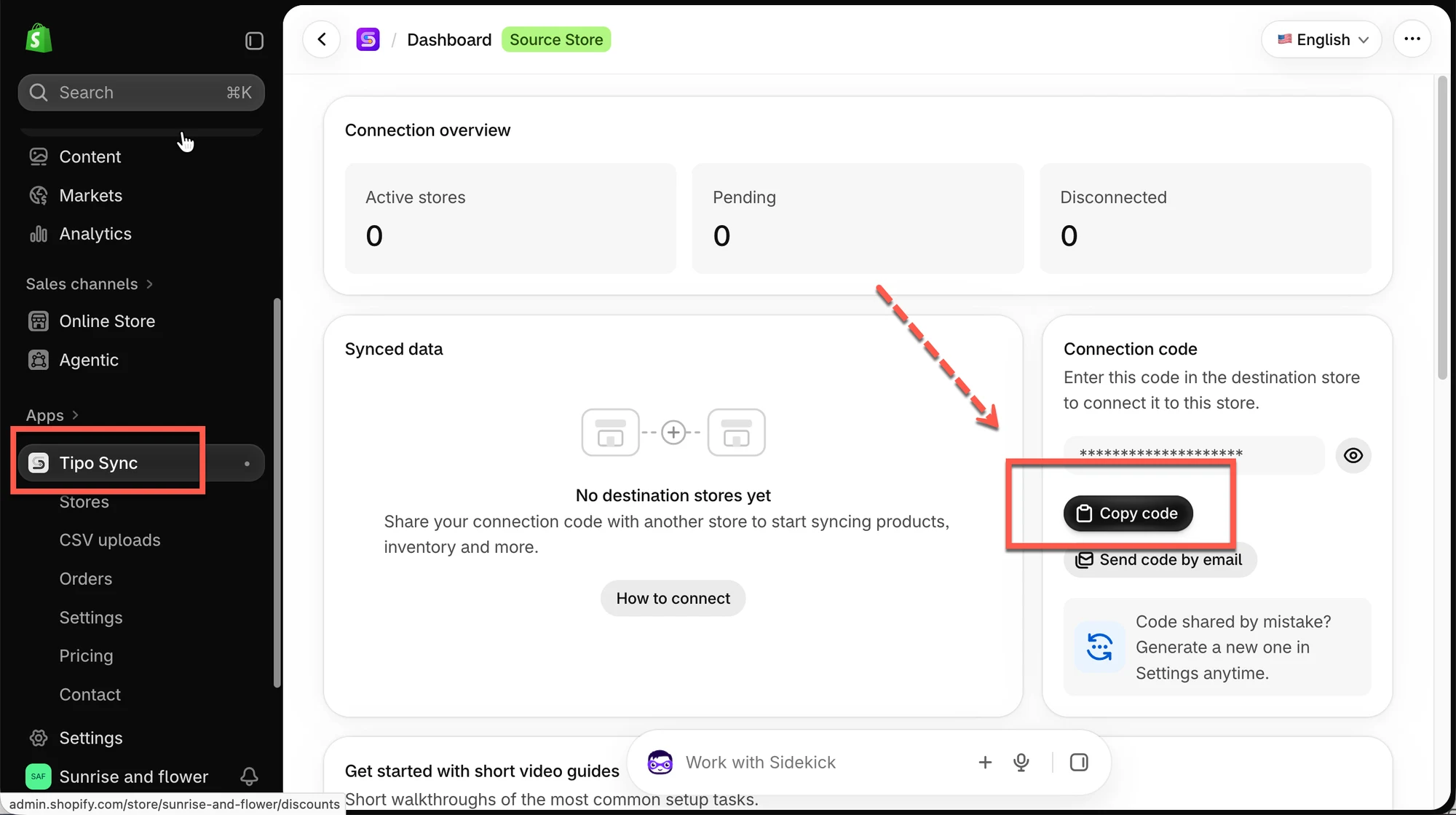
Section titled “🔑 Step 3: Connect the stores”Get the connect code (in the Source store)
Section titled “Get the connect code (in the Source store)”- Open the app in the Source store > app Dashboard
- Find Connection code > click Copy code
Use the connect code (in the Destination store)
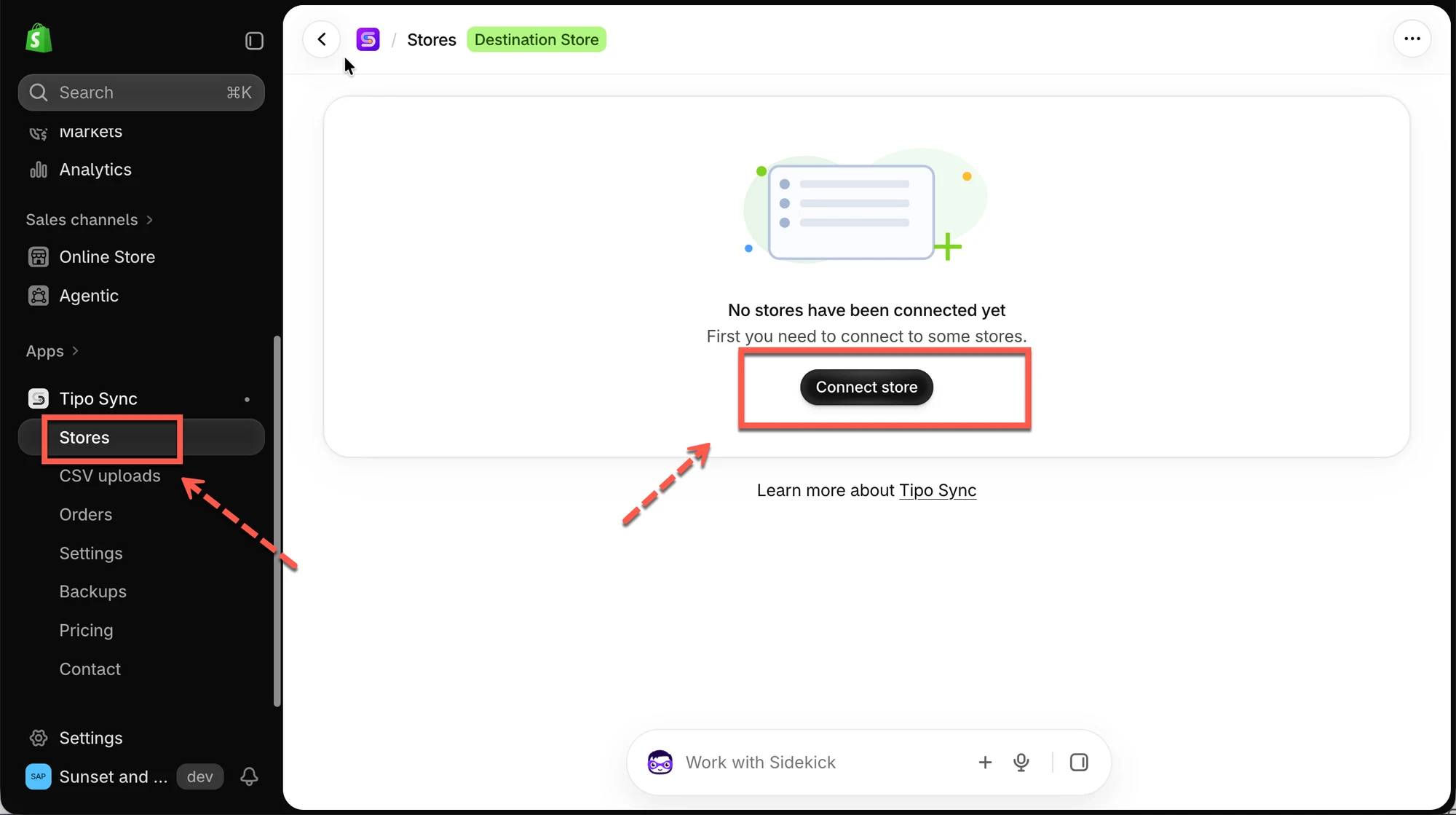
Section titled “Use the connect code (in the Destination store)”- Open the app in the Destination store and click Stores
- Click Connect store
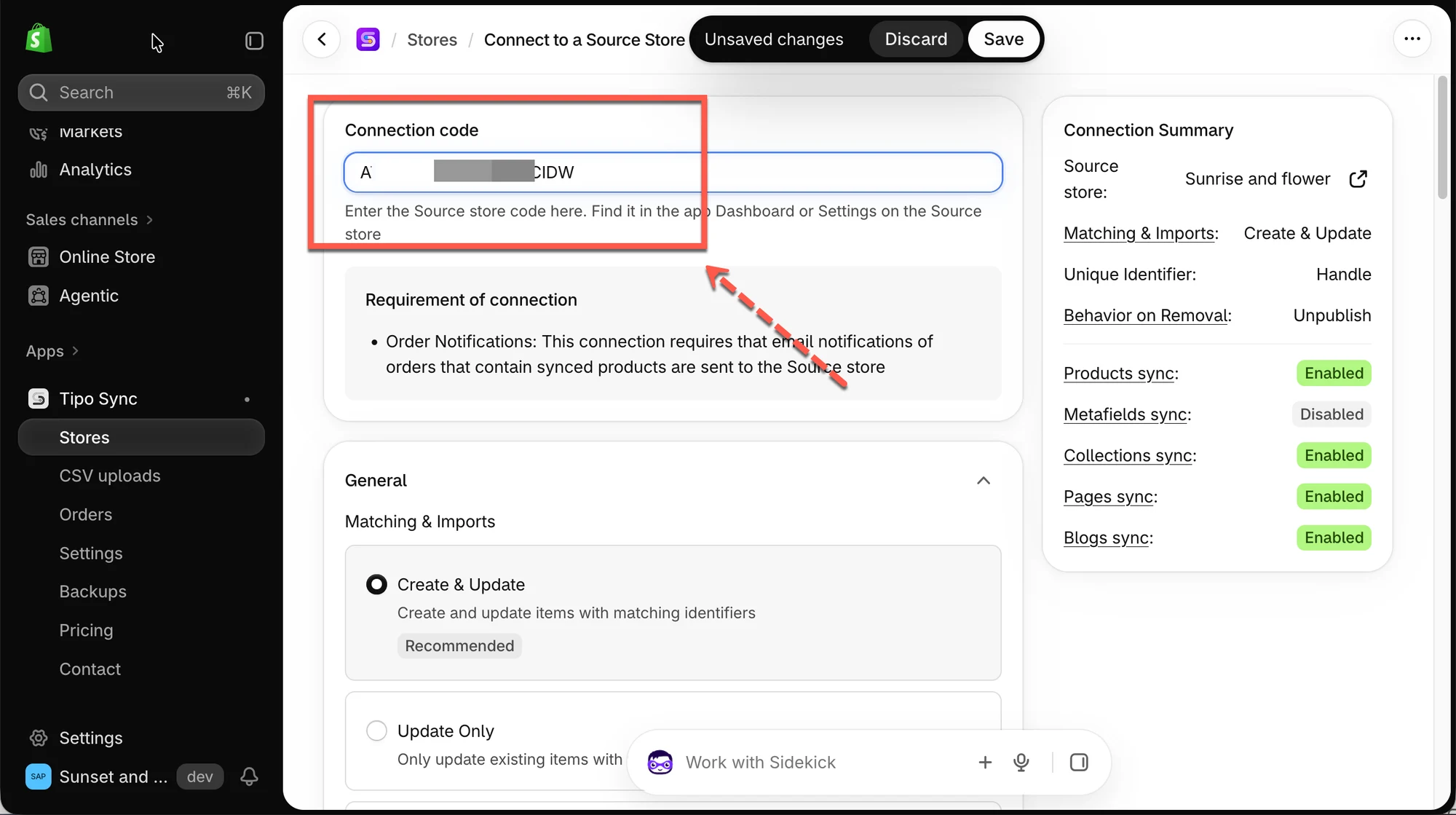
- Paste the code into the Connection code field
⚙️ Step 4: Choose your sync settings
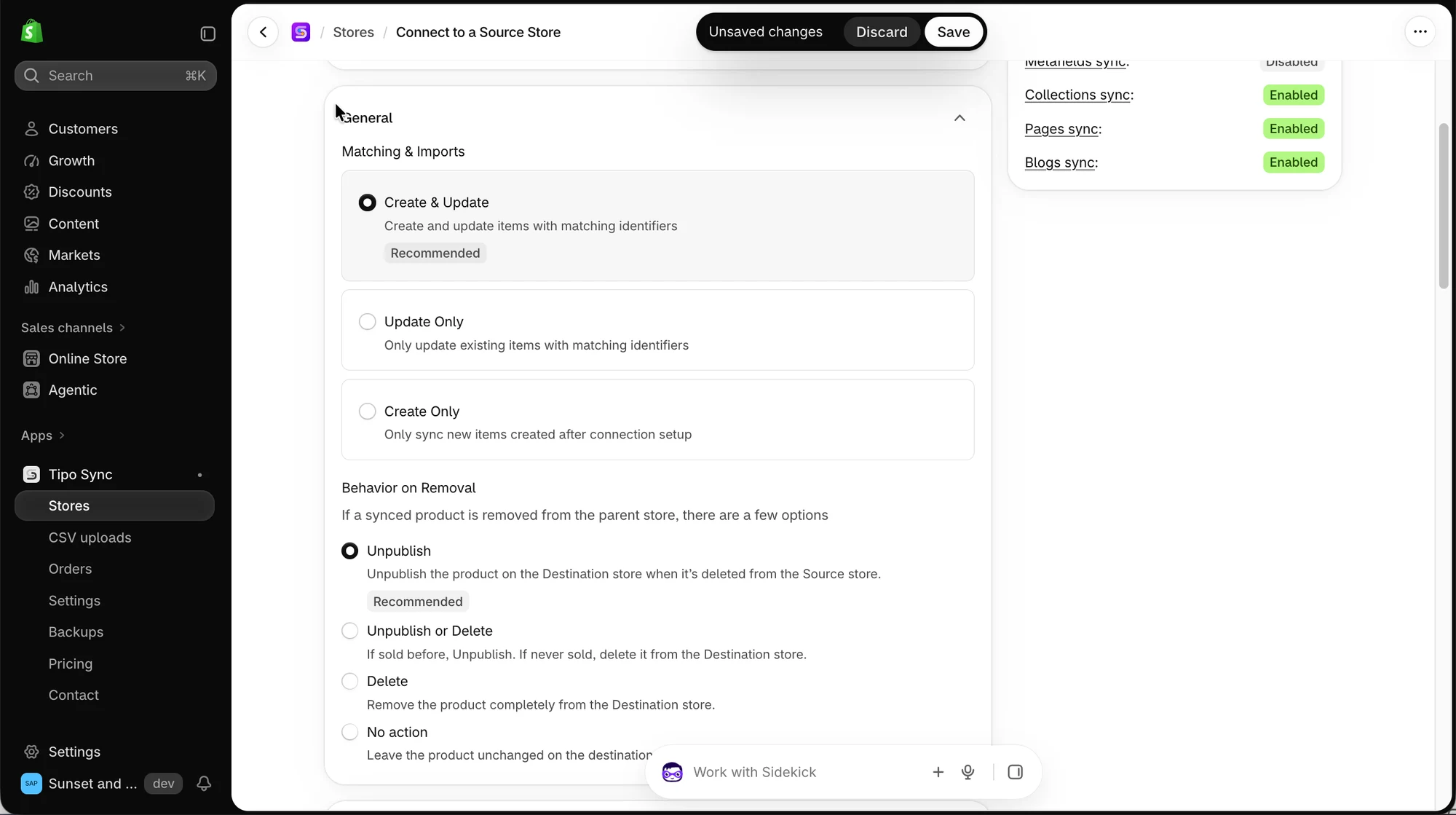
Section titled “⚙️ Step 4: Choose your sync settings”Matching & imports
Section titled “Matching & imports”- Create & Update: creates missing products in the Destination store and keeps existing products updated.
- Update Only: use this if products already exist in both stores and you only want to sync updates.
- Create Only : Syncs only new products created in the Source store after the connection is set up. Existing products in the Destination store are not changed.
Behavior on removal
Section titled “Behavior on removal”Choose what happens when a product is deleted from the Source store. For example, Unpublish hides the product in the Destination store without deleting it permanently.
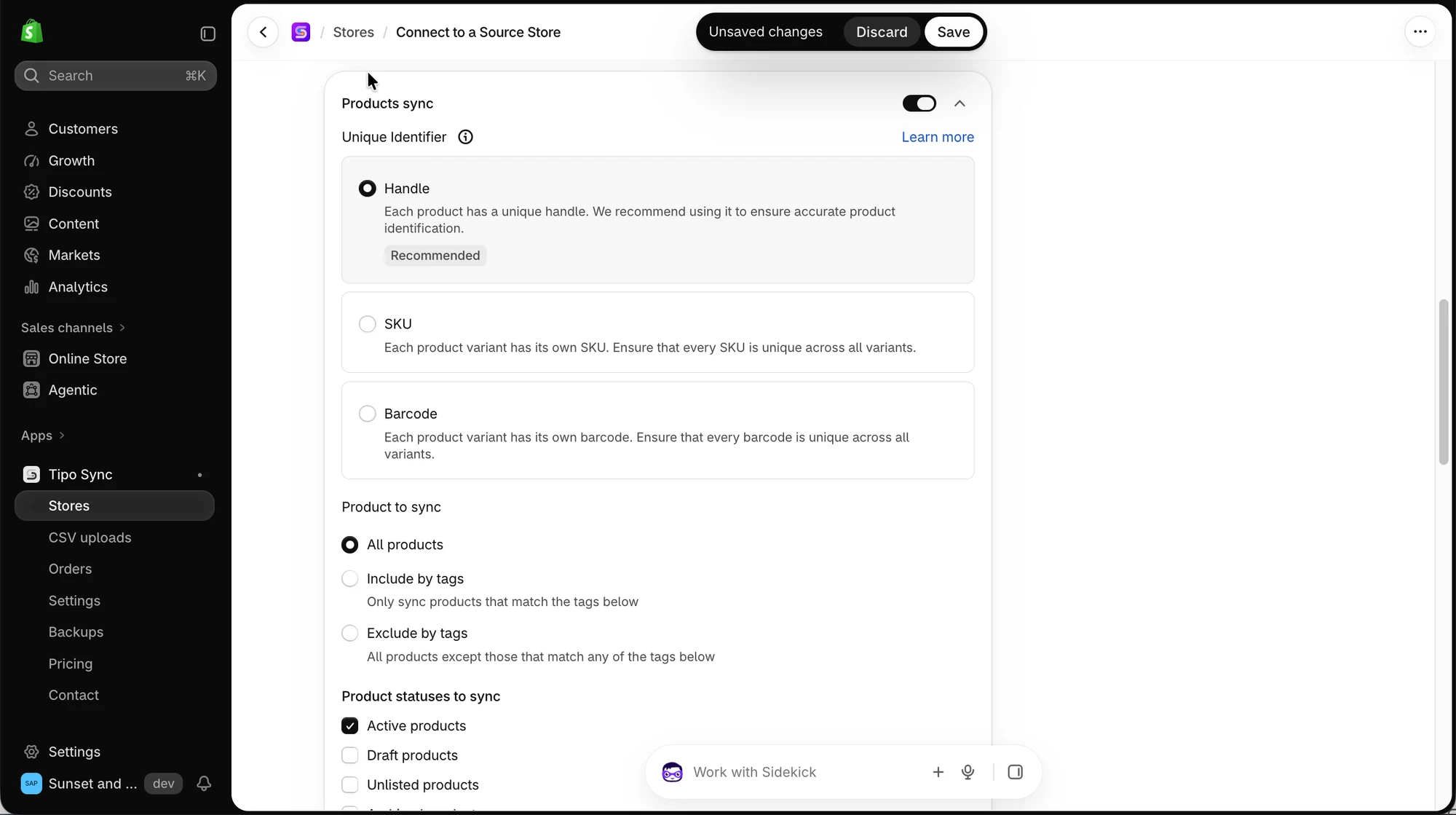
Product sync
Section titled “Product sync”- Turn on Products sync.
- Choose a Unique identifier to match products between stores:
- Handle: best when both stores already use the same product handles.
- SKU: best when every variant has a unique SKU.
- Choose which products to sync. For example, select Only sync products that match the tags below to sync only products tagged
wholesale. - Select the Product statuses to sync.
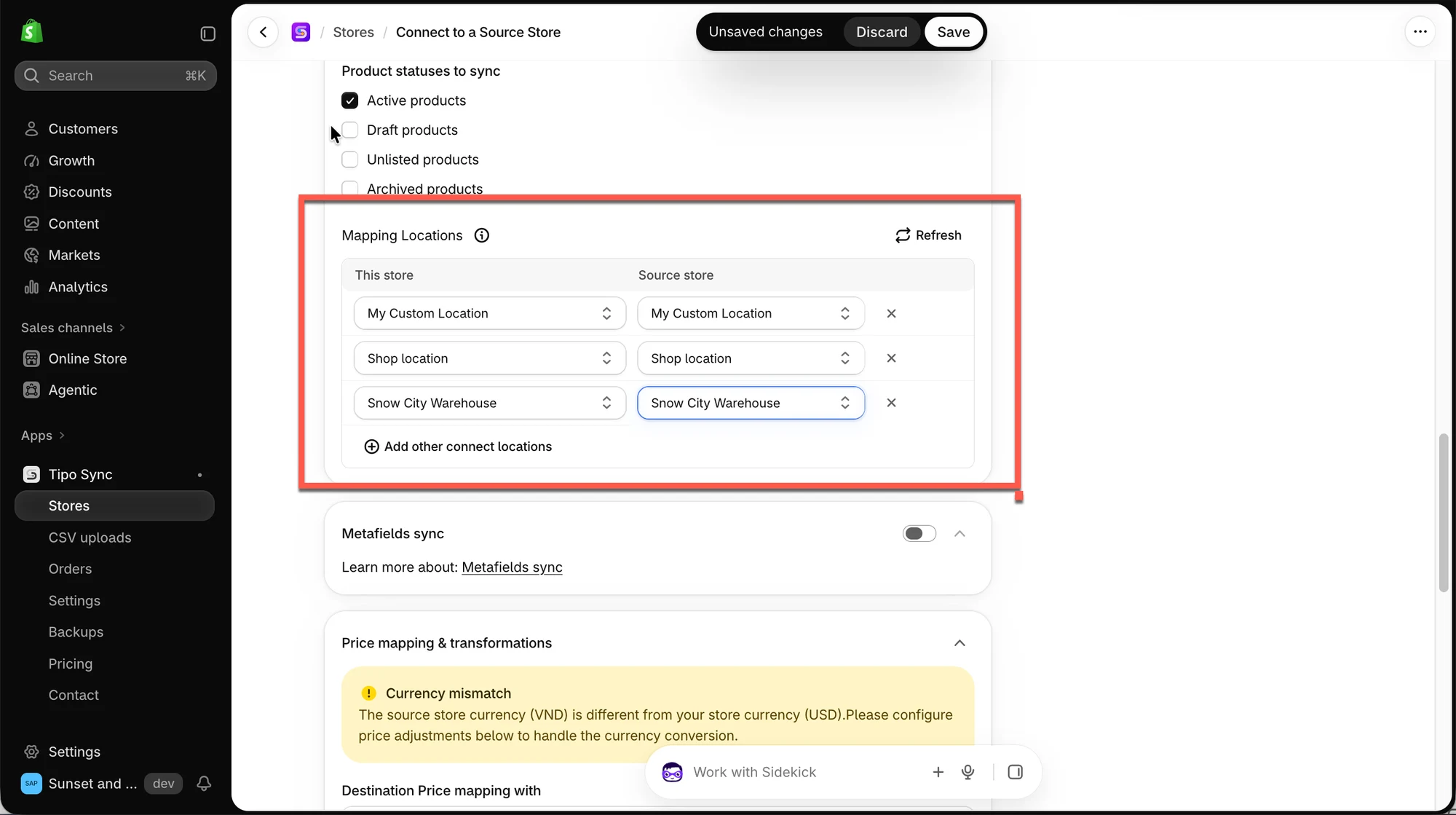
Locations
Section titled “Locations”Select the Locations you want to map between the two stores. This step is required for inventory sync.
Click Save. The sync starts right away. The first sync may take some time, depending on how many products you sync.
✅ After the sync
Section titled “✅ After the sync”Once connected, Tipo app will:
- Sync products from the Source store to the Destination store, based on your settings.
- Sync inventory, if you turn on the setting
- Keep your stores up to date automatically.
Example: You create a product named New Shirt in the Source store. Tipo Sync automatically creates New Shirt in the Destination store with the same handle.
▶️ A Tutorial video
Section titled “▶️ A Tutorial video”🙋 Still need support?
If you still need help, please feel free to contact us at hi@tipo.io. We’ll be happy to assist you further.