
Remove connection
Use this guide to stop syncing between two stores, or to remove a connection so you can create a new one.
What happens when you remove a connection:
- Syncing of products, inventory, and orders stops for that pair of stores.
- Mapped products are unsynced.
- In the Destination store, you choose what to do with the synced products: keep, unpublish, or delete them.
1️⃣ Remove the connection in the Source store
Section titled “1️⃣ Remove the connection in the Source store”- Open the app in the Source store
- Click Stores
- Click the disconnect icon next to the connected store
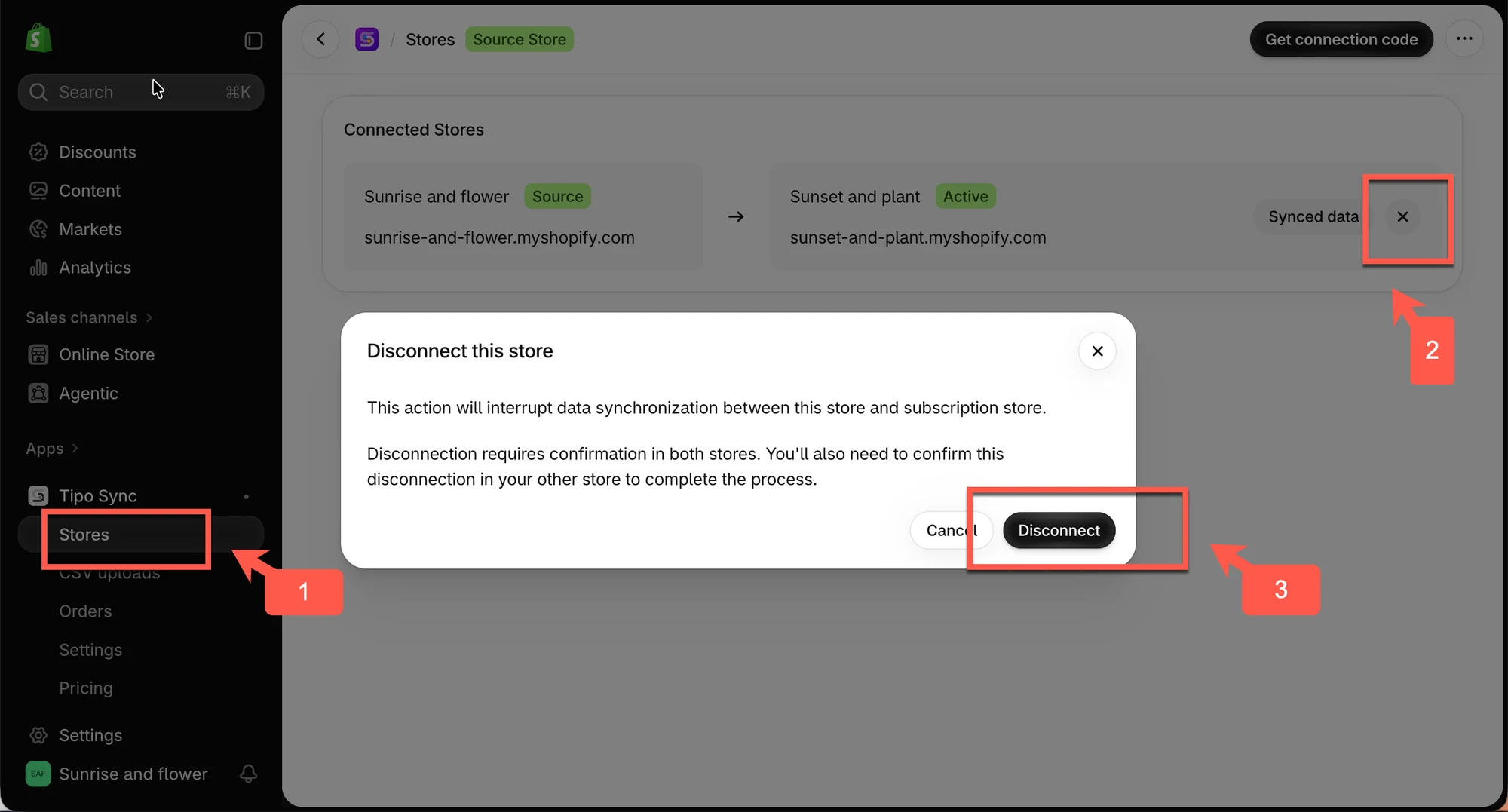
The connection is removed right away.
2️⃣ Remove the connection in the Destination store
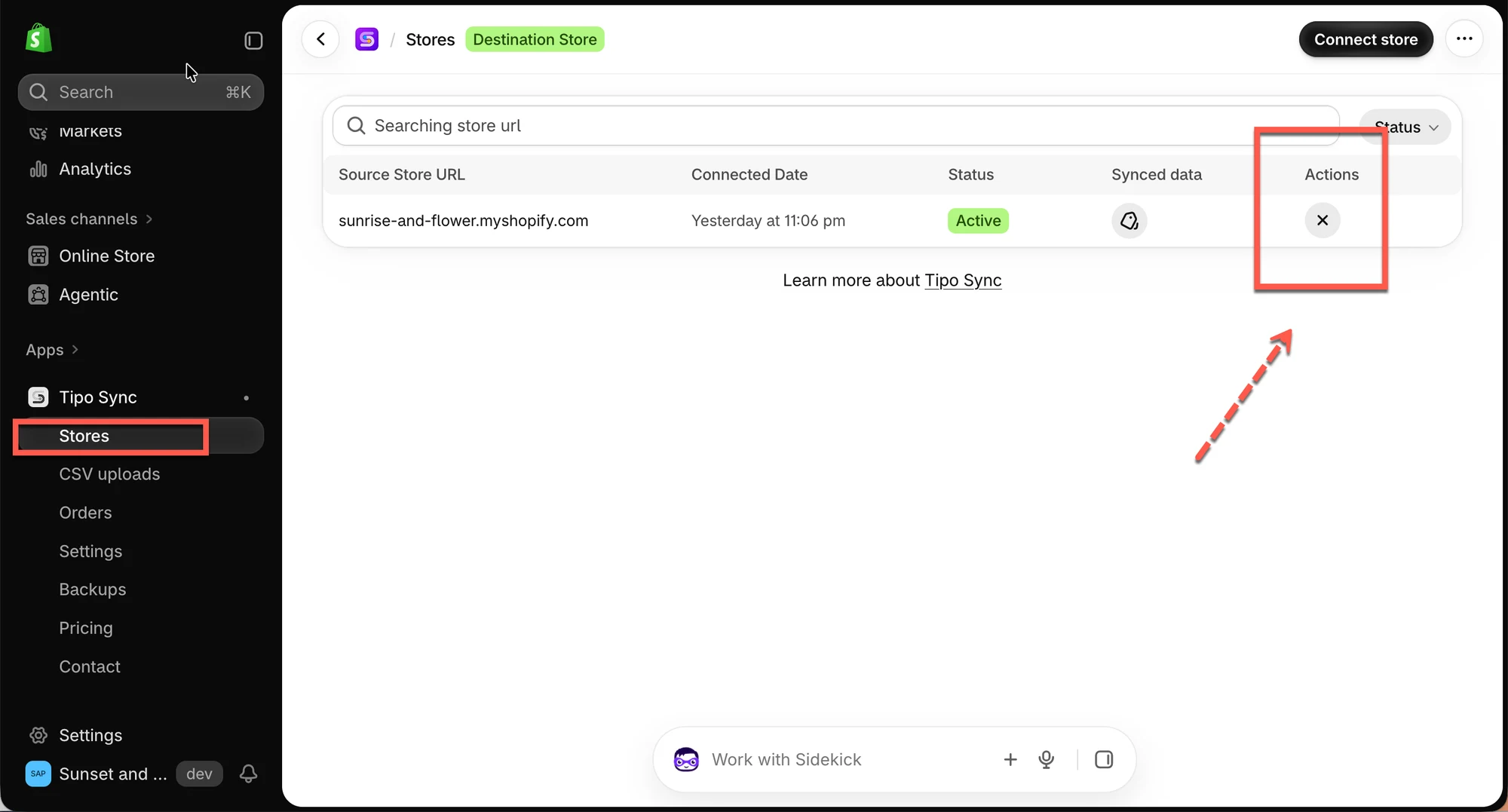
Section titled “2️⃣ Remove the connection in the Destination store”- Open the app in the Destination store
- Click Stores
- Click the disconnect icon next to the connected store
- Choose what to do with the products that were synced from the Source store:
| Option | What happens to synced products |
| Keep (no action) | Unsynced. Products stay in your store as they are. |
| Unpublish | Unsynced and unpublished. Products are hidden but not deleted. |
| Unpublish or Delete | Products that have been ordered are unpublished. All other products are deleted. |
| Delete | Unsynced and deleted from your store. |
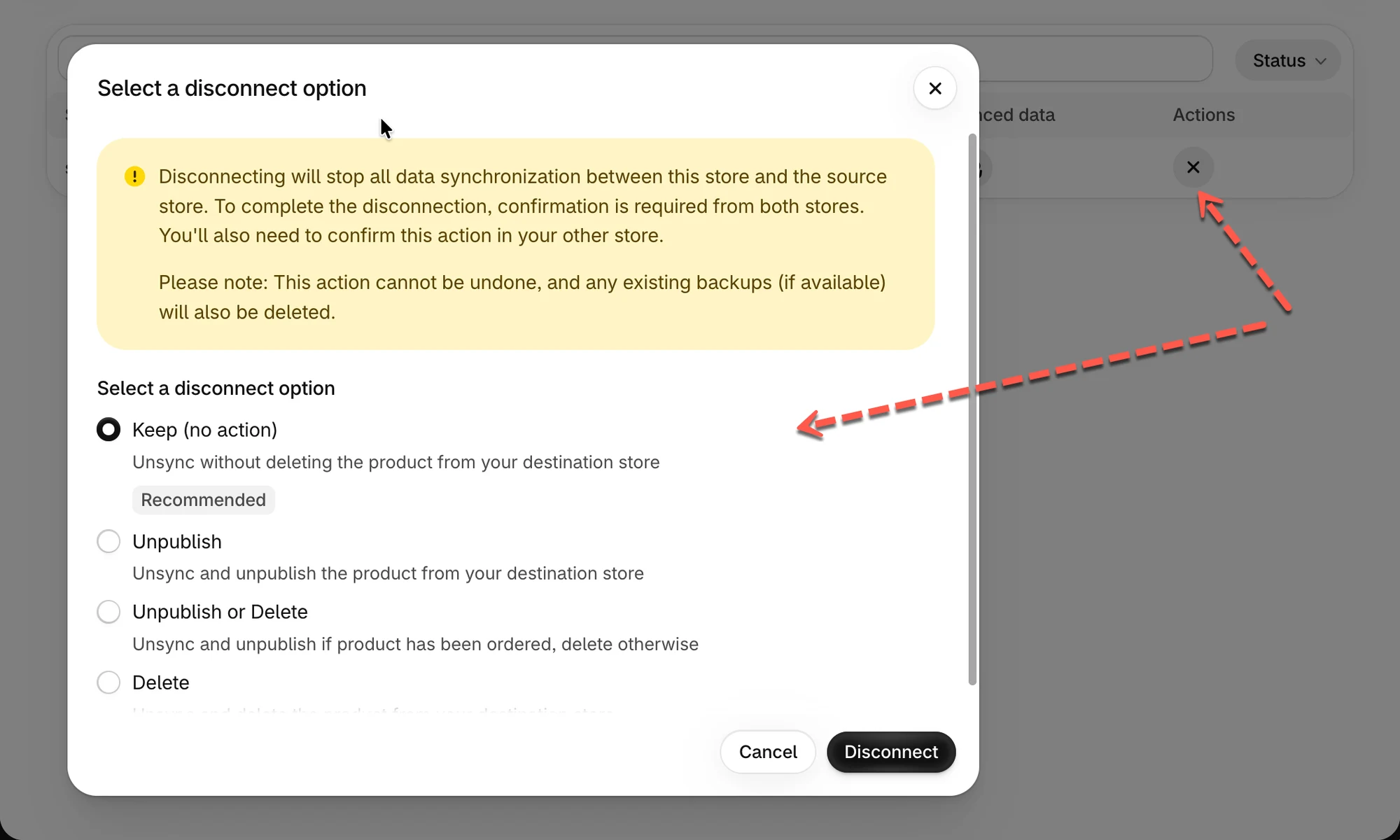
💡 Tip: Not sure which to pick? Choose Keep to be safe. You can always unpublish or delete the products yourself later.
⏳ Before you create a new connection
Section titled “⏳ Before you create a new connection”Removing a connection can take a few minutes to process. Wait until the app finishes, then you can create a new connection. See Connect stores.
🙋 Still need support?
If you still need help, please feel free to contact us at hi@tipo.io. We’ll be happy to assist you further.