
Select which product information to sync
Tipo app allows you to choose which product information should be synchronized from the Source store to the Destination store.
This gives you full control over what data is updated across stores.
- Product Fields – Title, Description, Status, SEO fields, Images, Tags, Vendor, Category, and more.
- Variant Fields – Variant title, Barcode, Weight, Tax settings, Inventory tracking, and more.
- Price Fields – Price, Unit price, Cost per item.
🛠️ How to set
Section titled “🛠️ How to set”1. Open the app in Destination store > click Settings > Product Fields to Synchronize
3. Select one option for each product field. There are 3 options for you:
- Sync – Create and update
- Create only – Only set the value when creating a new product
- Ignore – Never sync this field
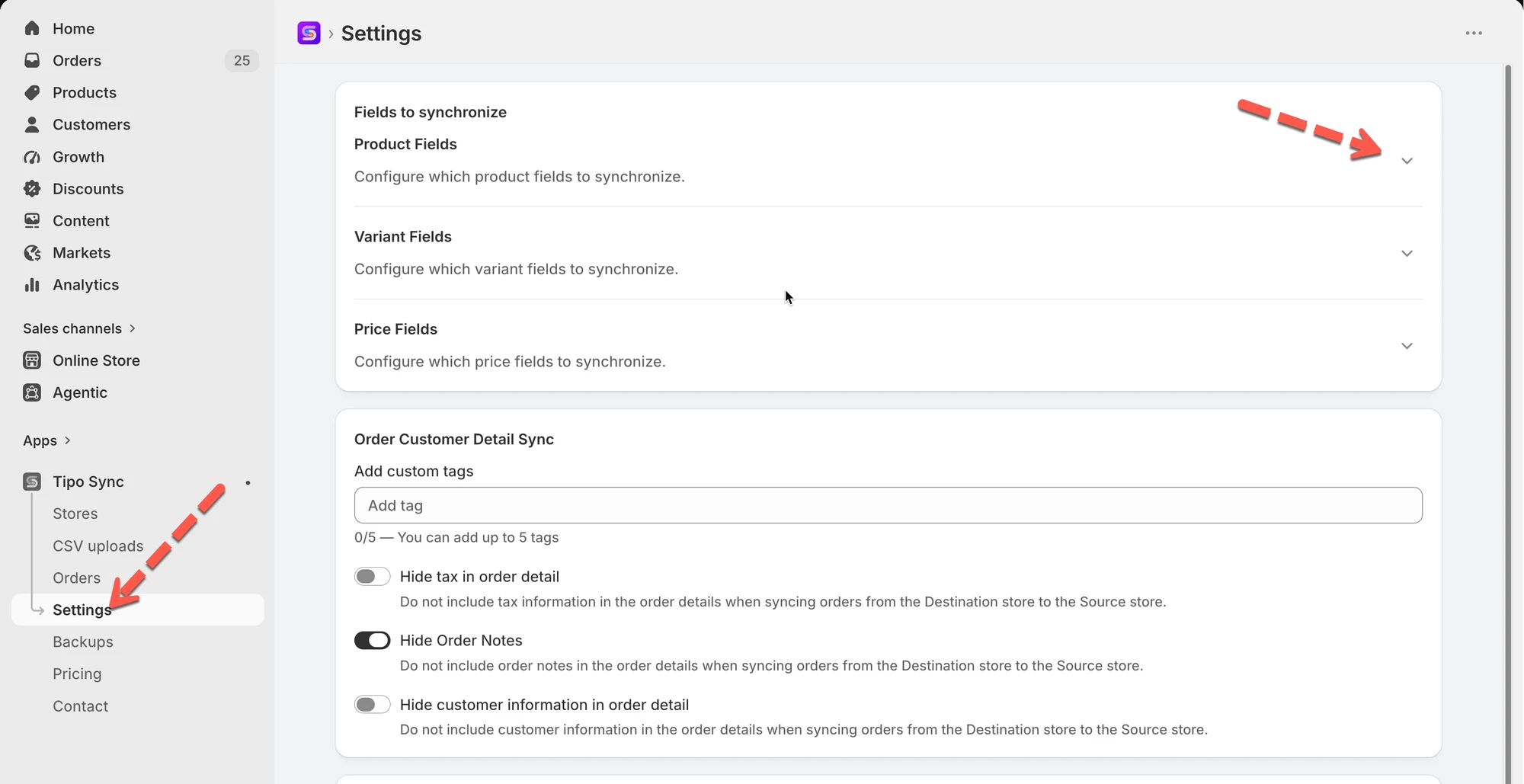
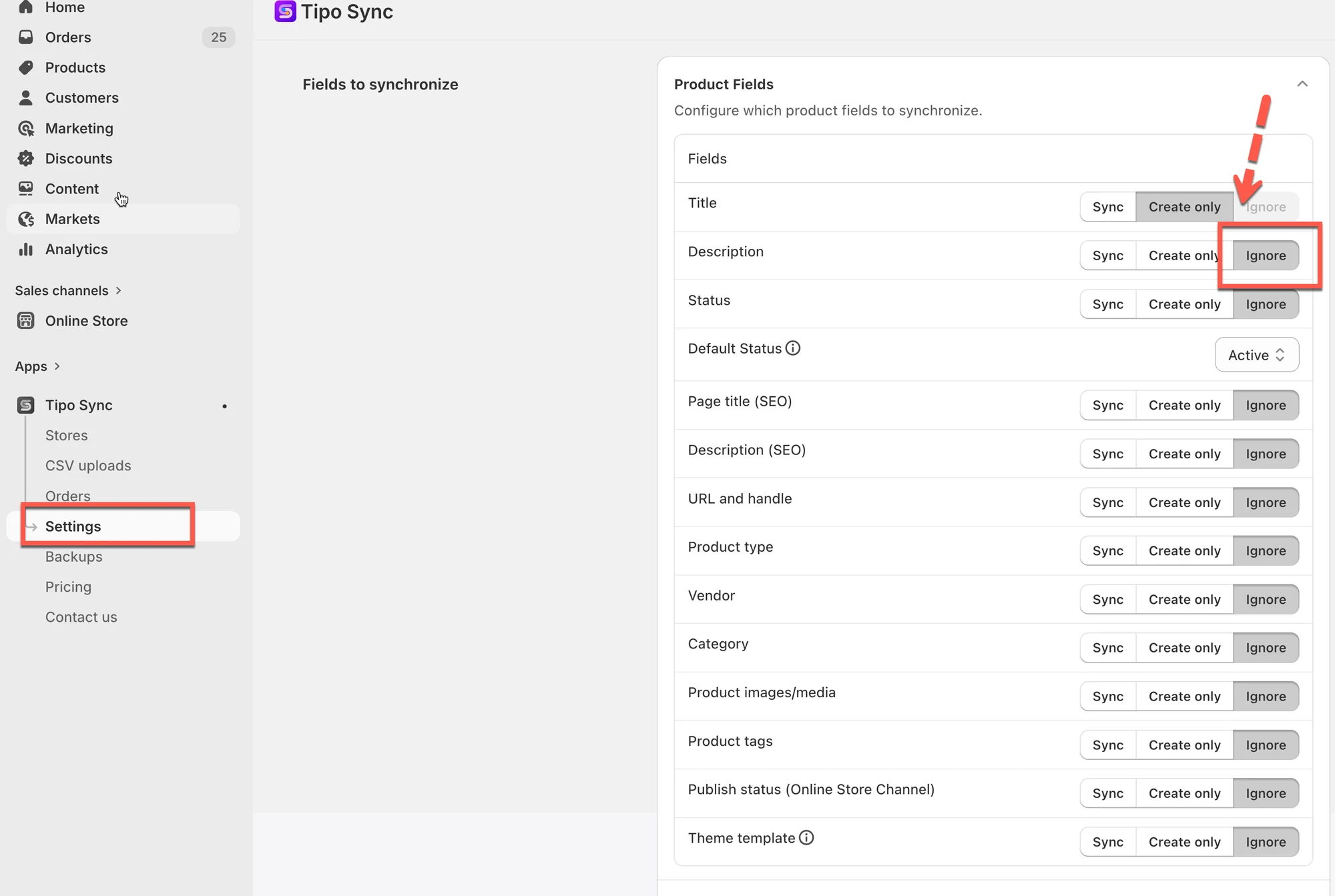
4. Click Save to finish
For example:
- If you want to sync product title from Source store to Destination store, select Sync option
- If you do not want to sync product price from Source store to Destination store, select Ignore option
Note: Product Title and Variant Title are required fields when you sync a new product from source store. The Ignore option is not available for them.
Example
Section titled “Example”🔄 Sync
Section titled “🔄 Sync”| Stage | Source Store | Destination Store |
|---|---|---|
| Initial sync | Summer Linen Shirt | Summer Linen Shirt |
| After title change | Premium Summer Linen Shirt | Premium Summer Linen Shirt |
Result: The field stays synchronized. Changes made in the Source Store are automatically updated in the Destination Store.
📝 Create only
Section titled “📝 Create only”| Stage | Source Store | Destination Store |
|---|---|---|
| Initial sync | Summer Linen Shirt | Summer Linen Shirt |
| After title change | Premium Summer Linen Shirt | Summer Linen Shirt |
Result: The field is copied when the product is created, but future changes are not synchronized.
🚫 Ignore
Section titled “🚫 Ignore”| Stage | Source Store | Destination Store |
|---|---|---|
| Initial sync | Summer Linen Shirt | Custom Store Title |
| After title change | Premium Summer Linen Shirt | Custom Store Title |
Result: The field is never synchronized. Changes in the Source Store do not affect the Destination Store.
🔗 How Product Matching Works
Section titled “🔗 How Product Matching Works”Before syncing a product, Tipo Sync checks whether the product already exists in the Destination store.
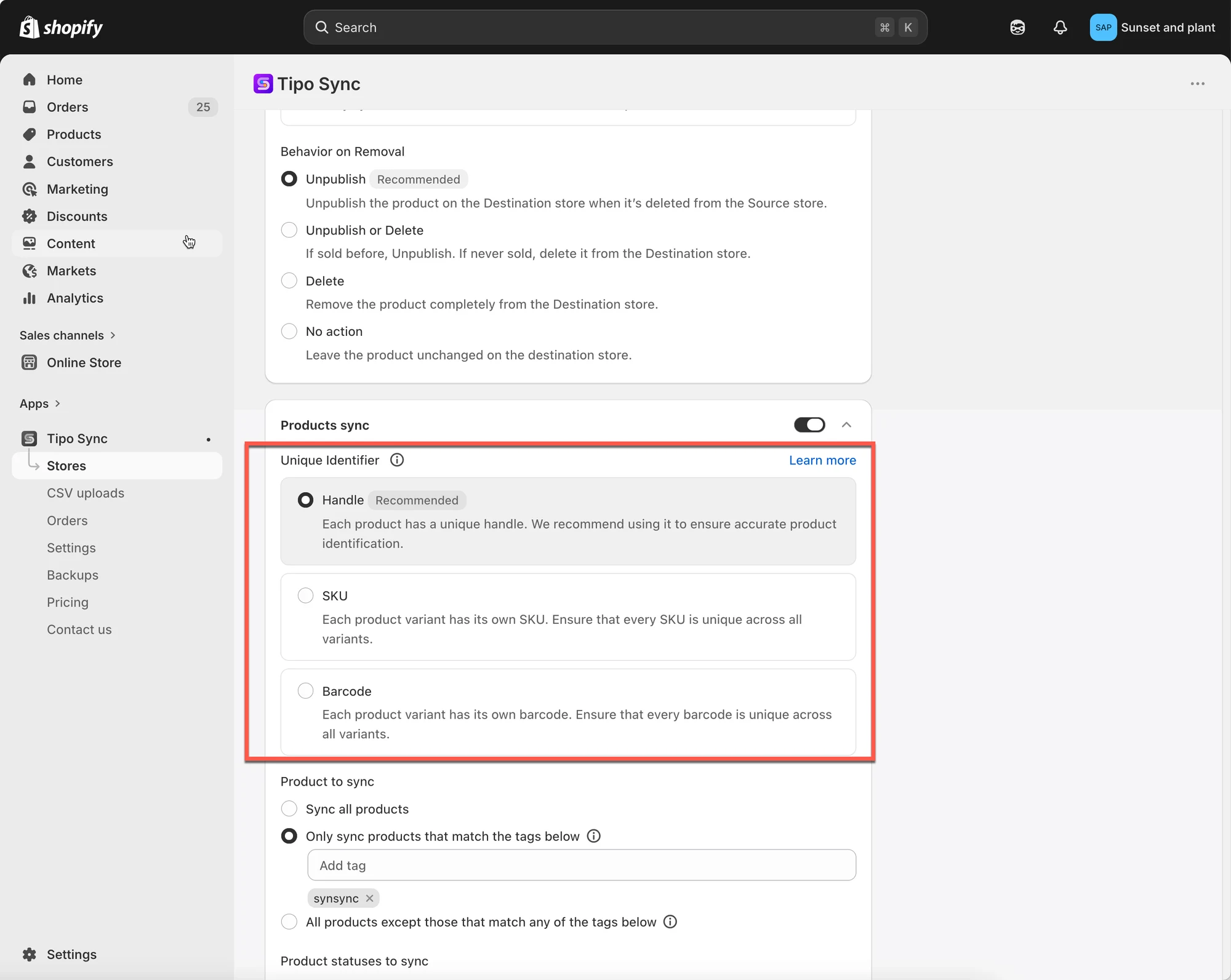
The app compares products using the selected Matching Identifier:
- Handle (Recommended)
- SKU
- Barcode
After checking for a match, Tipo Sync follows the selected sync mode.
📊 Quick Comparison
Section titled “📊 Quick Comparison”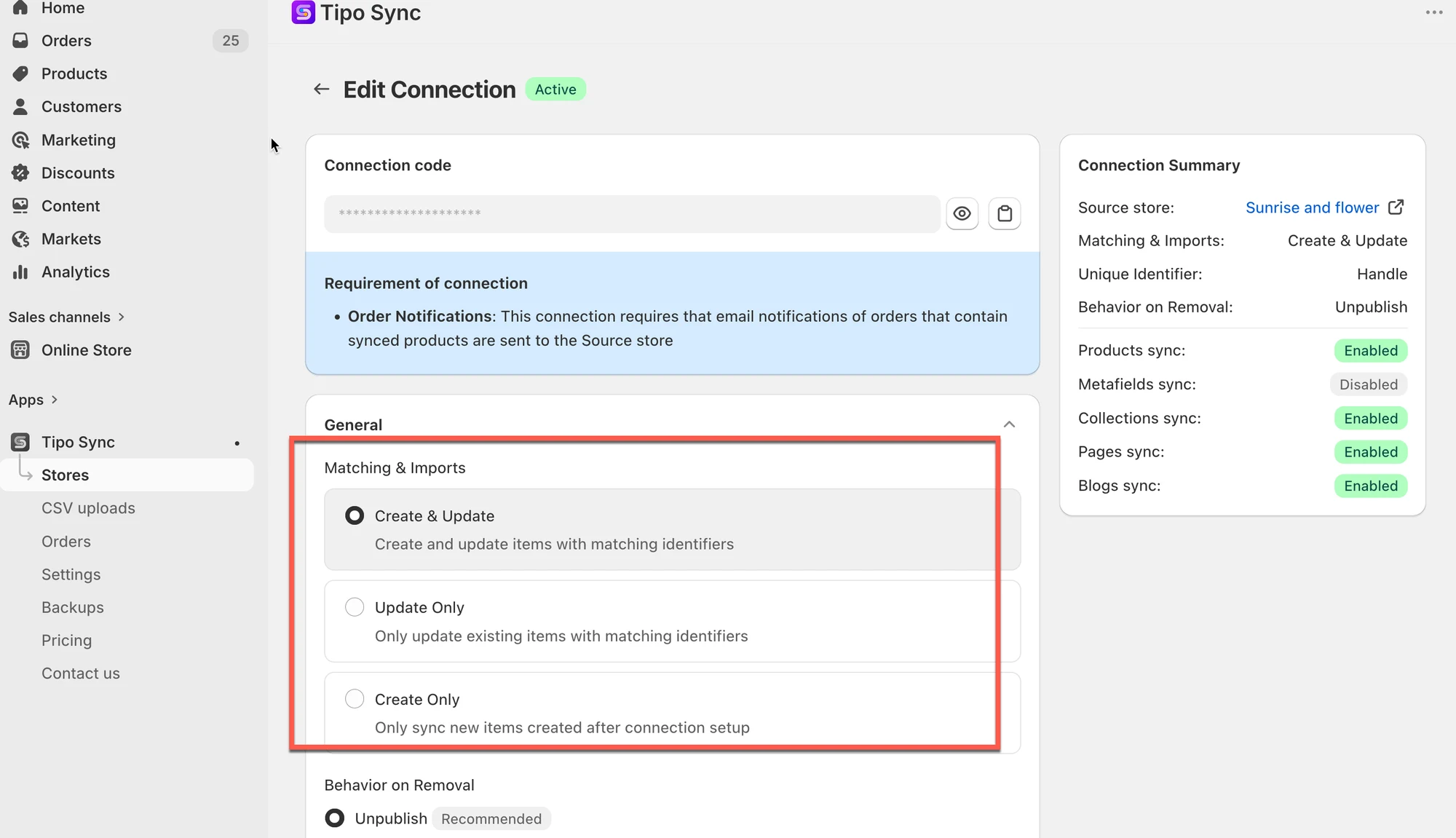
| Sync Mode | Matching Product Found | No Matching Product Found |
|---|---|---|
| 🔄 Create & Update | Update Product | Create Product |
| 🔁 Update Only | Update Product | Ignore Product |
| ➕ Create Only | Ignore Product | Create Product |
This table explains the core difference between all three modes.
🙋 Still need support?
Section titled “🙋 Still need support?”If you still need help, please feel free to contact us at [your support email or link]. We’ll be happy to assist you further.