> For the complete documentation index, see [llms.txt](https://docs.tipo.io/llms.txt). Markdown versions of documentation pages are available by appending `.md` to page URLs; this page is available as [Markdown](https://docs.tipo.io/inventory-sync/map-locations-for-inventory-sync.md).
# Map locations for inventory sync
This guide shows you how to map Shopify locations between your Source and Destination stores so inventory sync works correctly.
To make sure your inventory quantities are always accurate, online orders and in-person sales are assigned to [locations](https://help.shopify.com/en/manual/locations).
### ✅ Why location mapping is required
Shopify tracks inventory by **location** (warehouse, retail store, fulfillment center).\
To sync inventory accurately, Tipo Sync needs to know:
Which **Source location** should sync to which **Destination location**.
Without mapping:
* inventory may not sync
* inventory may sync to the wrong location
* stock can look incorrect in the Destination store
### 🛠️ **Step 1: Decide locations to sync for Source store**
1\. Open the app in **Source** store > click **Settings**
2\. Scroll down to **Locations** part, and select one of the 2 options below:
* **All locations**: products available in all locations of your store will be synced with the Destination store
* **Specific locations**: only the products in the selected location(s) is updated when there are changes in the Destination store
3\. Click **Save**
***
### 🛠️ Step 2: Map locations when connecting 2 stores
1\. Open the app in Source store > click **Stores** > click **Get connect code** button > copy the connect code on the popup
2\. Go to the **Destination** store open the Tipo Multi-store app > click **Stores** > click **Connect** **Store** button
3\. Enter the connect key (get the key from app Dashboard in Source store)
4. Select the products you want to sync and complete the setting in the connection detail
5. Scroll down to Mapping **locations** section and select locations to map between stores
On the mapping screen, you’ll see:
* Source store locations (left)
* Destination store locations (right)
**Note**: Currently our app only syncs 1 location from to Source store to 1 location from Destination store. It is not possible to map one location from Source store to 2 locations in Destination store
5. Click **Save**
The sync will be run immediately. It may take for while to complete.
***
### ✅ What happens after mapping
Once mapping is saved, the app will
* Update inventory only at the locations you mapped in the connection
* Ignore locations that are not mapped
> **Important: One-to-One Mapping**
>
> Each location can only be mapped to one corresponding location.
✅ Supported:
| Source store | Destination store |
| ------------ | ----------------- |
| Warehouse A | Warehouse A |
❌ Not supported:
| Source store | Destination store |
| ------------ | ----------------- |
| Warehouse A | Warehouse A |
| Warehouse A | Warehouse B |
A single source location cannot sync inventory to multiple destination locations.
### **🧪** Example
Suppose both stores have the following locations:
| Source Store | Destination Store |
| ------------------ | ------------------ |
| My Custom Location | My Custom Location |
| Shop location | Shop location |
And the mapping is configured as:
| Destination Store | Source Store |
| ------------------ | ------------------ |
| My Custom Location | My Custom Location |
| Shop location | Shop location |
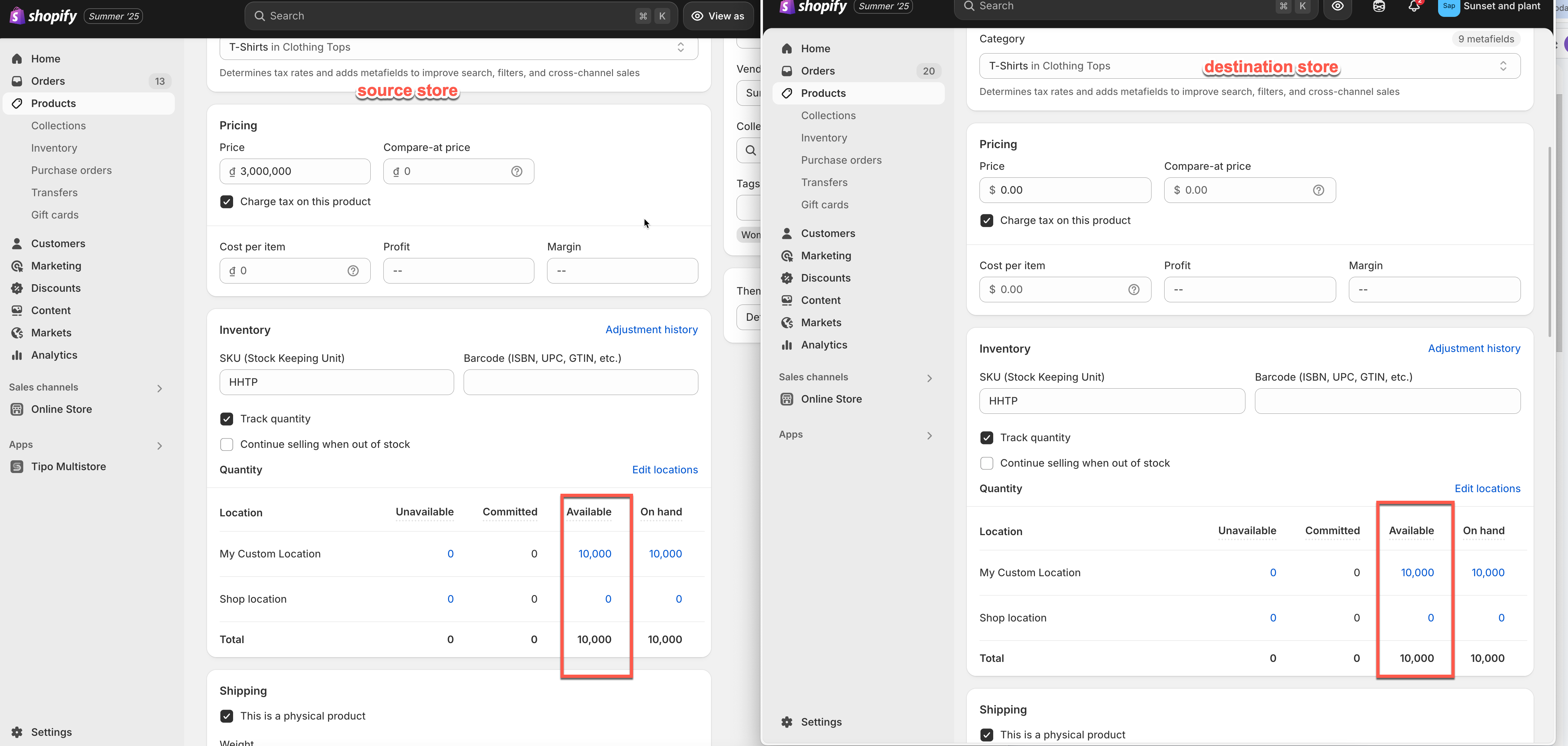
#### Example 1: One-Way Inventory Sync
Sync direction: Source Store → Destination Store
Before sync
**Source Store**
| Location | Available |
| ------------------ | --------- |
| My Custom Location | 10,000 |
| Shop location | 0 |
**Destination Store**
| Location | Available |
| ------------------ | --------- |
| My Custom Location | 5 |
| Shop location | 100 |
After sync
**Destination Store**
| Location | Available |
| ------------------ | --------- |
| My Custom Location | 10,000 |
| Shop location | 0 |
Because inventory is synced from the Source Store to the Destination Store, the destination inventory is updated to match the mapped source locations.
***
#### Example 2: Two-Way Inventory Sync
Sync direction: Source Store ↔ Destination Store
Assume the locations are mapped as:
| Destination Store | Source Store |
| ------------------ | ------------------ |
| My Custom Location | My Custom Location |
| Shop location | Shop location |
**Scenario A: Sale in Source Store**
Before sale:
| Location | Source Store | Destination Store |
| ------------------ | ------------ | ----------------- |
| My Custom Location | 10,000 | 10,000 |
A customer purchases 1 item in the Source Store.
After Shopify updates inventory:
| Location | Source Store |
| ------------------ | ------------ |
| My Custom Location | 9,999 |
Tipo Sync then updates the mapped location in the Destination Store:
| Location | Destination Store |
| ------------------ | ----------------- |
| My Custom Location | 9,999 |
Result: Both stores remain synchronized.
***
**Scenario B: Sale in Destination Store**
Before sale:
| Location | Source Store | Destination Store |
| ------------------ | ------------ | ----------------- |
| My Custom Location | 10,000 | 10,000 |
A customer purchases 1 item in the Destination Store.
After Shopify updates inventory:
| Location | Destination Store |
| ------------------ | ----------------- |
| My Custom Location | 9,999 |
Tipo Sync then updates the mapped location in the Source Store:
| Location | Source Store |
| ------------------ | ------------ |
| My Custom Location | 9,999 |
Result: Both stores remain synchronized.
***
#### Example 3: Unmapped Locations Are Ignored
Suppose only **My Custom Location** is mapped.
| Destination Store | Source Store |
| ------------------ | ------------------ |
| My Custom Location | My Custom Location |
**Shop location** is not mapped.
#### Source Store
| Location | Available |
| ------------------ | --------- |
| My Custom Location | 10,000 |
| Shop location | 500 |
#### Destination Store
| Location | Available |
| ------------------ | --------- |
| My Custom Location | 10,000 |
| Shop location | 100 |
After inventory sync:
| Location | Result |
| ------------------ | ---------- |
| My Custom Location | Synced |
| Shop location | Not synced |
The inventory at **Shop location** remains unchanged because it is not included in the location mapping.
***
### ▶️ A Tutorial video
{% embed url="" %}
***
**🙋 Still need support?**
If you still need help, please feel free to contact us at . We’ll be happy to assist you further.