> For the complete documentation index, see [llms.txt](https://docs.tipo.io/llms.txt). Markdown versions of documentation pages are available by appending `.md` to page URLs; this page is available as [Markdown](https://docs.tipo.io/inventory-sync-groups/sync-events-in-inventory-sync-groups.md).
# Sync events in Inventory Sync Groups
This guide explains what **Sync Events** are and how they keep your **Inventory Sync Groups** updated automatically.
## ℹ️ What are Sync Events?
A **Sync Event** is an action that changes inventory in Shopify—and triggers Tipo to update other products in the same Inventory Sync Group.
In simple terms:
> **Something changes stock → Tipo detects it → Tipo syncs the group.**
***
## 🔄 How sync happens (Sync events)
Each time one of the events below occurs, Tipo creates a **Sync Event** and updates inventory for products inside the related **Inventory Sync Group**.\
Here are the main events that can trigger synchronization:
### 🧩 1) Group created or updated
Whenever a group is created or updated, the app automatically syncs inventory according to the configuration in that group.
**When it triggers**
**a) Group created/edited:** You create a new group or update group settings/variants
**b) Bulk update:** You update multiple groups using the bulk editor
**c) Import:** You import groups via CSV
**What happens**
Tipo recalculates the group inventory based on the new settings, then updates all linked items.
**Example:**\
You create a group that links T-shirt Red and T-shirt Blue because they share the same stock.\
After you click **Save**, Tipo Sync triggers a Group created/updated sync event and recalculates the group inventory.\
For example, if the inventory is 100 units, Tipo Sync sets:
* T-shirt Red = 100
* T-shirt Blue = 100
***
### 🛒 2) Order created
**When it triggers**
This event happens when a customer places an order for a product in a sync group.
**What happens**
Shopify reduces inventory → Tipo updates the rest of the group to keep inventory consistent.
**Example:**
Your group links T-shirt Red and T-shirt Blue, and both show 100 units.\
A customer buys 3 of T-shirt Blue.\
Tipo Sync detects the inventory change and updates the group:
* T-shirt Blue = 97
* T-shirt Red = 97
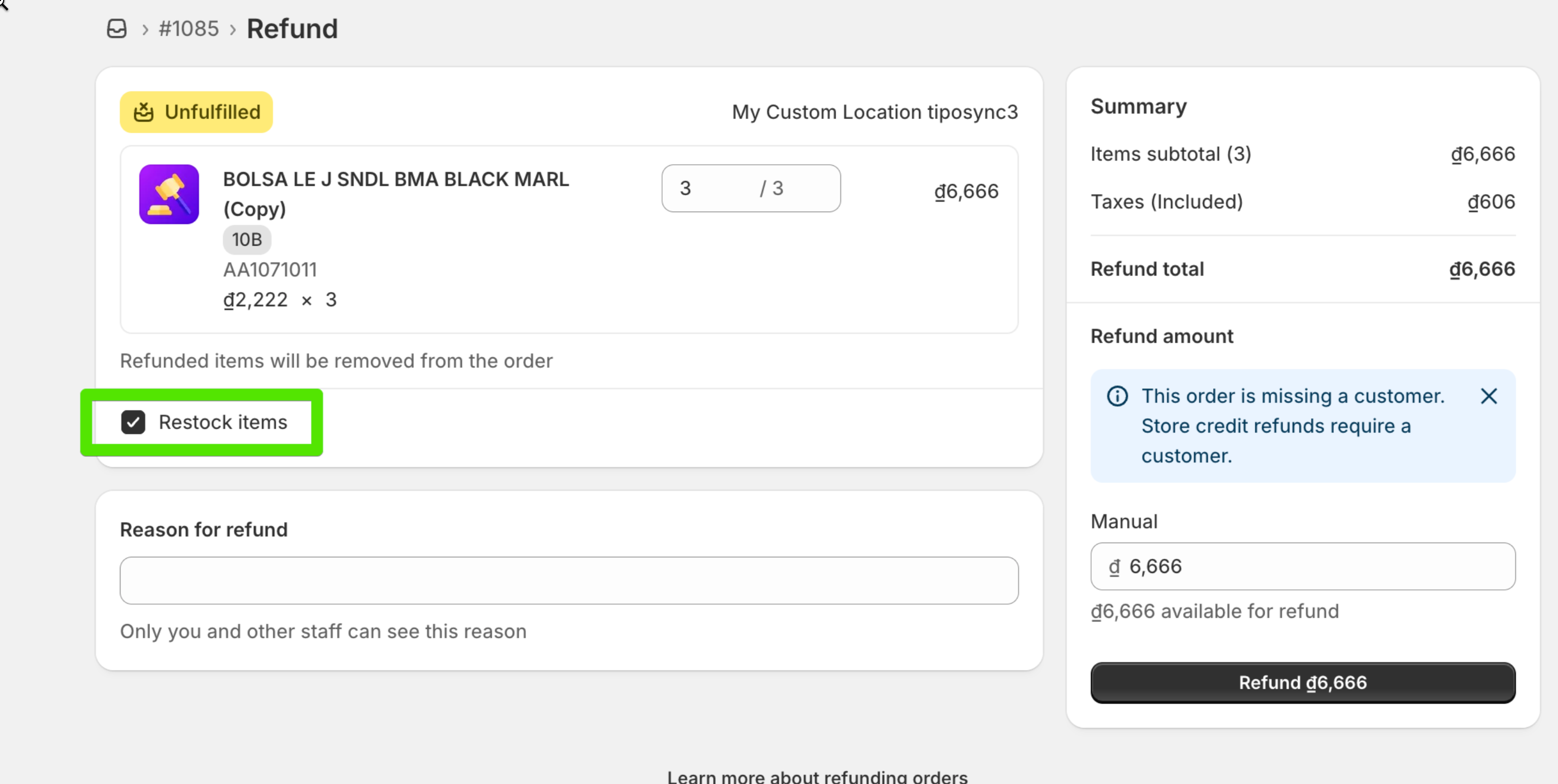
### ↩️ 3) Order refunded or canceled
**When it triggers**
This event happens when an order is refunded/canceled and inventory is returned to stock (based on Shopify settings).
**What happens**
Inventory increases in Shopify → Tipo syncs the new quantity to other items in the group.
**Note**: Only items with “Restock” checked in Shopify will be synced back to available inventory.
**Example:**
After the sale, both shirts show **97 units**.\
You refund **2** items and return inventory to stock.\
Tipo Sync syncs the group:
* T-shirt Red = 99
* T-shirt Blue = 99
***
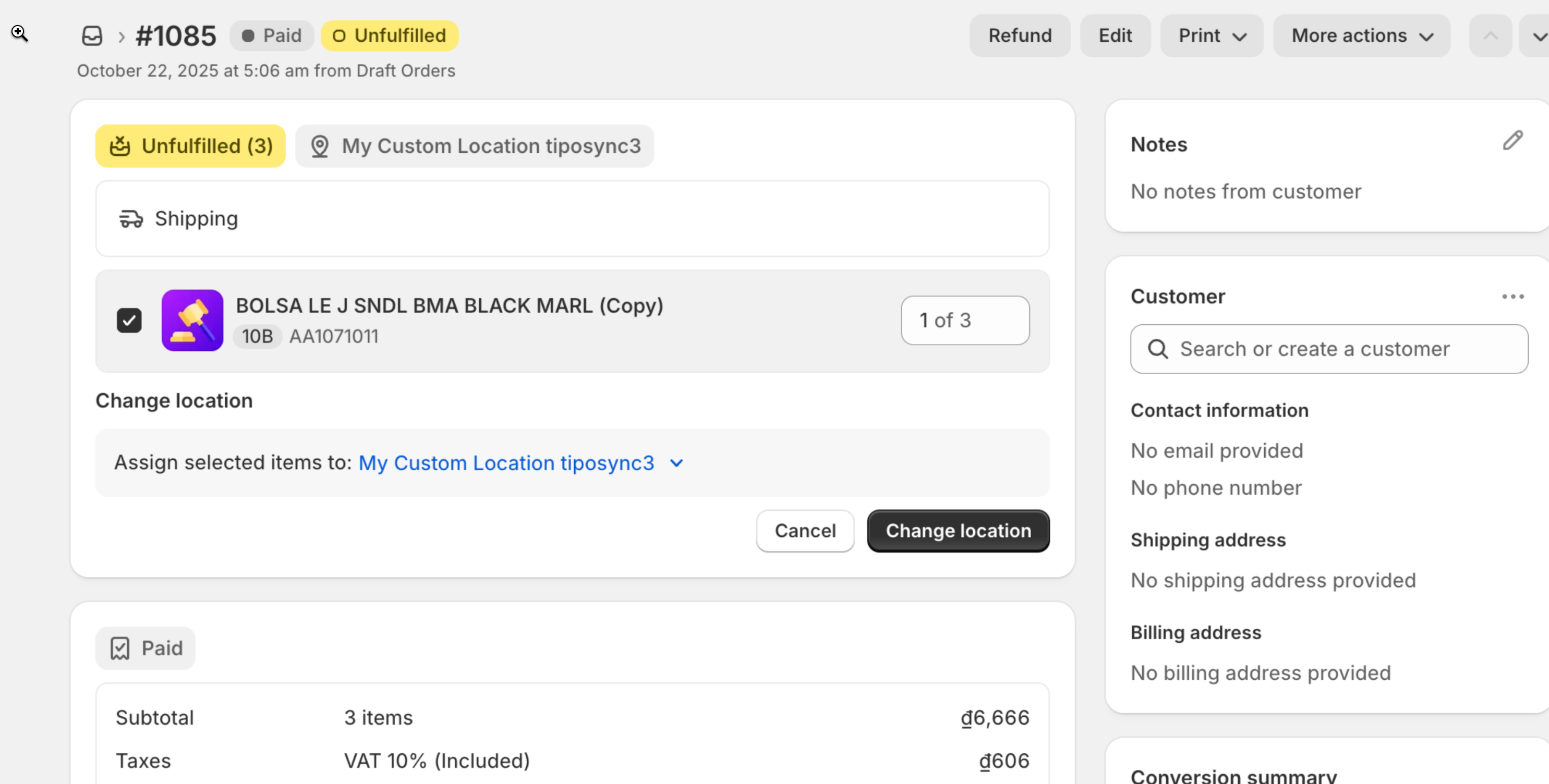
### 📍4) Order location changed
**When it triggers**
This event happens when the fulfillment/inventory location for an order item changes (for stores using multiple locations).
**What happens**
Tipo recalculates inventory based on the updated location and updates group items accordingly.
**Example:**\
A sale was originally deducted from **Warehouse A**, then the order location is changed to **Warehouse B**.\
Tipo app recalculates inventory based on the new location and updates group items using that location’s available stock.
***
### ✏️ 5) Order edited
**When it triggers**
This event happens when order line items are changed after the order is created.
Includes:
**a. Add New Product:** The newly added product is synced and its stock reduced.
**b. Update Quantity:** The app adjusts inventory to reflect the updated product quantity in the order.
**What happens**
Shopify adjusts inventory again → Tipo applies the updated inventory across the group.
**Example:**\
A customer originally ordered **1** unit, then you edit the order to **3** units.\
Shopify adjusts inventory again, and Tipo Sync updates the group so all linked items match the new inventory level.
***
### Summary
| Event Type | Trigger | Action Taken | Example |
| ----------------------------- | --------------------------------------------------- | ------------------------------------------------------------------- | ---------------------------------------------------------- |
| **Group Created / Updated** | Group created, edited, bulk updated, or imported | Recalculates and syncs inventory for all variants in the group | You link T-shirt Red and Blue → both updated to same stock |
| **Order Created** | New order placed | Deducts ordered quantity across all linked variants | 1 Red sold → 1 Blue also deducted |
| **Order Refunded / Canceled** | Refund or cancellation with “Restock items” checked | Restocks product quantity in the group | 1 Red refunded → 1 Blue also restocked |
| **Order Location Changed** | Order moved to another fulfillment location | Adjusts stock in both old and new locations | Move from Warehouse A → B → stock adjusted |
| **Order Edited** | Order modified | Updates inventory when new products are added or quantities changed | Added 1 more Red → 1 Blue also reduced |
**🙋 Still need support?**
If you still need help, please feel free to contact us at . We’ll be happy to assist you further.