> For the complete documentation index, see [llms.txt](https://docs.tipo.io/llms.txt). Markdown versions of documentation pages are available by appending `.md` to page URLs; this page is available as [Markdown](https://docs.tipo.io/2-single-store-sync/switch-sync-mode.md).
# Switch Sync Mode
Tipo Sync offers **two sync modes**. Choosing the right one depends on whether you manage **one Shopify store** or **multiple stores**.
### ℹ️ Quick definition
**🏪 Single store sync**
Sync happens inside one Shopify store to automate how products/inventory are managed within that store.
Typical features in this mode include:
* Inventory Sync Groups
* Bundle Groups
* Reports / analytics for syncing activity
Use it when you have only one store and want to keep inventory or bundles organized automatically.
***
**🔁 Between stores sync (Multi-store sync)**
Sync happens between two or more Shopify stores.
In this mode you will usually have:
* **Source store** = the main store where you manage products
* **Destination store(s)** = stores that receive synced products/inventory.
Typical features in this mode include:
* Connect stores (Source ↔ Destination)
* Product sync (import new products, sync existing ones, mapping)
* Inventory sync between stores (one-way or two-way)
* Order sync (depending on your setup)
* Email notifications
Use it when you have **multiple Shopify stores** and need to copy/update data across them.
***
### 🕹️ When should I use each mode?
**Choose Single store sync if you:**
* have one Shopify store
* want to automate inventory updates and bundle behaviors inside the same store
* don’t need to connect to another store
**Choose Between stores sync if you:**
* run multiple Shopify stores (regional stores, wholesale + retail, multiple brands)
* want to push products from one store to another
* want inventory or orders to stay aligned across stores
***
### 🔀 Key differences
TopicSingle store syncBetween stores sync
Number of stores
1 store
2+ stores
Setup
No store connection needed
Must connect Source + Destination
Main goal
Automate inventory/bundles within one store
Keep products/inventory/orders synced across stores
Product creation
Not focused on cross-store import
Can import/sync products between stores
Inventory
Groups & automation in the same store
Location mapping + one-way/two-way sync
Best for
One-store merchants
Multi-store merchants, wholesalers
***
### 🔄 Switch from Single-store to Multi-store Mode
Use this mode if you want to **sync data across multiple stores**.
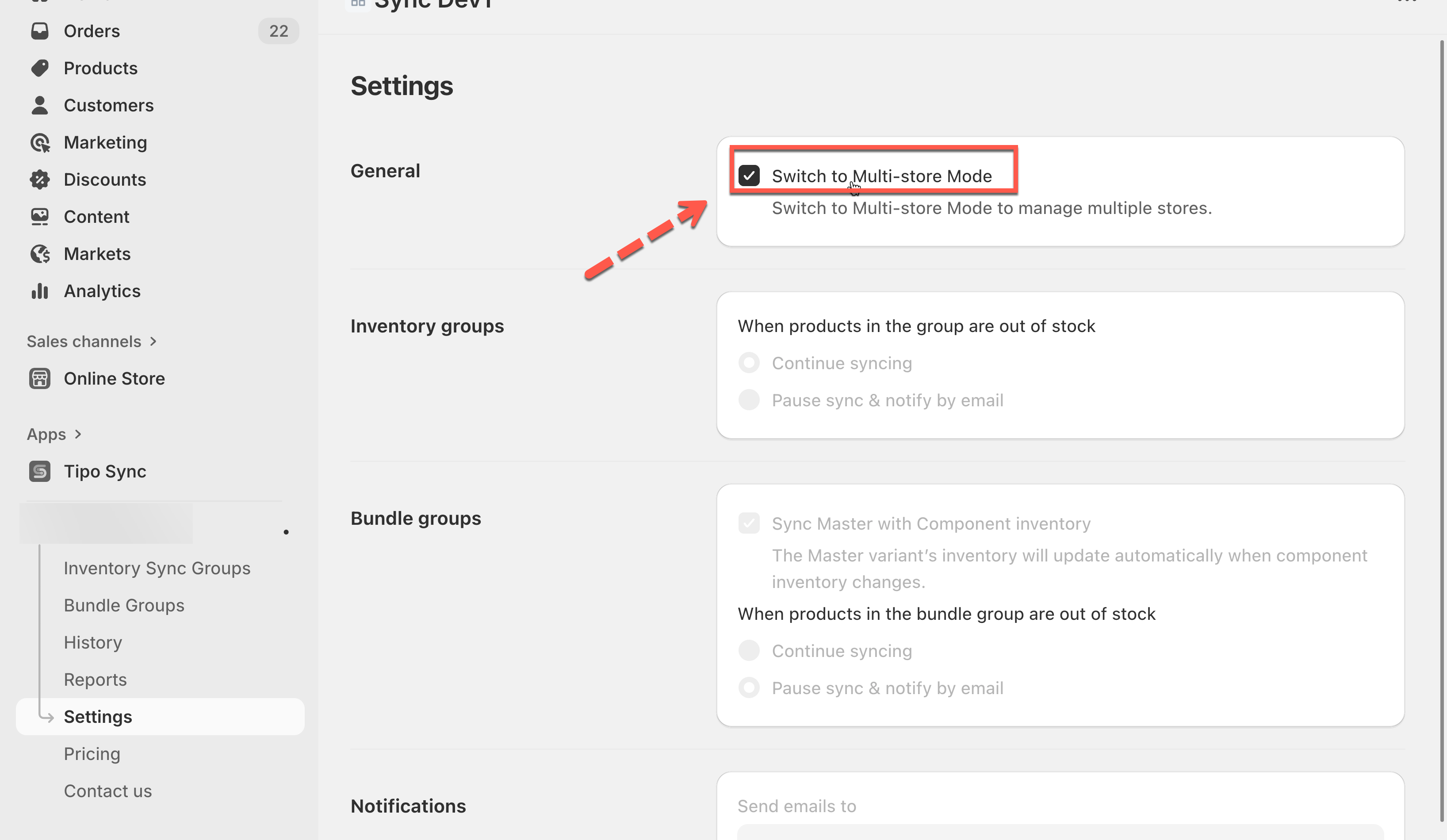
1. Go to **Settings** in your app sidebar **>** **General** > turn on **Switch to Multi-store Mode**\
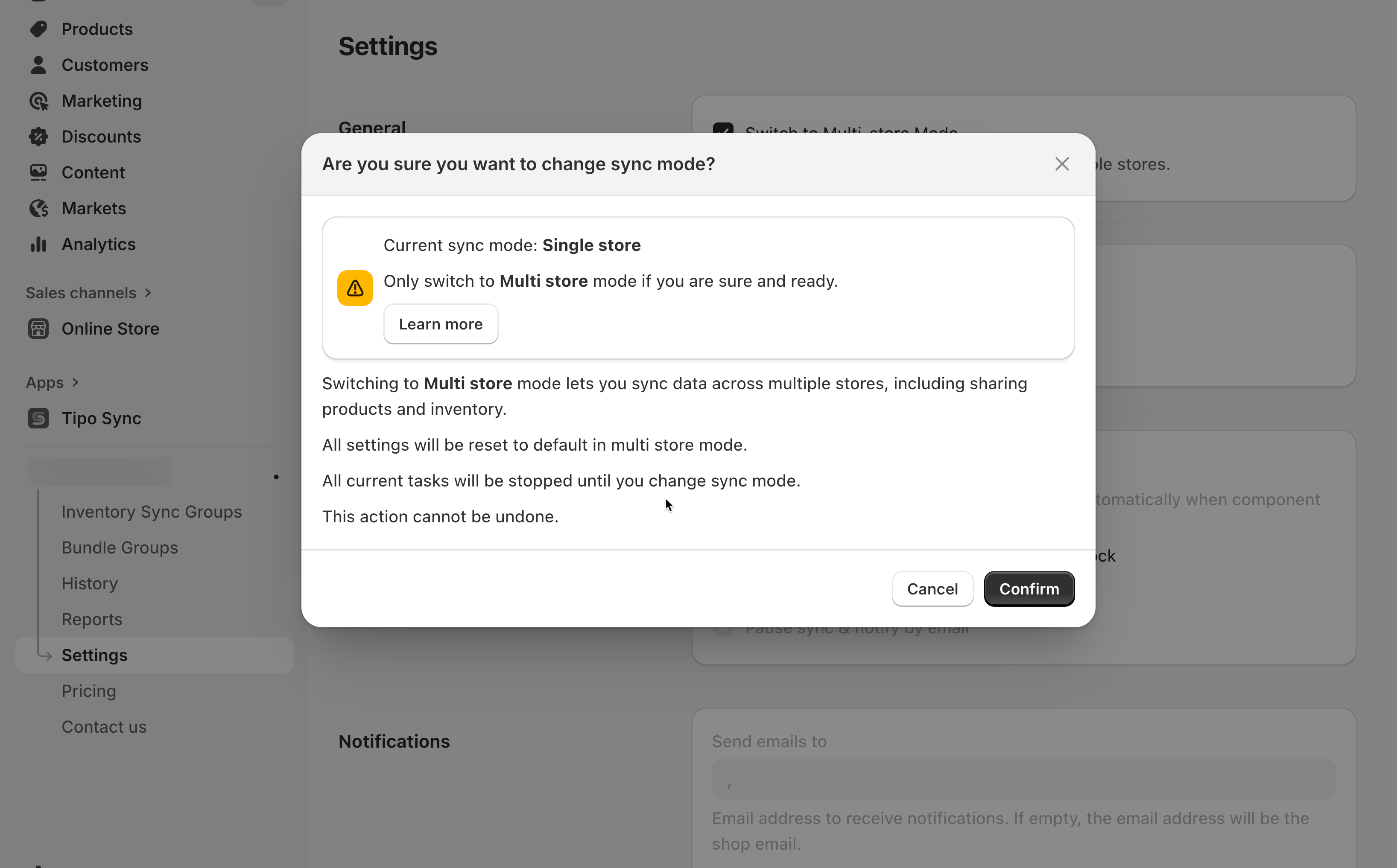
→ You’ll see a confirmation popup.
2. Review the warning message carefully:
* All current settings will be reset to default
* Any ongoing sync tasks will stop
* This action cannot be undone
3. Click **Confirm** to complete the change.
### 🔄 Switch from Multi-store to Single-store Mode
Use this mode if you only want to **sync one store** (no connections to others).
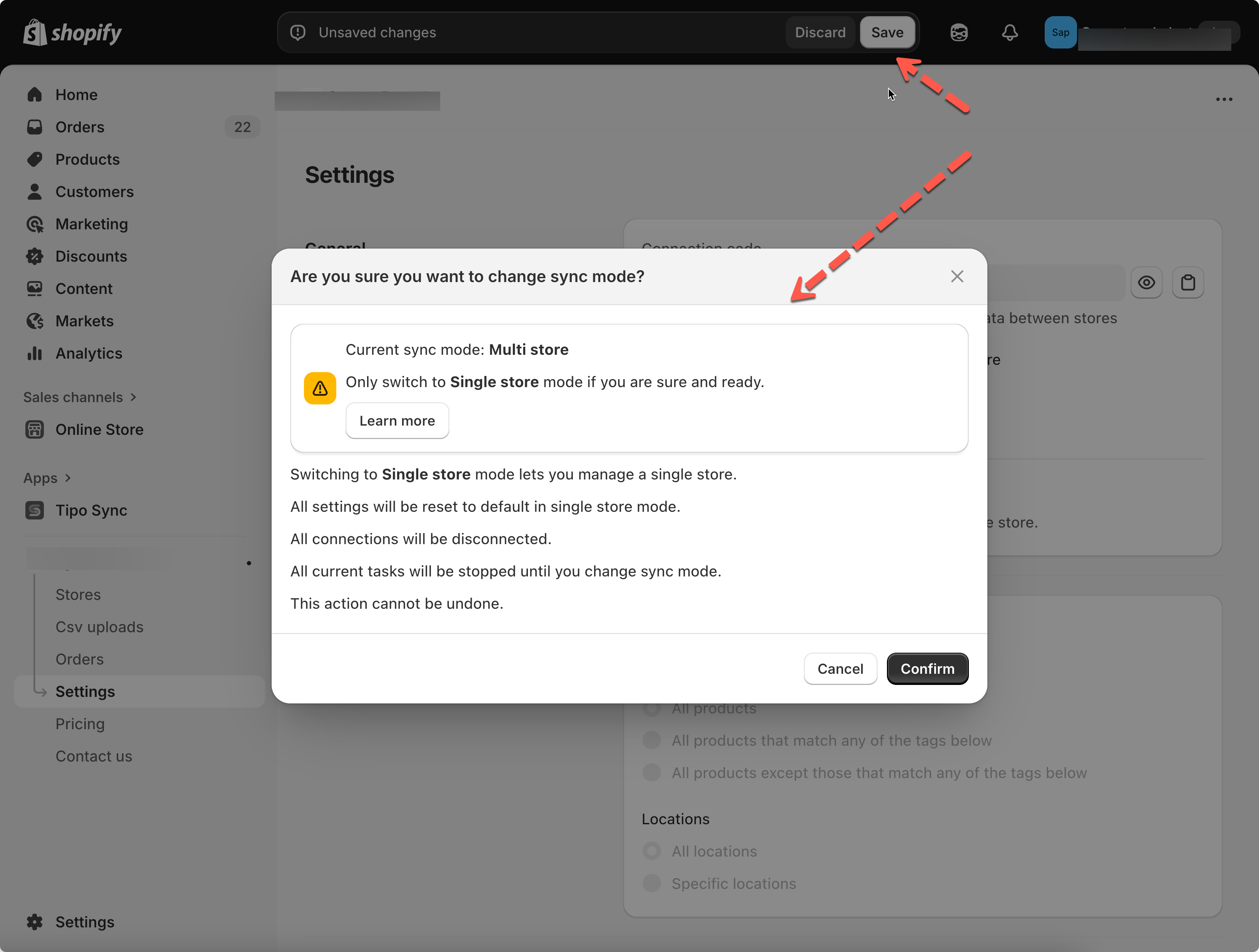
1. Go to **Settings** in your app sidebar > Under **General**, enable **Switch to Single-store Mode**\
→ You’ll see a confirmation popup.
2. Review the message:
* All connections will be disconnected
* All settings reset to default
* This action cannot be undone
3. Click **Confirm** to finalize the change.
**🙋 Still need support?**
If you still need help, please feel free to contact us at . We’ll be happy to assist you further.