> For the complete documentation index, see [llms.txt](https://docs.tipo.io/llms.txt). Markdown versions of documentation pages are available by appending `.md` to page URLs; this page is available as [Markdown](https://docs.tipo.io/inventory-sync-groups/import-and-export-inventory-sync-groups.md).
# Import and Export Inventory Sync Groups
This guide explains how to **export** your Inventory Sync Groups to a CSV file and **import** them back when you want to set up groups faster, copy settings to another store, or make bulk edits in a spreadsheet.
### ✅ What this feature does
* **Export** your existing Inventory Sync Groups to a CSV file
* Edit groups in bulk using Excel/Google Sheets
* **Import** the CSV to create or update groups in the app
* Set up many groups quickly (instead of creating groups one by one)
***
### 📥 **How to import**
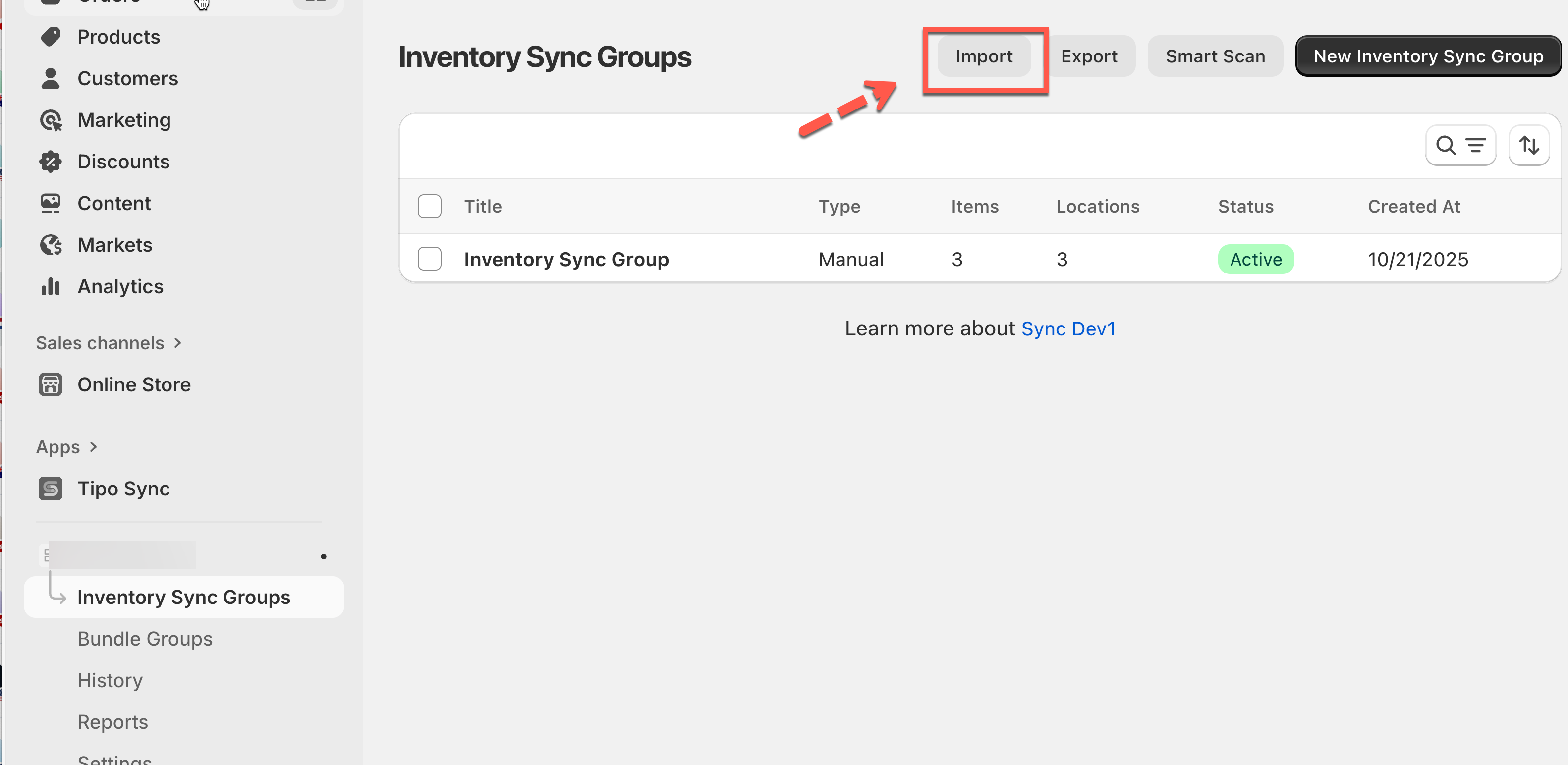
1. Open the app > click **Inventory** **Groups** > click **Import**
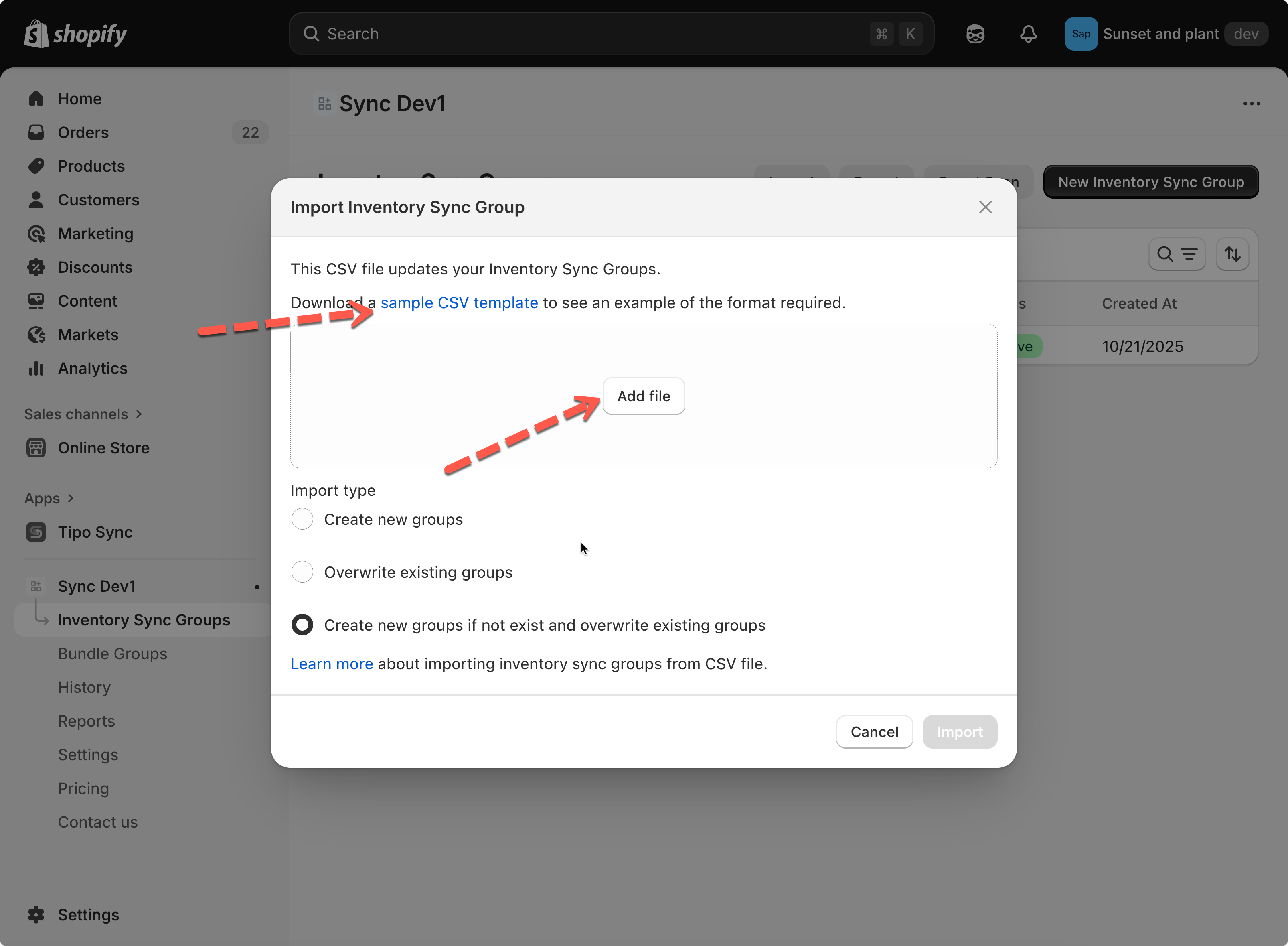
2. Download the **sample CSV template** to understand the correct format
3. Click **Add file** and upload your CSV file
4. Choose an **Import Type**:
* **Create new groups:** Add new inventory groups only.
* **Overwrite existing groups**: Replace existing groups with the same name.
* **Create new groups if not exist and overwrite existing groups:** Combine both actions.
5. Click **Import** to finish.
**Example**
If your CSV contains:
| id | title | status | location\_id | location\_name | quantity | variant\_id | variant\_title |
| -- | ---------------------- | ------ | ------------ | ------------------- | -------- | -------------- | ------------------------------------- |
| 1 | Inventory Sync Group 1 | active | 81987633427 | My Custom Location | 54 | 44866231861523 | The Minimal Snowboard - Default Title |
| 1 | | | 81987600659 | Shop location | 21 | | |
| 1 | | | 81987666195 | Snow City Warehouse | 40 | | |
| 2 | Inventory Sync Group 2 | active | 81987633427 | My Custom Location | 32 | 44866231894291 | The Hidden Snowboard - Default Title |
| 2 | | | 81987600659 | Shop location | 45 | | |
| 2 | | | 81987666195 | Snow City Warehouse | 43 | | |
After importing this CSV: The app will create two groups:
* **Inventory Sync Group 1** → includes *The Minimal Snowboard* synced across three locations.
* **Inventory Sync Group 2** → includes *The Hidden Snowboard* synced across three locations.
***
### 📤 Export Inventory Groups
Exporting allows you to download your inventory sync data into a CSV file. It is ideal for backups or editing offline.
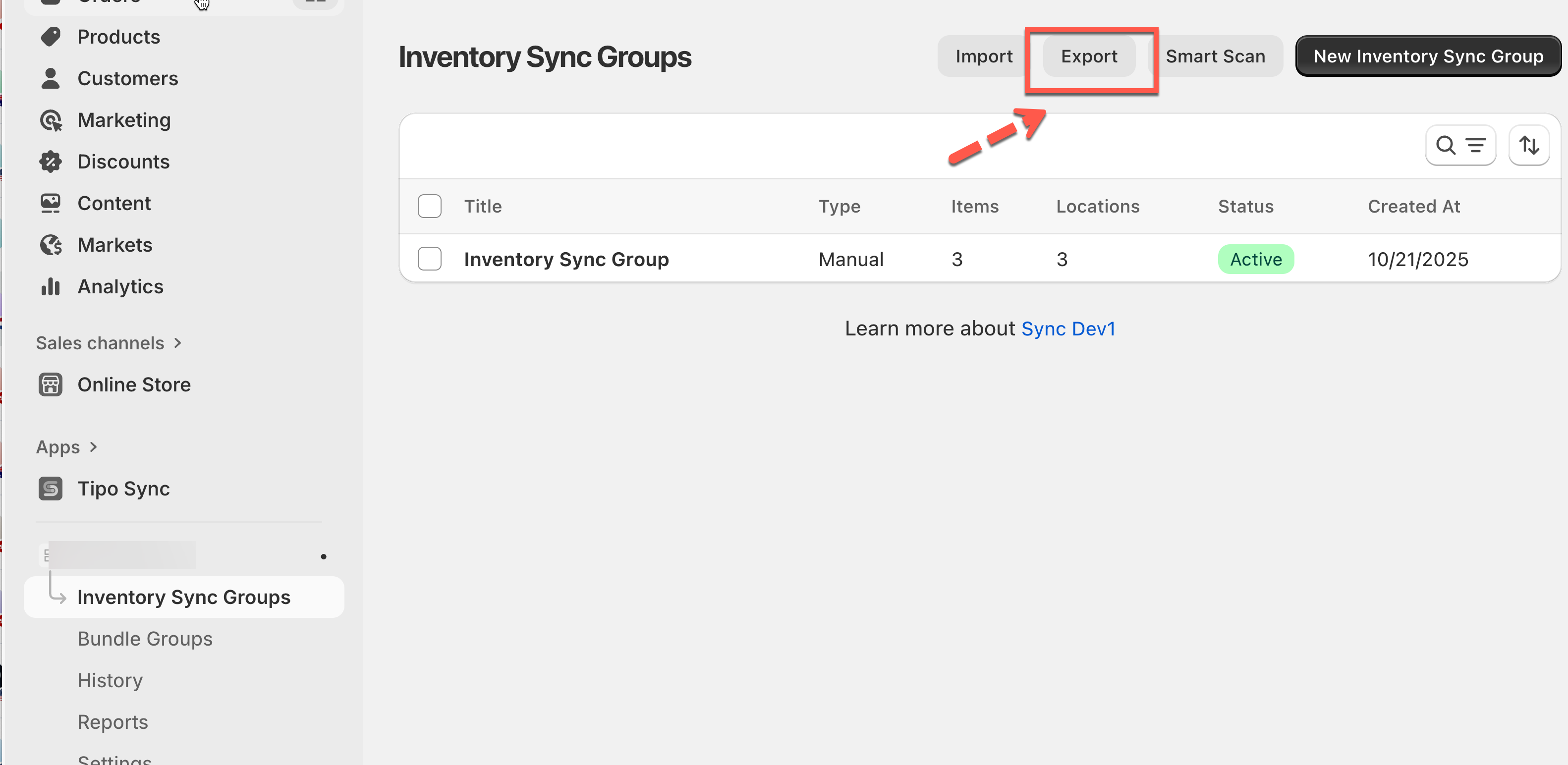
1. Open the app > click **Inventory Groups** > click **Export**
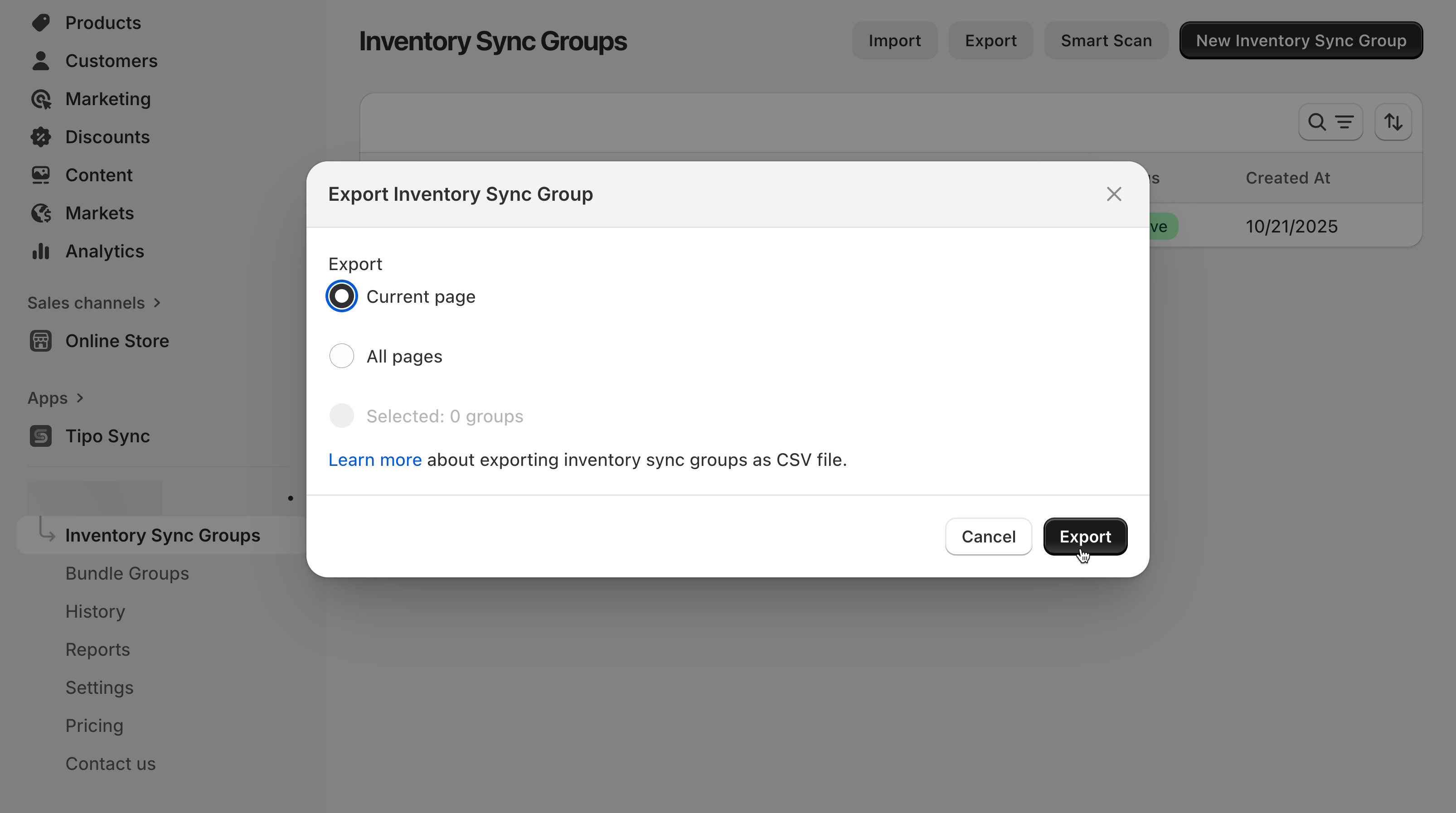
2. Choose an option:
* **Current page:** Export only the groups you see on the screen.
* **All pages**: Export all inventory sync groups.
3. Click **Export** and the CSV file will download automatically.
***
#### 🛠️ Manage Inventory Groups
After importing, you can manage and review details in each group:
* **Group Name:** Used to identify the sync group.
* **Locations & Initial Inventory**: Set synced stock levels for each location.
* **Add Variants**: Add products manually or by condition (e.g., based on tags or collections).
* **Preview Variants:** See all products included in the group and their current inventory levels.
**Example**
You imported a group named **“T-Shirts”**.\
It syncs stock across 3 locations:
* Main Warehouse (50 units)
* Storefront (20 units)
* Online Warehouse (30 units)
When one sells 2 items, the app automatically updates all locations to keep stock consistent.
***
**Notes:**
* Always download the sample CSV before importing to ensure your file matches the format.
* Use **Export** regularly to back up your sync data.
* If importing large files, make sure your CSV is clean, no empty columns or duplicate headers.
**🙋 Still need support?**
If you still need help, please feel free to contact us at . We’ll be happy to assist you further.