# Collection Page Widget
## ✅ What this widget does
The **Collection Page Widget** helps you show related or recommended products directly on collection pages (for example: *Rings*, *Men’s Shoes*, *Summer Sale*).
It’s great for:
* Cross-selling similar items
* Highlighting best sellers in a collection
* Promoting accessories or add-ons inside collections
#### What is the Collection Page Widget?
This widget appears on **collection pages** and shows products based on:
* The current collection
* Specific collections
* Manual recommendations (products, collections, tags, or types)
**Placement:** Collection page\
**Layouts available:**
* Collection Related
* Collection Add-on
***
## ⚙️ **How to set up**
### **Step 1: Create a widget**
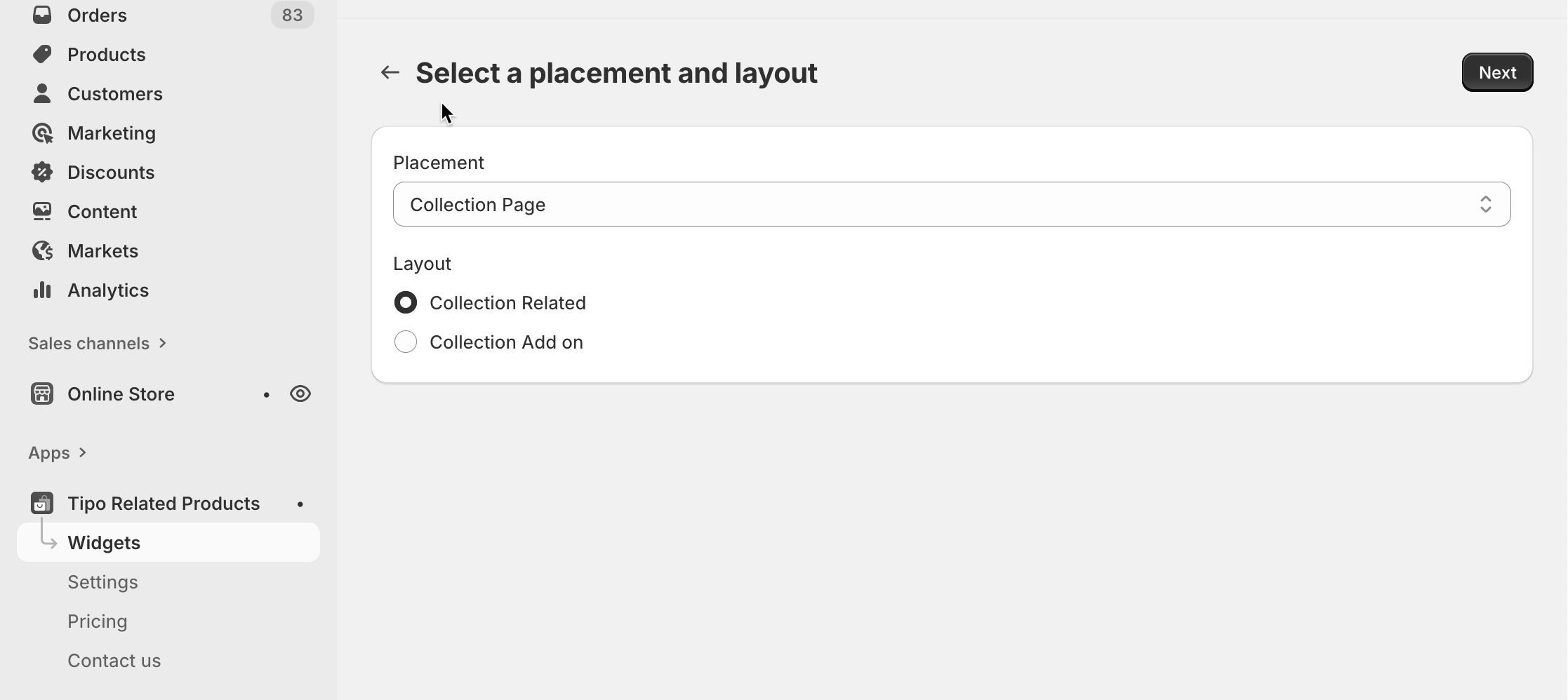
1. Open the app > go to the **Widgets** tab > click the **Add widget** button in the top right corner
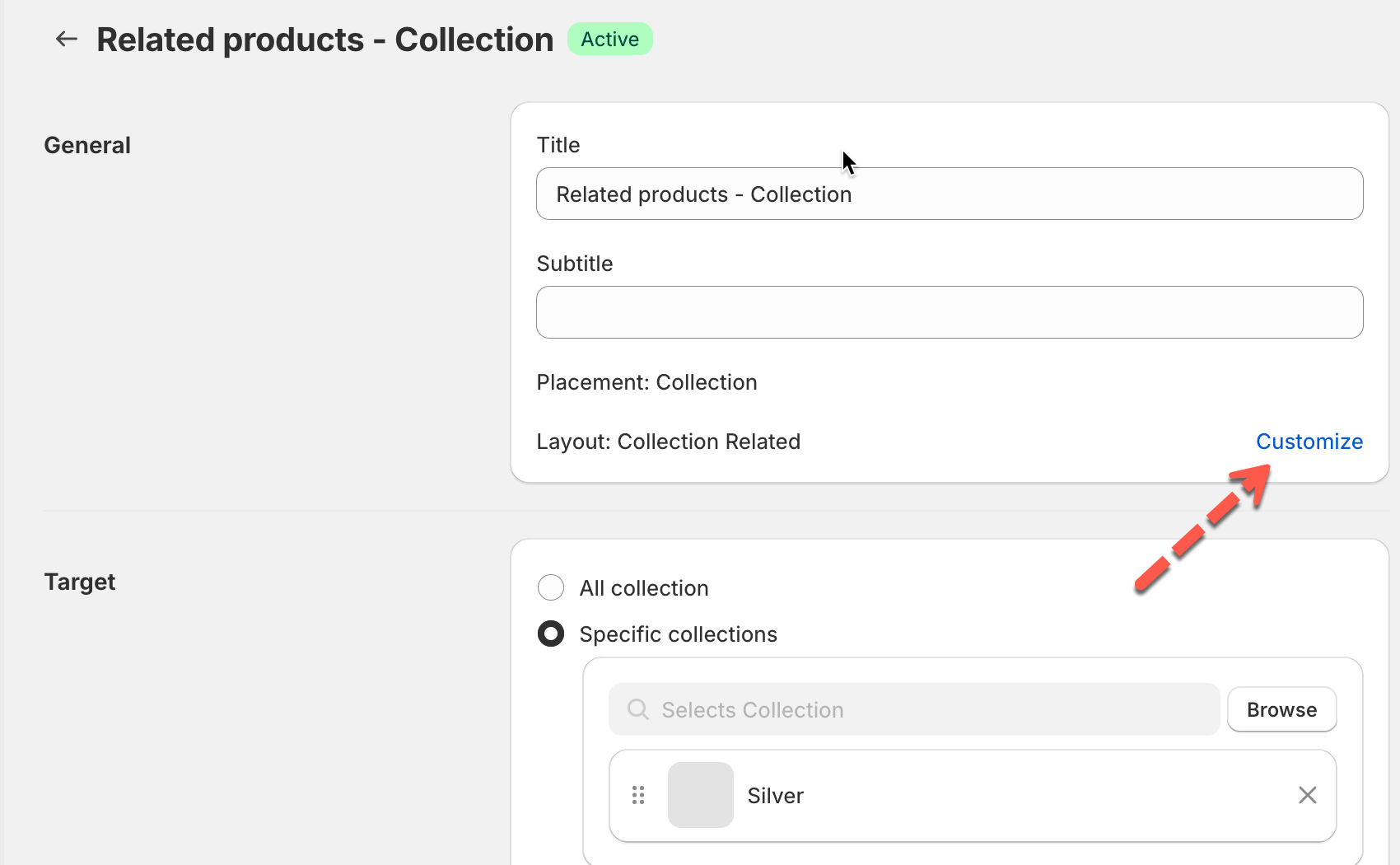
2. For **Placement**, choose **Collection**
3. Select the one of layouts you want
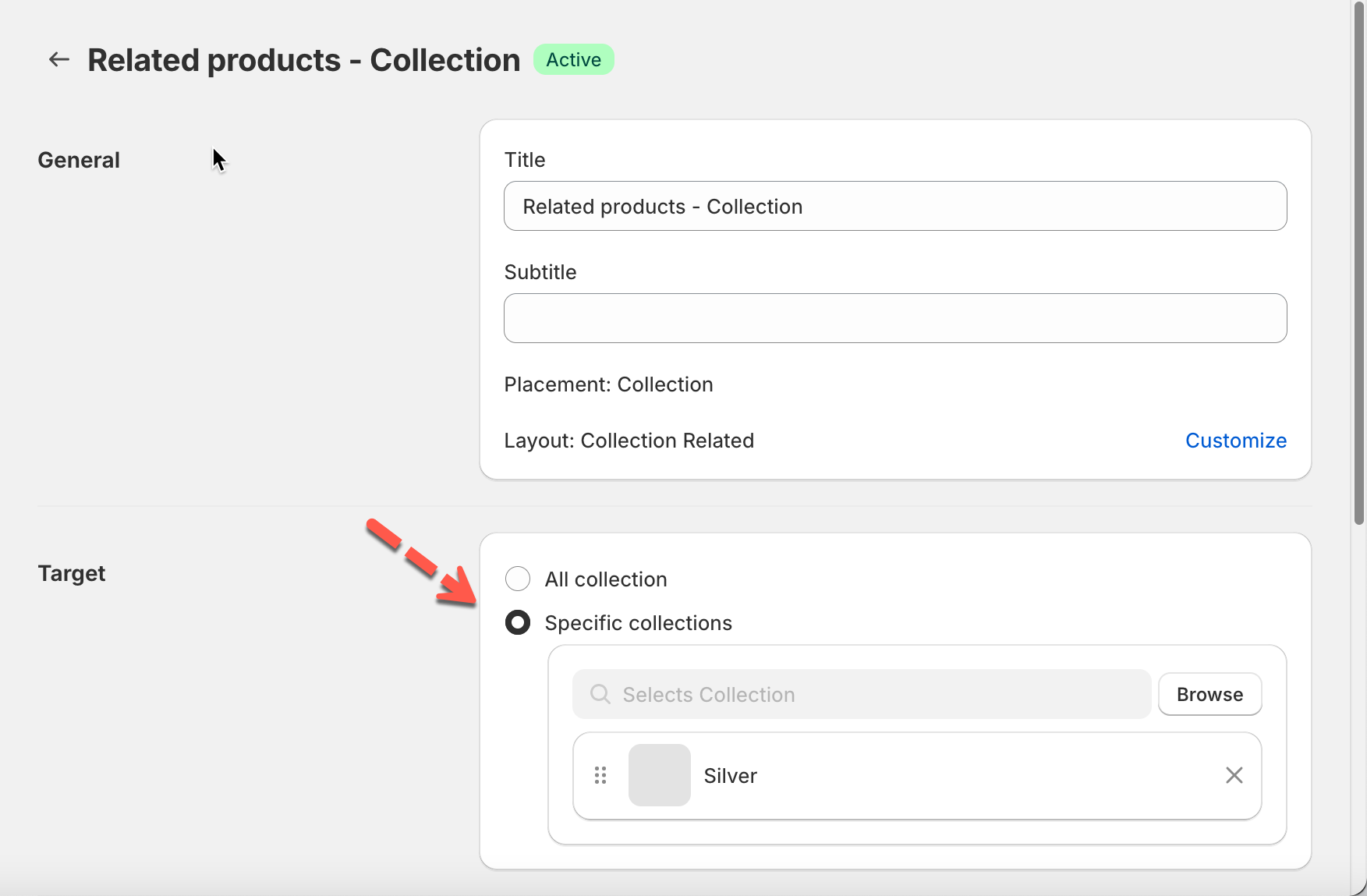
4. Fill in your widget general details
* **Title** : `You may also like, Related collection, What you may need`
* **Subtitle** (optional)
5. Choose **Target** products
This controls where the widget appears. You can choose:
* **All collections**\
→ Widget shows on every collection page
* **Specific collections**\
→ Widget only shows on selected collections
* Example: `Diamond`, `Silver`
**Example:**\
You select **Specific collections > `Silver`**\
➡ The widget only appears on the **`Silver`** collection page.
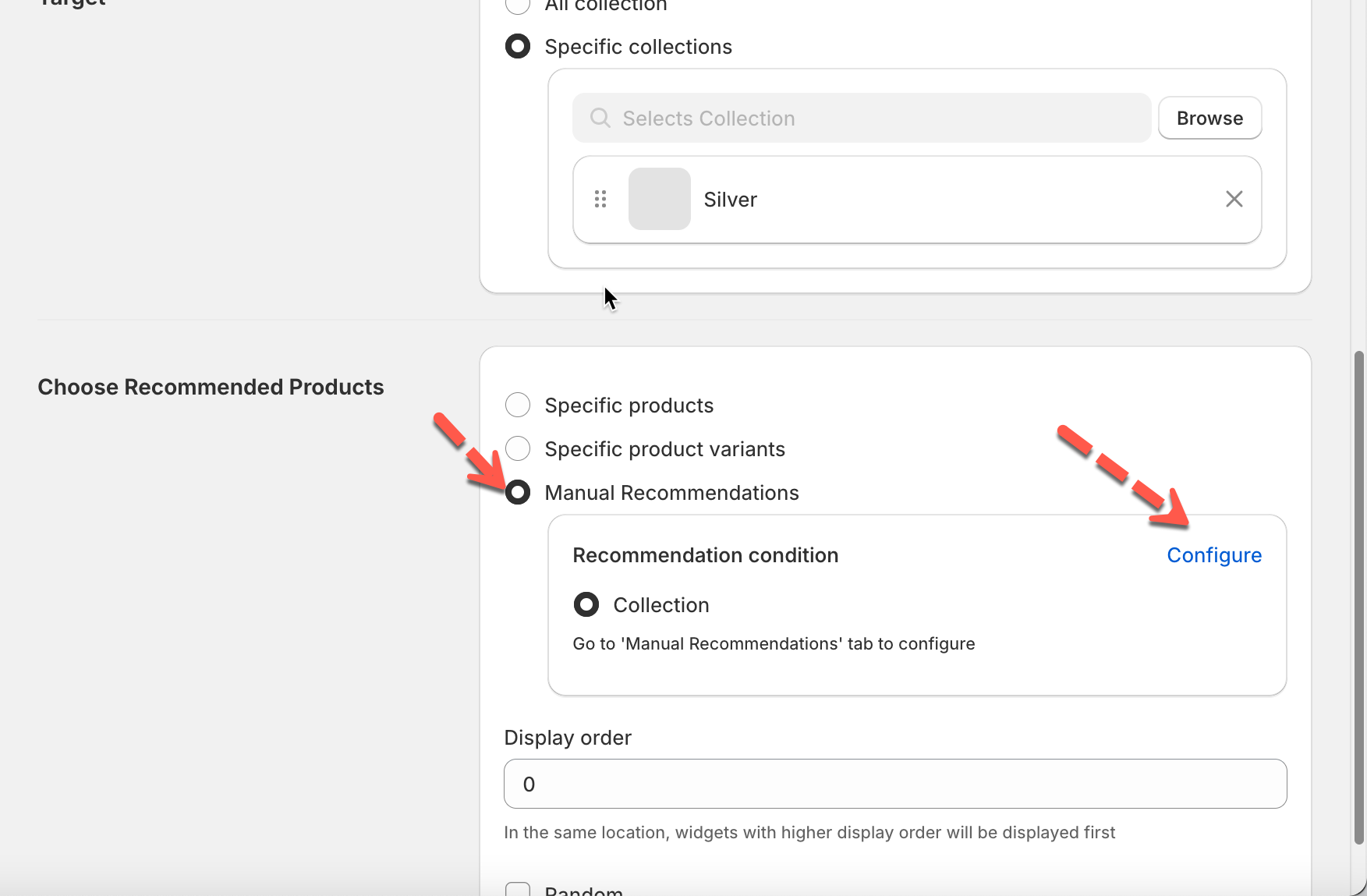
6. **Choose Recommended Products.**
This controls what products are shown inside the widget.
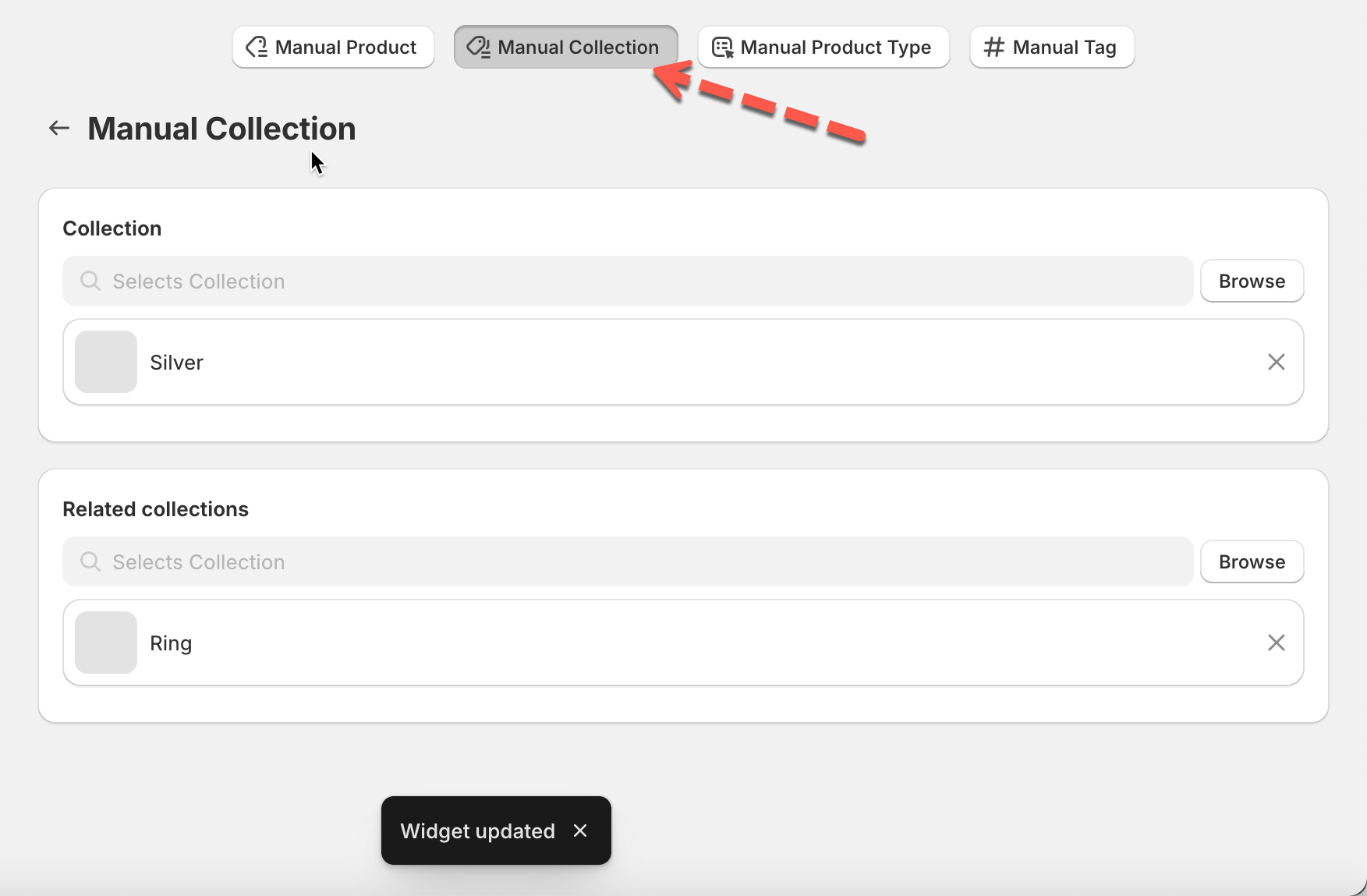
Example: **Manual recommendations -** Use rules based on: **Collection**
Click **Configure** to set up rules.
Current collection: `Silver`
Recommended collection: `Ring`
⇒ When users browse `Silver` collection, they see `Ring` products.
7. Click **Save**
***
### Step 2: Configure widget style
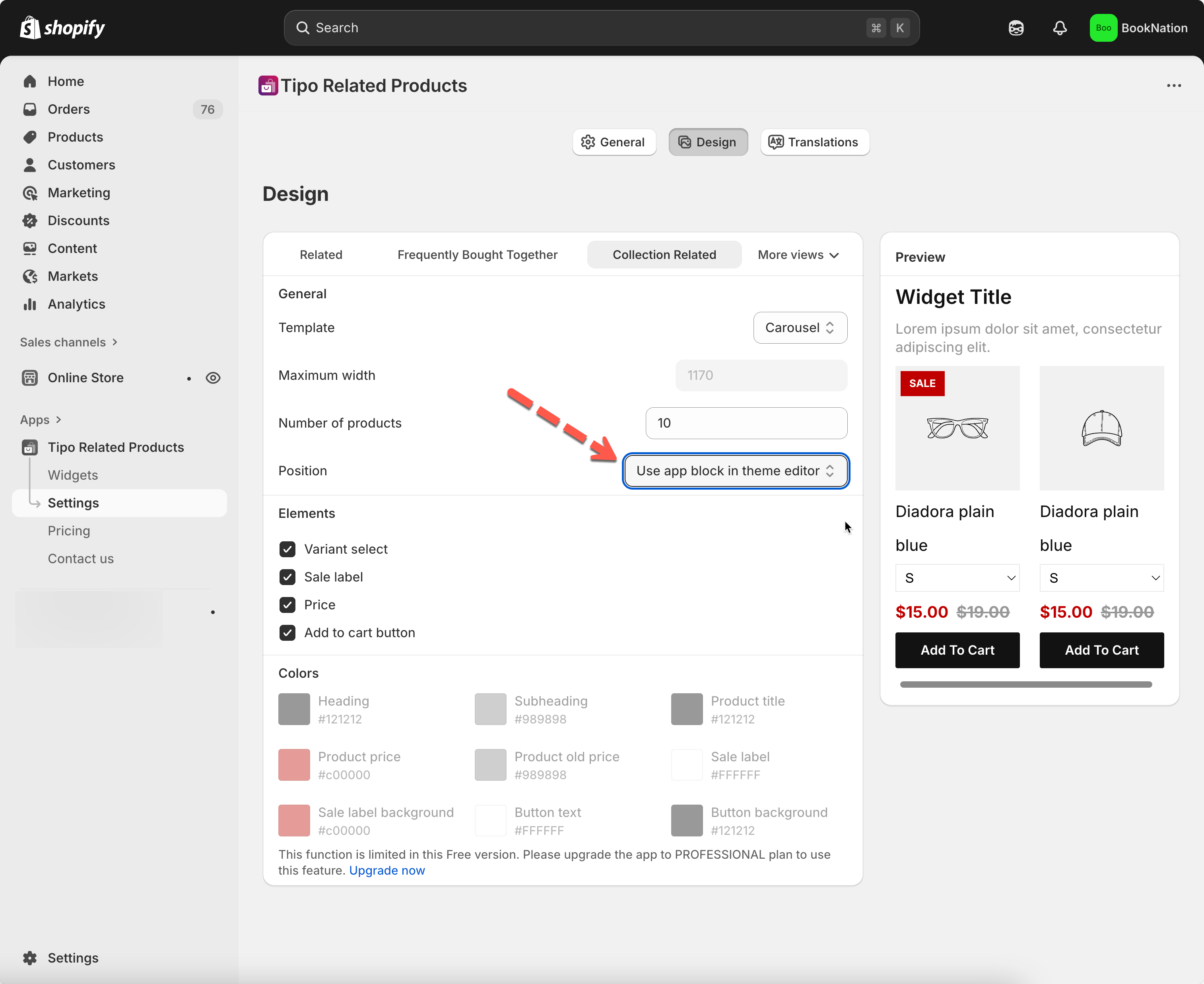
1. In the widget detail > click **Customize** > it directs to app **Settings > Design**
2. Choose where it is shown: find **Position**
Choose one:
* **Use app block in theme editor** *(recommended)* Use Shopify Theme Editor to drag & drop the widget.
* **Before / After a HTML element** *(manual placement)* Use this if you’re adding the widget via shortcode and need full control.
3. Configure the color and design of each widget you want
4. Save settings
5. Use the Preview panel on the right to see real-time changes.
***
### Step 3: Display widget on the site
#### **Copy shortcode of the widget**
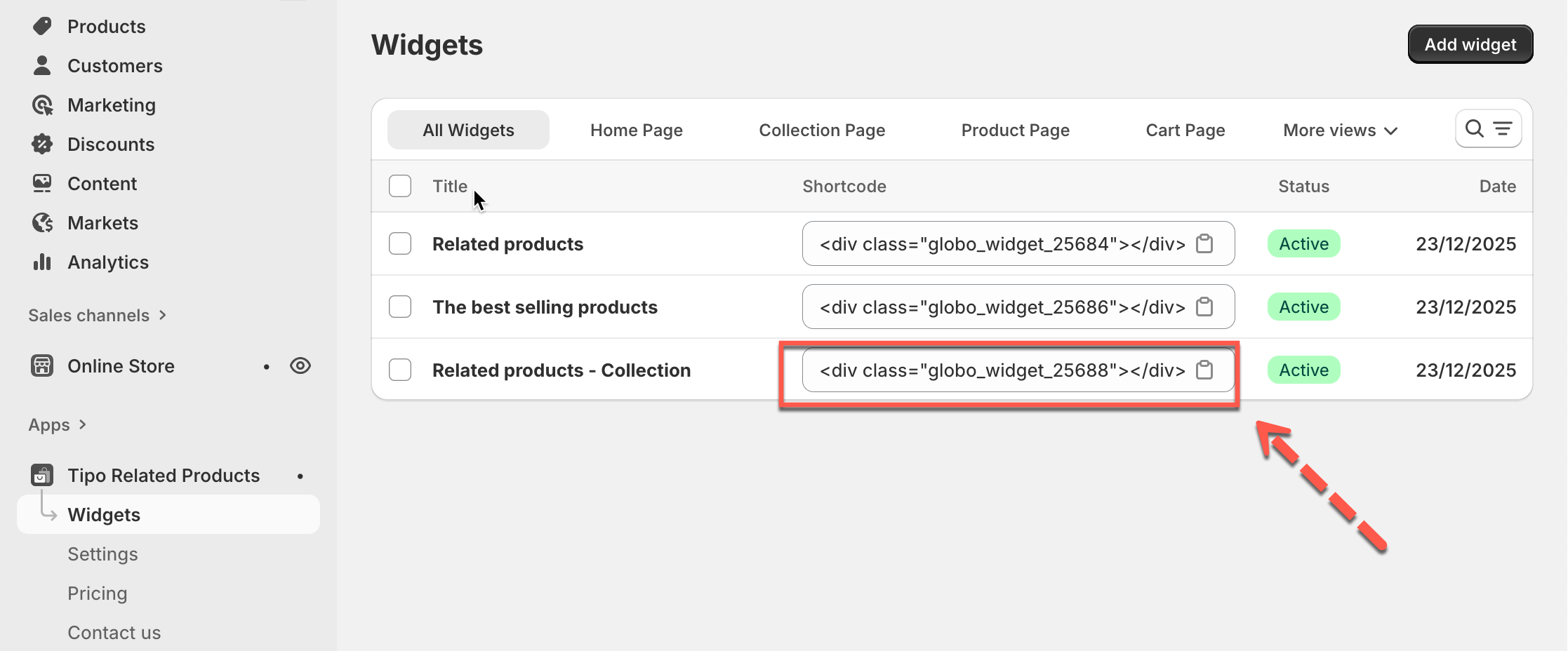
1. Return to the **Widgets** list
2. Locate your widget and click **Copy** under the **Shortcode** column
#### **Add widget block in theme editor**
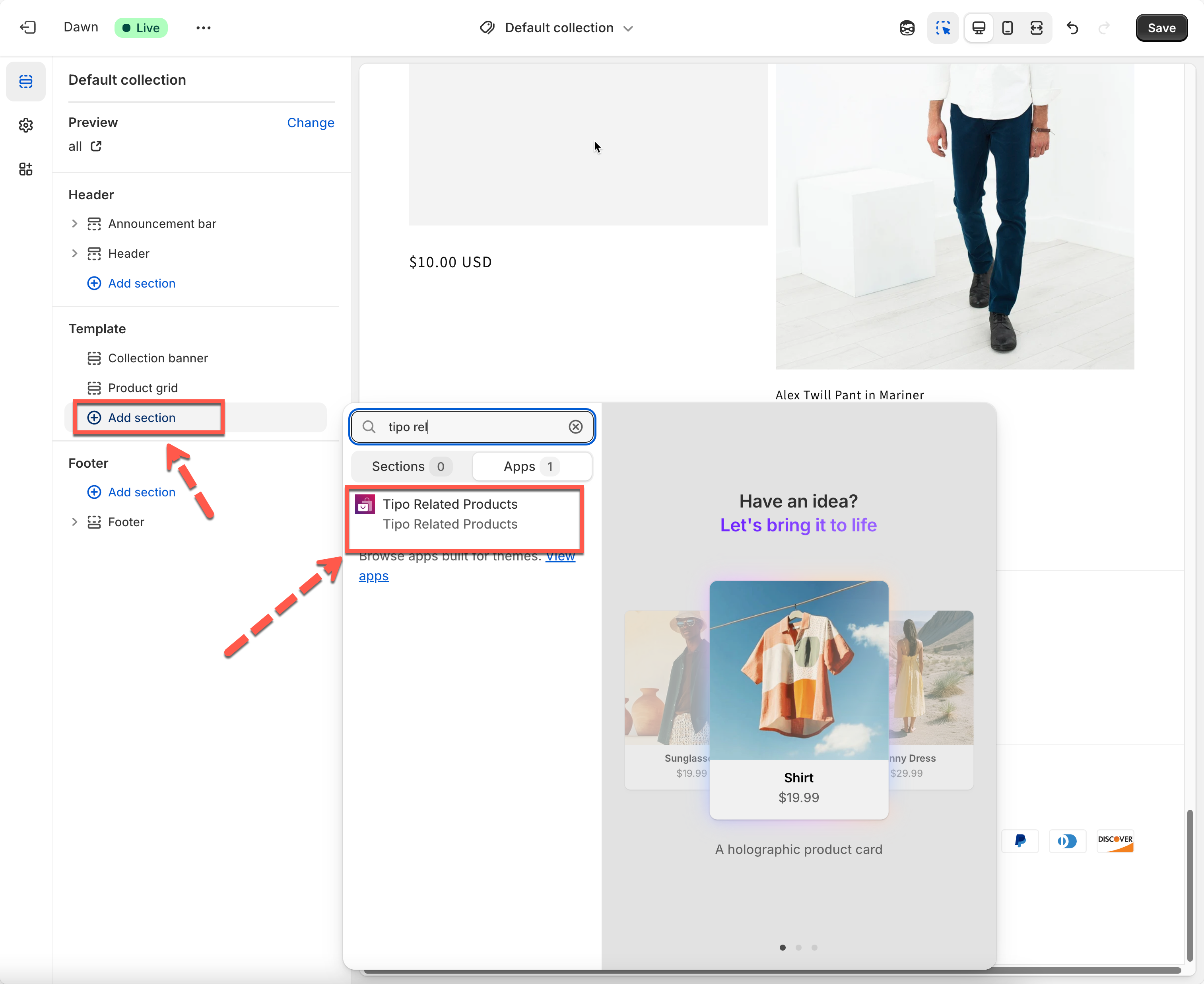
1. Go to store backend > go to **Online stores > Theme > Edit theme**
2. On **Themes** **Editor** page > go to **Collection** page template
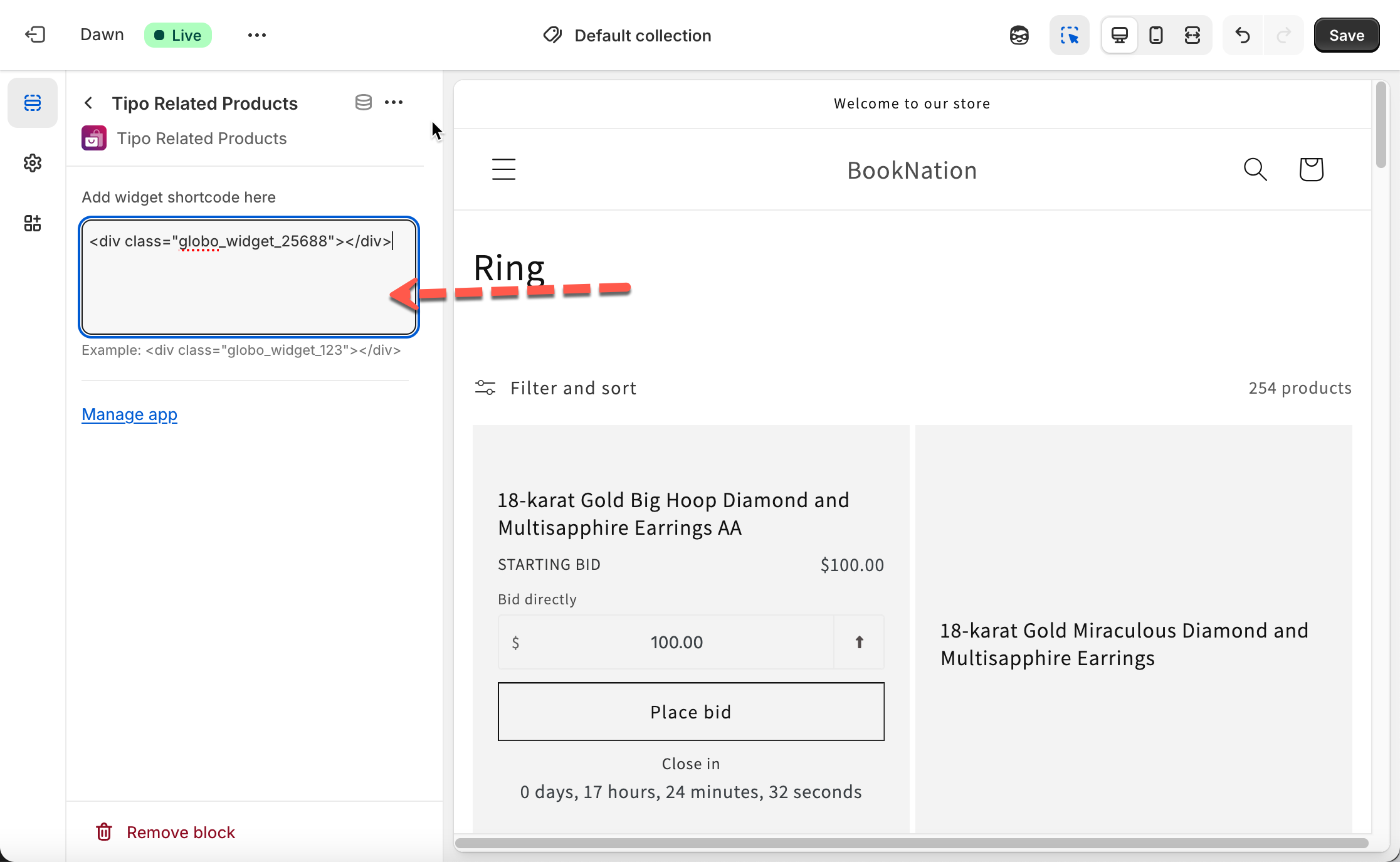
3. Click **Add Block** > select **Apps** > select **Tipo Related Products**
4. Paste the widget’s shortcode into the block setting
5. Click **Save**
***
### **Step 4: Enable App Embed**
In theme editor, toggle on the app embed of Tipo Related Products. [Learn more](https://docs.tipo.io/tipo-related-products/setting-up/activate-app-embed-on-theme)
#### **Result**
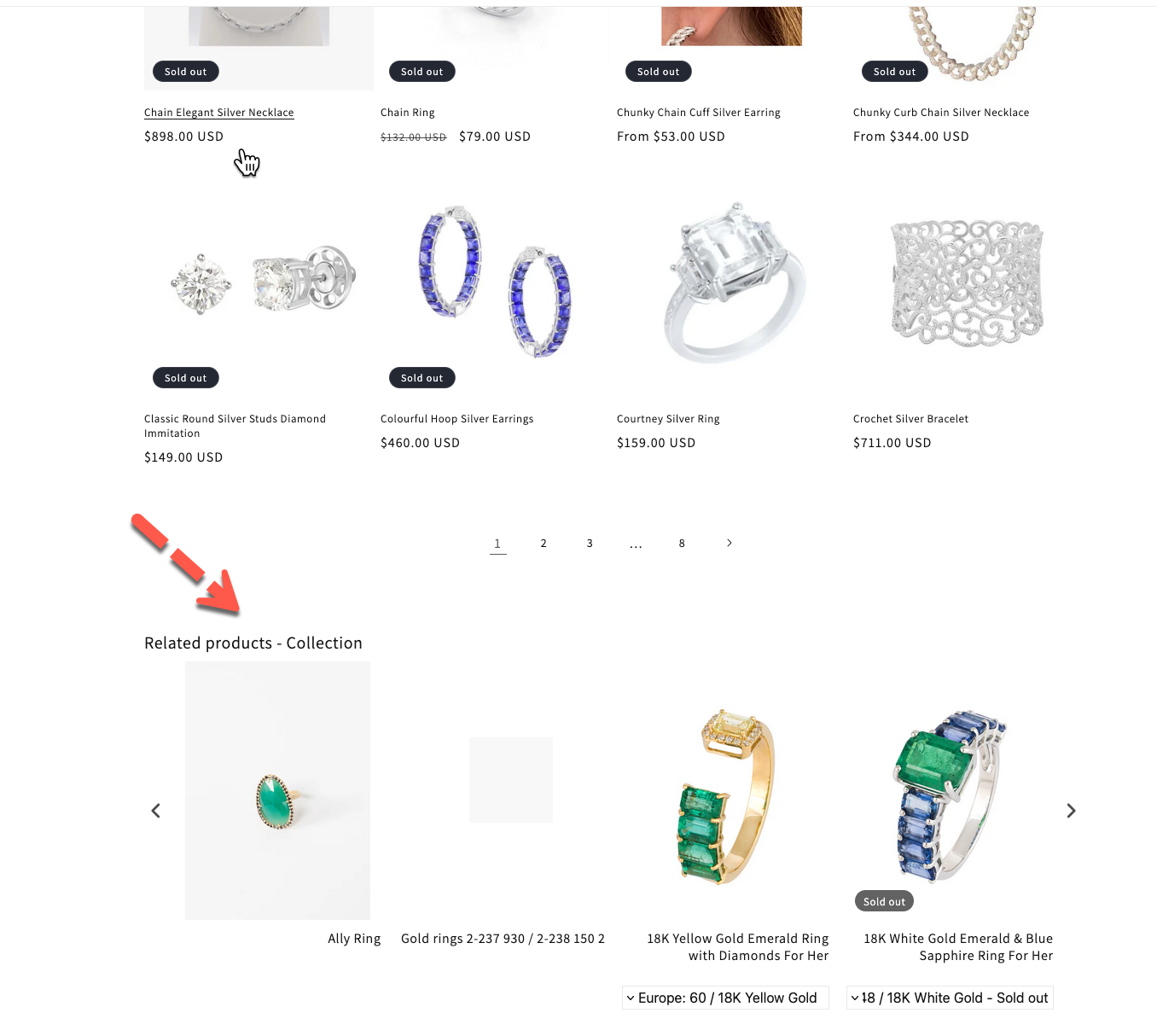
**Collection page:** Silver\
**Widget setup:**
* Target collection: Silver
* Recommendation rule: Manual Collection → Ring
* Layout: Collection Related
**What customers see:**\
While browsing **Silver collection**, they see **Ring products** suggested below the product grid.
⇒ This encourages discovery without leaving the collection page.
***
## ❓ FAQs
#### Can I use multiple Collection Page Widgets?
Yes. You can create multiple widgets for different collections and control priority using **Display order**.
***
#### Will this widget affect product page widgets?
No. Collection Page Widgets only appear on **collection pages**.
***
#### What’s the difference between Collection Related and Collection Add-on?
* **Collection Related:** Similar or alternative products
* **Collection Add-on:** Complementary products (accessories, extras)
***