> For the complete documentation index, see [llms.txt](https://docs.tipo.io/llms.txt). Markdown versions of documentation pages are available by appending `.md` to page URLs; this page is available as [Markdown](https://docs.tipo.io/tipo-appointment-booking/third-party-integration/google-calendar-integration.md).
# Google Calendar integration
Sync Tipo bookings to Google Calendar so appointments appear as calendar events automatically.
### 🔌 Connect Tipo to Google Calendar
1. Open the app > click **Settings** > **Integrations**
2. Turn **Activate** on
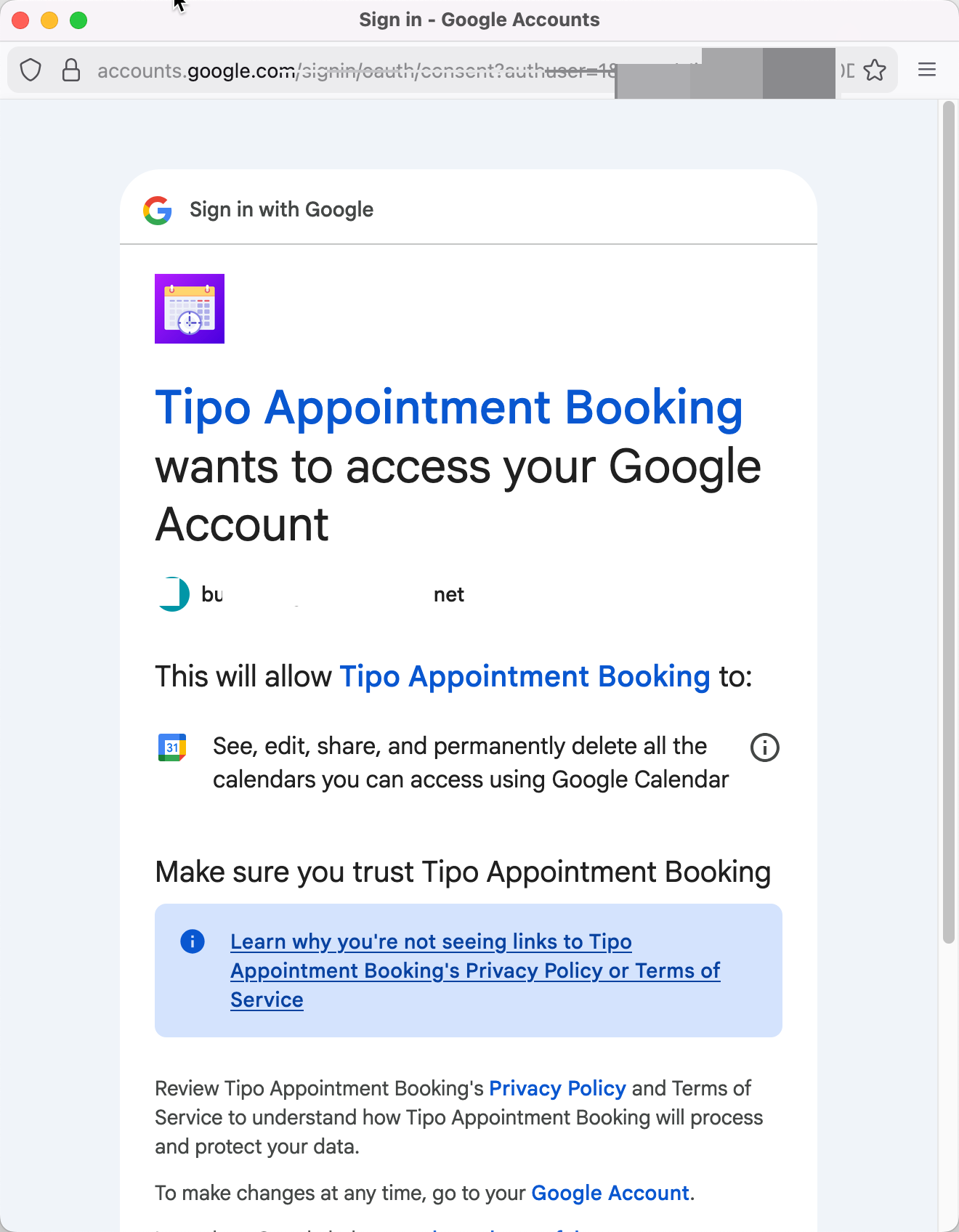
3. Click **Connect** button and log in your Google account
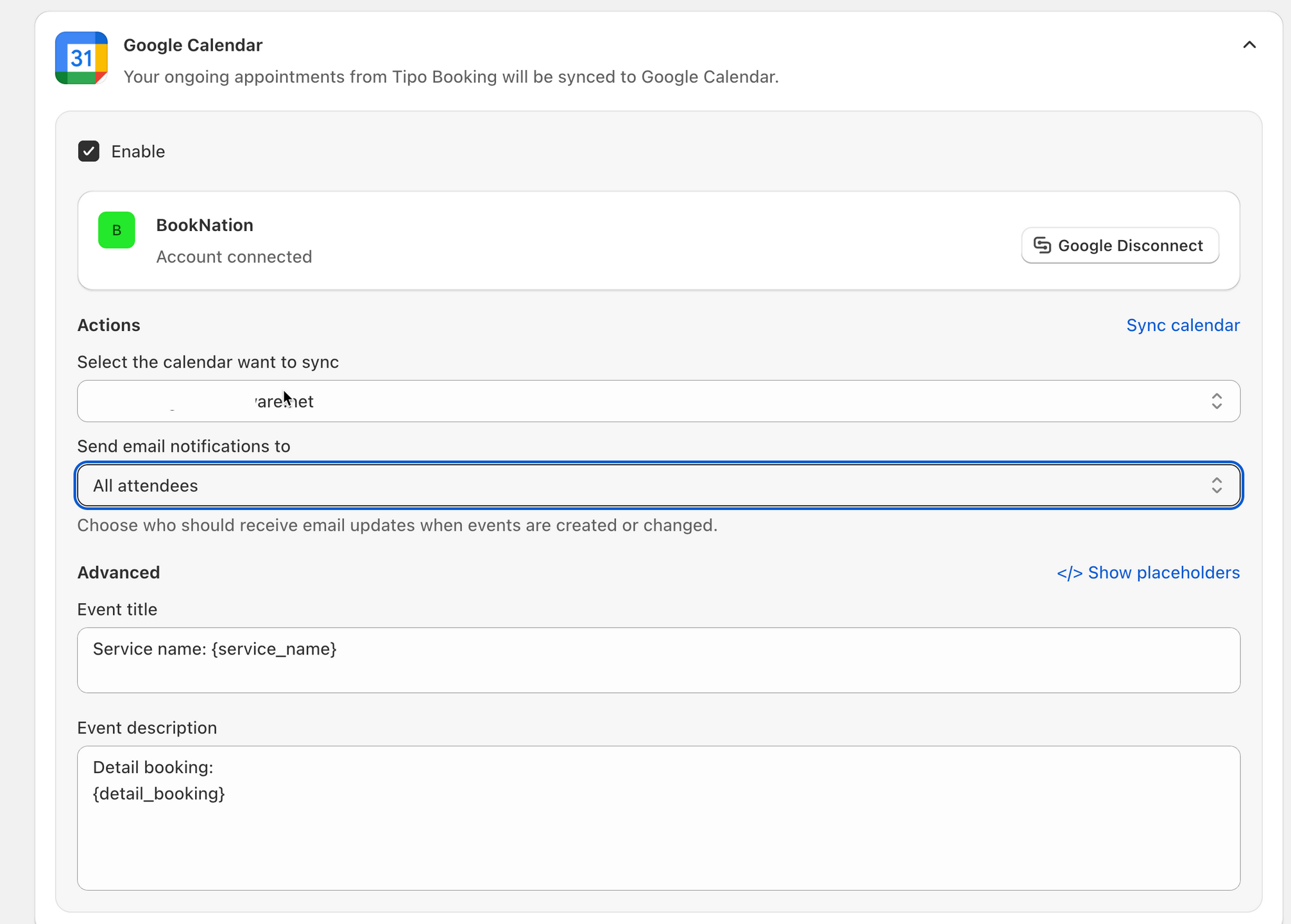
4. Select a **Calendar** you want to connect with and add the **title** and **description** for event in Google calendar
5. Click **Save** to update the changes
Now your Google Calendar is completely connected to Google Calendar. Your ongoing appointments from Tipo Booking will be synced to Google Calendar as new events.
***
### 🔁 Sync existing appointments (optional)
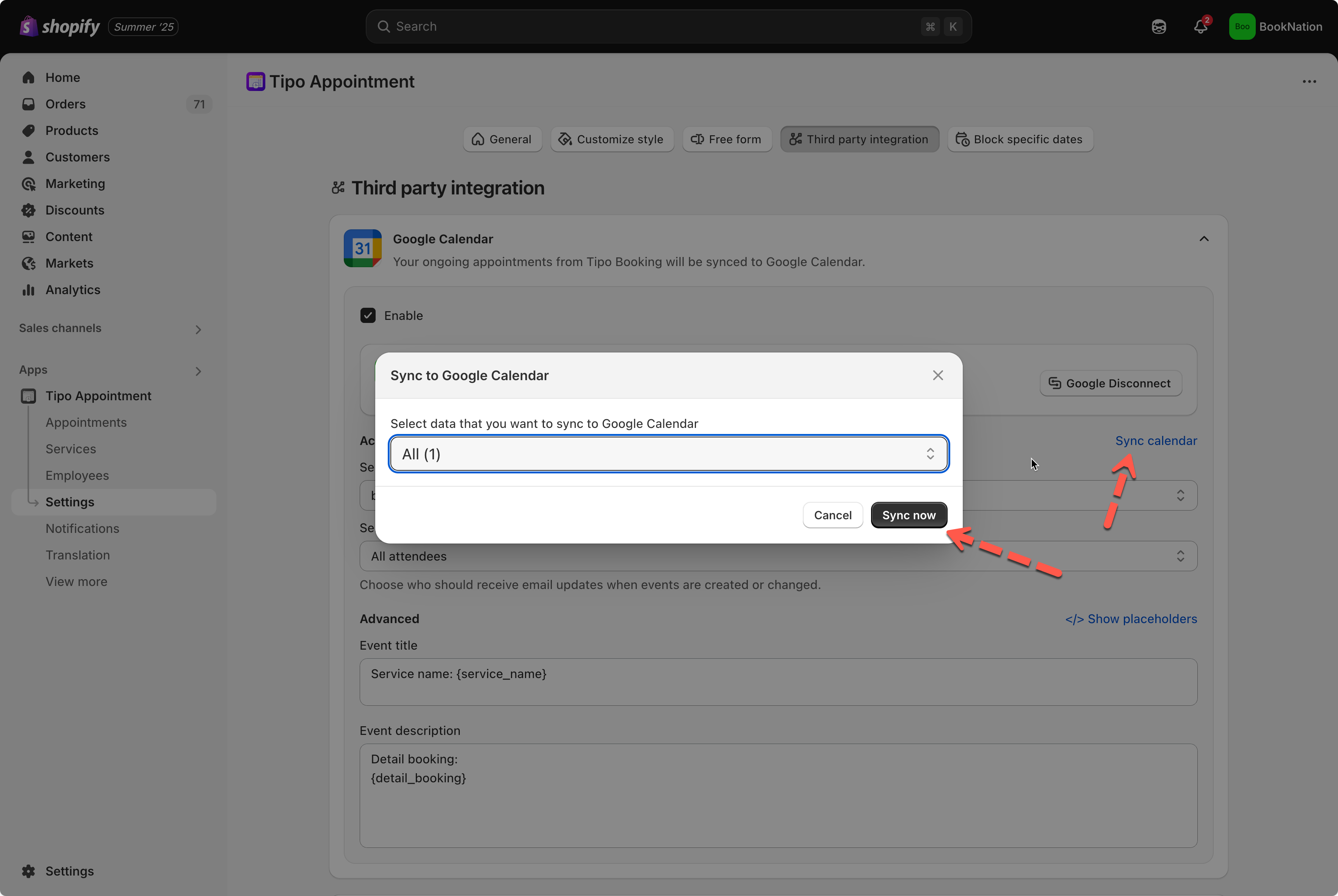
If you want to push your **existing bookings** into Google Calendar too, use **Sync calendar**.
This process will take minutes to complete depending on the number of bookings.
**Steps**
1. Open the app > click **Settings** > **Third party integration** > check **Google Calendar**
2. Click **Sync calendar**
3. Choose what to sync:
* **Upcoming bookings**
* **Past bookings**
* **All**
4. Select the destination calendar
5. Click **Sync now.**
***
### ✅ What gets synced
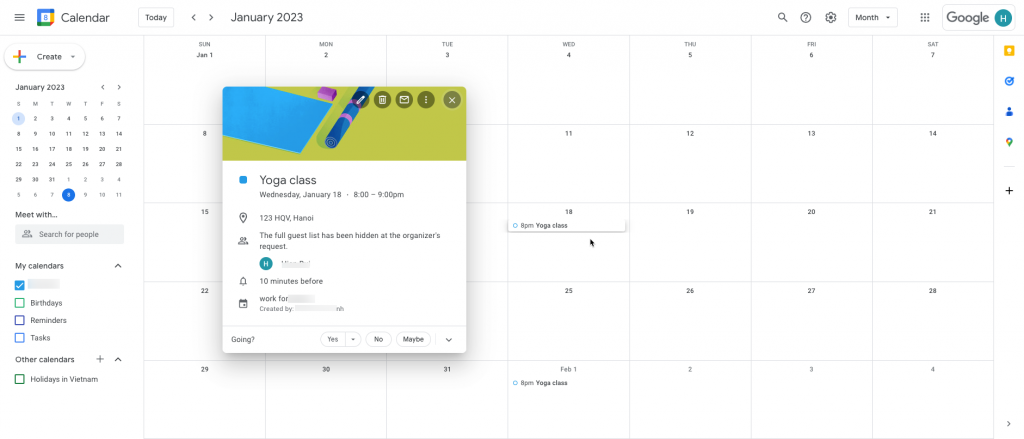
After an appointment is booked through the Tipo booking widget, an event will be automatically added to your **Google** **Calendar.**
Additionally, Google Calendar will send an invitation email to all participants with the event details.
***
**🙋 Still need support?**
If you still need help, please feel free to contact us at . We’ll be happy to assist you further.