> For the complete documentation index, see [llms.txt](https://docs.tipo.io/llms.txt). Markdown versions of documentation pages are available by appending `.md` to page URLs; this page is available as [Markdown](https://docs.tipo.io/tipo-appointment-booking/service-setup/regular-booking-service-book-by-time-slot.md).
# Regular Booking Service (Book by time slot)
Regular Booking is the best option for services that happen in fixed time slots (minutes or hours), like haircuts, consultations, tutoring, or classes.
### ✅ What this service type does
With **Regular Booking**, customers can:
* Pick a date
* Choose an **available time slot** (example: 09:00–09:30)
* Book and (optionally) pay, depending on your payment settings
You can control:
* **Service duration** (30 min, 60 min, custom…)
* **Capacity** (how many people per slot)
* **Payment type** (free booking or pay-to-book)
* **Availability** (team members / schedules, if your app supports it)
***
### 🎯 When should I use Regular Booking?
Use this when your service:
* Takes less than a day
* Has clear start/end times
* Needs a time-slot schedule
**Examples**
* Haircut (30–60 min)
* 1:1 consultation (60 min)
* Language lesson (45 min)
* Massage (90 min)
***
### 🧩 Before you start (recommended)
Make sure you know:
* Your service **duration** (ex: 30 min)
* Your service **capacity** (ex: 1 customer per slot)
* Whether customers must **pay to book** (Pay now / Pay later / customer chooses)
***
### 🛠️ Step-by-step: Create a Regular Booking service
#### 1) Open services
* Open the app > click **Services**
* Click **New service** button
#### 2) Choose service type
Select **Book by time slot** (time-slot service).
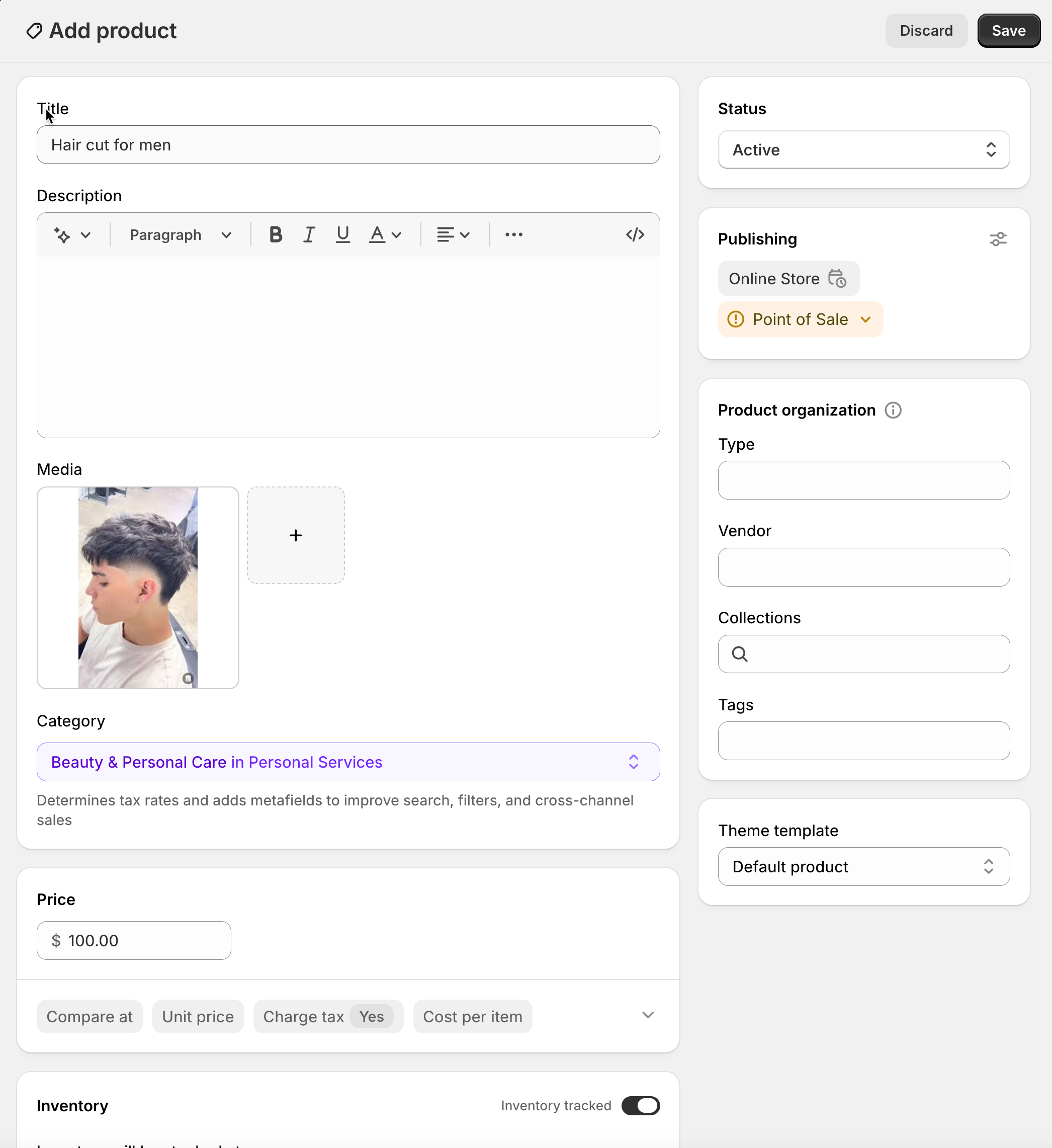
#### 3) Create product
* **Title** (example: *Haircut for men*)
* **Description** (optional, but helpful for customers)
* **Status**: Active (or **Draft** while testing)
* Optional: **Media**, **Vendor**, **Tags**, etc. (Shopify product fields)
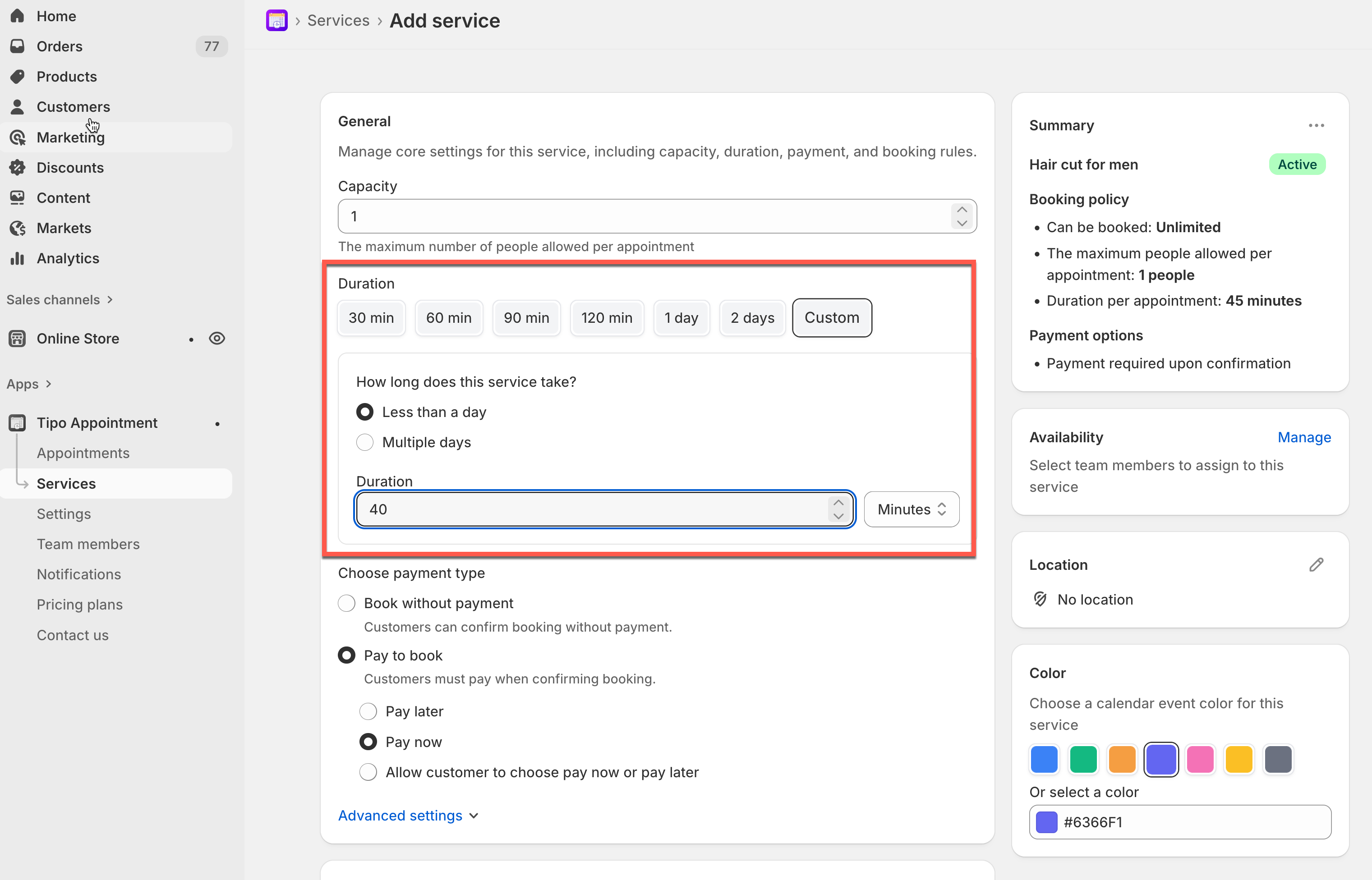
#### 4) Configure service settings
* Set **Capacity:** choose how many customers can book each time slot.
**Examples**
1 = one customer per slot (most common)
5 = group class with 5 seats per slot
* Set **duration** (minutes/hours): Under **Duration**, choose a preset or **Custom**.
**Examples**
Haircut: 40 **min**
#### 5) Choose payment type
Pick one option under **Choose payment type**:
| Option | What it means | Best for |
| ---------------------------------- | ---------------------------------------------------- | ------------------------------------------ |
| **No payment required** | Customers book without paying online | Free consultations, pay-in-person services |
| **Pay to book** | Customers must pay (or commit to payment) to confirm | Deposits, paid appointments |
| **Pay now** (inside Pay to book) | Charge immediately | High-demand services |
| **Pay later** (inside Pay to book) | Book first, pay later | Invoices, manual payment |
| **Customer chooses** | Customer selects Pay now or Pay later | Flexible businesses |
**Example**
* Salon appointment → **Pay to book → Pay now**
* Free consultation → **Book without payment**
#### 6) Configure availability
* Assign **team members**
* Set **available days of the team member**
[Learn more](https://docs.tipo.io/tipo-appointment-booking/availability-team-members/set-availability-for-services#how-to-set-availability)
Set these to match when you can actually accept bookings.
#### 7) Customize more settings (Optional)
* In **Location** field, enter the location of the service
* **Color**: helps identify bookings in the calendar
* **Questions & Add-ons**: collect info (name, preferences) or sell add-ons
* **Advanced settings**: booking rules, lead time, buffer time, etc. (if available)
#### 8) Save
Click **Save** to finish creating the service.
***
### 🧪 Example setup (simple)
**Service:** Haircut
* Duration: **0 min**
* Capacity: **1**
* Payment: **Pay to book → Pay now**\
Result: Customers will see 30-minute slots and must pay to confirm.
***
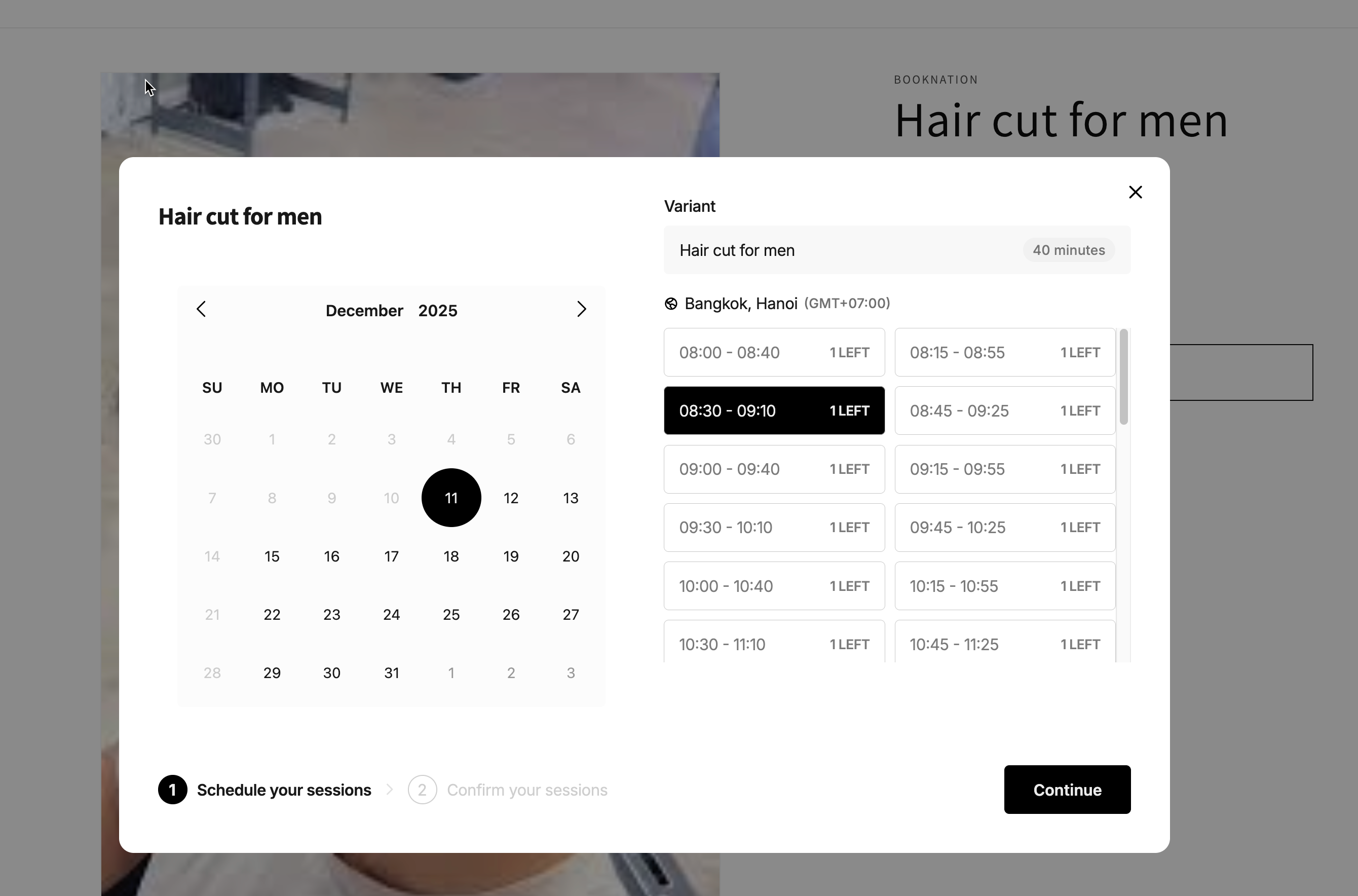
### 🌐 How it works on your storefront
After you create the service:
1. The app adds a **Book** button on the product/service page
2. Customer clicks **Book**
3. A booking popup opens where they select:
* date
* time slot
* (and location/team member if applicable)
4. If it’s a paid service, the customer continues to checkout to complete payment
***
**🙋 Still need support?**
If you still need help, please feel free to contact us at . We’ll be happy to assist you further.