> For the complete documentation index, see [llms.txt](https://docs.tipo.io/llms.txt). Markdown versions of documentation pages are available by appending `.md` to page URLs; this page is available as [Markdown](https://docs.tipo.io/tipo-appointment-booking/settings/control-time-zone-for-bookings/set-timezone.md).
# Set timezone
Use these settings to control how dates and times appear in the admin calendar and booking flow. This helps you avoid scheduling mistakes when your store, team, or customers are in different time zone
### 🕒 Set your time zone for appointments
#### ✅ What this setting does
When you set a time zone, the app will use it to display and manage appointment times in the app (calendar, appointment details, and availability setup).
**Steps**
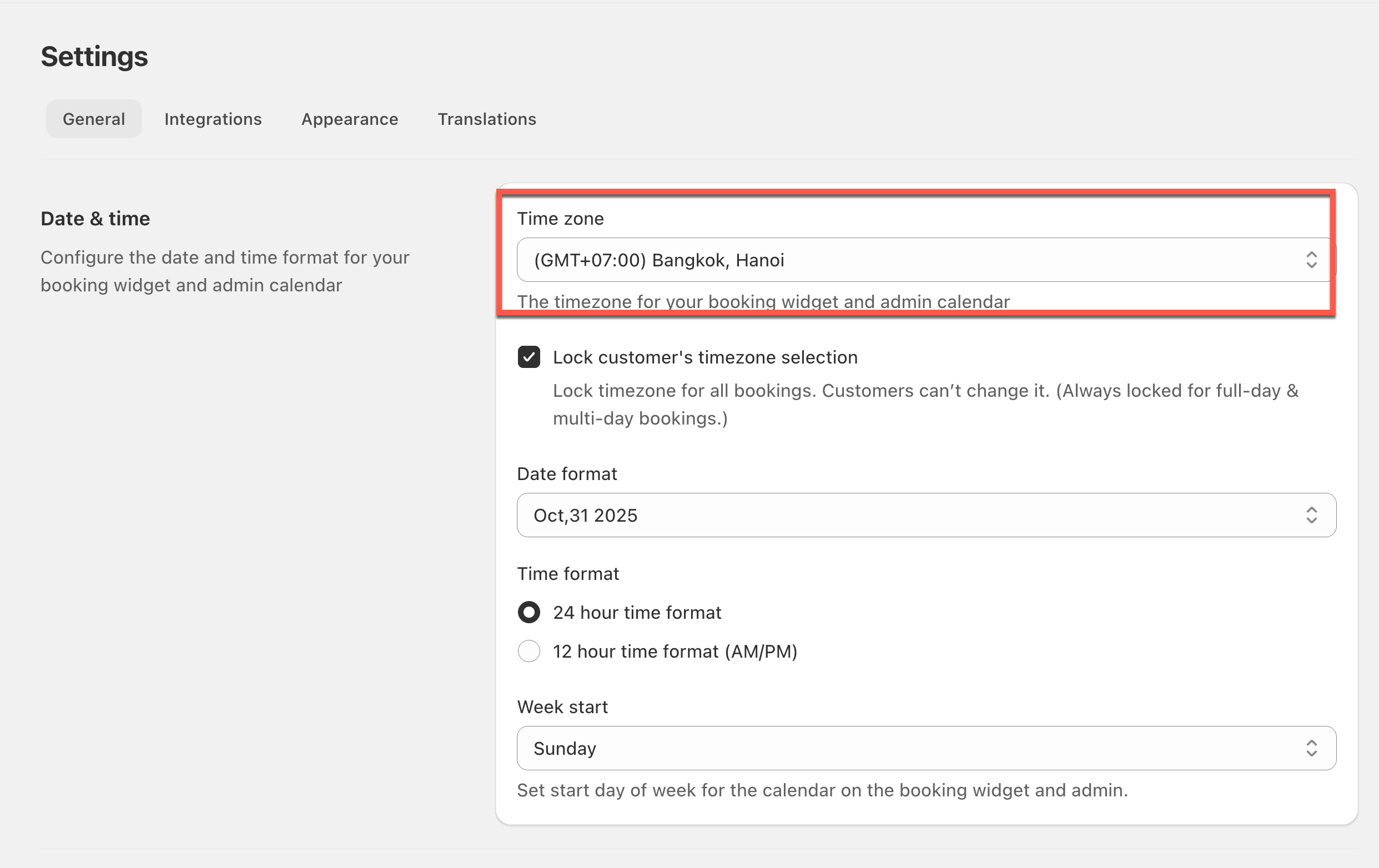
1. Open the app > click **Settings** > **General**
2. In **Date time** > **Timezone** > select your timezone
3. Click **Save**
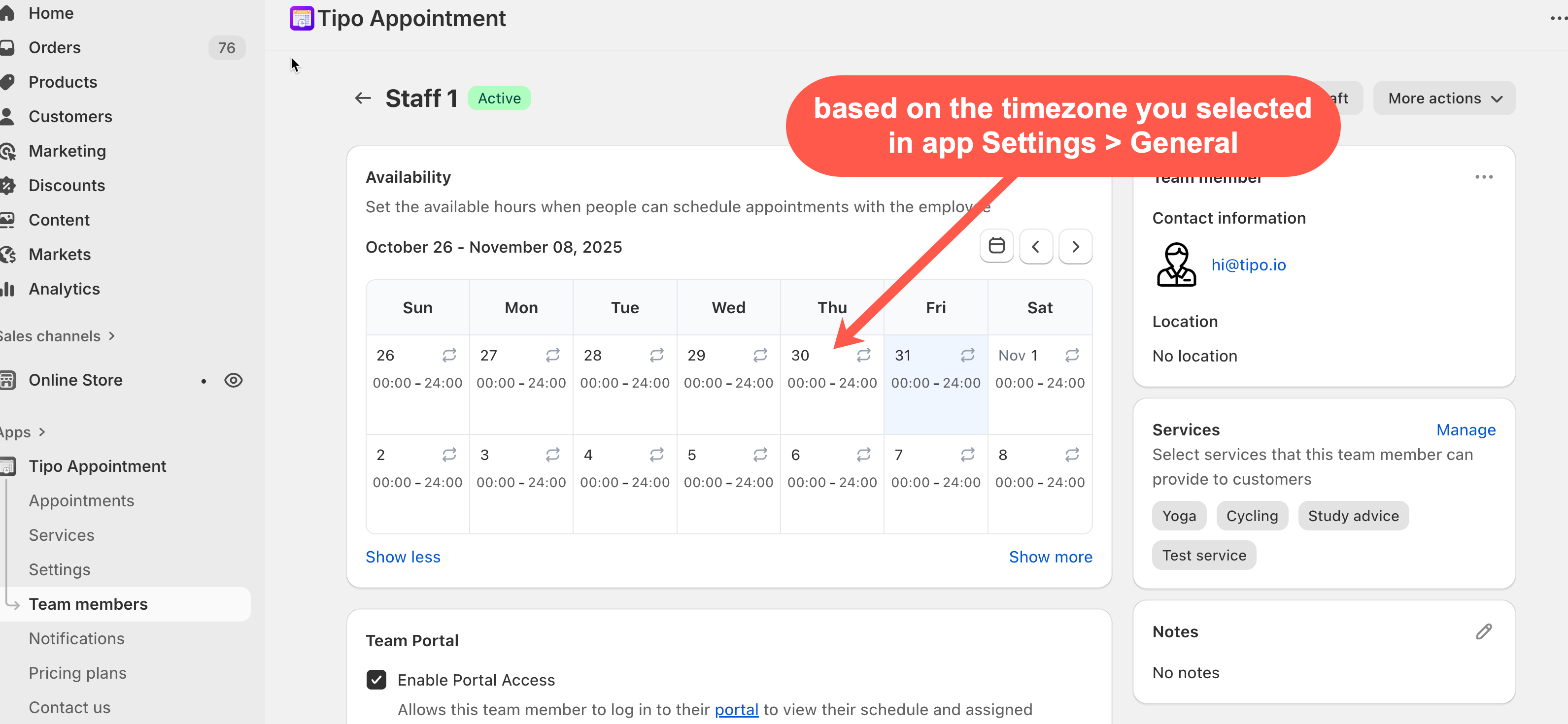
This time zone is applied to the date time you select to set up available dates in the service detail in the app. It is applied to the appointments in the app too.
***
### ✅ What changes after you save?
After updating the time zone:
* The time you pick when setting availability in a service follows this time zone.
* The appointment date/time shown inside the app also follows this time zone.
***
**🙋 Still need support?**
If you still need help, please feel free to contact us at . We’ll be happy to assist you further.