> For the complete documentation index, see [llms.txt](https://docs.tipo.io/llms.txt). Markdown versions of documentation pages are available by appending `.md` to page URLs; this page is available as [Markdown](https://docs.tipo.io/tipo-appointment-booking/widget-customization/translate-booking-widget-text.md).
# Translate booking widget text
If you're running a multilingual Shopify store, you can customize the language of the Tipo Appointment Booking calendar so it matches your storefront language. This ensures a seamless experience for your customers.
### 🛠️ **Steps**
1. Open the app > click **Settings** > **Translations**
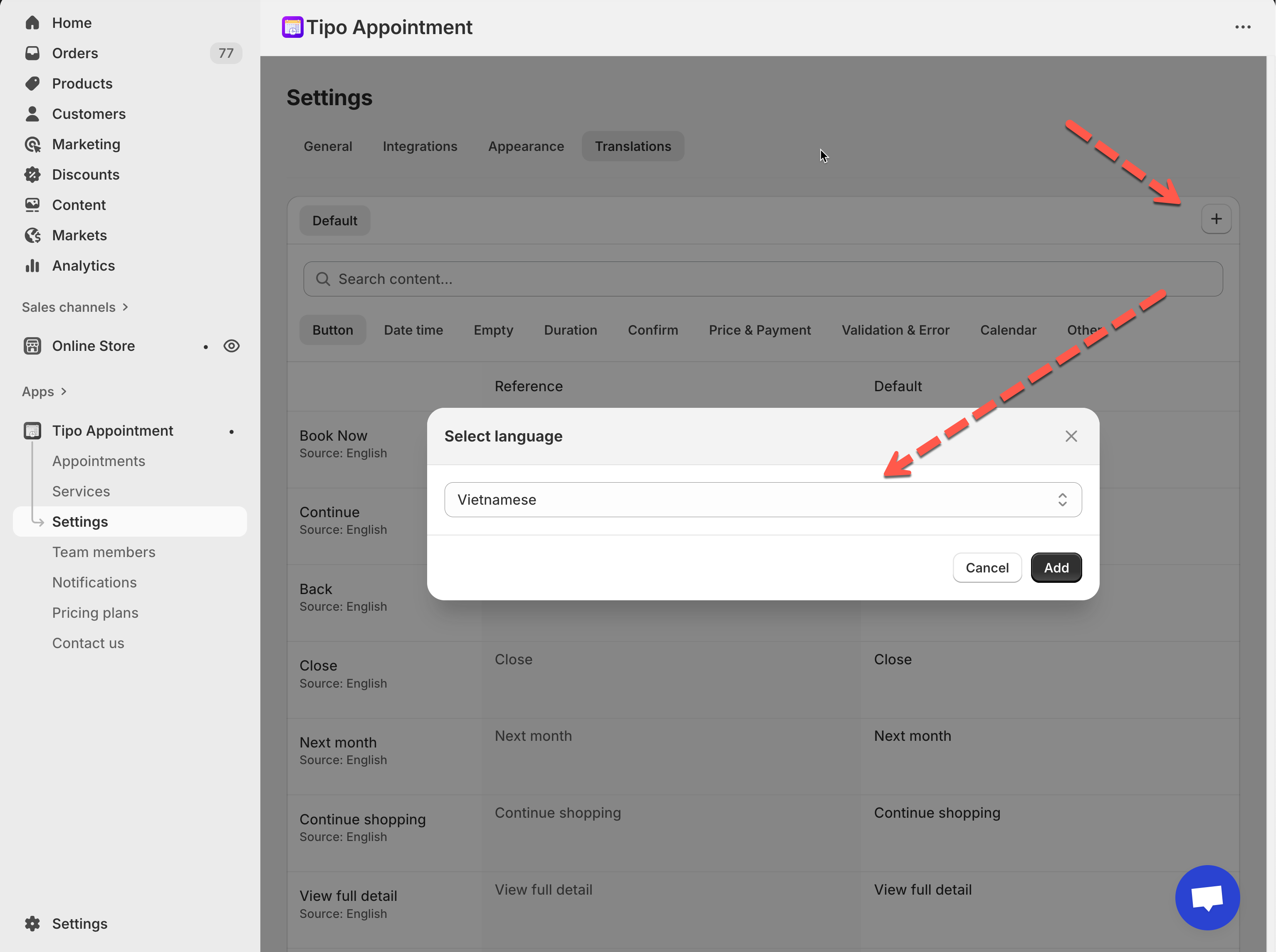
2. Click the **➕** button (top-right) > select a language (example: **Vietnamese**) > click **Add**
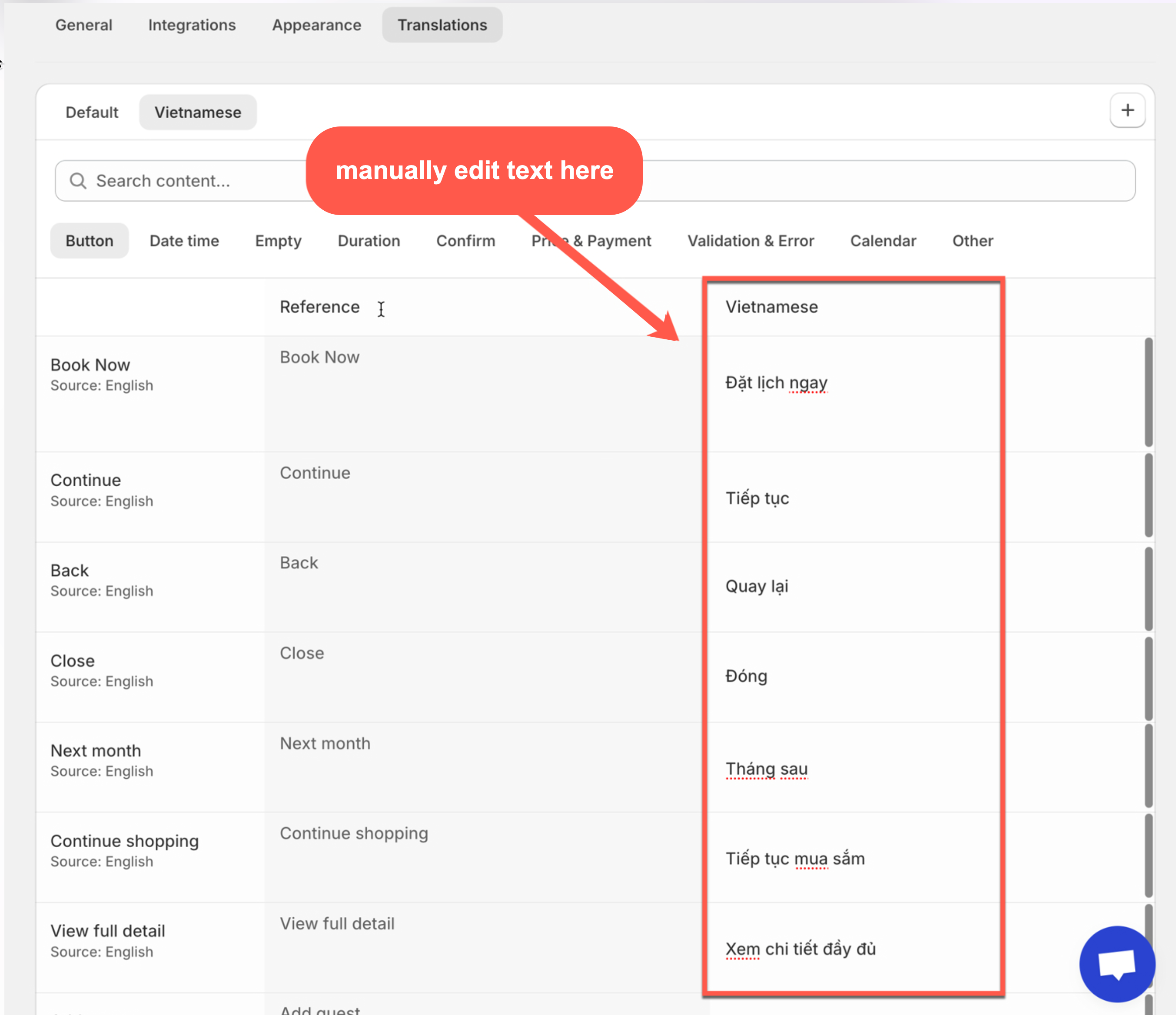
3. Click the language you just added (example: **Vietnamese**) > use the category tabs to locate text:
* **Button** (Book Now, Continue, Back…)
* **Confirm** (confirmation messages)
* **Calendar** (Next month, days, labels…)
* **Validation & Error** (error messages)
* **Other** (misc text)
* Edit text in the **language column** (right side)
Note: Use the **Search content…** field to quickly locate a word like:
* “Book”
* “Confirm”
* “Next month”
5. Click **Save** to update the changes
6. Check your widget on the storefront
On the online store, when customers select a new language, the text of the booking app is changed based on selected language too.
***
### 💡 Tips & best practices
**Icon:** 💡
* Keep translation style consistent (formal vs friendly).
* Avoid changing special variables/placeholders (if your text includes ones like `{{ ... }}`).
* Translate the most visible items first: **buttons + calendar + confirmation**.\\
***
### 🌐 How the text displays on your storefront
When a customer selects a different language on your storefront, the booking calendar will automatically display the translated text based on the selected language as long as you’ve configured it in the app.
***
**🙋 Still need support?**
If you still need help, please feel free to contact us at . We’ll be happy to assist you further.