> For the complete documentation index, see [llms.txt](https://docs.tipo.io/llms.txt). Markdown versions of documentation pages are available by appending `.md` to page URLs; this page is available as [Markdown](https://docs.tipo.io/tipo-appointment-booking/widget-customization/show-booking-widget-on-your-store-legacy.md).
# Show booking widget on your store (legacy)
Our app now supports three layout types for the Booking Widget:\
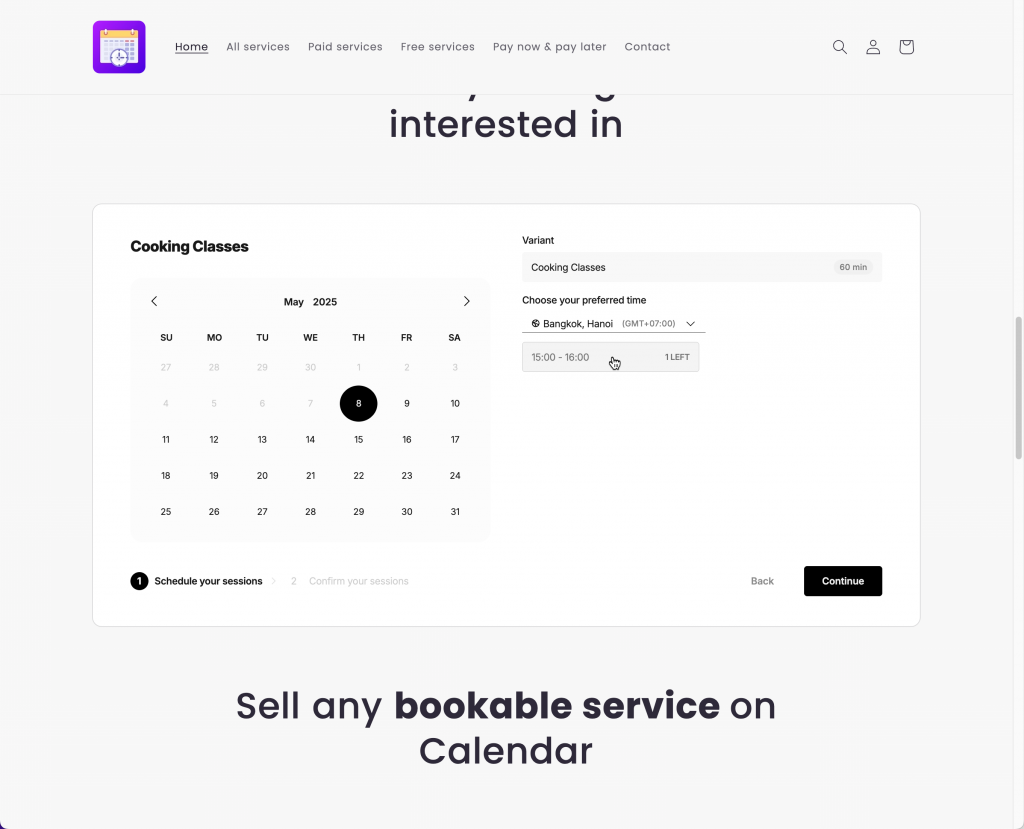
**Form** – A calendar with available time slots for a single service\
**List** – A vertical list of your services\
**Grid** – A clean multi-column layout of all services
You can easily display any of these layouts on your Shopify store by using an **App Block** or by embedding a **custom shortcode**.
***
### 🧩 Option 1: Embed the Booking Form on a Page
**Best for:**\
Landing pages, service pages, or a dedicated “Book Now” page.
#### Step 1: Copy the Embed Code
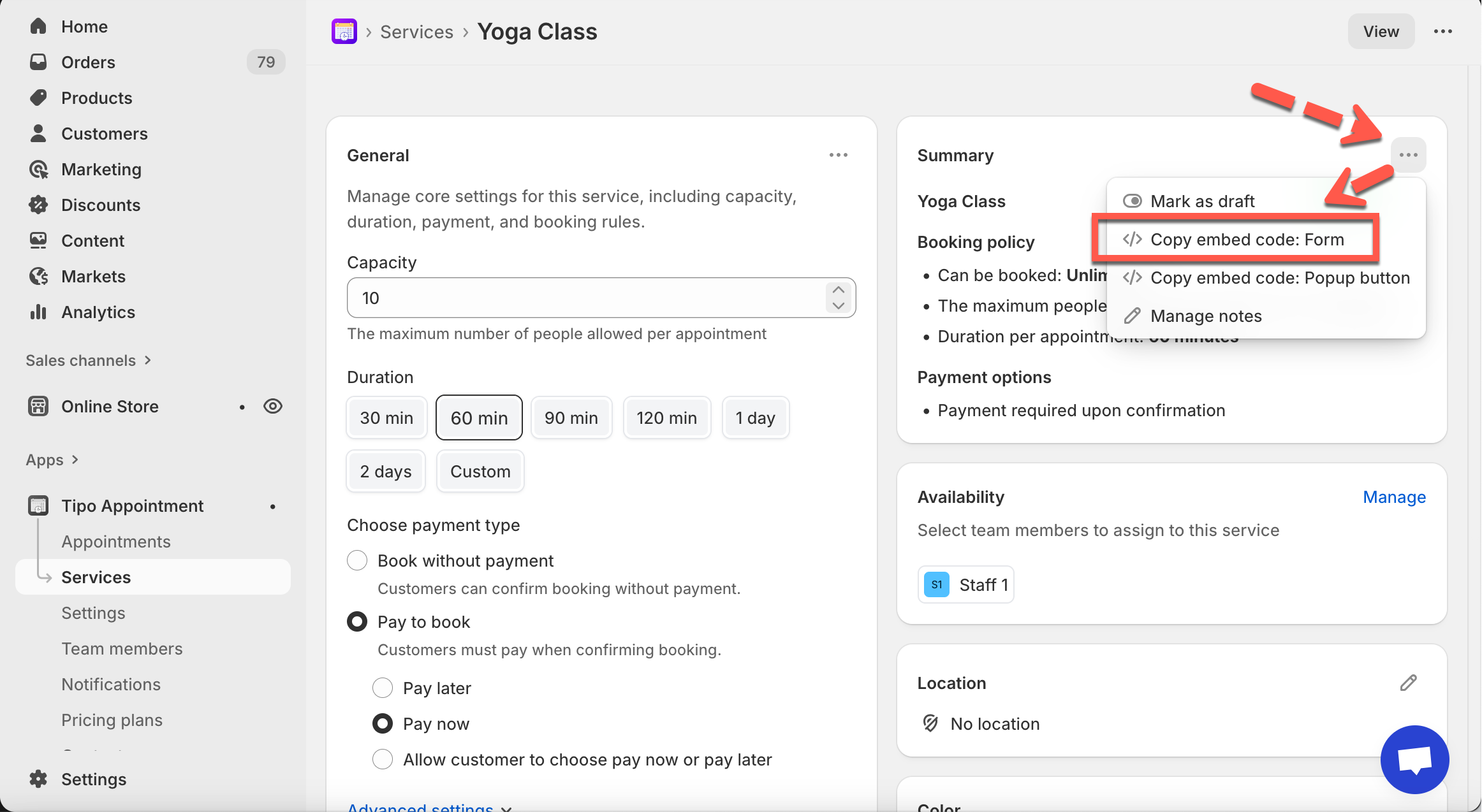
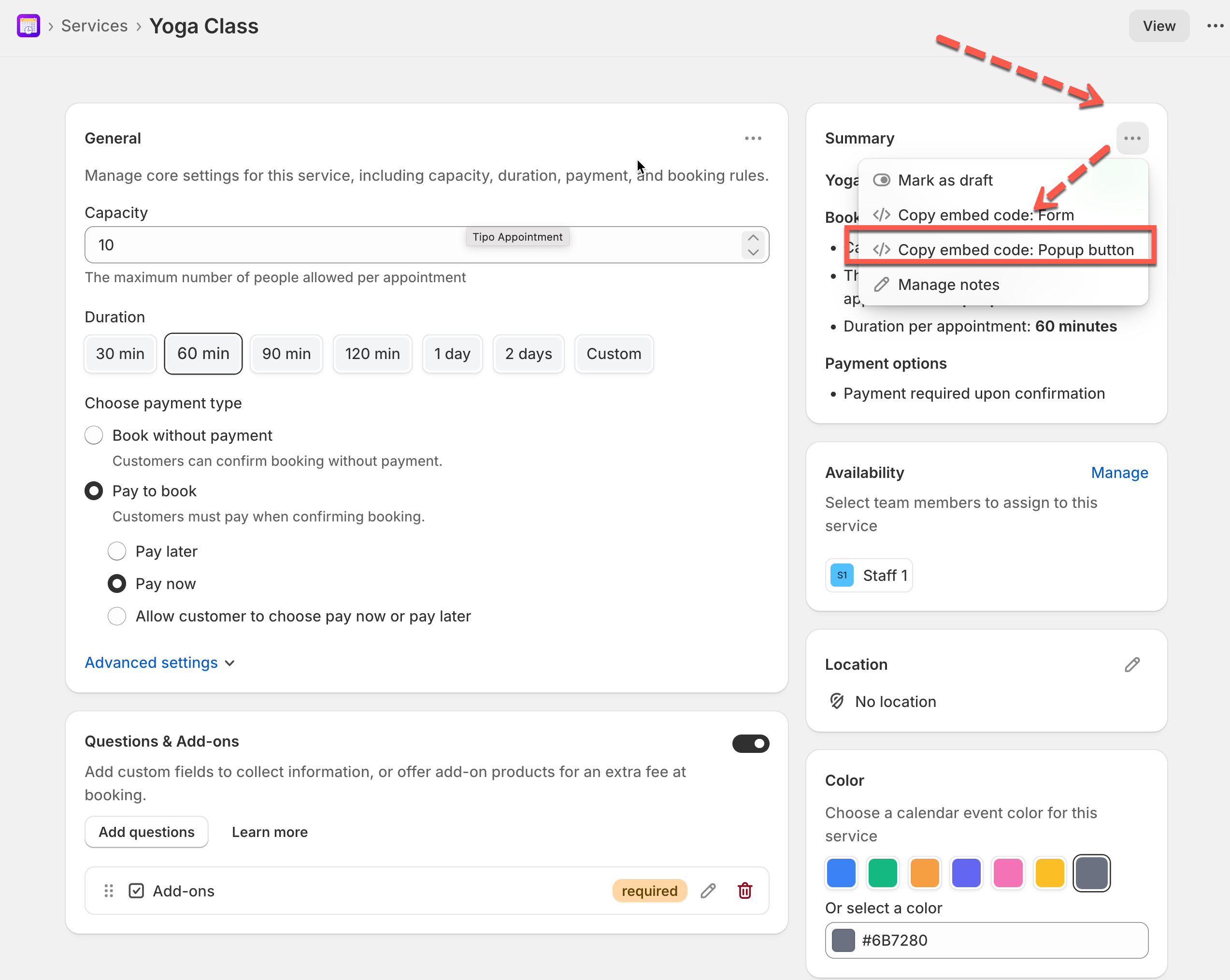
1. Go to the app > click **Services**
2. Open a service (e.g. *Yoga Class*)
3. Click the **⋯ menu** in the Summary panel
4. Select **Copy embed code: Form**
**Example code:**
```
```
**8597055996057** is them service ID
#### 🧾 Step 2: Paste the Shortcode into a Page
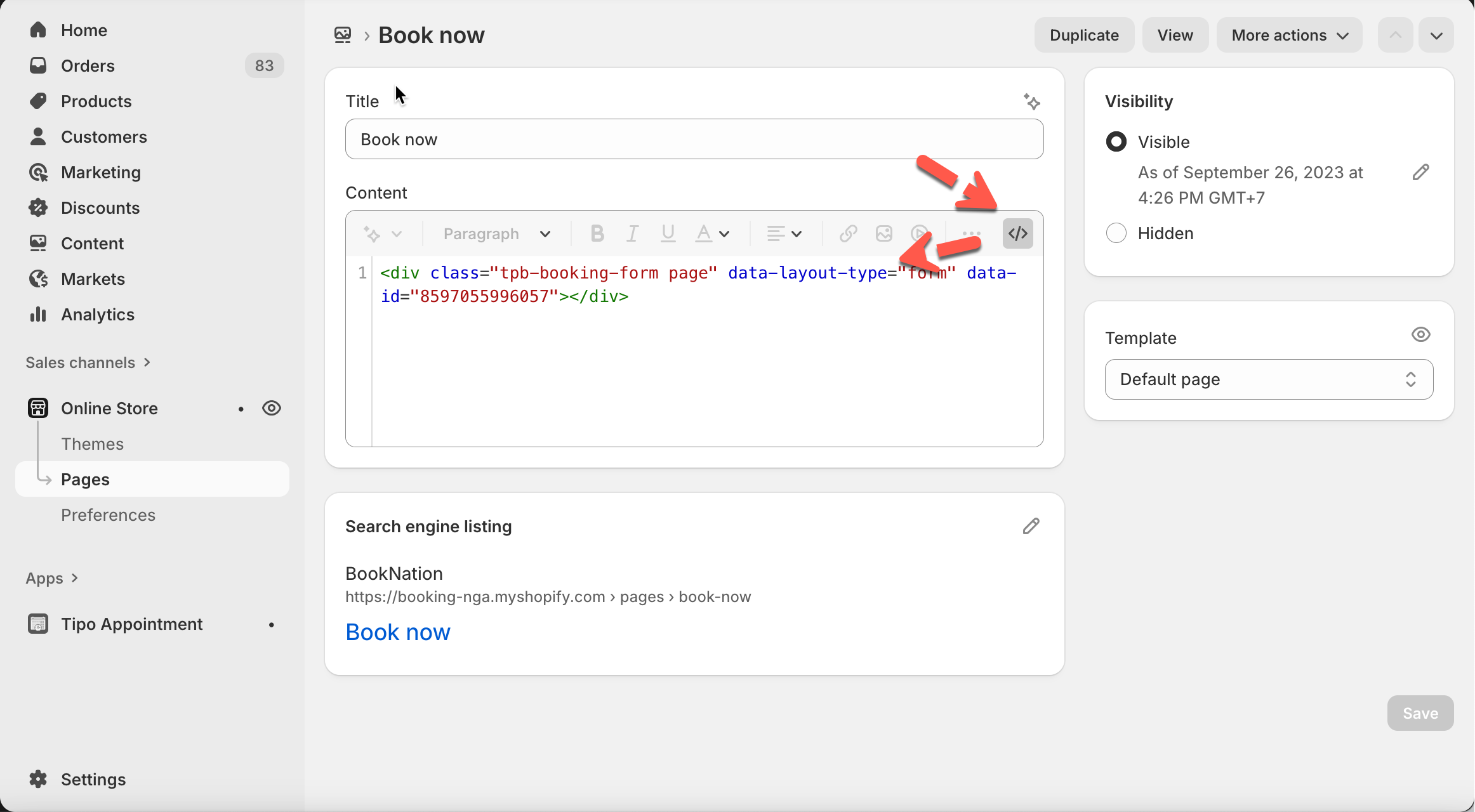
1. Go to **Online Stores > Pages**
2. Open (or create) the page where you want bookings
3. Switch to **HTML / source view**
4. Paste the shortcode
5. Save the page
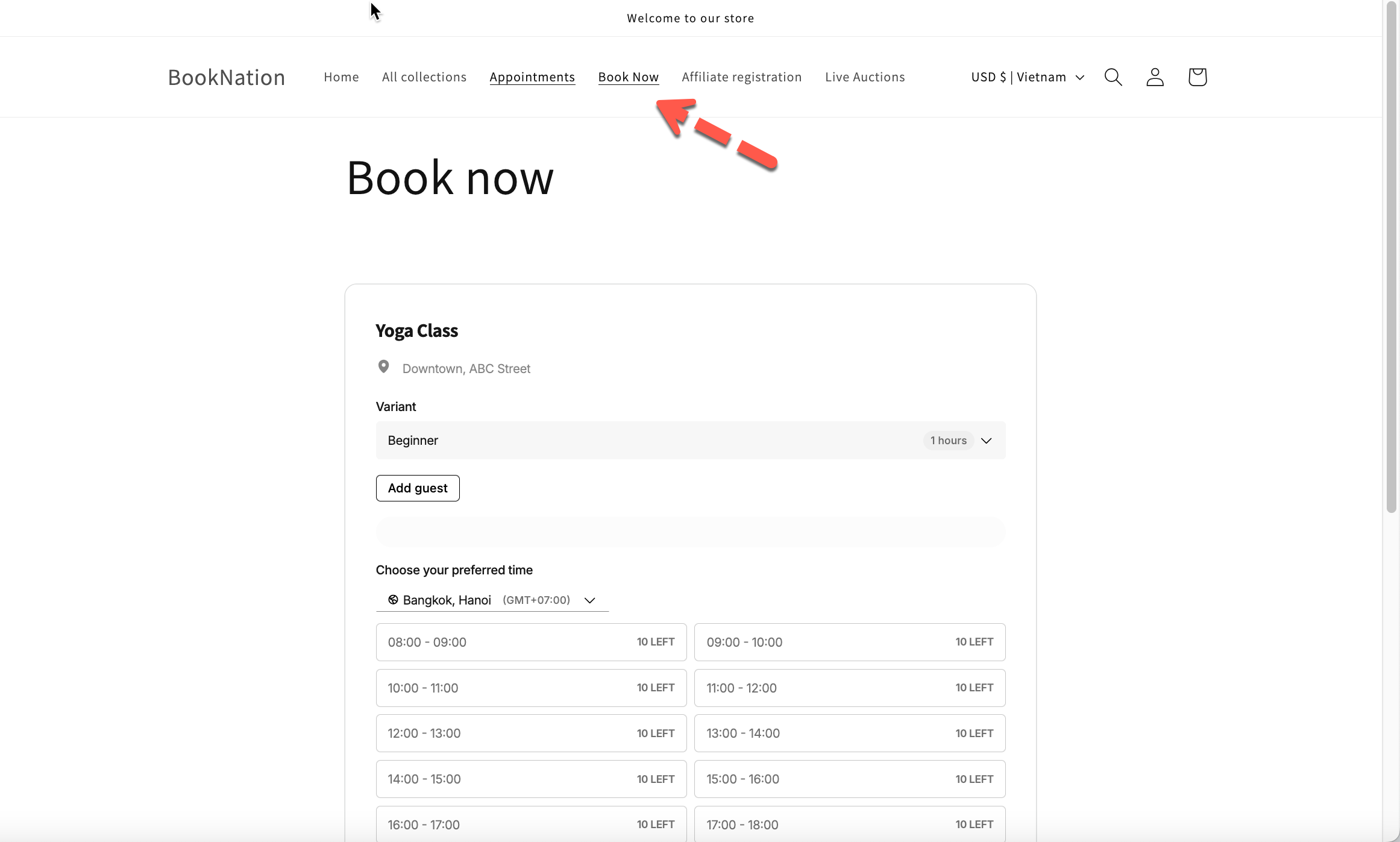
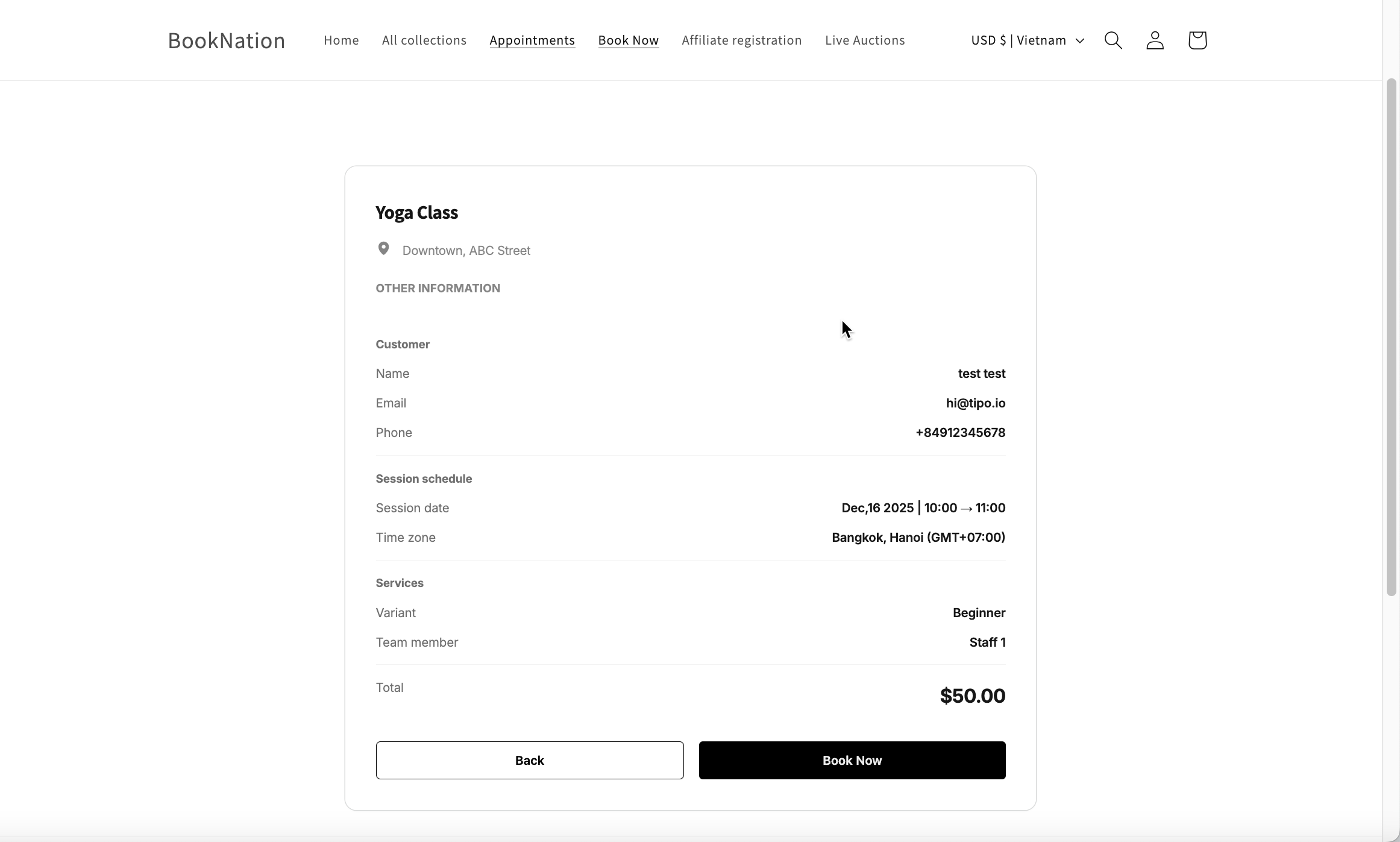
✅ **Result:**\
The booking form appears **inline** on the page.
***
### 🔘 Option 2: Add a Button with Booking Popup
**Best for:**\
Homepage buttons, banners, or “Book Now” CTAs.
#### Step 1: Copy the Popup Button Code
* Go to the app > click **Services**
* Open a service (e.g. *Yoga Class*)
* Click the **⋯ menu** in the Summary panel
* Select **Copy embed code: Popup button**
Example code:
```
```
**8597055996057** is the service ID
#### 🧾 Step 2: Add the Button to Your Page
1. Go to **Online Store > Pages** or **Theme Editor**
2. Paste the button shortcode where you want it
3. Save
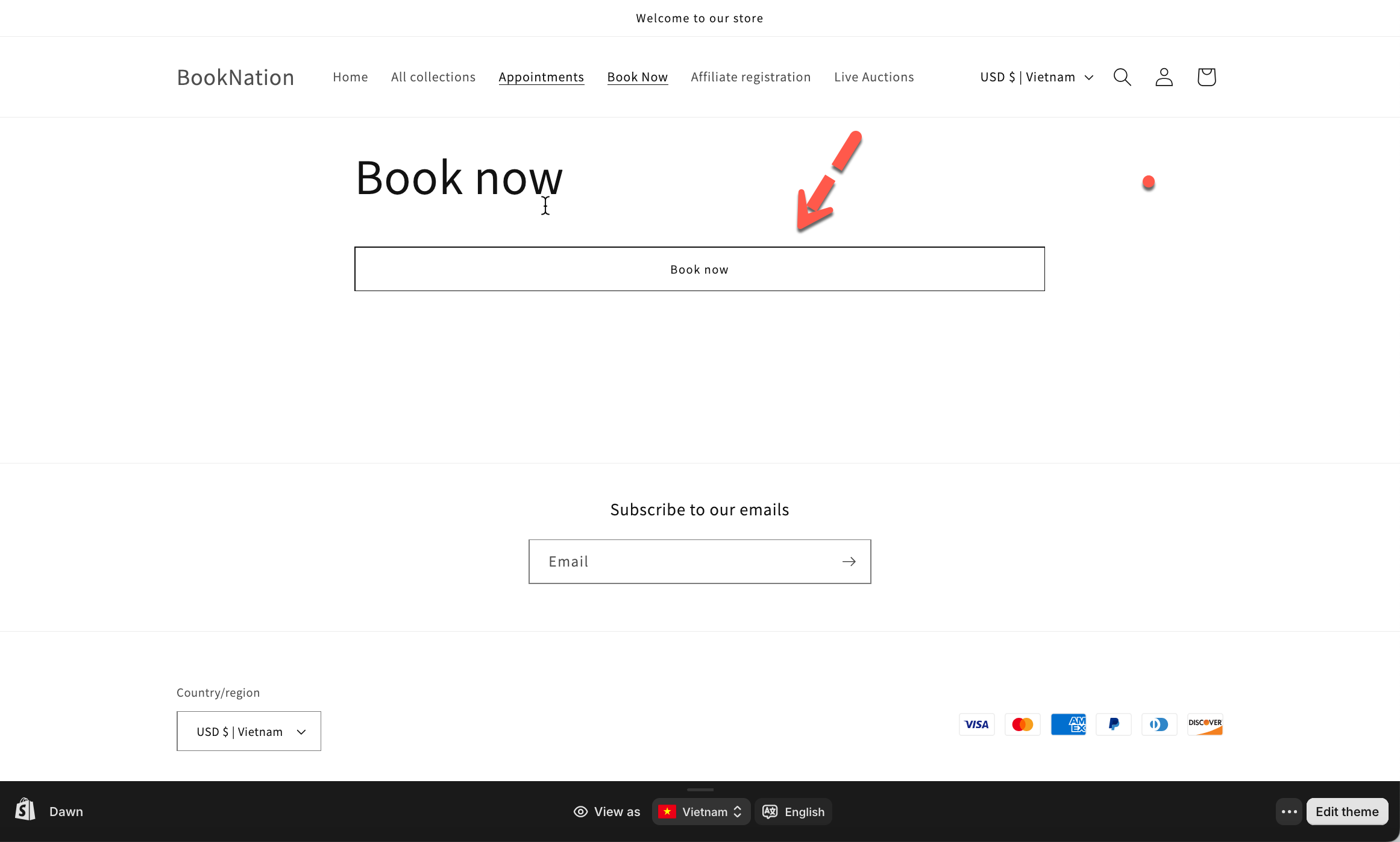
✅ **Result:**\
Clicking the button opens the booking form in a popup.
***
### 🧱 Option 3: Add the Booking Widget as an App Block
**Best for:**\
Home pages or theme sections with no code required.
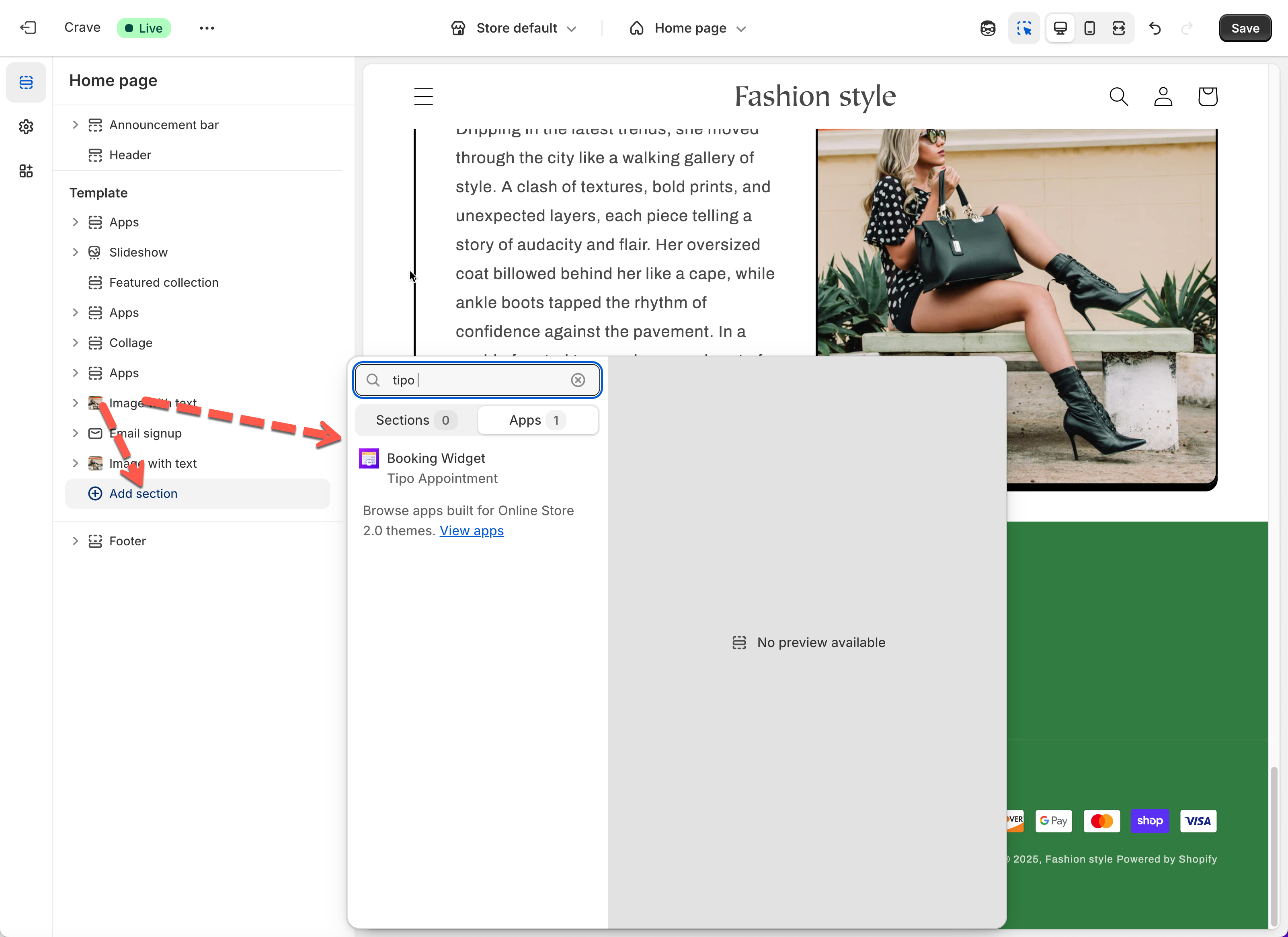
1. Open the app > go to **Online Store** > **Themes** > **Edit theme**
2. Select the page where you want to show the booking widget (e.g., Homepage, Product Page, etc.)
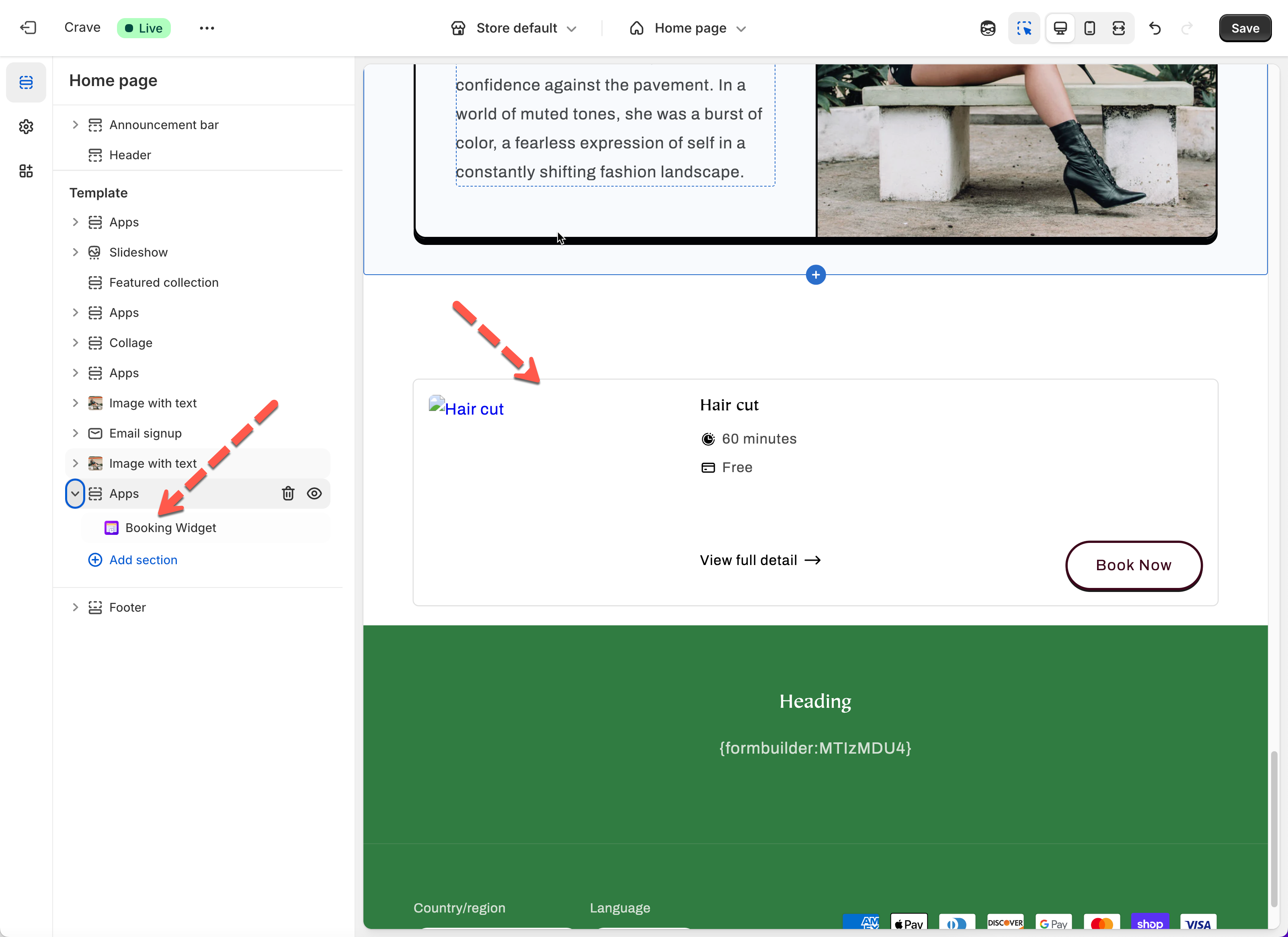
3. In the left panel, click **Add Block** under the section you want to add the widget to > select **Booking Widget** from the list of available app blocks
4. Choose your preferred **Layout**
* With the Booking Widget block selected, go to the **right panel**.
* Under the **Layout** dropdown, select one of the available styles:
* **Form** – Displays a calendar and time selector directly.
* **List** – Shows services in a vertical list format.
* **Grid** – Displays services in a grid layout for a more visual layout.
5\. Save your Changes
✅ **Result:**\
The booking widget is fully embedded using Shopify’s app block system.
***
### 🆚 Which Option Should I Choose?
| Goal | Recommended Option |
| ------------------------ | ------------------ |
| Full booking page | 🧩 Embed Form |
| Simple “Book Now” button | 🔘 Button + Popup |
| No-code setup | 🧱 App Block |
***
**🙋 Still need support?**
If you still need help, please feel free to contact us at . We’ll be happy to assist you further.