> For the complete documentation index, see [llms.txt](https://docs.tipo.io/llms.txt). Markdown versions of documentation pages are available by appending `.md` to page URLs; this page is available as [Markdown](https://docs.tipo.io/tipo-appointment-booking/widget-customization/add-custom-fields-and-add-ons.md).
# Add custom fields and add-ons
## ℹ️ What is “Questions & Add-ons”?
Use **Questions & Add-ons** to customize what customers see in the booking widget:
* **Custom fields**: ask customers for information (free, no price change)\
Examples: name, notes, preferences, address, allergies.
* **Add-ons**: let customers choose optional extras that **add to the total price**\
Examples: extra 30 minutes, document review, equipment rental.
> Tip: Add-ons are created inside a question field by linking options to products/variants (so the price is added automatically).
***
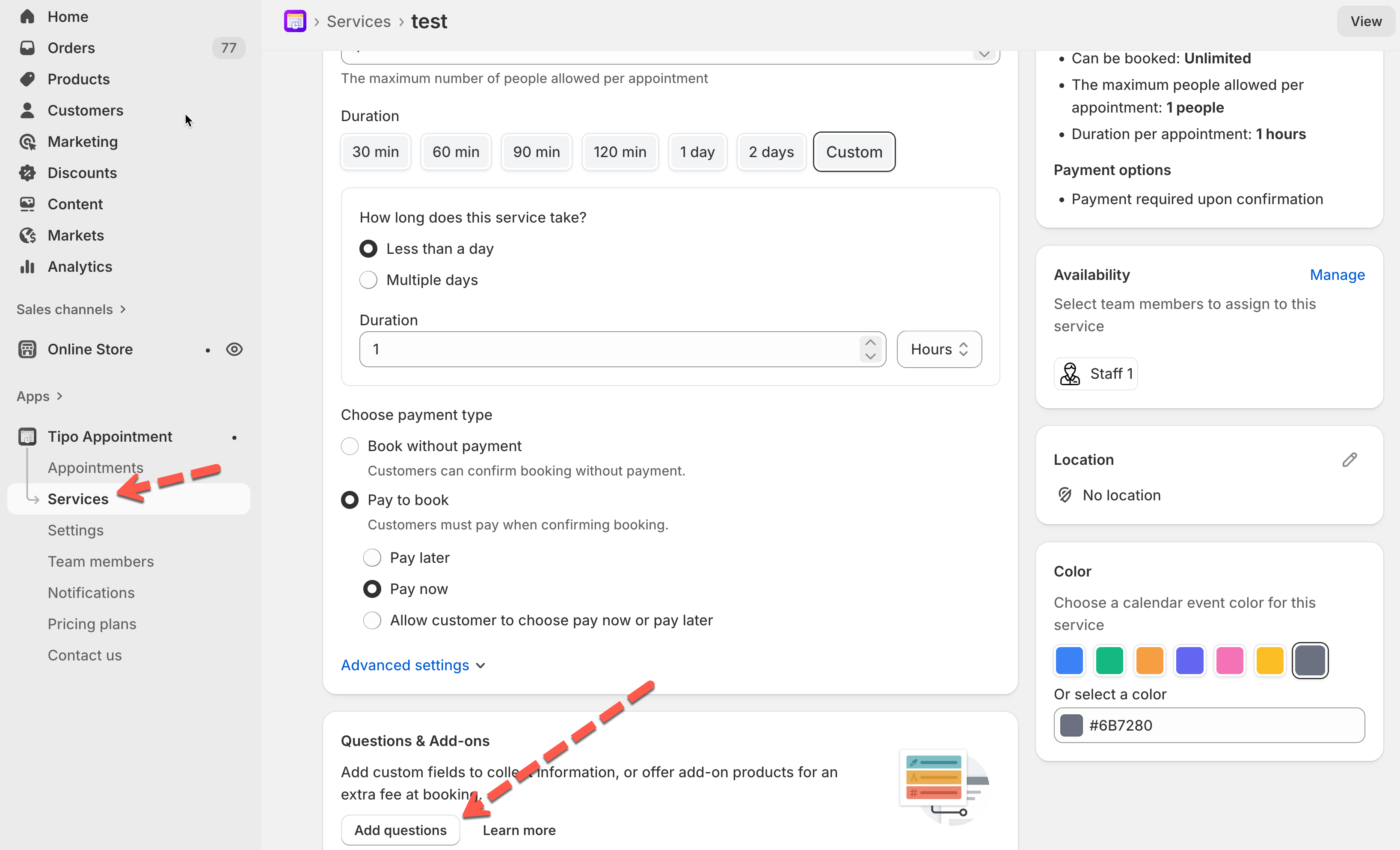
## ℹ️ Where to find it
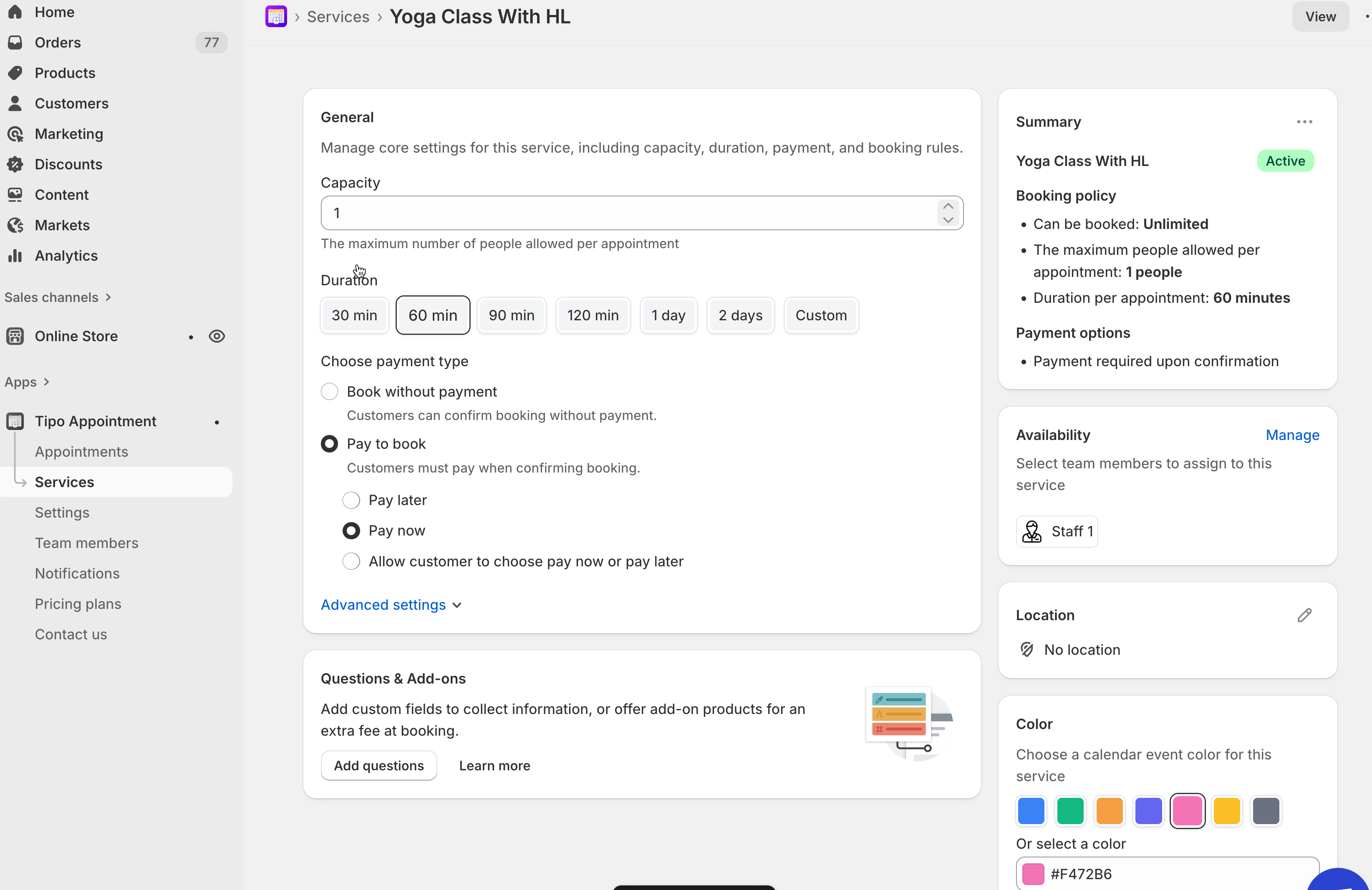
1. Go to: **Tipo Booking → Services**
2. Open a service
3. Scroll down to **Questions & Add-ons section**
***
## 🛠️ Add a custom field
#### Example: “Special requests”
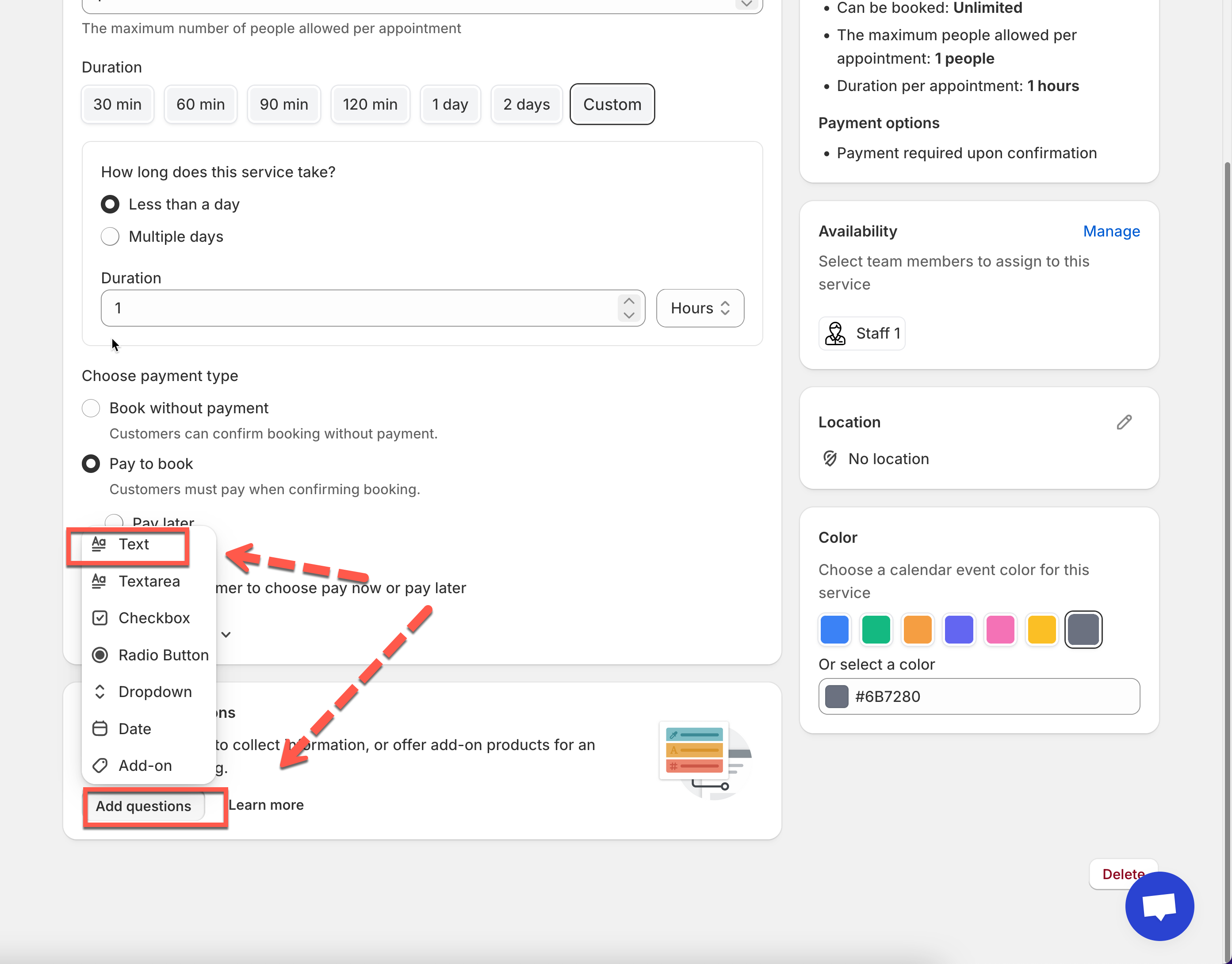
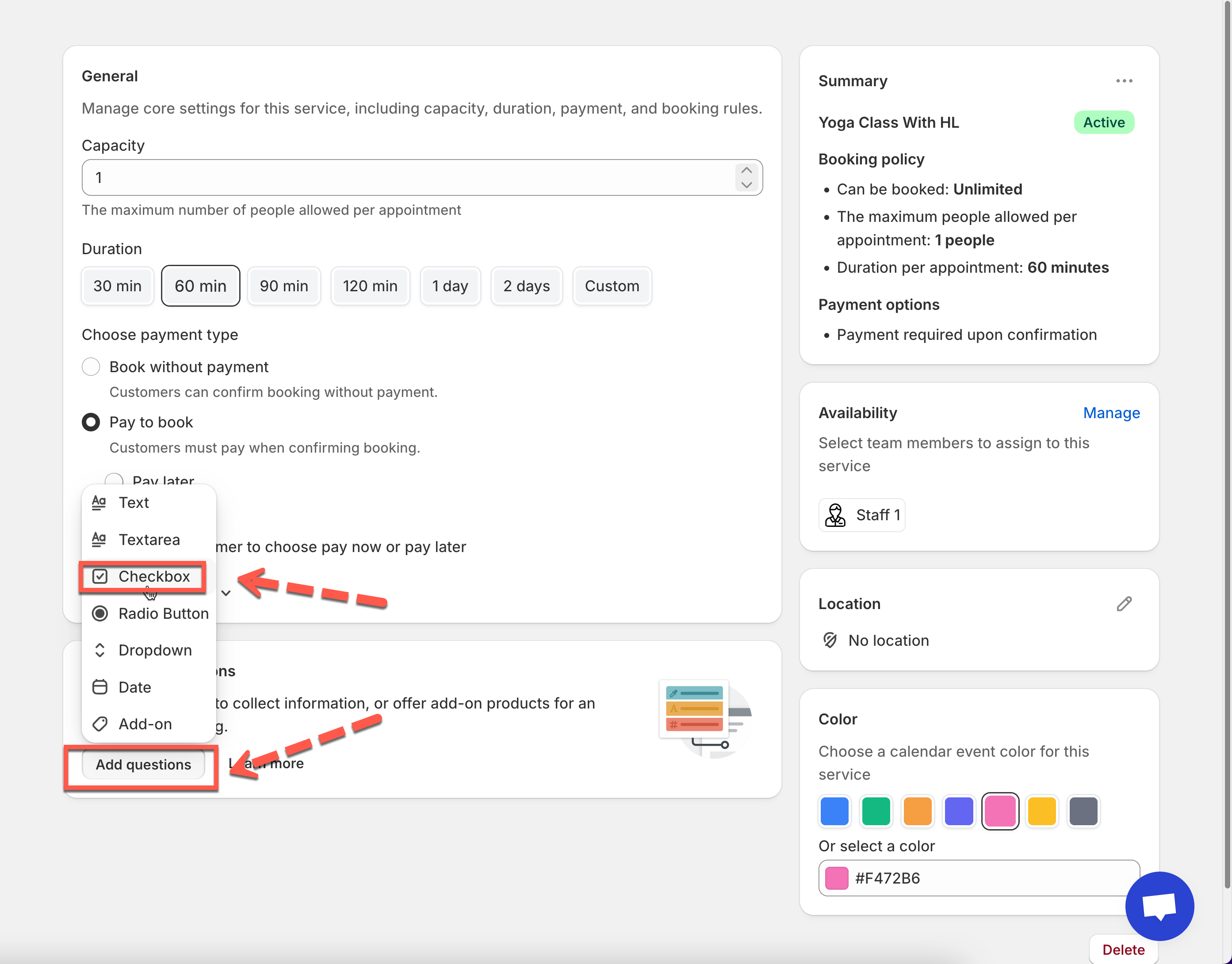
1. Click **Add questions**
2. Choose **Text**
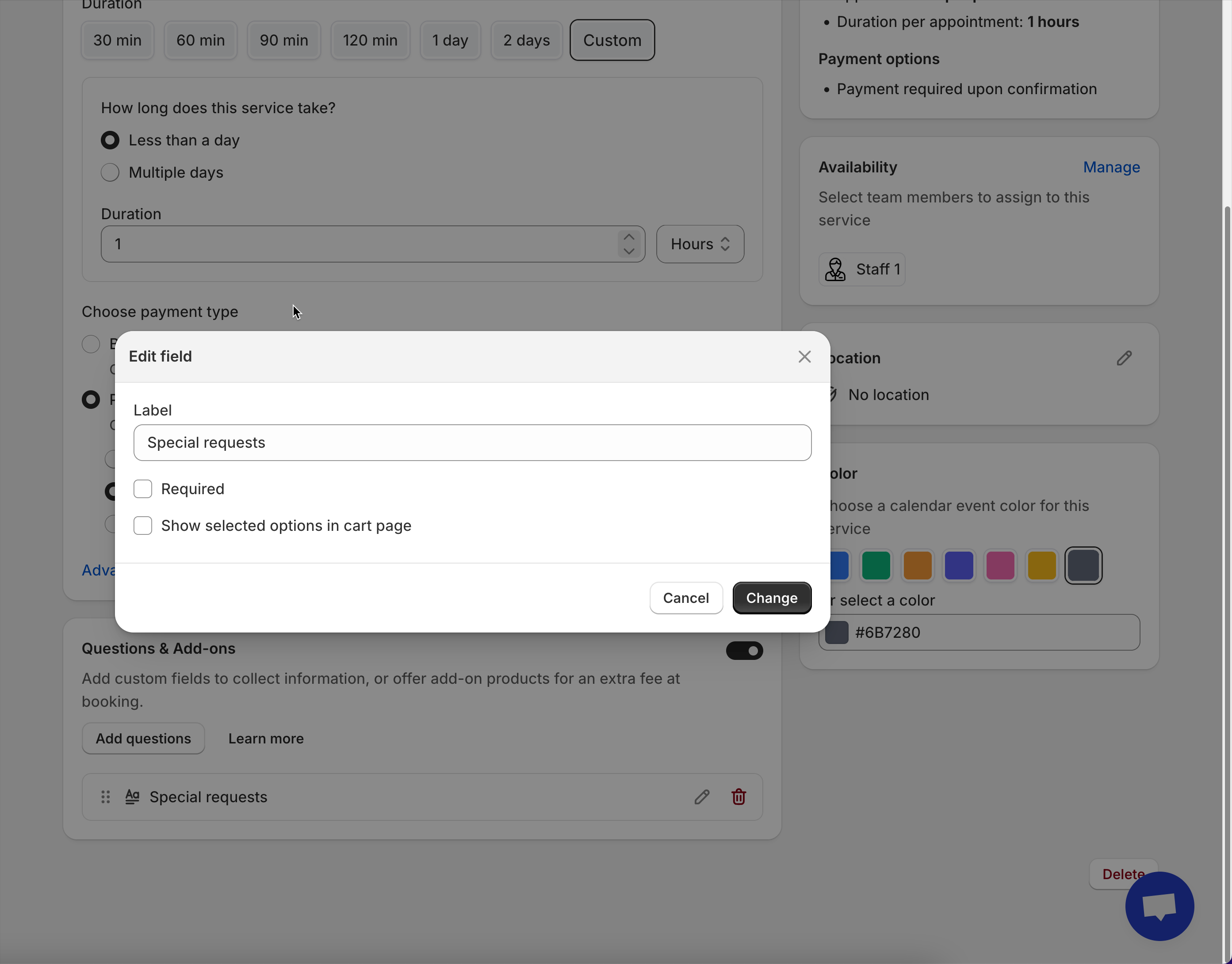
3. Set:
* **Label:** Special requests
* (Optional) Turn on **Required**
4. Save
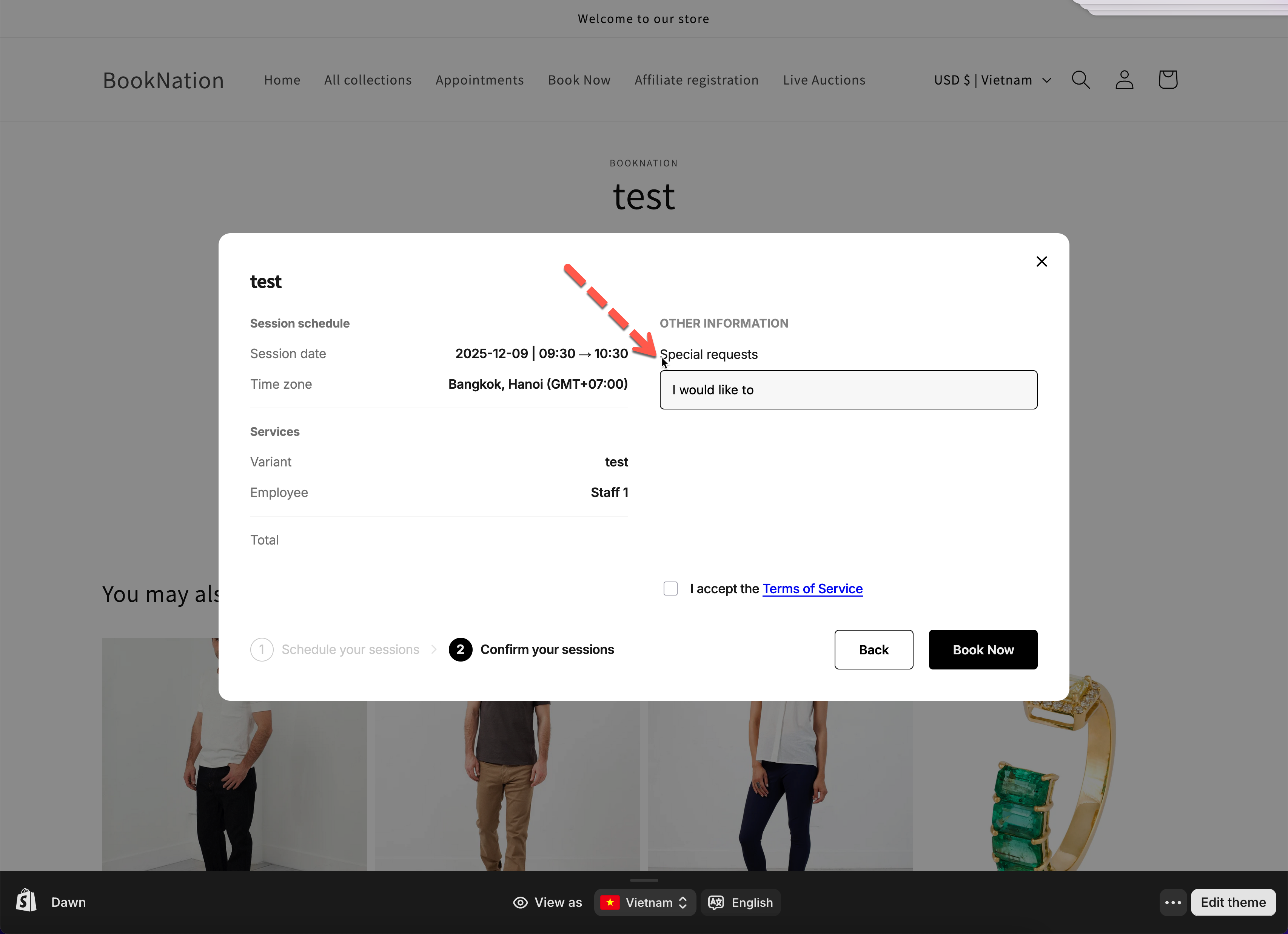
✅ Result: customers can type information during booking.
On the booking form, the custom field set will show up before customer click Confirm button.
***
## 💰 Add a paid add-on (extra price)
#### Example: “Upgrades” (customers can choose extras)
In this guide, we’ll set up a service like this:
* **Service:** Yoga Class (**$20**)
* **Custom field:** “Any injuries we should know about?” (Text)
* **Add-ons:**
* Mat rental (**+$5**)
* Towel rental (**+$3**)
### Before you start
Make sure you already have products/variants in Shopify for your add-ons (so the extra price can be added automatically).
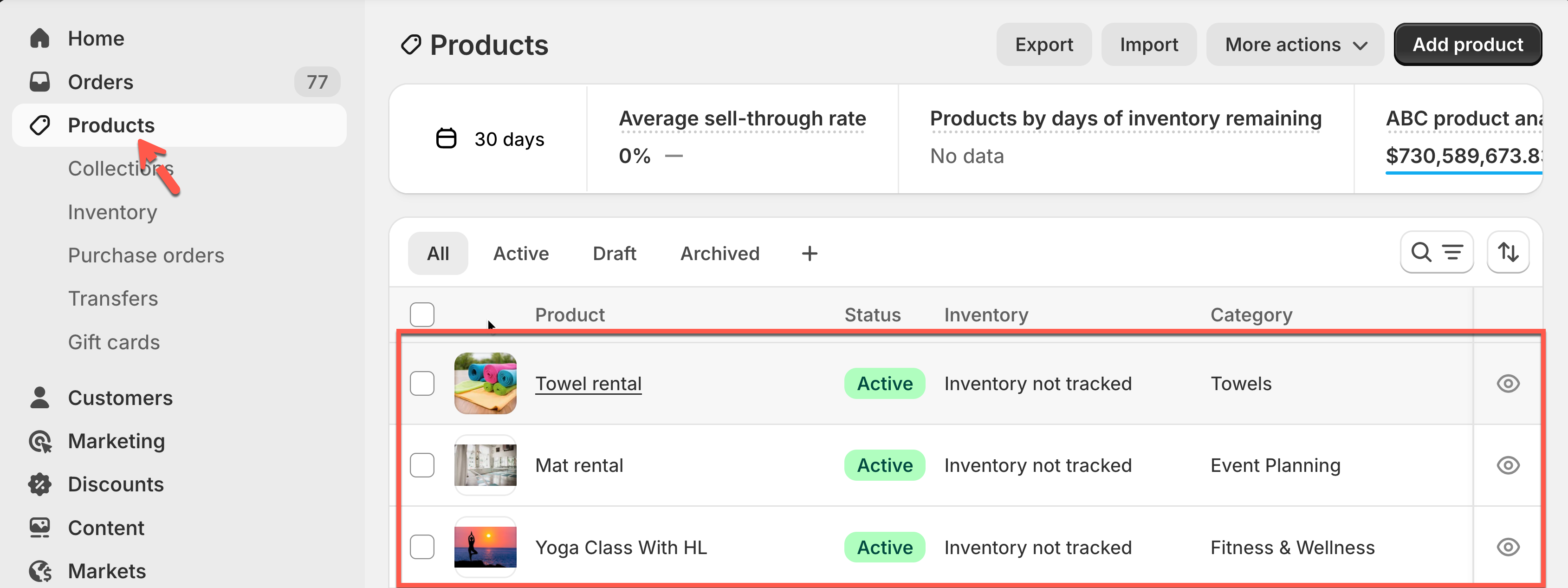
**Create these add-on products (examples):**
* **Mat rental** — price **$5**
* **Towel rental** — price **$3**
> Tip: If your add-ons already exist as products/variants, you can reuse them.
***
### Step 1: Create the service (Yoga Class)
1. In Shopify admin, open **Tipo Booking** app **> Services**
2. Click **New service**
3. Enter:
* **Service name:** Yoga Class
* **Price:** $20 (or set via product/variant depending on your setup)
* **Duration / Capacity / Payment** as needed
4. Click **Save**
### Step 2: Add paid add-ons (Mat rental + Towel rental)
We’ll create an add-on field where customers can select extras.
1. Still in **Questions & Add-ons**, click **Add questions**
2. Choose **Checkbox** (best when customers can choose more than one add-on)
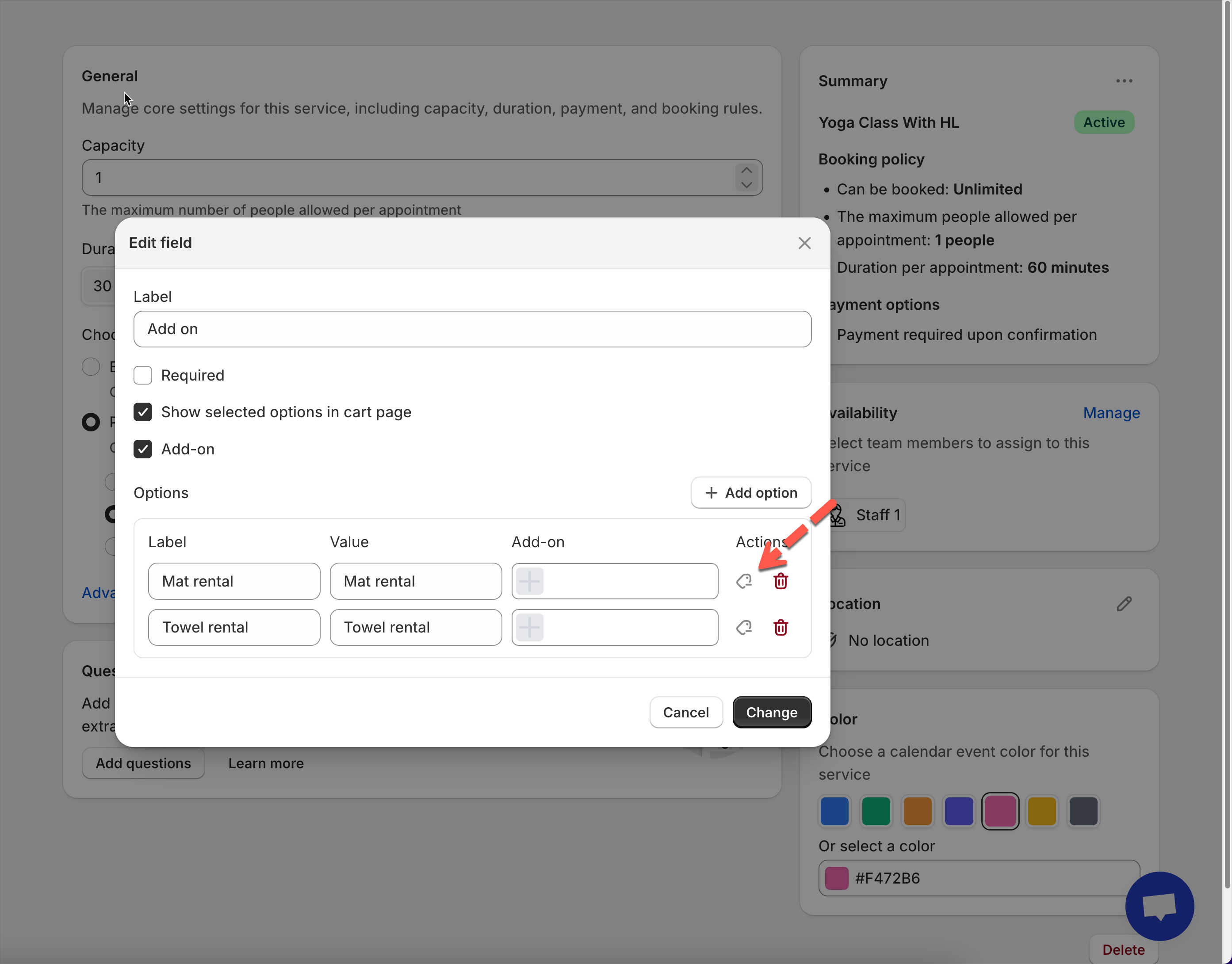
3. Set checkbox with
* **Label:** Add-ons (optional)
* Turn on **Add-on**
* Turn on **Allow multiple selections**
4. Add options:
* **Option 1 label:** Mat rental
* **Option 2 label:** Towel rental
4. For each option, attach the matching add-on product/variant:
* Mat rental → select the **Mat rental ($5)** product/variant
* Towel rental → select the **Towel rental ($3)** product/variant
5. Click **Save/Change**
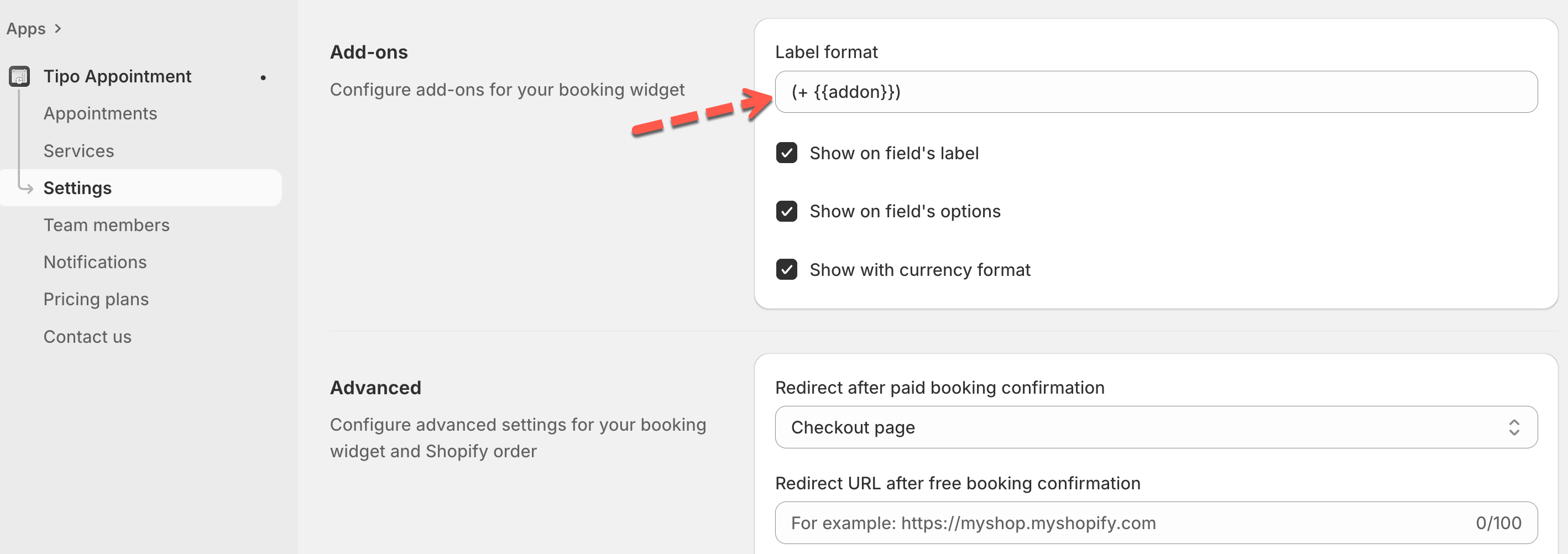
### **Step 3:** Turn on the label format for add-ons (optional)
1. In the app > open **Settings** > scroll to **Add-ons**
2. In **Label format**, enter your preferred format. Example:\
`(+ {{addon}})`
3. Enable:
* **Show on field’s label**
* **Show on field’s options**
4. Click **Save**
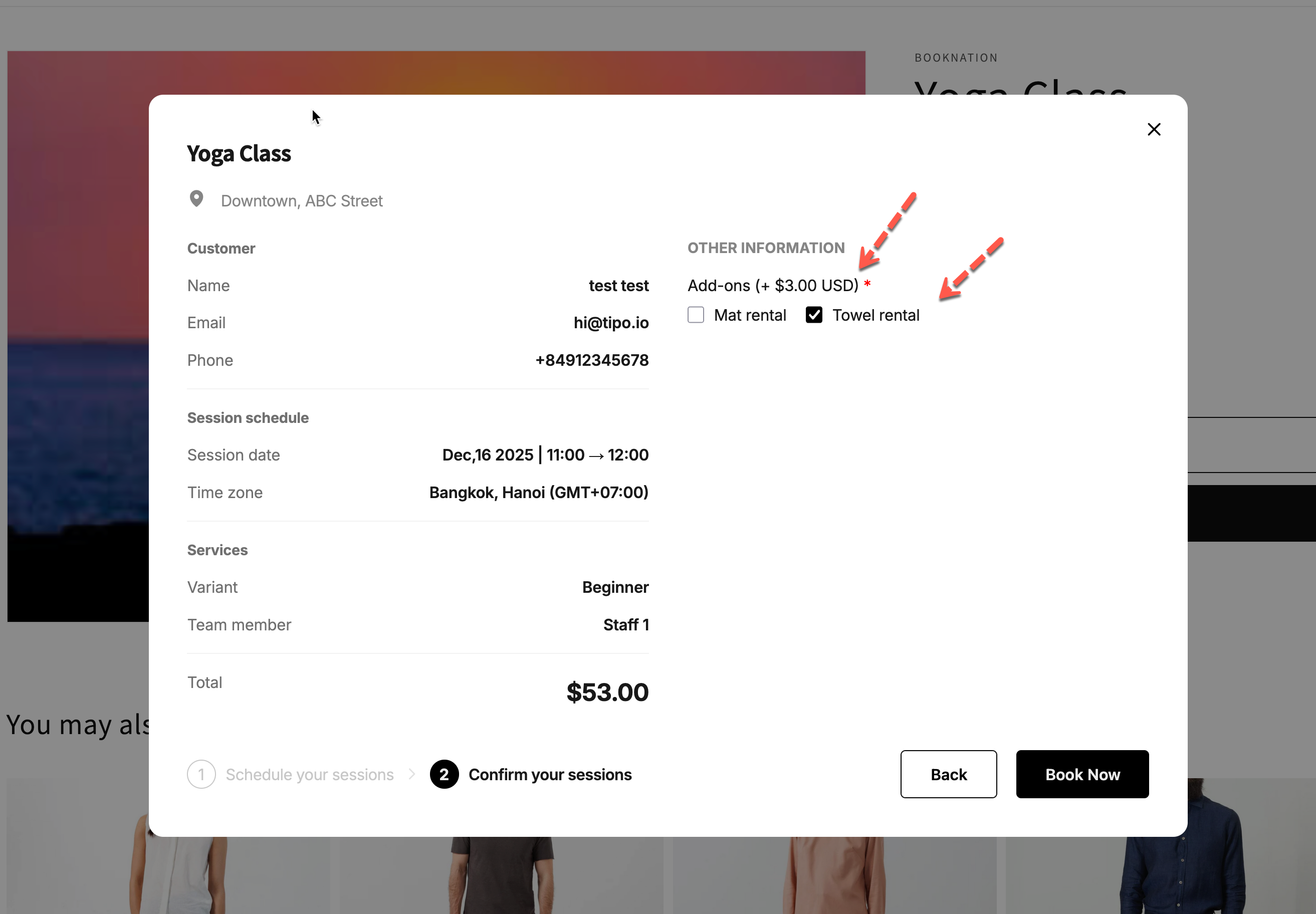
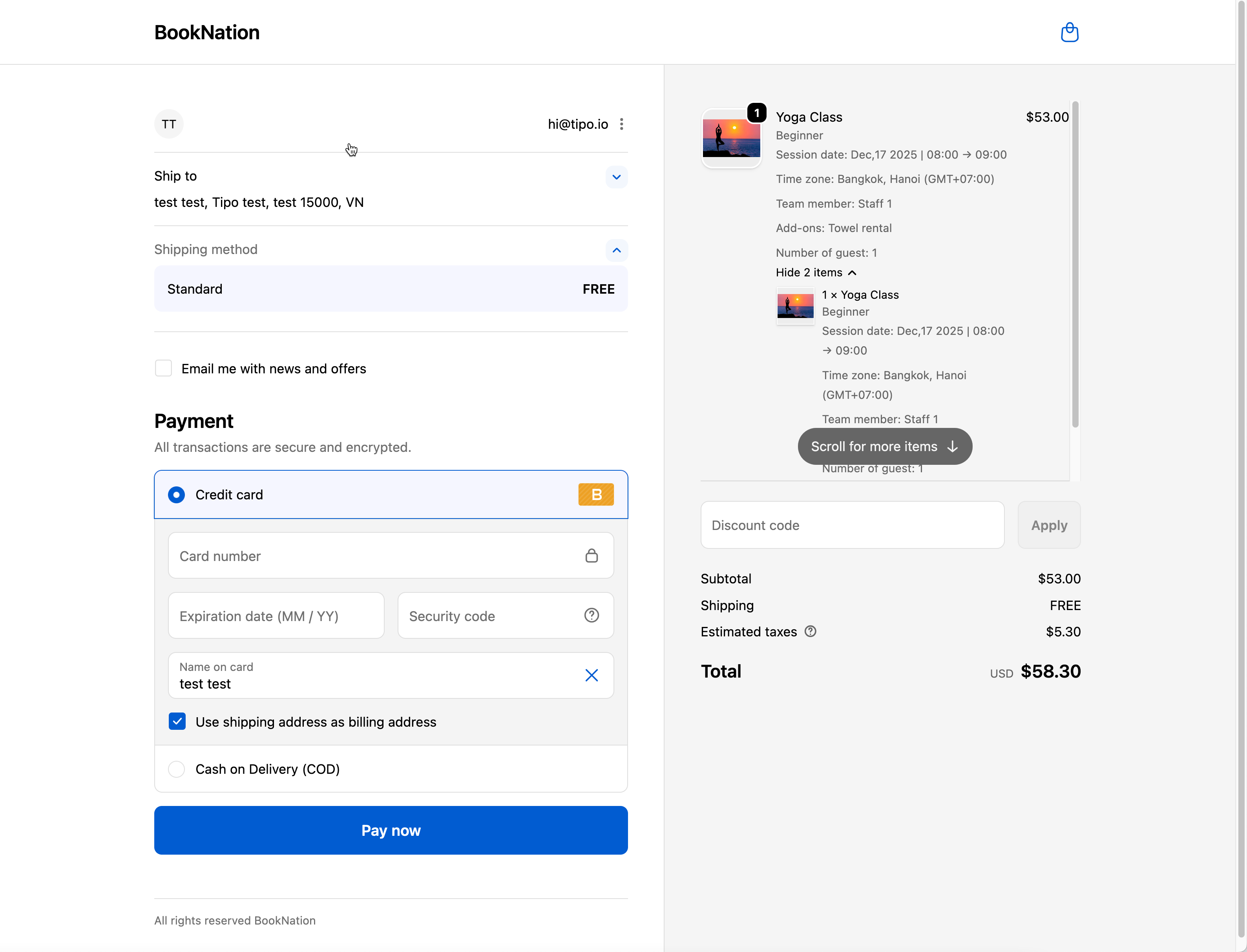
#### What customers will see at checkout
On the booking form, customers will see add-ons like:
* ☐ Mat rental
* ✅ Towel rental
…and the add-on title can display with your chosen format (for example: `Add-ons (+ $3.00 USD)`).
***
**🙋 Still need support?**
If you still need help, please feel free to contact us at . We’ll be happy to assist you further.