
Set start day of the week
AI Overview
Set which day your calendars start the week on in Tipo Appointment Booking. The change affects the calendar layout in both the admin Appointments calendar and the customer booking widget, but it does not change any appointment times.
View moreView less
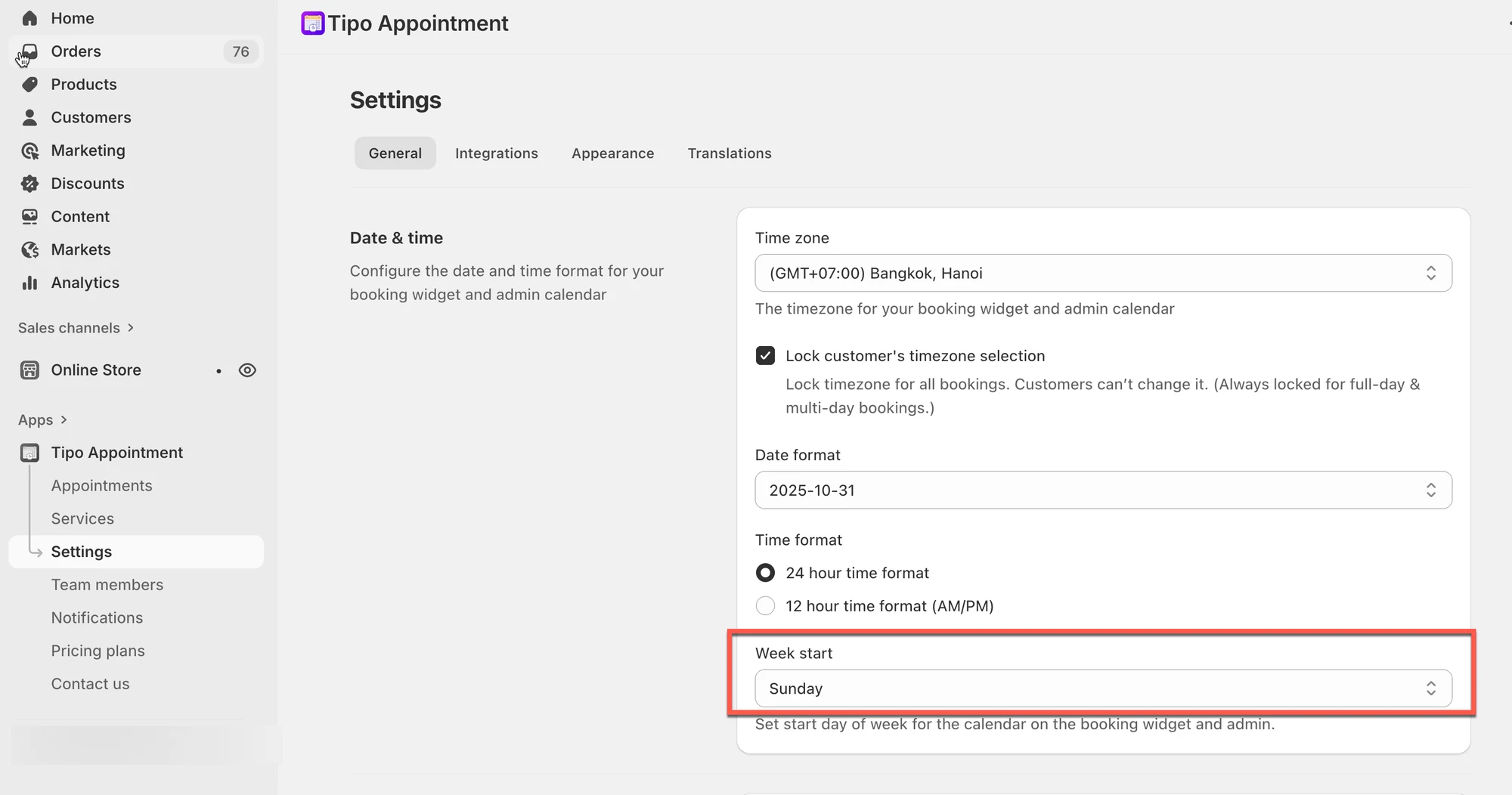
- Open the app, click Settings > General.
- In Date & time, choose a day in the Week start field, such as Sunday.
- Click Save.
- This changes calendar display only, not appointment times; if the storefront looks unchanged, refresh or try incognito mode.
Summary generated by AI. It can make mistakes, so check the full guide below.
⚙️ How to set
Section titled “⚙️ How to set”- Open the app > click Settings > General
- In Date & time > Week start field > choose the day you want (example: Sunday)
- Click Save
✅ What changes after you update it?
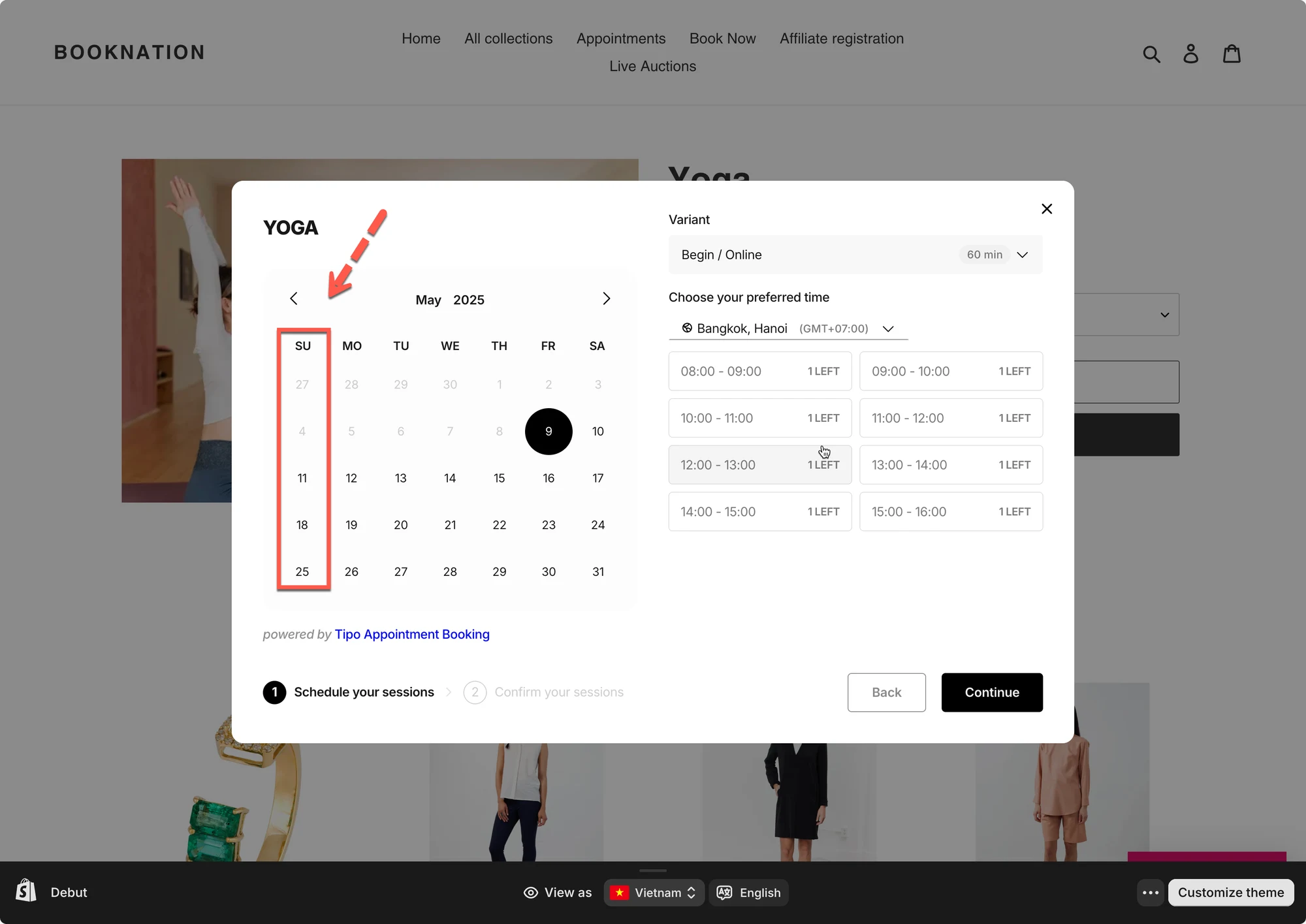
Section titled “✅ What changes after you update it?”After updating Week start, you’ll see the new calendar layout in:
- Appointments calendar (admin)
- Booking widget calendar (customer view)
Notes
- This setting changes calendar display only (it does not change appointment times).
- If you don’t see changes on the storefront immediately:
- refresh the page
- try incognito mode
🙋 Still need support?
If you still need help, please feel free to contact us at hi@tipo.io. We’ll be happy to assist you further.