
Zapier Integration
AI Overview
Use Zapier to connect Tipo to thousands of apps such as Slack, Google Sheets, HubSpot, and Trello. Tipo acts as a trigger app that sends booking data to Zapier through a webhook, and Zapier then runs actions in other tools. The guide includes an example syncing bookings to Google Sheets.
View moreView less
- In Zapier, create a Zap with Webhooks by Zapier and Catch Raw Hook, and copy the Webhook URL.
- In Tipo, go to Settings > Integrations > Zapier, click Connect, paste the URL in Webhook URL (create/update), and save.
- Test the trigger, then add Code by Zapier to parse the booking with `JSON.parse`.
- Add actions such as Google Sheets lookup and update steps, then click Publish.
- Events sent: created, updated, approved, canceled, rescheduled.
Summary generated by AI. It can make mistakes, so check the full guide below.
Use Zapier to connect Tipo to thousands of apps (Slack, Google Sheets, HubSpot, Trello, etc.). Tipo acts as a trigger app in Zapier.
Tipo works as a trigger app in Zapier, meaning Zapier listens for booking events from Tipo and then runs actions in other tools.
⚡ What you can do with Zapier
Section titled “⚡ What you can do with Zapier”With Zapier, you can automatically:
- Add bookings to Google Sheets
- Send notifications to Slack
- Create or update contacts in CRM tools
- Sync bookings to internal systems
- Build custom workflows for advanced use cases
💡 Zapier is ideal if you want more flexibility than built-in integrations.
🔌 Enable Zapier in Tipo
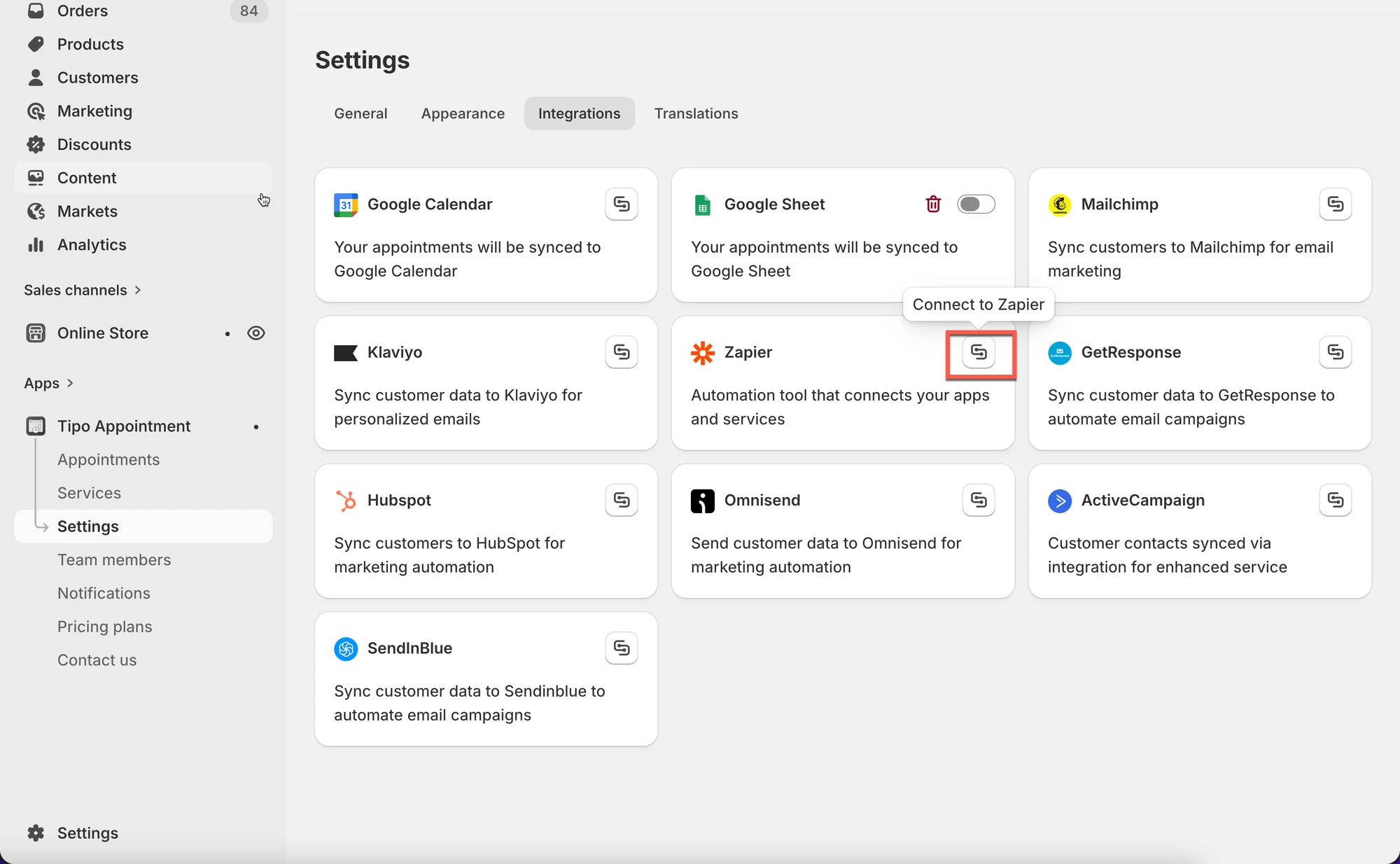
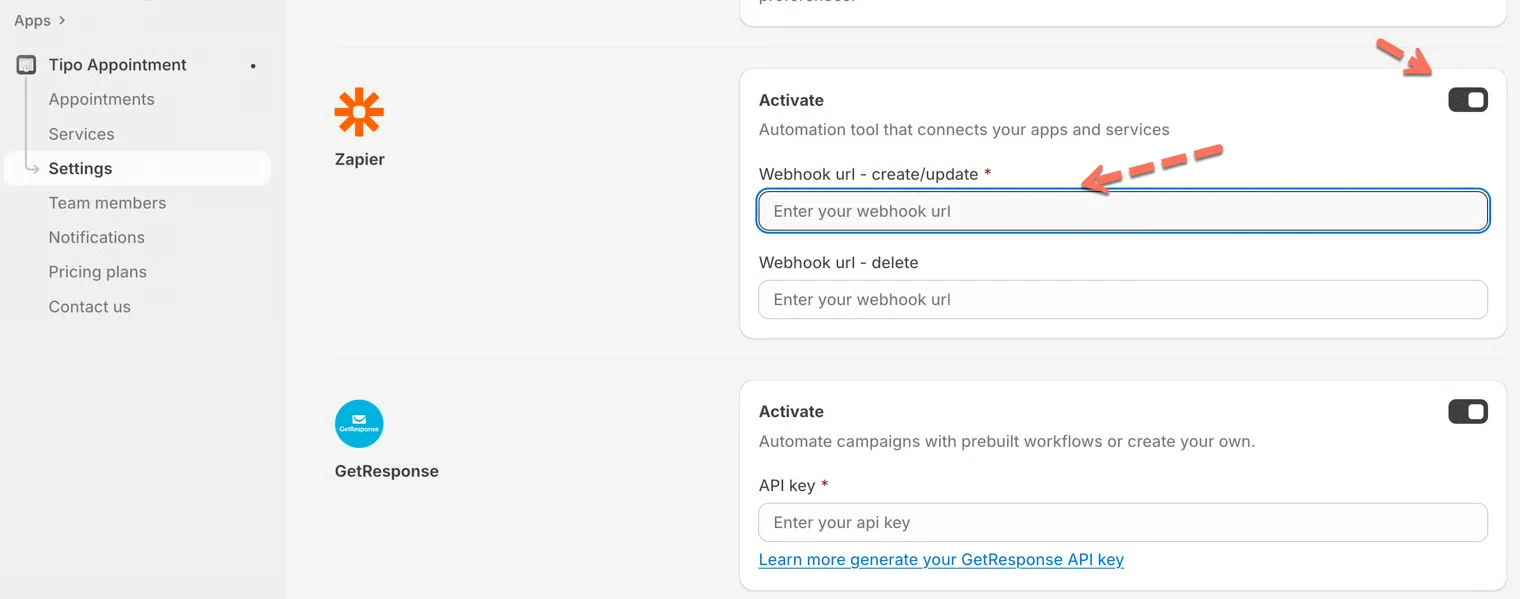
Section titled “🔌 Enable Zapier in Tipo”- Open the app > Settings > Integrations > find Zapier
- Click on the Connect icon
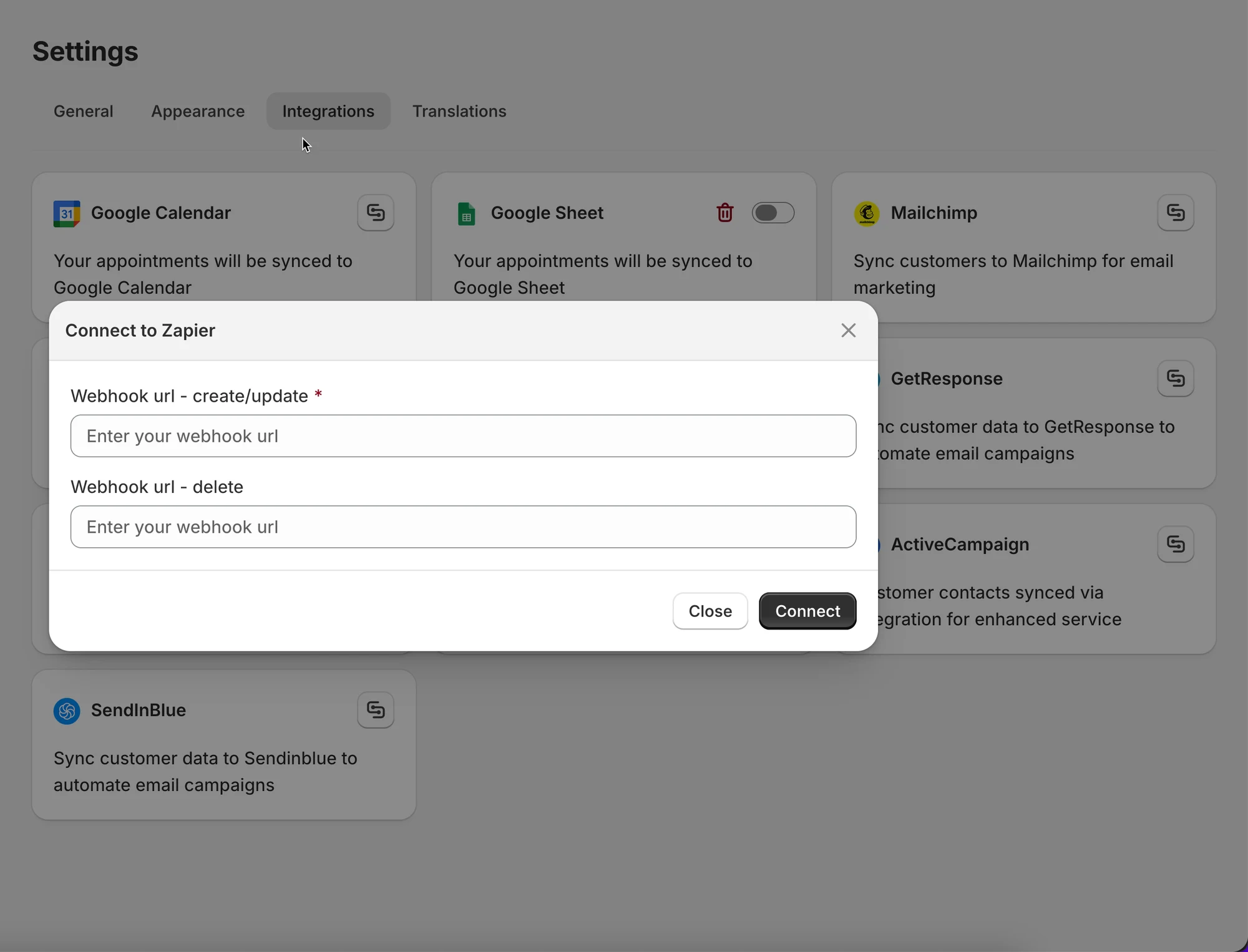
- Paste the weebhook URL (from your Zapier) in Webhook URL (create/update) field
- Click Save
💡 How Zapier works with Tipo
Section titled “ 💡 How Zapier works with Tipo”Zapier uses webhooks to receive booking data from Tipo.
The flow looks like this:
- Tipo sends booking data (create / update / cancel)
- Zapier catches the webhook
- Zapier runs actions in other apps (Sheets, Slack, CRM, etc.)
🧩 Create a Zap in Zapier
Section titled “🧩 Create a Zap in Zapier”Step 1: Create a new Zap
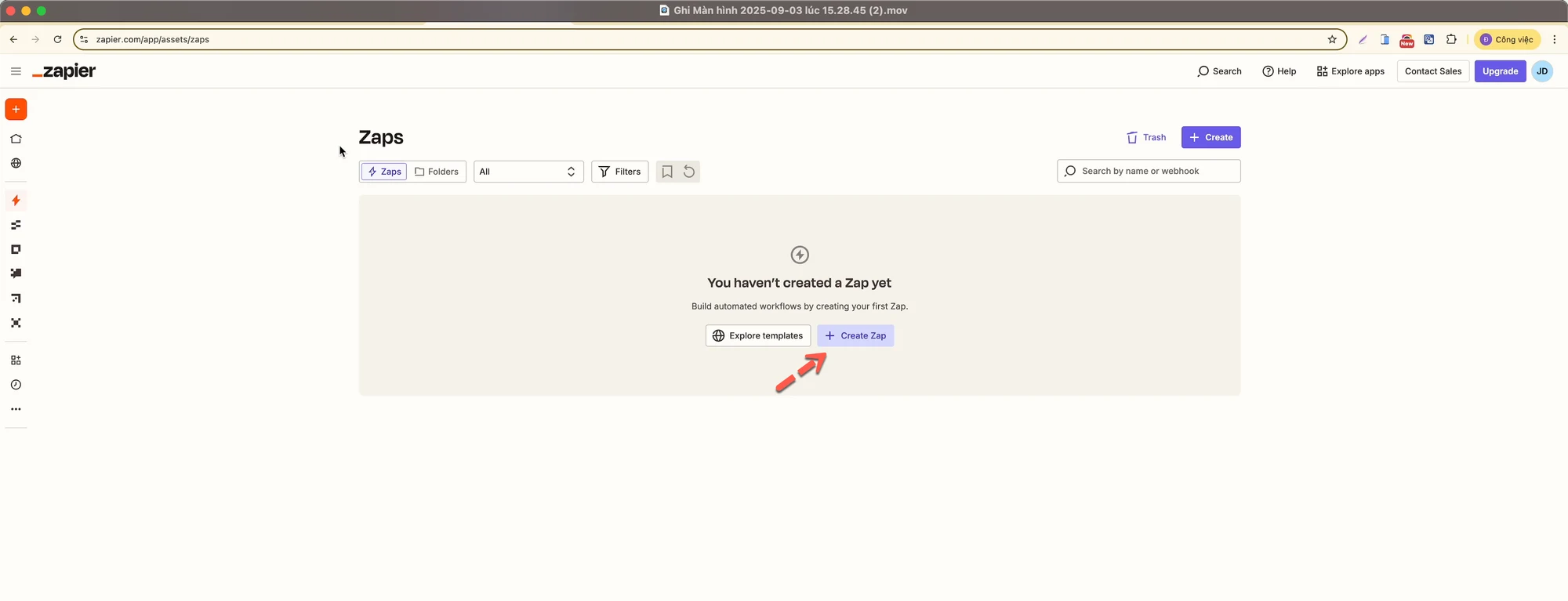
Section titled “Step 1: Create a new Zap”- Log in to Zapier
- Go to Zaps
- Click Create Zap
Step 2: Set the trigger (Webhook)
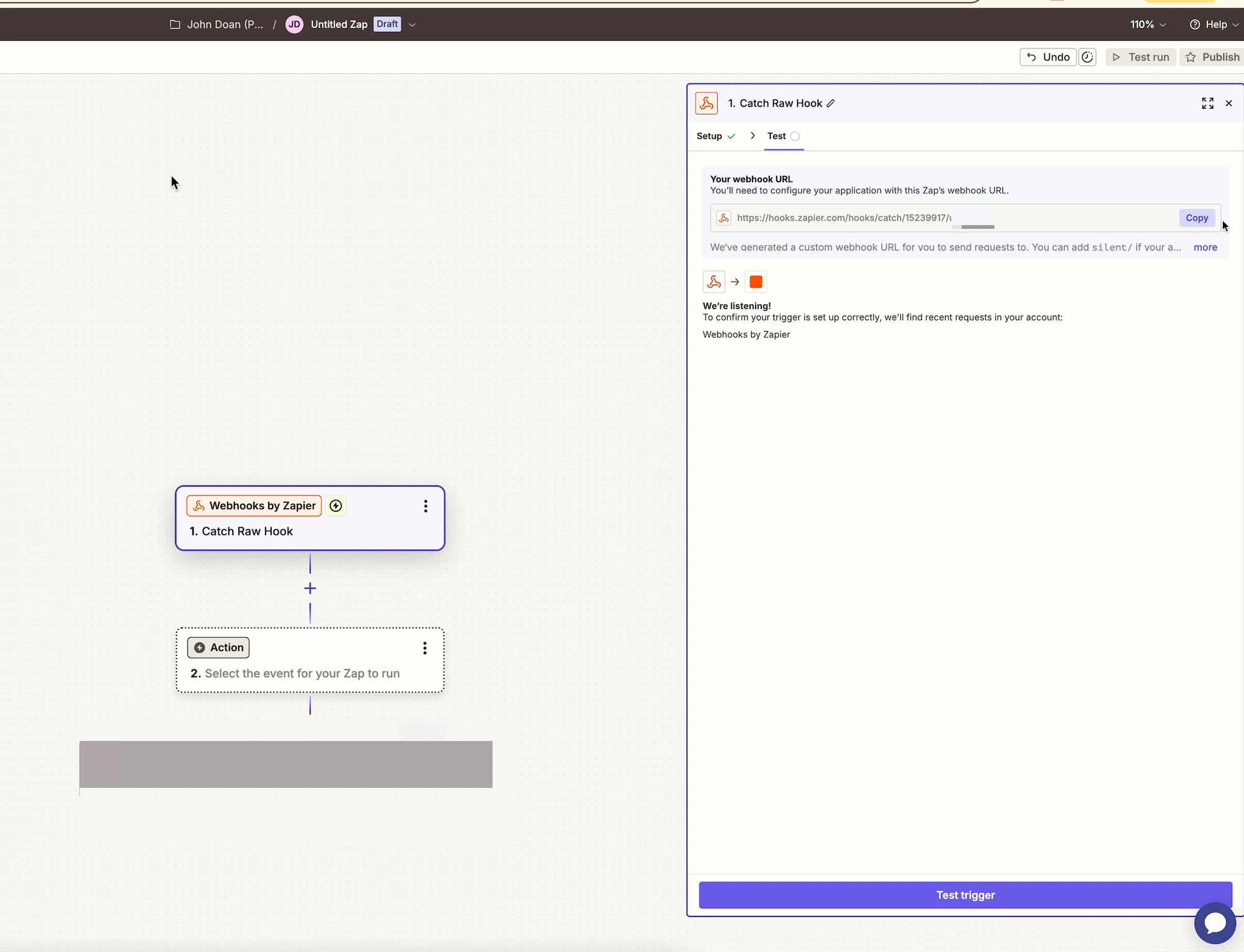
Section titled “Step 2: Set the trigger (Webhook)”- Choose Webhooks by Zapier
- Select Catch Raw Hook
- Click Continue
- Copy the Webhook URL shown by Zapier
Step 3: Connect Zapier with Tipo
Section titled “Step 3: Connect Zapier with Tipo”- Go back to Tipo app > open app Settings > Integrations > Zapier
- Paste the Zapier Webhook URL into Webhook URL – create/update field
- Save your settings
Step 4: Test the webhook
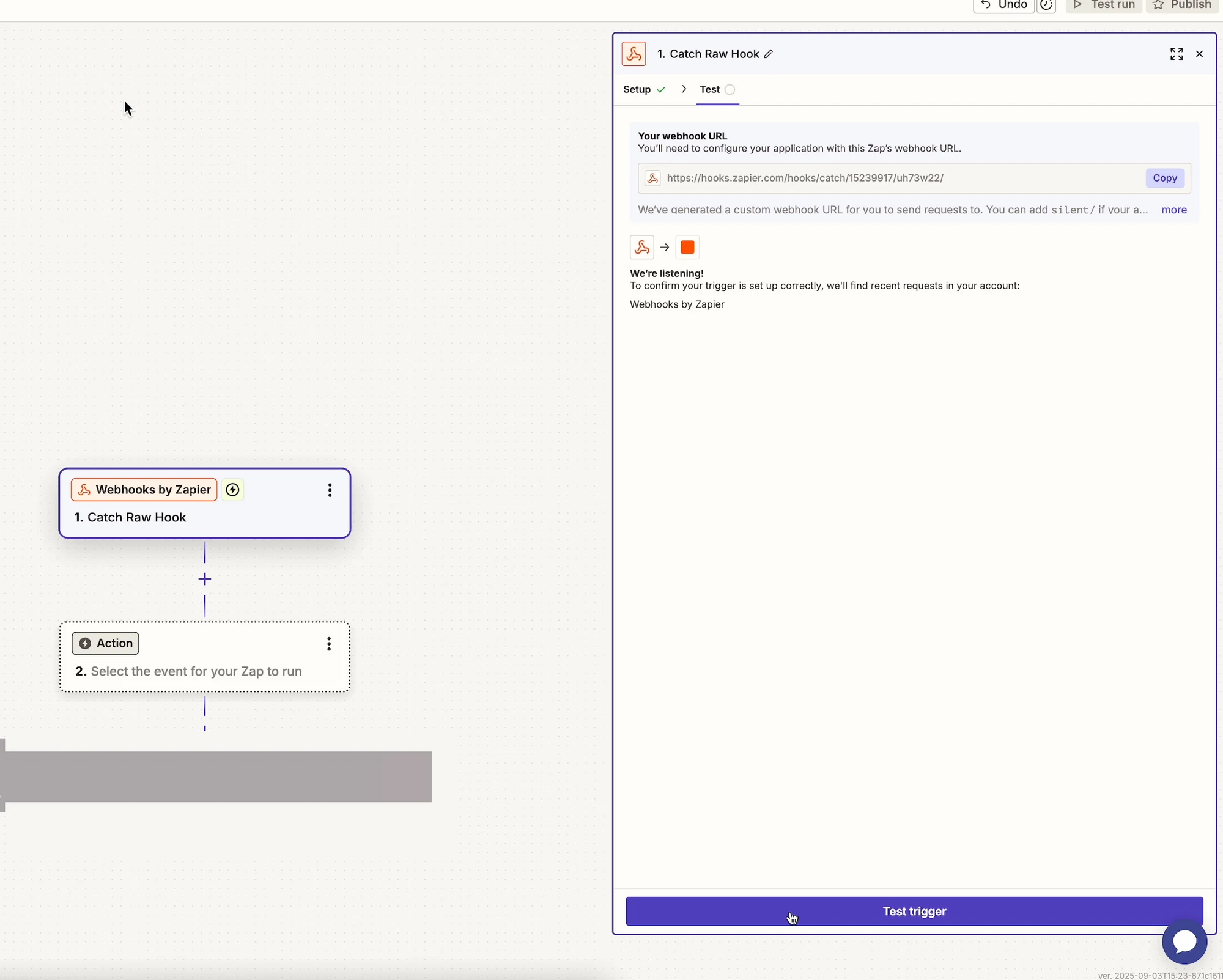
Section titled “Step 4: Test the webhook”- In Zapier, click Test trigger
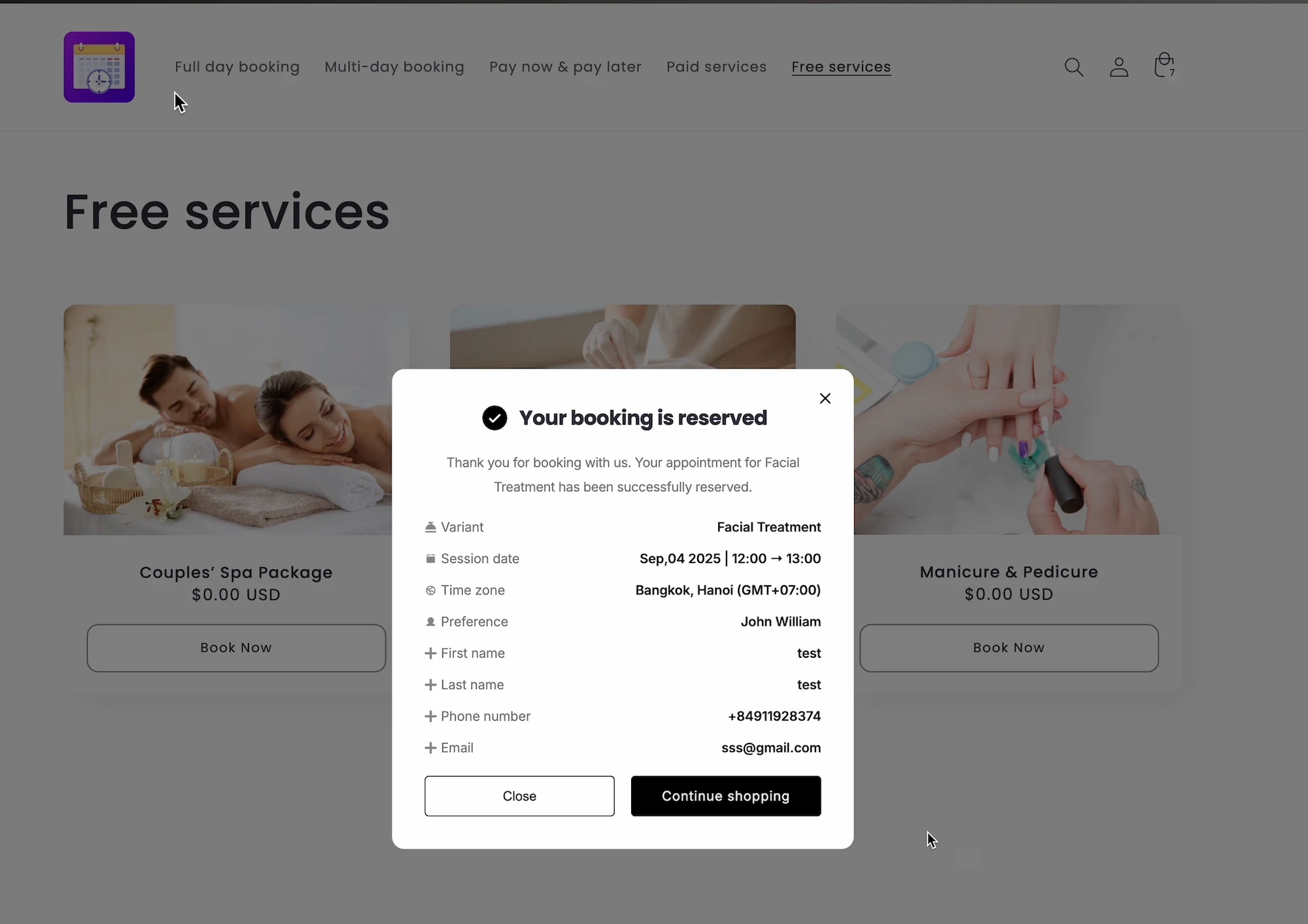
- In your store, create or update a booking
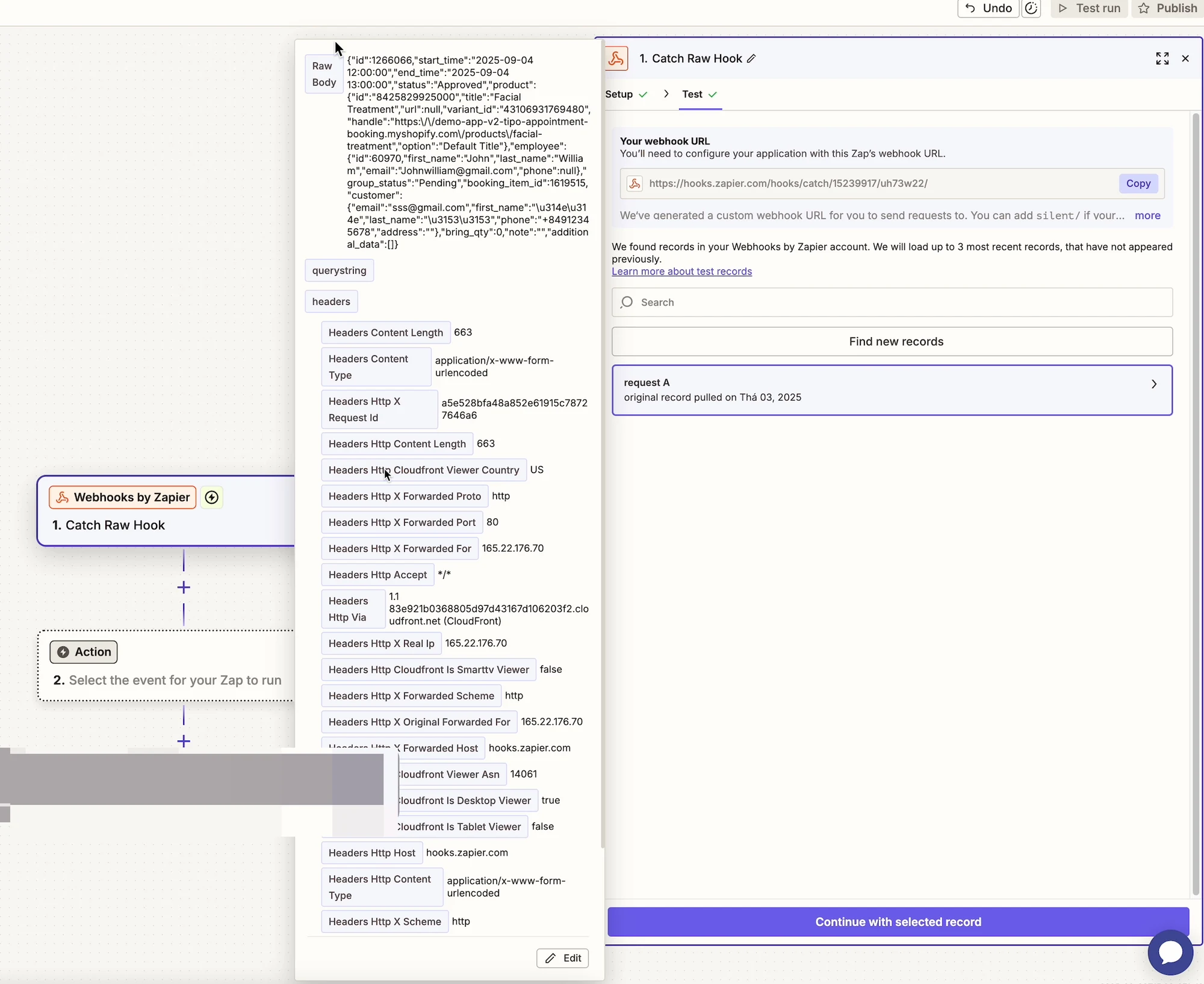
- Zapier should receive booking data successfully
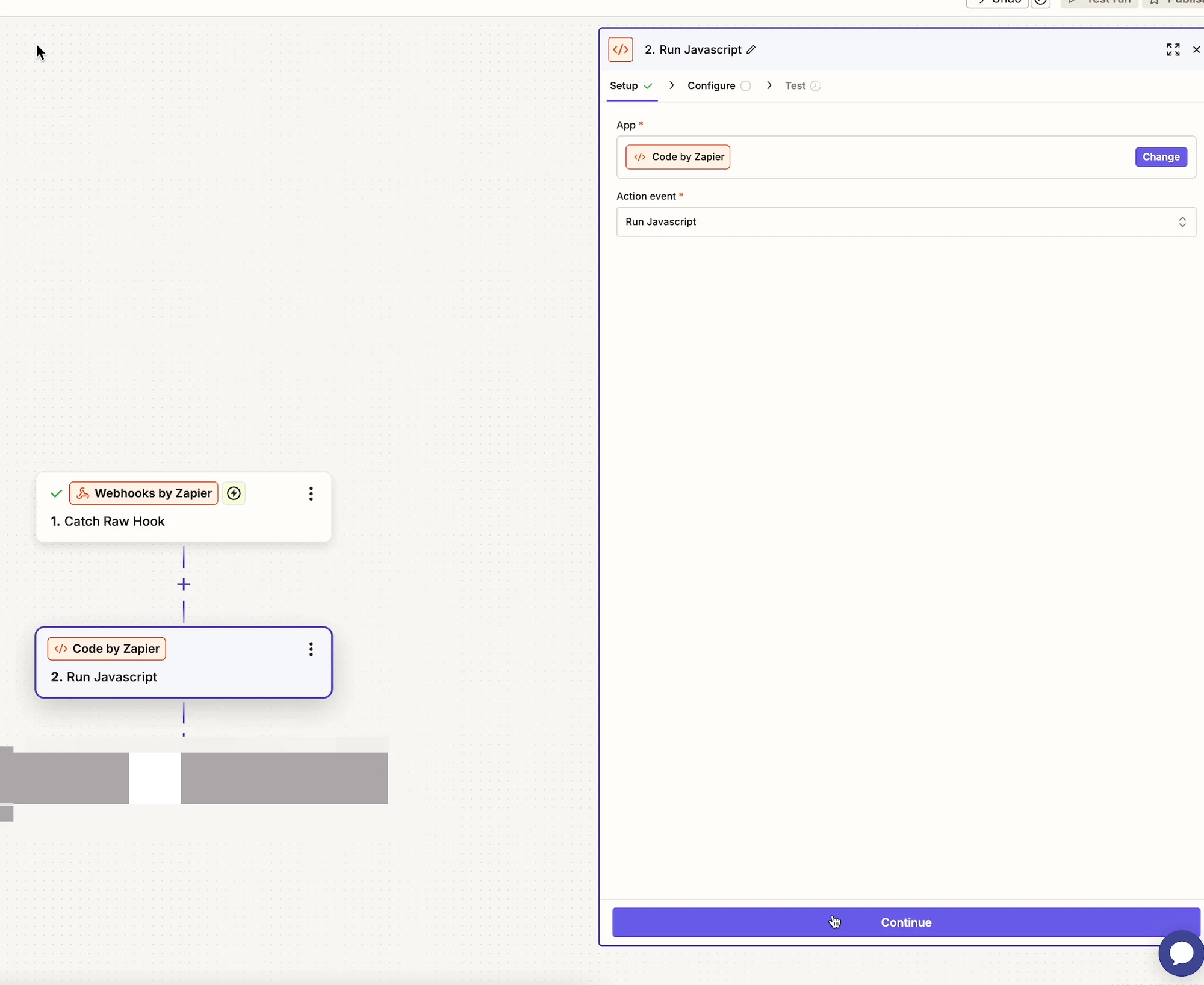
Step 5: Add “Code by Zapier”
Section titled “Step 5: Add “Code by Zapier””- Click + to add a new step
- Choose Code by Zapier
- Select Run Javascript
Step 6: Configure the code step
Section titled “Step 6: Configure the code step”Input Data
- Name:
Booking - Value:
Raw Bodyfrom the webhook step
Code
return { body: JSON.parse(inputData.Booking) };- Click Continue
- Run Test
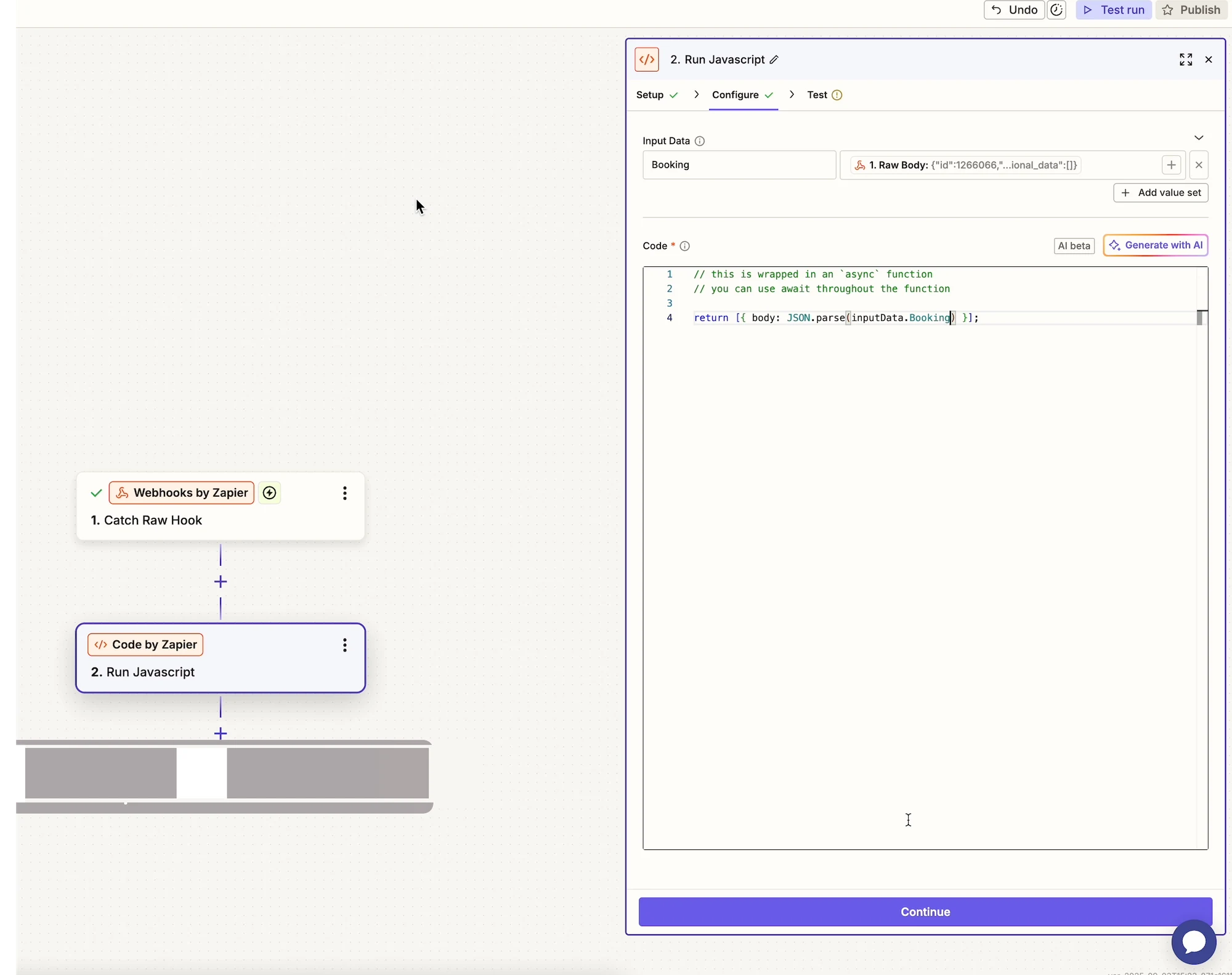
After this step, booking fields (product, employee, time, customer, etc.) will be available separately.
🧪 Example: Sync bookings to Google Sheets
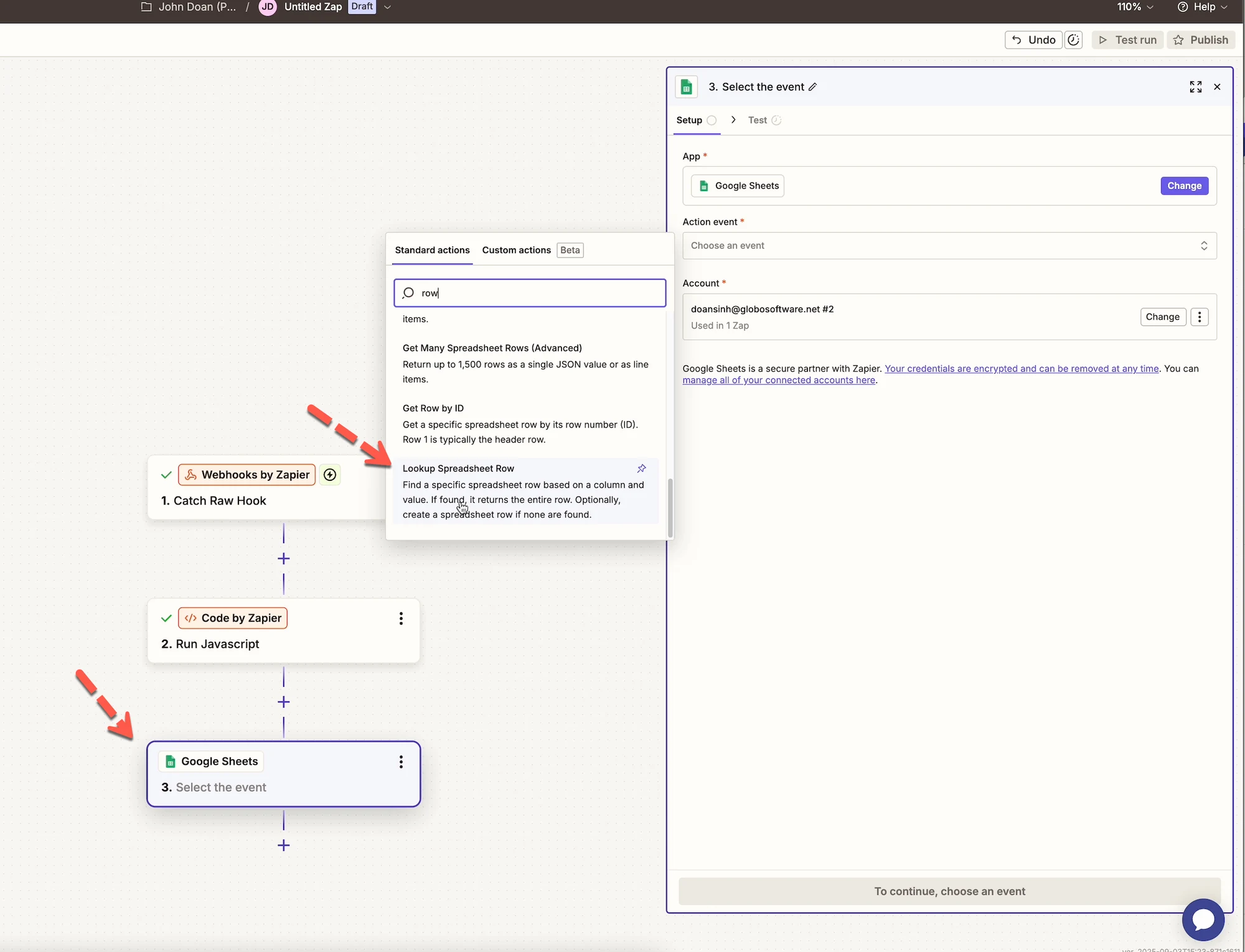
Section titled “🧪 Example: Sync bookings to Google Sheets”Step 7: Find or create a row
Section titled “Step 7: Find or create a row”- Add a new step
- Choose Google Sheets
- Select Lookup Spreadsheet Row
- Connect your Google account
- Choose your spreadsheet and worksheet
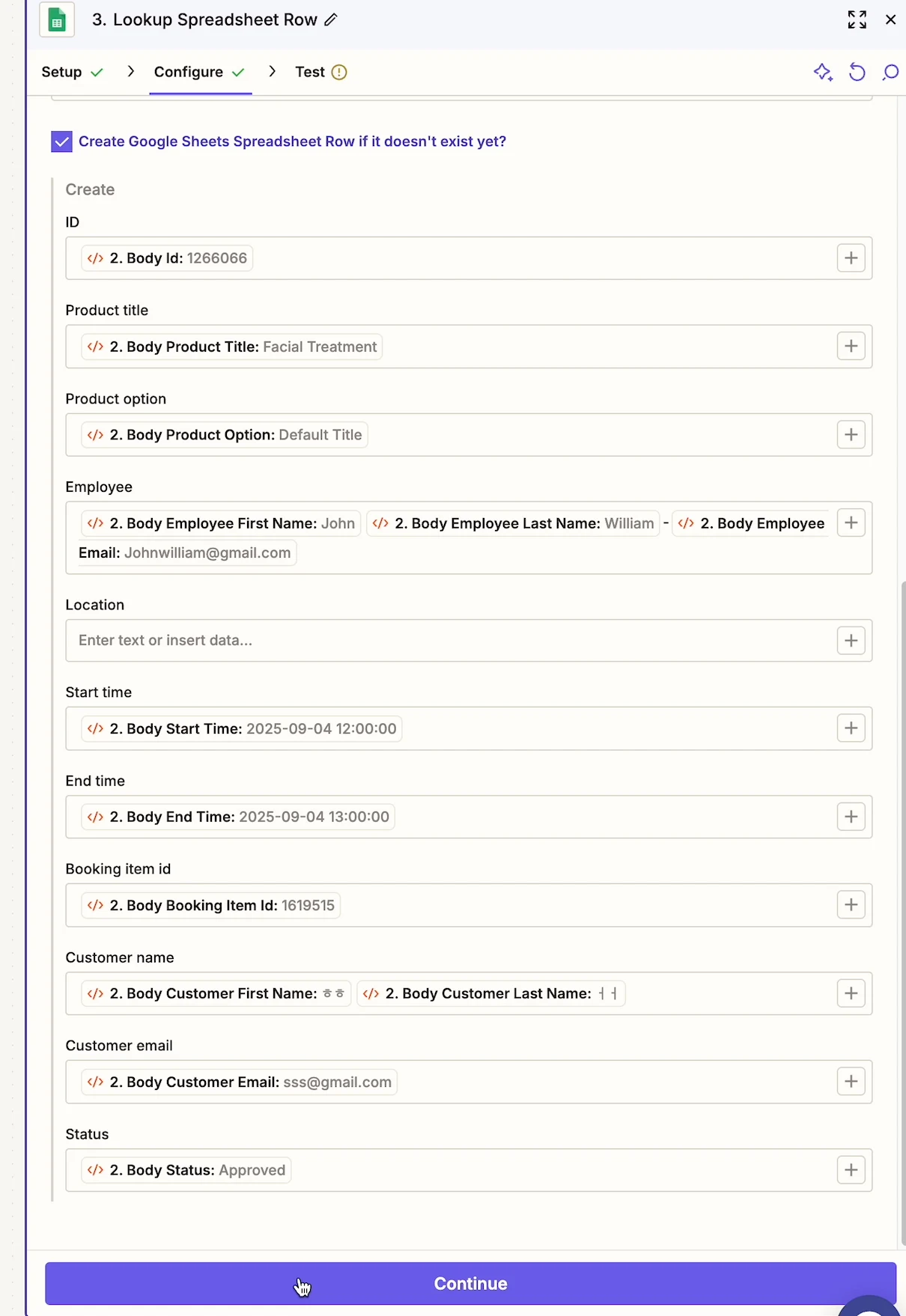
Step 8: Update the spreadsheet row
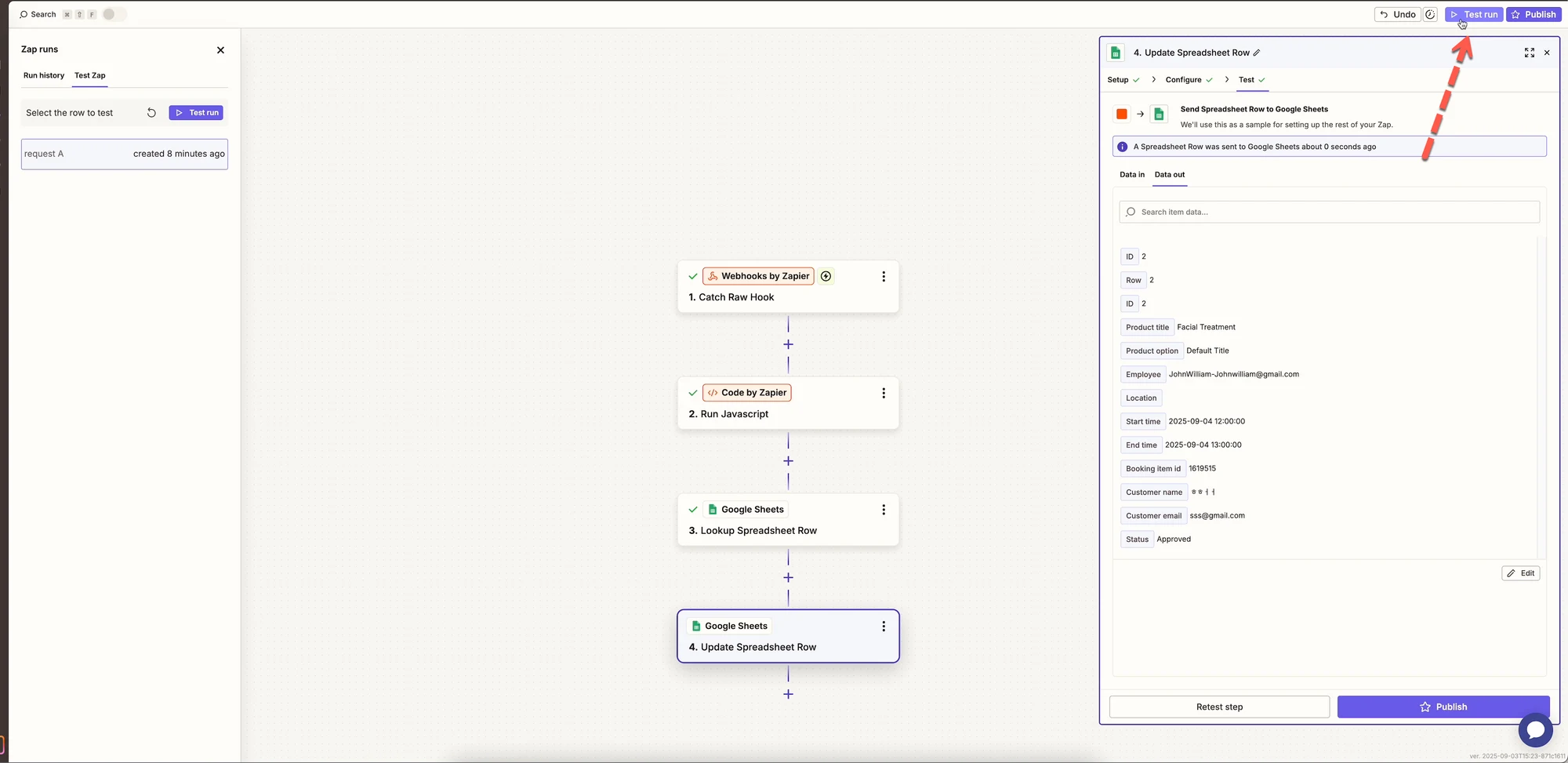
Section titled “Step 8: Update the spreadsheet row”- Add another step
- Choose Google Sheets
- Select Update Spreadsheet Row
- Map booking fields:
- Product title
- Employee name
- Start time
- End time
- Customer info
🚀 Publish your Zap
Section titled “🚀 Publish your Zap”- Review all steps
- Click Publish
- Your automation is now live 🎉
Bookings from Tipo will automatically trigger your workflow.
🔔 Supported booking events
Section titled “🔔 Supported booking events”Zapier receives data when a booking is:
- Created
- Updated
- Approved
- Canceled
- Rescheduled
💡 Tips & best practices
Section titled “💡 Tips & best practices”- Start with one simple Zap, then expand
- Use Google Sheets to test data first
- Add filters in Zapier to control when actions run
- Keep webhook URLs private
❓ Need help?
Section titled “❓ Need help?”If your Zap doesn’t trigger or data looks incorrect:
- Re-test the webhook
- Confirm Zapier is enabled in Tipo
- Contact Tipo Support with your Zap details
🙋 Still need support?
If you still need help, please feel free to contact us at hi@tipo.io. We’ll be happy to assist you further.