
Theme integration
AI Overview
Theme integration connects Tipo Appointment Booking to your Shopify theme so customers can see and book services on your storefront. Without it, the booking widget does not appear even if services and availability are set up. You can enable it on an unpublished theme to test first.
View moreView less
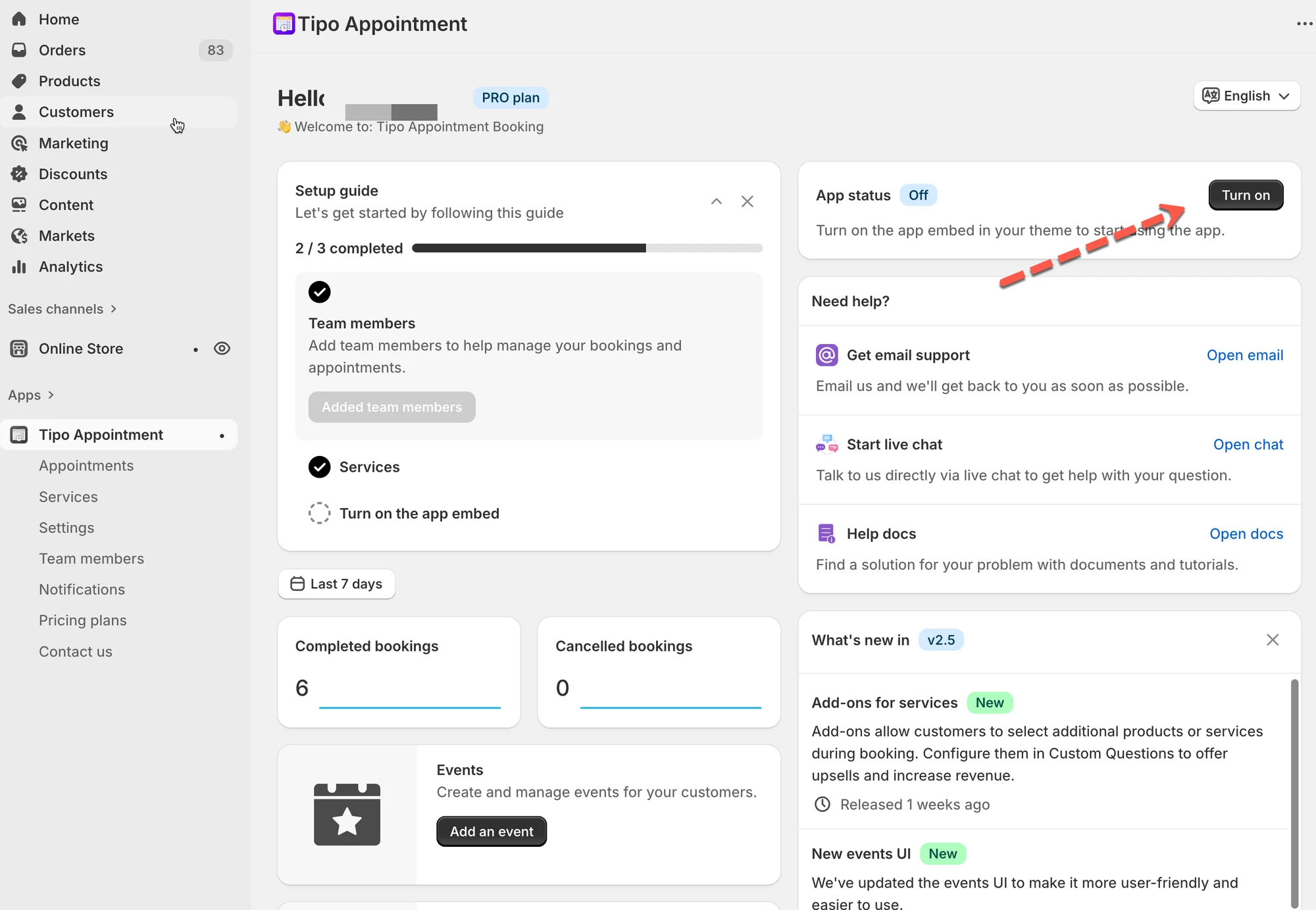
- On the app Dashboard, in App status, click Turn on to open the theme editor.
- Toggle on the Tipo Appointment Booking app block and click Save.
- Success: App status shows ON and widgets appear on the storefront.
- To remove it, click Turn off and disable the app block in the theme editor.
- If you switch themes, re-enable the app embed; the service must be Active, not Draft.
Summary generated by AI. It can make mistakes, so check the full guide below.
Theme integration connects Tipo Appointment Booking app to your Shopify theme so customers can actually see and book services on your storefront.
Without this step, the booking widget will not appear, even if your services and availability are set up correctly.
Learn more about app embed here.
Note: You can apply the app to an unpublished theme to test the app and avoid having any effect on your live site.
🧩 What Theme Integration Does
Section titled “🧩 What Theme Integration Does”When enabled, Tipo Appointment Booking:
- Injects booking functionality into your theme
- Allows widgets, popups, and app blocks to work
- Syncs storefront booking with the admin calendar
🛠️ Step-by-Step: Enable Theme Integration
Section titled “🛠️ Step-by-Step: Enable Theme Integration”1. Open the app Dashboard > App status section > click Turn on button
It directs you to the theme editor.
- In theme editor, find the app block of Tipo Appointment Booking app > toggle it on
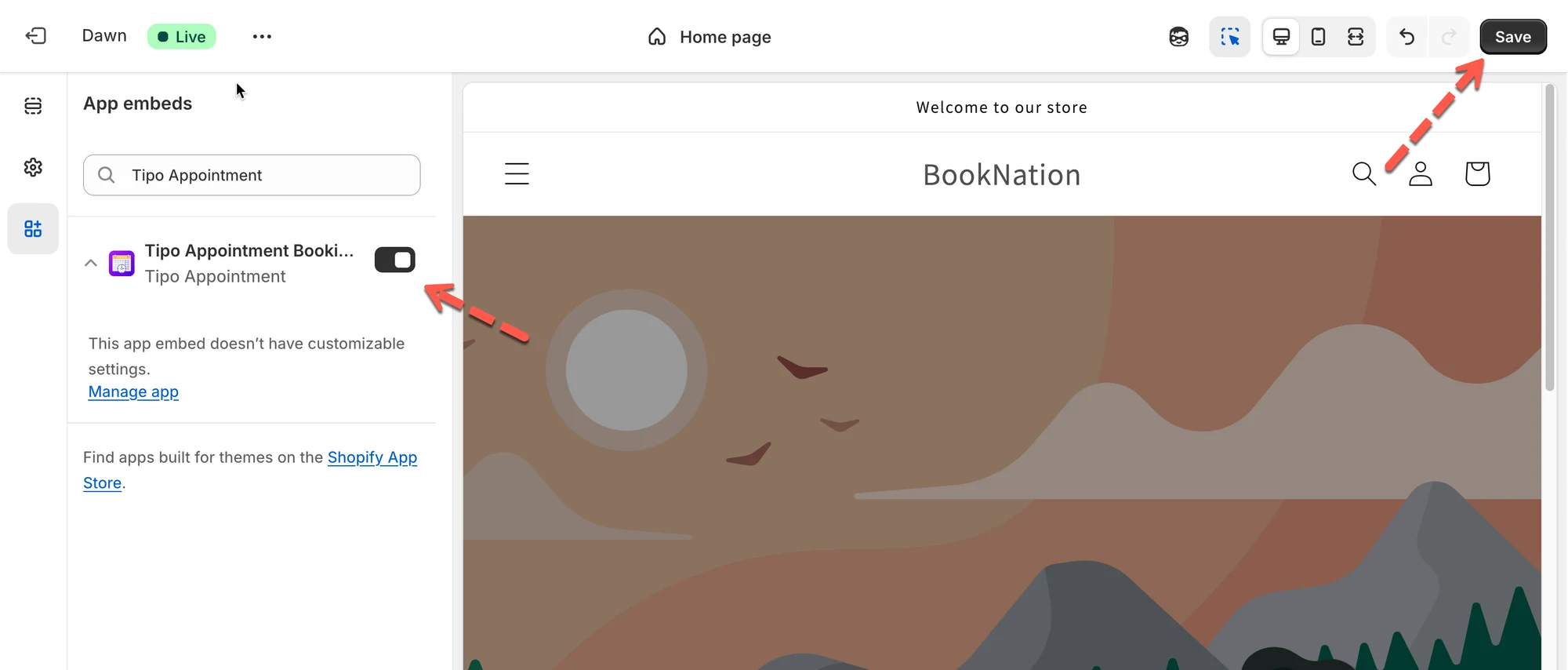
- Click Save to update the changes in theme editor.
✅ How to Confirm It’s Working
Section titled “✅ How to Confirm It’s Working”You’ll know theme integration is successful when:
- App status on the Tipo dashboard shows ON
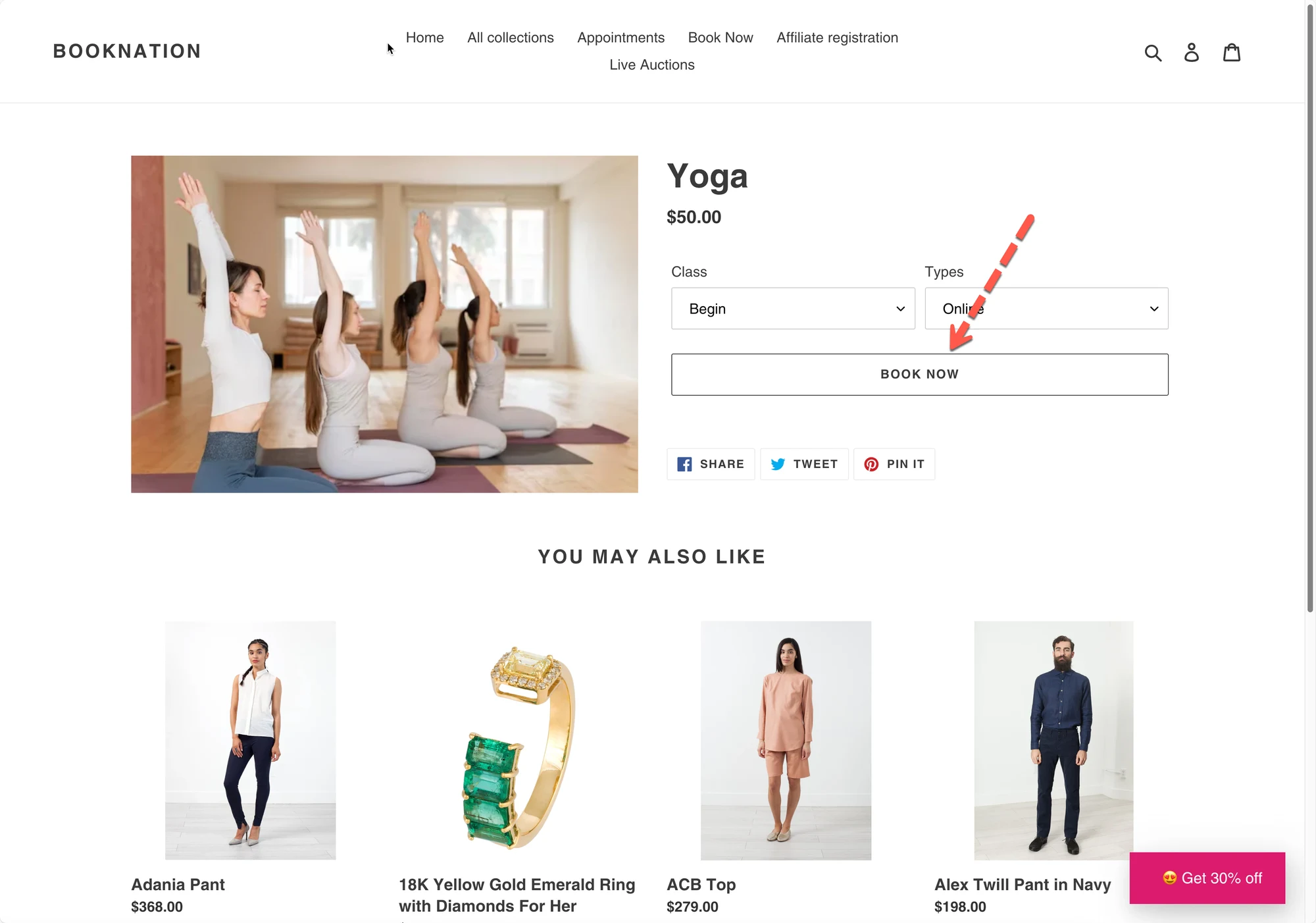
- Booking widgets or buttons appear on the storefront
- Customers can open the booking form and select time slots
Note:
- Please make sure you check the right theme (the theme the app is integrate into)
- If the app is integrated to an unpublished theme, please preview the theme to check the booking form.
🛠️ Uninstall the app from a theme
Section titled “🛠️ Uninstall the app from a theme”1. Open the app Dashboard > App satus > click Turn off button > it directs to the theme editor
2. In theme editor, disable the app block of Tipo Booking Booking
3. Click Save to update the changes in theme editor.
❌ Common Mistakes & Tips
Section titled “❌ Common Mistakes & Tips”“I don’t see the booking widget”
Section titled “ “I don’t see the booking widget””Make sure:
- Theme integration is enabled
- You added a widget, button, or embed shortcode
- The service is Active, not Draft
“Bookings work in admin but not on the site”
Section titled “ “Bookings work in admin but not on the site””This usually means:
- App embed is OFF
- Theme changes were not saved
If you switch Shopify themes, you must re-enable the app embed for the new theme.
▶️ Tutorial video
Section titled “▶️ Tutorial video”🙋 Still need support?
If you still need help, please feel free to contact us at hi@tipo.io. We’ll be happy to assist you further.