
Free Booking (Book without Payment)
AI Overview
Set up a free service in Tipo Appointment Booking so customers book a time slot without paying online. The app still creates the appointment and shows it in your calendar, but skips checkout. Use it for consultations, trials, in-person payments, or invoiced services; use Pay to book if customers must pay online.
View moreView less
- Go to Services > New service and choose a service type.
- Create the service product; set the price to $0, or keep a price, which the app ignores at checkout.
- Set capacity and duration, choose No payment required, and assign at least one team member under Availability.
- Set up the free form fields under Settings > Customer account, then click Save.
- No Shopify order is created unless you create one manually; you can change the service to Pay to book later.
Summary generated by AI. It can make mistakes, so check the full guide below.
Use Free booking when you want customers to book a time slot without paying online. The app will still create appointments and keep your calendar organized, no checkout step.
💡 When to use Free booking
Section titled “💡 When to use Free booking”Free booking works well for:
- Consultations / trials – first visit is free, you charge later if needed
- In-person services paid on site – pay in cash or card at your location
- School visits / tours / demo sessions – booking only, no fee
- Services handled by invoice – you bill customers manually afterwards
If you need customers to pay online, use Paid services (Pay to book) instead.
Demo: https://demo-app-v2-tipo-appointment-booking.myshopify.com/products/couples-spa-package (password: 1234)
⚙️ How to set up a Free service
Section titled “⚙️ How to set up a Free service”Step 1: Open Services
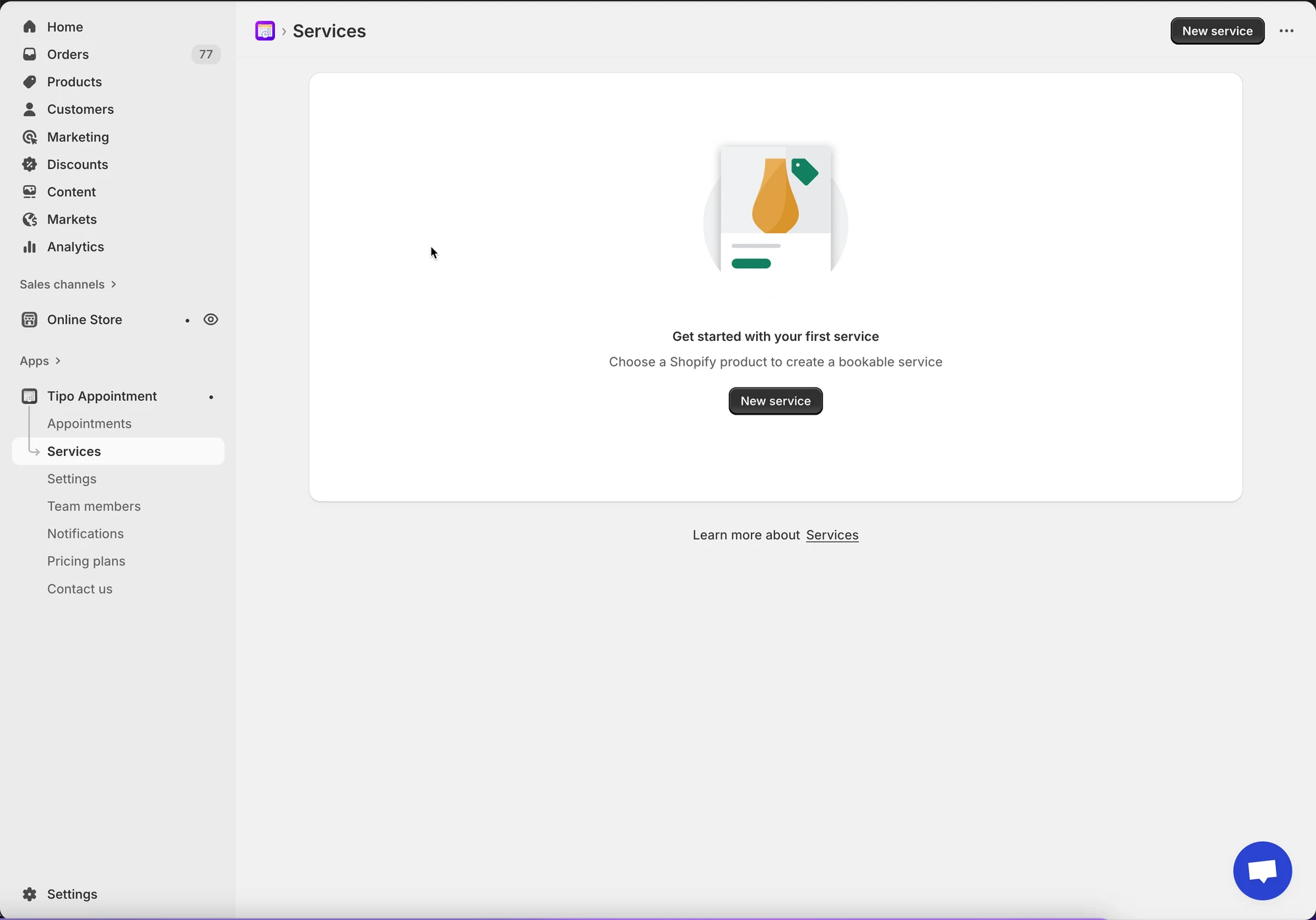
Section titled “Step 1: Open Services ”- Open the app > click Services
- Click New service button
Steps 2: Choose a service type
Section titled “Steps 2: Choose a service type ”Full-day booking
Best for services that take a whole day (event rental, photoshoot day).
- Customers book an entire day
- Paid via Shopify checkout
Regular booking
Best if you collect payment offline.
- Customers book a time slot
- No Shopify checkout required
Multi-day booking (without checkout)
- Customers book multiple days
- No checkout
Step 3: Create the service product in Shopify
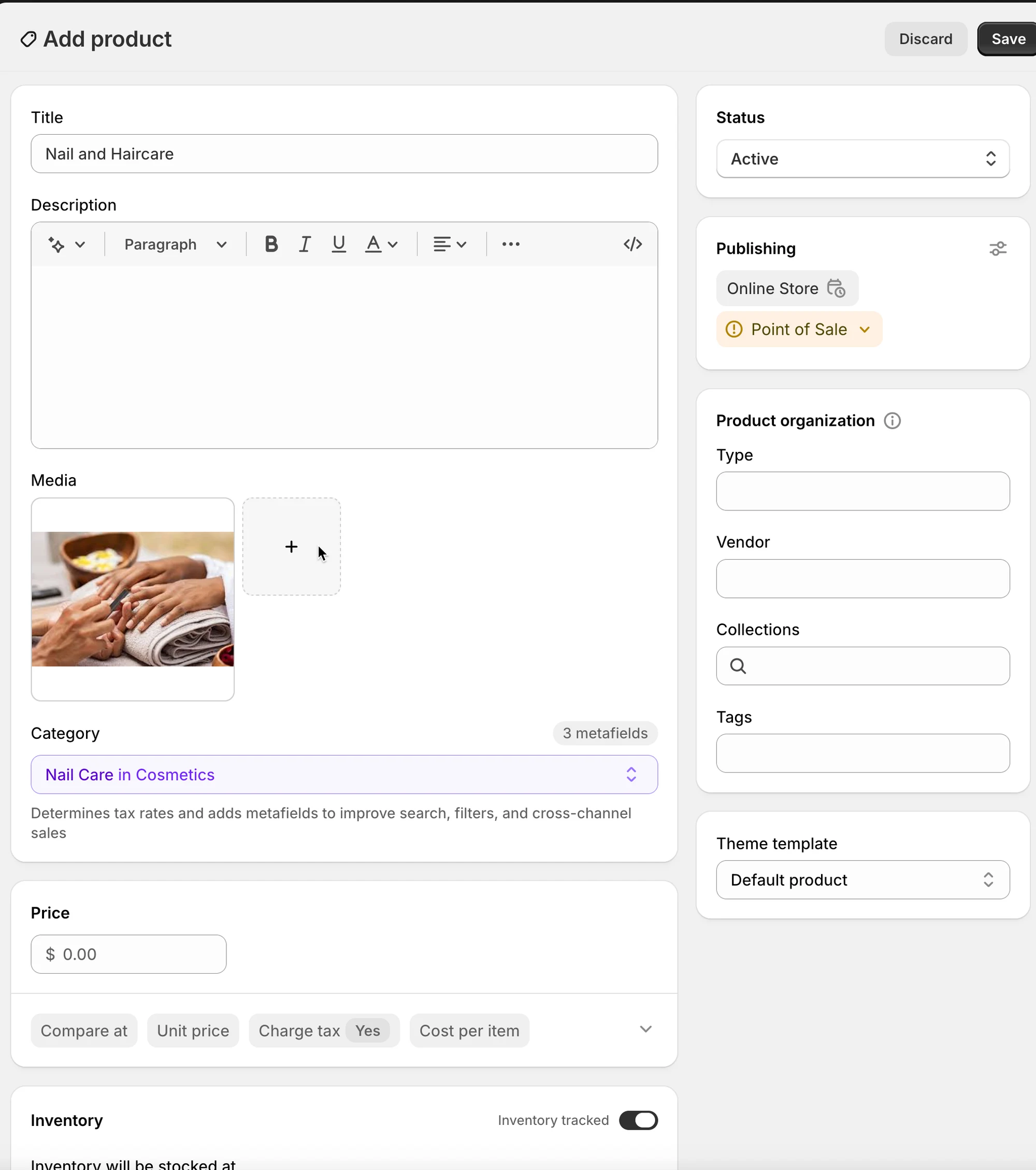
Section titled “Step 3: Create the service product in Shopify ”The app creates/uses a Shopify Product for your service. In the Add product screen:
- Title: e.g., Yoga class
- Status: Active
- Price:
- Set the price to $0, or
- Keep a regular price (if you still want to show a value), the app will ignore it for checkout when using free booking.
Click Save.
Step 4: Configure service settings
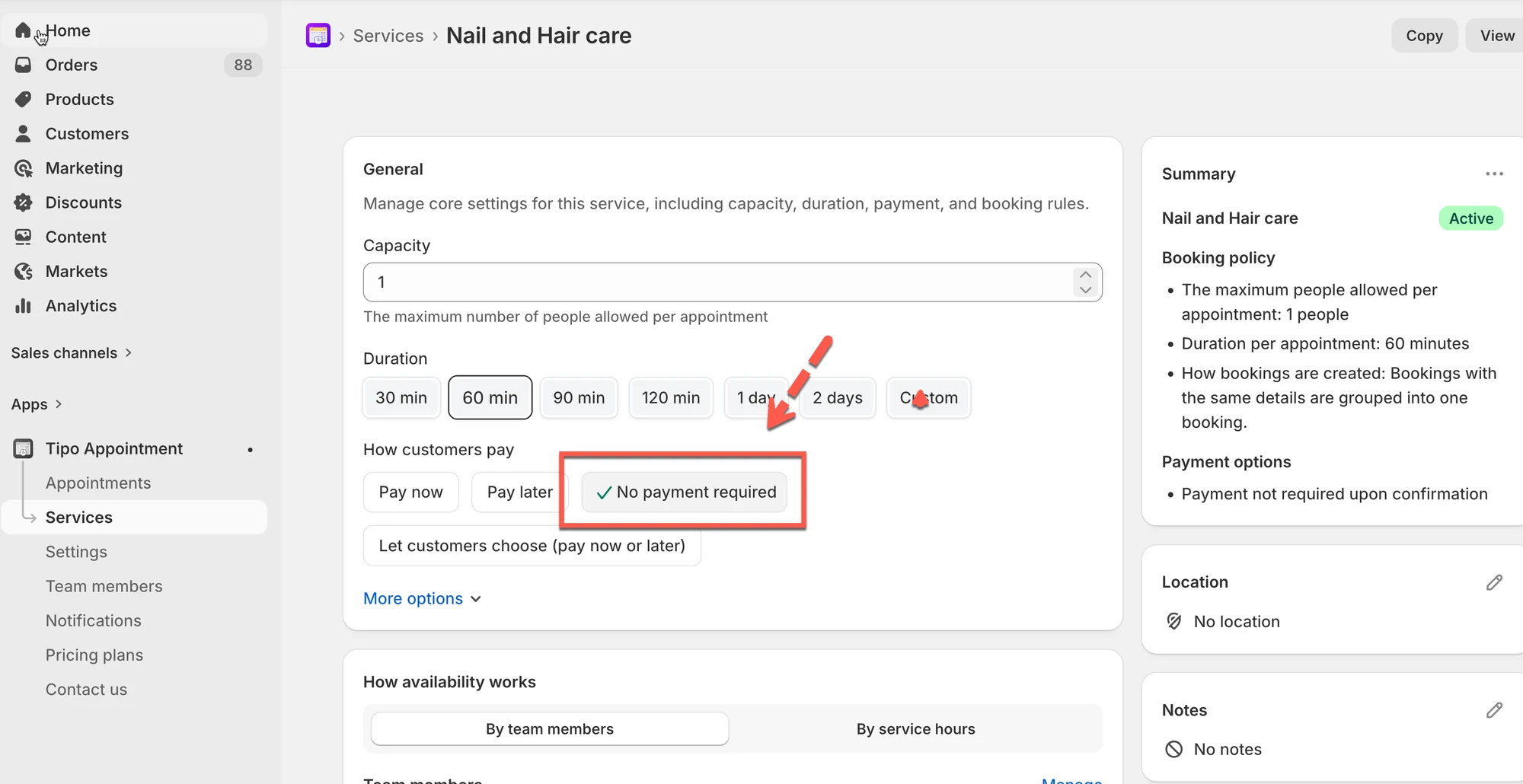
Section titled “Step 4: Configure service settings ”👥 Capacity
Set how many people can book the same time slot.
- Example:
1for 1-on-1 appointments - Example:
5for group sessions
⏱️ Duration
Choose how long each booking takes:
- Quick buttons (30, 60, 90, 120 min…)
- Or Custom
- If your service supports it, you can choose:
- Less than a day
- Multiple days
Example: Haircut = 60 min
Step 5: Choose payment type
Section titled “Step 5: Choose payment type ”Choose No payment required
Step 6: Set Availability
Section titled “Step 6: Set Availability ”In the Availability section, click Manage
- Assign team members to this service (required). If you have not had a team member, create a new one.
- Their schedules determine what time slots are available
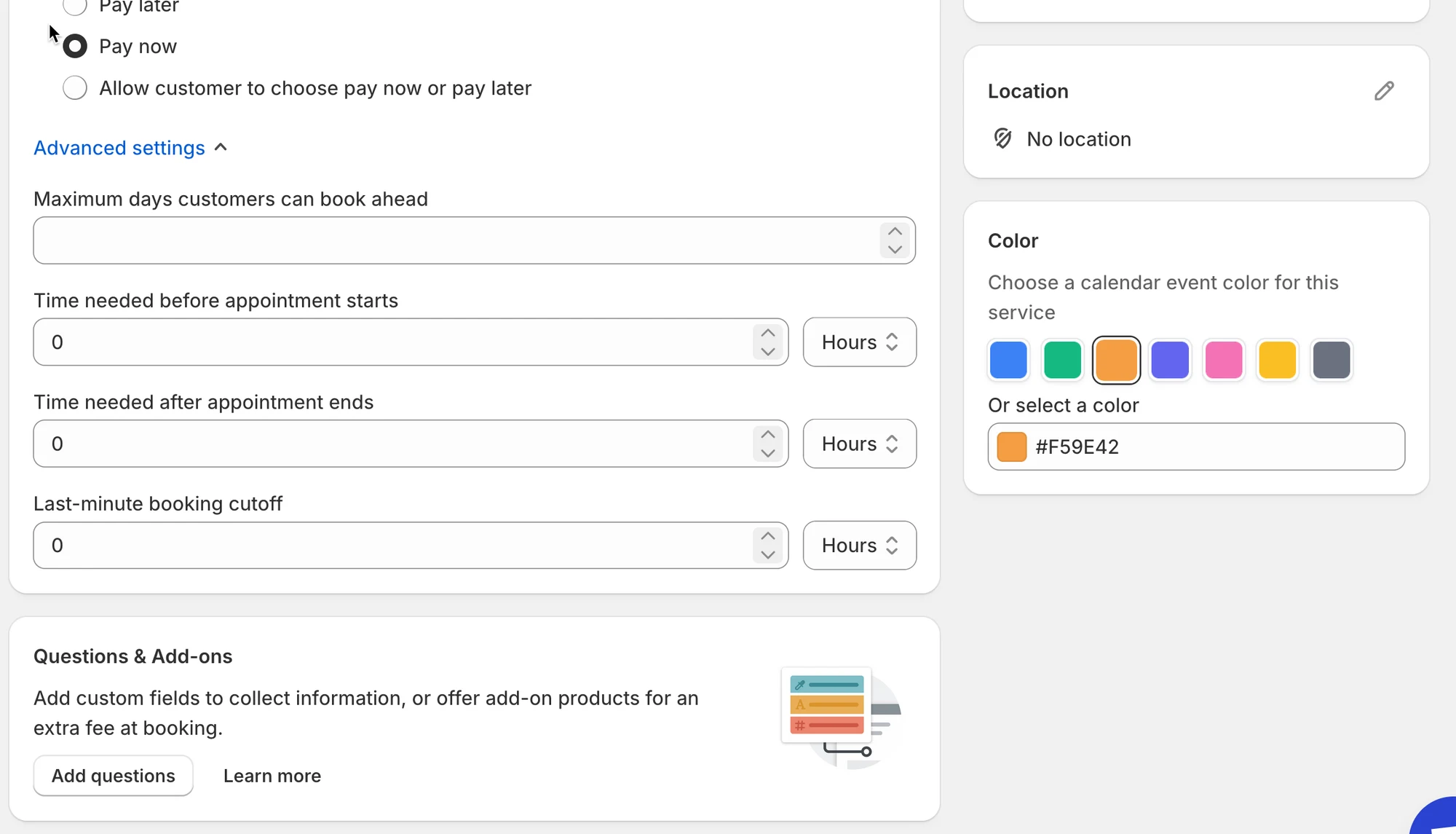
Step 7: Customize more settings (Optional)
Section titled “Step 7: Customize more settings (Optional) ”- In Location field, enter the location of the service
- Color: helps identify bookings in the calendar
- Questions & Add-ons: collect info (name, preferences) or sell add-ons
- Advanced settings: booking rules, lead time, buffer time, etc. (if available)
Step 8: Save your changes
Section titled “Step 8: Save your changes”🛠️ Set up free form
Section titled “🛠️ Set up free form”Next, set up custom fields to collect customer data for the free appointment:
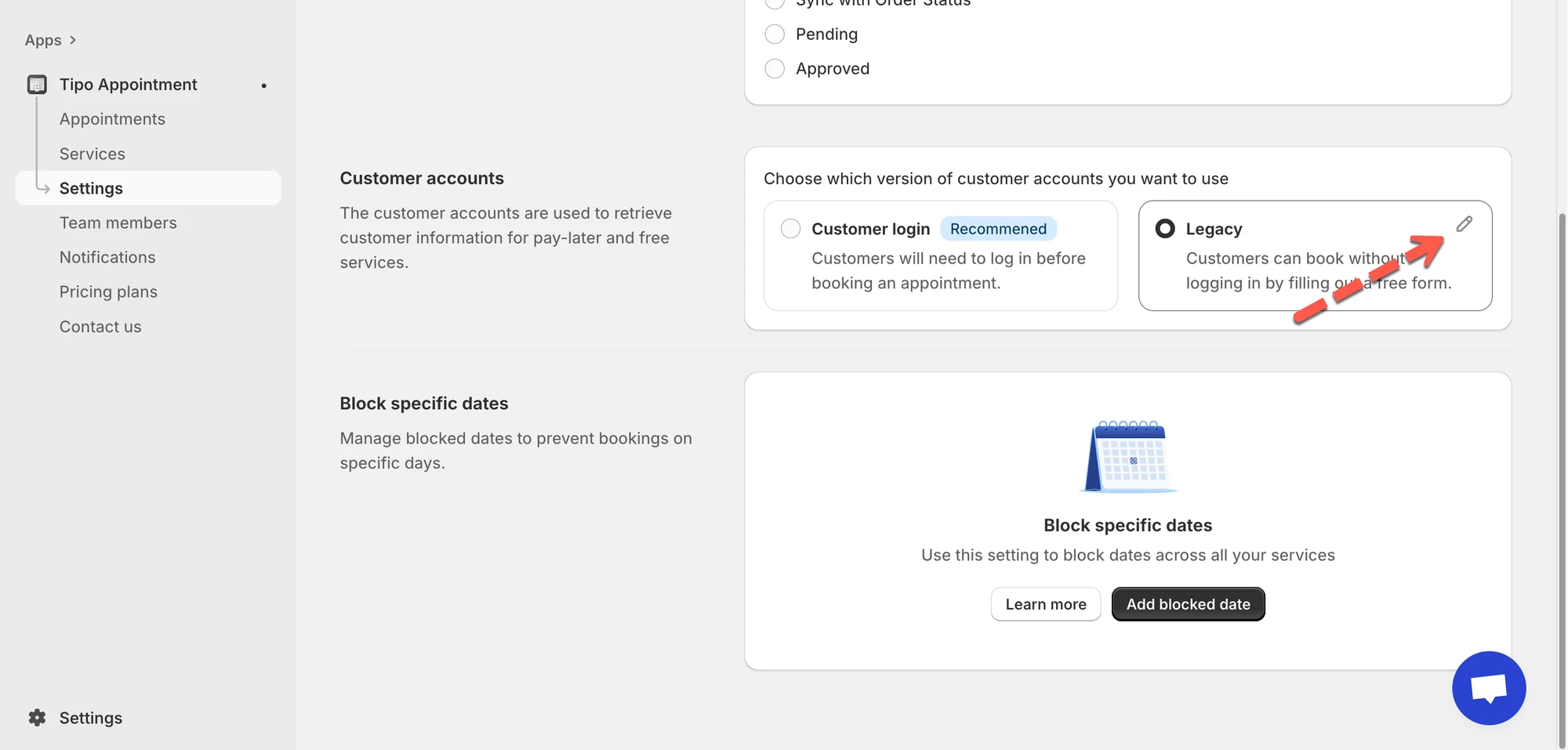
- Open the app > click Settings > scroll down to Customer account
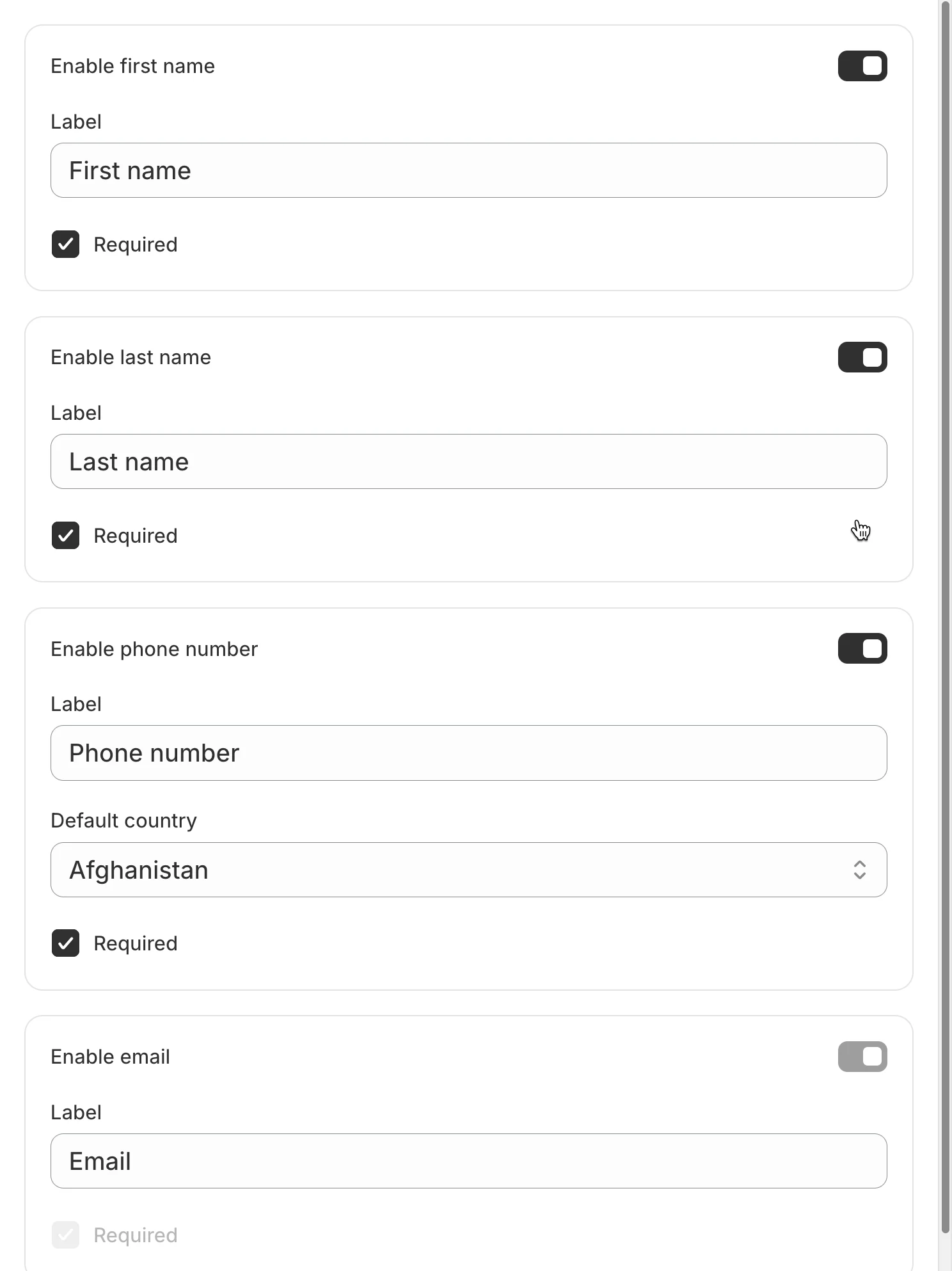
- Enable the field(s) you want to show
- Set up field label and set as required if needed
- Click Save
🌐 How it works on your storefront
Section titled “🌐 How it works on your storefront ”- Customer opens the service product page.
- Clicks the Book now / Schedule button.
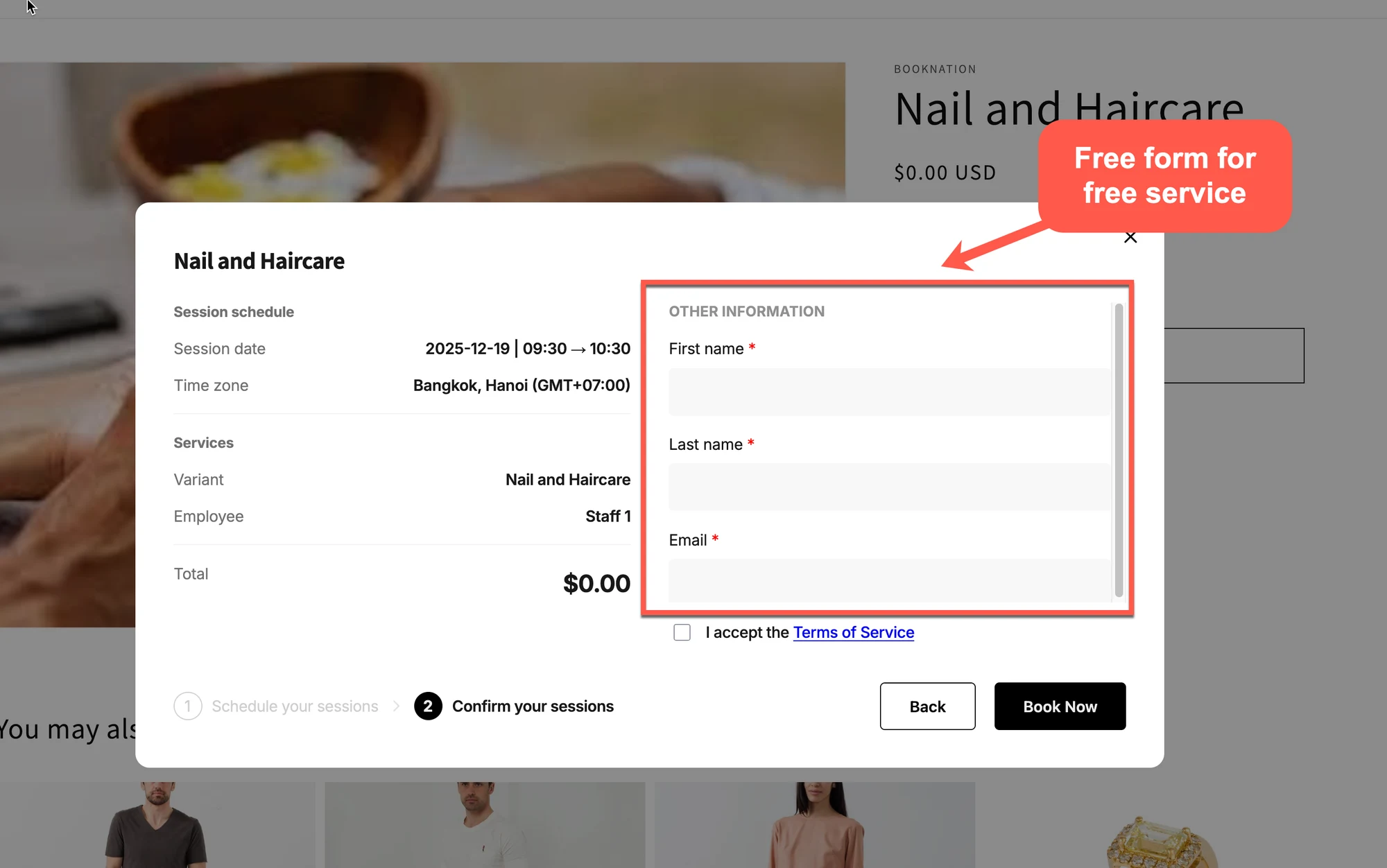
- Chooses date, time, and fills in their details.
- Clicks Confirm booking.
Because the service is “No payment required”:
- There is no payment method step.
- Shopify checkout is skipped.
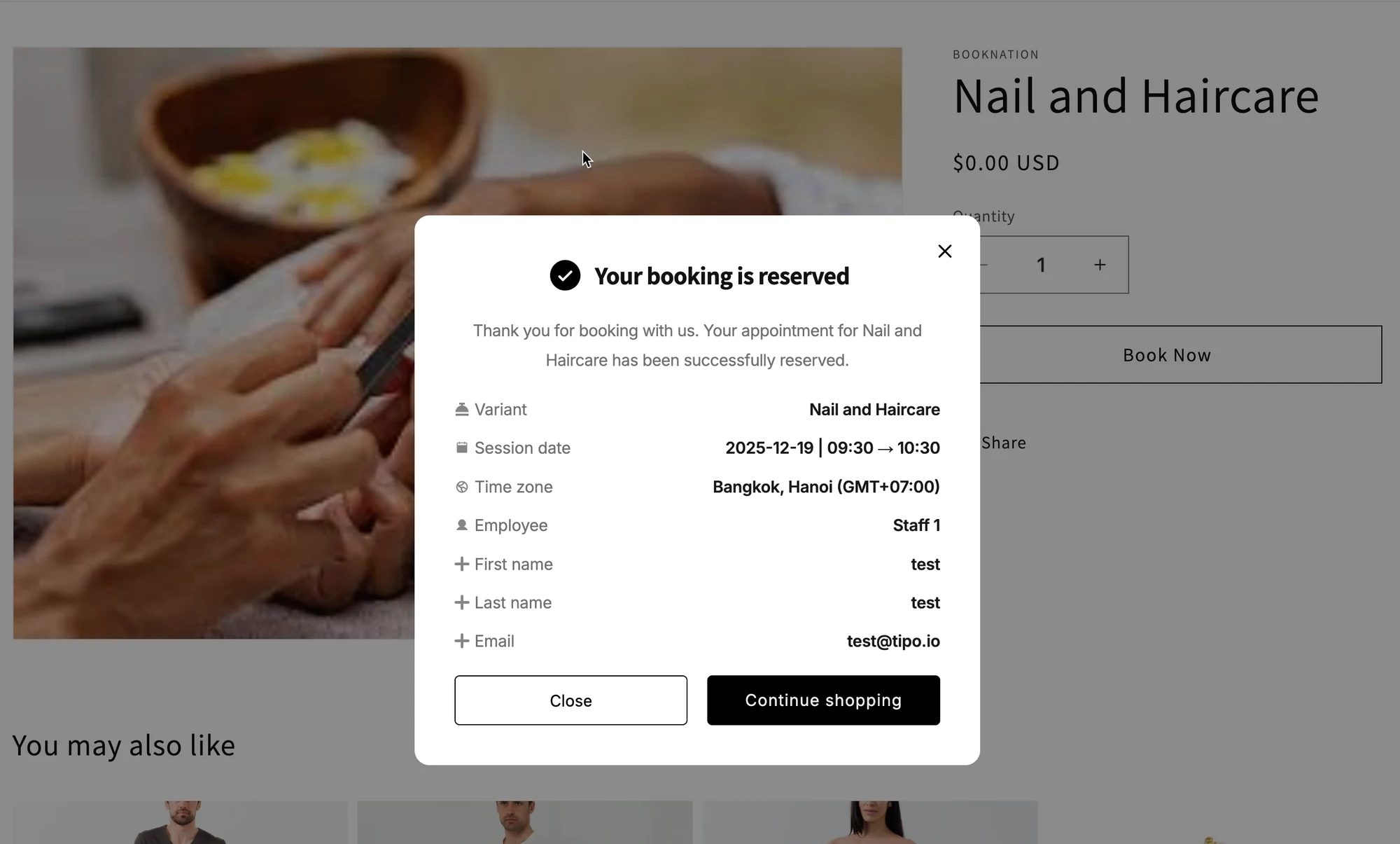
- The appointment is created immediately and appears in your app & calendar.
📋 How it looks in admin
Section titled “📋 How it looks in admin”After a customer books:
- You’ll see the appointment under Appointments in Tipo.
- The order/payment section in Shopify is not created for this booking (unless you manually create one).
- You can still:
- Reschedule
- Cancel
- Add notes
▶️ A Tutorial video
Section titled “▶️ A Tutorial video ”✅ Quick comparison: Free vs Paid services
Section titled “✅ Quick comparison: Free vs Paid services”| Type | Booking flow | Best for |
|---|---|---|
| Book without payment | Customer books → appointment created → no checkout | Free |
| Pay to book – Pay now | Customer books → goes to checkout → pays immediately | Paid appointments |
| Pay to book – Pay later | Customer books → appointment created → invoice sent | Invoice / offline payment workflows |
Q: Can I change a free service to paid later?
Section titled “Q: Can I change a free service to paid later?”Yes. Just edit the service, change Choose payment type to Pay to book, and save
Q: Will customers still get confirmation emails?
Section titled “Q: Will customers still get confirmation emails?”Yes. Confirmation and reminder emails (if enabled) work the same for free and paid bookings.
Q: Do I need a price set in Shopify for free bookings?
Section titled “Q: Do I need a price set in Shopify for free bookings?”Not required. You can set the price to $0 or leave your normal price, the important part is the “Book without payment” option inside Tipo.
🙋 Still need support?
If you still need help, please feel free to contact us at hi@tipo.io. We’ll be happy to assist you further.