
Create an App Password for Google
AI Overview
If you use Gmail SMTP for Tipo email notifications, Google usually requires an app password instead of your normal Google password. An app password is a 16-character password you generate after turning on 2-Step Verification, then paste into Tipo's SMTP settings.
View moreView less
- Turn on 2-Step Verification in your Google Account under Security.
- Open the App passwords page, choose Mail (or Other / Custom name) and a device, then click Generate.
- Copy the 16-character app password.
- In Tipo, go to Notifications > Merchant, select Your own SMTP in Provider, paste it in Password, and click Save.
Summary generated by AI. It can make mistakes, so check the full guide below.
If you use Gmail SMTP for Tipo email notifications, Google usually requires an App password (not your normal Google password). An app password is a special 16-character password you generate after turning on 2-Step Verification.
🔐 Step 1: Log in your Google account
Section titled “🔐 Step 1: Log in your Google account”First, log into your Google account here
🧩 Step 2: Turn on 2-Step Verification
Section titled “🧩 Step 2: Turn on 2-Step Verification”- Open your Google Account > go to Security
- Under How you sign in to Google, turn on 2-Step Verification
Follow the steps [here](https://support.google.com/accounts/answer/185839?co=GENIE.Platform%3DDesktop\&hl=en\)
🔑 Step 3: Generate an app password
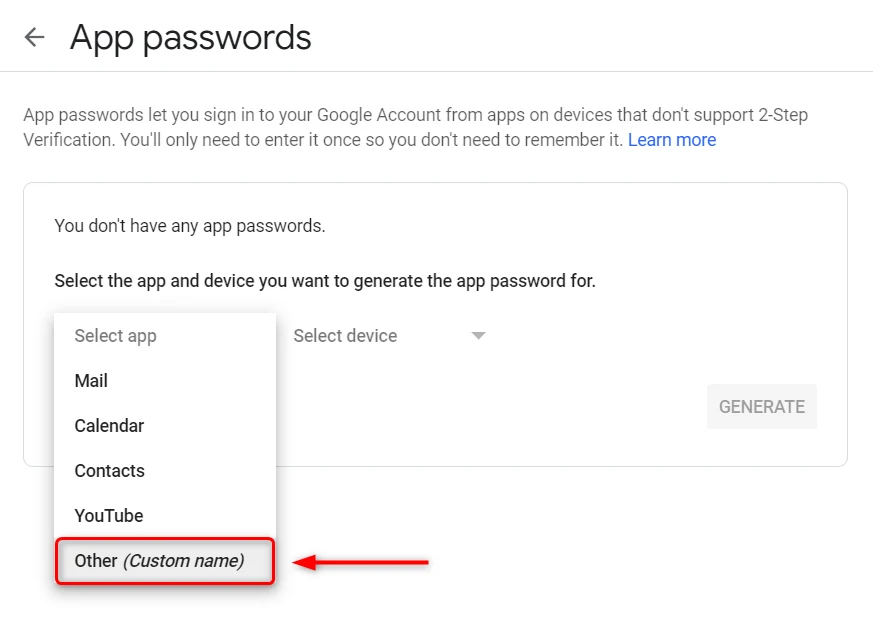
Section titled “🔑 Step 3: Generate an app password”- Go to the App passwords page:
https://myaccount.google.com/apppasswords - In Select app, choose Mail (or choose Other / Custom name)
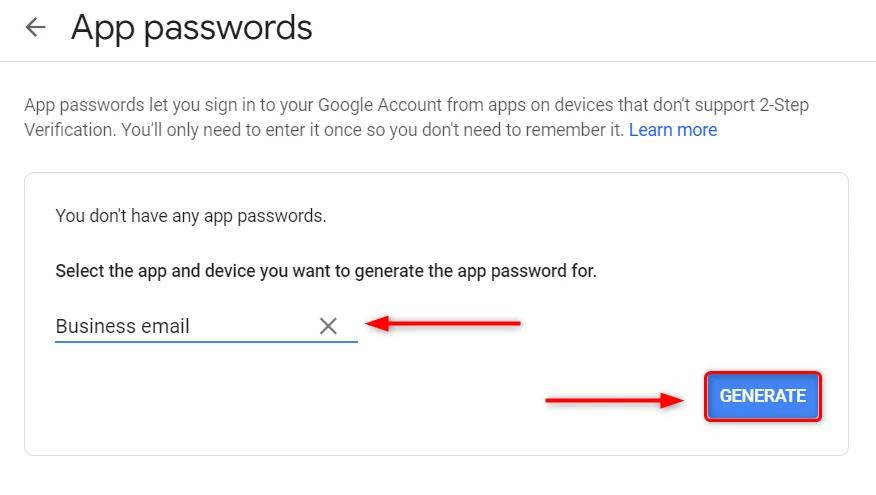
- In Select device, choose a device (or use Other and name it like
Tipo SMTP) - Click Generate
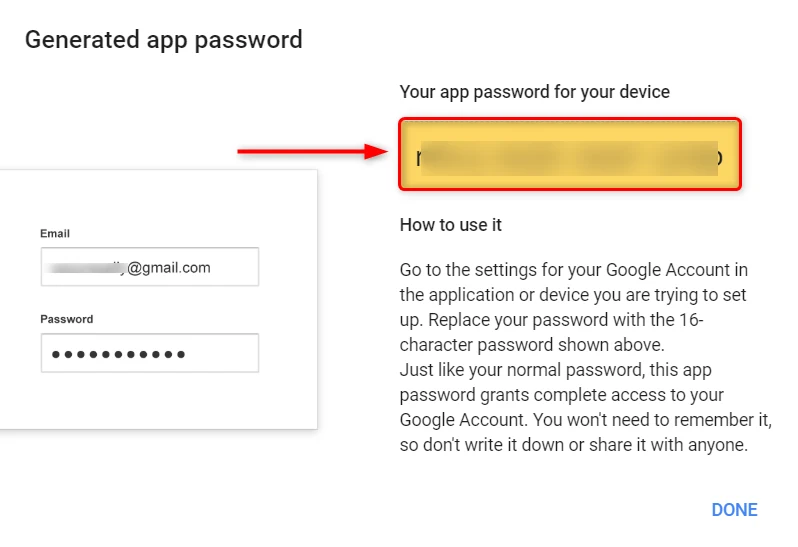
- Copy the generated 16-character app password (you’ll use it in Tipo)
]
🔗 Step 4: Paste the app password into Tipo SMTP settings
Section titled “🔗 Step 4: Paste the app password into Tipo SMTP settings”- Open Tipo app > Go to Notifications > click Merchant tab
- Find Provider section > select Your own SMTP
- In the Password field, paste the app password you generated (not your Google password)
- Click Save
🙋 Still need support?
If you still need help, please feel free to contact us at hi@tipo.io. We’ll be happy to assist you further.