
为 Google 创建应用专用密码
AI 概览
如果您使用 Gmail SMTP 发送 Tipo 电子邮件通知,Google 通常要求使用应用专用密码,而不是您常用的 Google 密码。应用专用密码是在开启两步验证后生成的 16 位密码,您需要将其粘贴到 Tipo 的 SMTP 设置中。
查看更多收起
- 在您的 Google 账号的 Security 下开启 2-Step Verification。
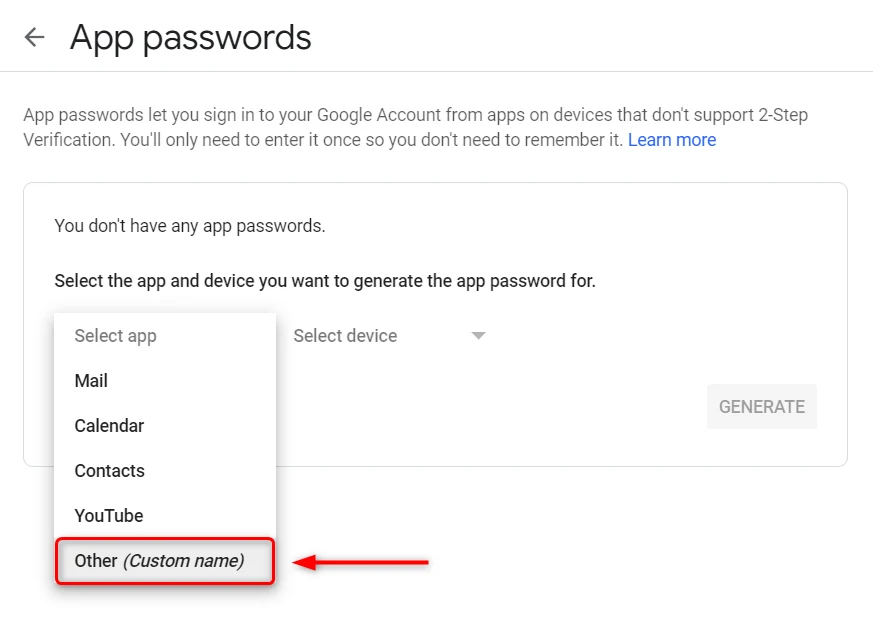
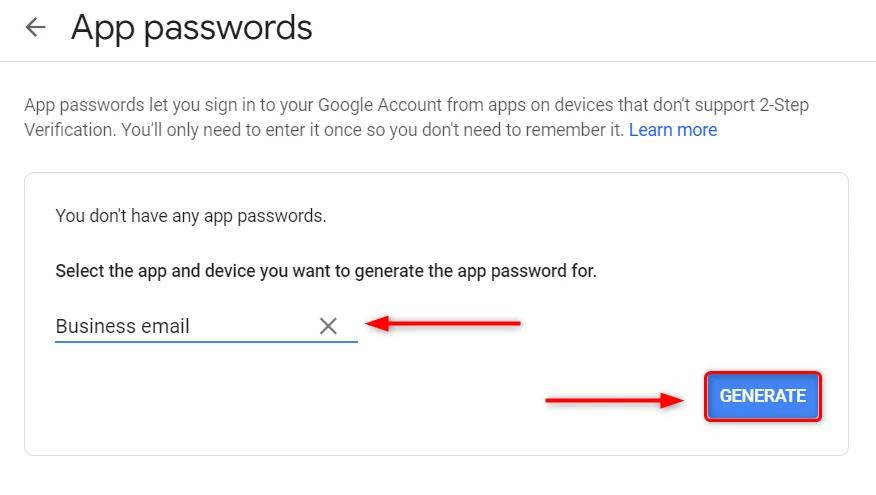
- 打开 App passwords 页面,选择 Mail(或 Other / Custom name)和一台设备,然后点击 Generate。
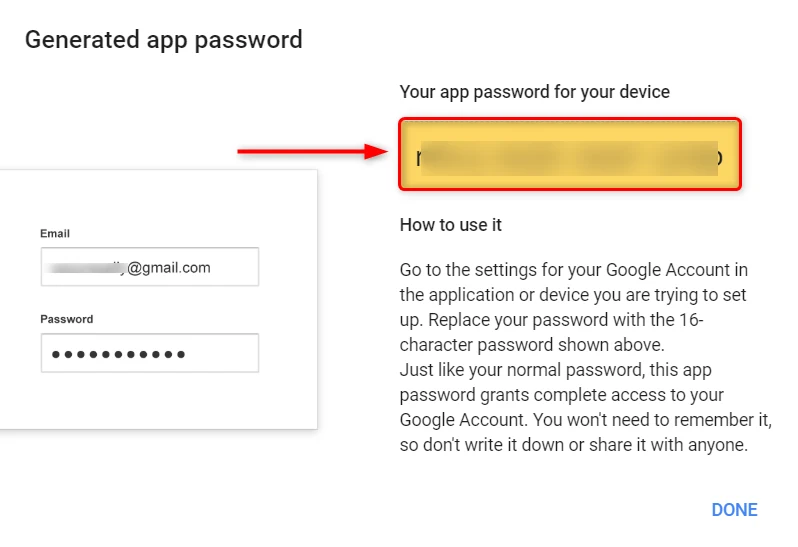
- 复制 16 位应用专用密码。
- 在 Tipo 中,进入 Notifications > Merchant,在 Provider 中选择 Your own SMTP,将其粘贴到 Password,然后点击 Save。
由 AI 生成的摘要,可能存在错误,请查看下方的完整指南。
如果您将 Gmail SMTP 用于 Tipo 邮件通知,Google 通常要求使用应用专用密码(而不是您平时的 Google 密码)。应用专用密码是在开启两步验证后生成的 16 位特殊密码。
🔐 第 1 步:登录您的 Google 账号
Section titled “🔐 第 1 步:登录您的 Google 账号”首先,请在此登录您的 Google 账号
🧩 第 2 步:开启两步验证
Section titled “🧩 第 2 步:开启两步验证”- 打开您的 Google Account > 前往 Security
- 在 How you sign in to Google 下,开启 2-Step Verification
请按照[此处](https://support.google.com/accounts/answer/185839?co=GENIE.Platform%3DDesktop\&hl=en\)的步骤操作
🔑 第 3 步:生成应用专用密码
Section titled “🔑 第 3 步:生成应用专用密码”- 前往 App passwords 页面:
https://myaccount.google.com/apppasswords - 在 Select app 中选择 Mail(或选择 Other / Custom name)
- 在 Select device 中选择一个设备(或使用 Other 并命名,例如
Tipo SMTP) - 点击 Generate
- 复制生成的 16 位应用专用密码(您将在 Tipo 中使用它)
]
🔗 第 4 步:将应用专用密码粘贴到 Tipo SMTP 设置中
Section titled “🔗 第 4 步:将应用专用密码粘贴到 Tipo SMTP 设置中”- 打开 Tipo 应用 > 前往 Notifications > 点击 Merchant 标签页
- 找到 Provider 部分 > 选择 Your own SMTP
- 在 Password 字段中,粘贴您生成的应用专用密码(不是您的 Google 密码)
- 点击 Save
🙋 还需要支持吗?
如果您仍需要帮助,请随时通过 hi@tipo.io 联系我们。我们很乐意为您提供进一步协助。