
Why I have to enable the add to cart button?
AI Overview
Tipo Appointment Booking finds the Buy Button (Add to Cart button) in your Shopify theme and replaces it with a Book Now button on products where booking is enabled. For that to work, the Buy Button must be enabled and not hidden in your theme's product template. If it's missing or disabled, the app cannot show the booking button.
View moreView less
- Go to Online Store > Themes > Customize and open the product template.
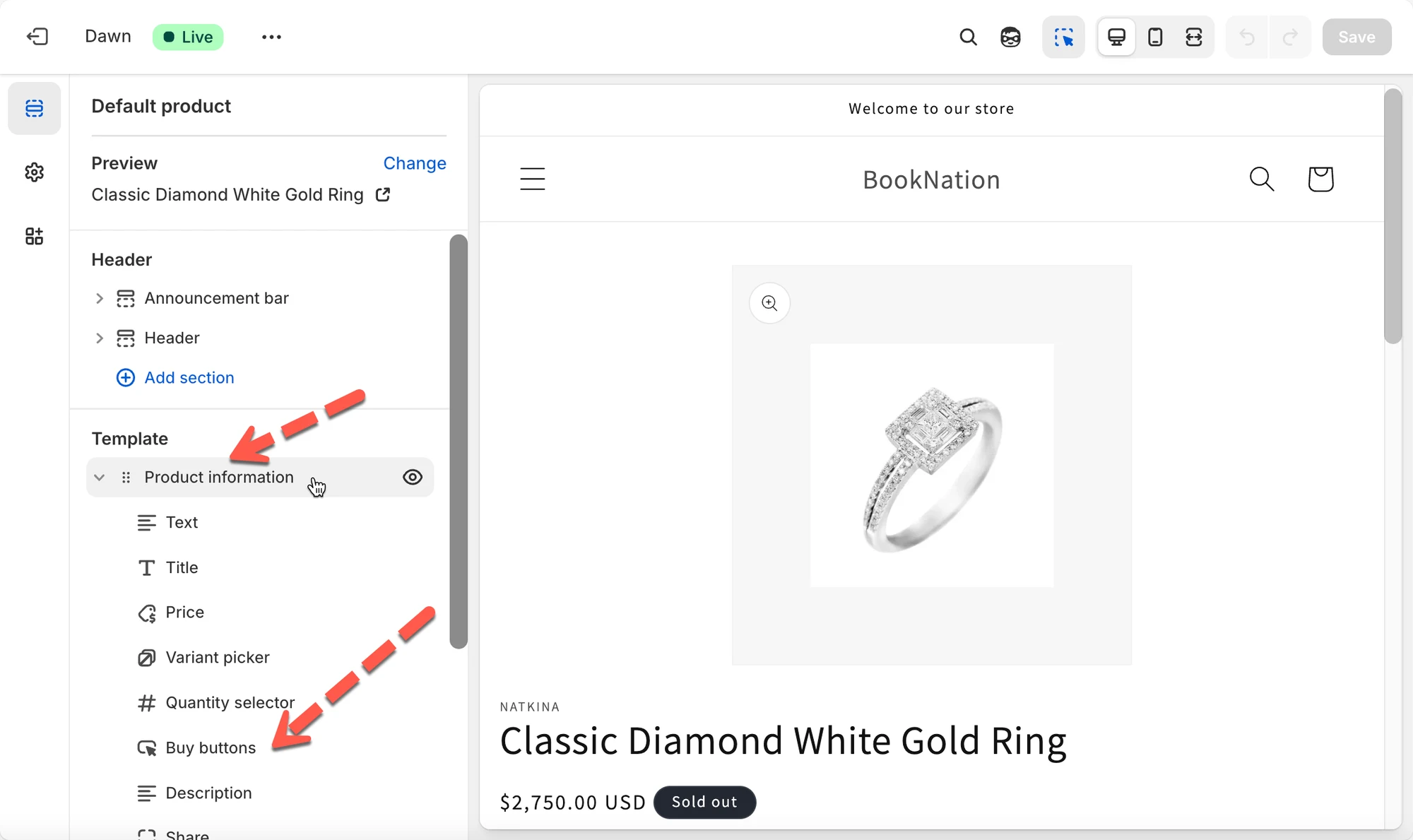
- Find Buy buttons, Product information → Buy buttons, or Add to cart button, depending on your theme.
- Make sure the block is not hidden, then click Save.
- The app detects the Buy Button and replaces it with Book Now on booking-enabled products.
Summary generated by AI. It can make mistakes, so check the full guide below.
Our app works by detecting the Buy Button (Add to Cart button) in your Shopify theme.
To show the Book Now button correctly, the Buy Button must be enabled and visible in your theme.
Steps
- Go to your Shopify Admin > click Online Store → Themes > click Customize on your current theme
- In the top navigation of the editor, open the Page Selector > select Products → Default product (or your custom product template)
- On the left sidebar, look for:
- Buy buttons
- Product information → Buy buttons
- Add to cart button
Depending on your theme, it may appear under Product Information or as a standalone block.
- Inside the Buy Button / Add to Cart block, ensure the block is not hidden
- Click Save
Our app automatically:
- Detects your Buy Button from the theme
- Replaces it with our Book Now button on products where booking is enabled
If the Buy Button is missing or disabled, our app cannot display the booking button.
If still not found, please feel free to contact our support at hi@tipo.io and we will help you enable it.
🙋 Still need support?
If you still need help, please feel free to contact us at hi@tipo.io. We’ll be happy to assist you further.