
Why is the booking form not showing?
AI Overview
Fix a missing booking form on a Shopify product page after you create a service in Tipo Appointment Booking. Work through the checklist: theme, product status, sales channel, and the theme's Buy/Add to cart button. If the form still doesn't appear, contact support with your store URL, product URL, theme name, and an app embed screenshot.
View moreView less
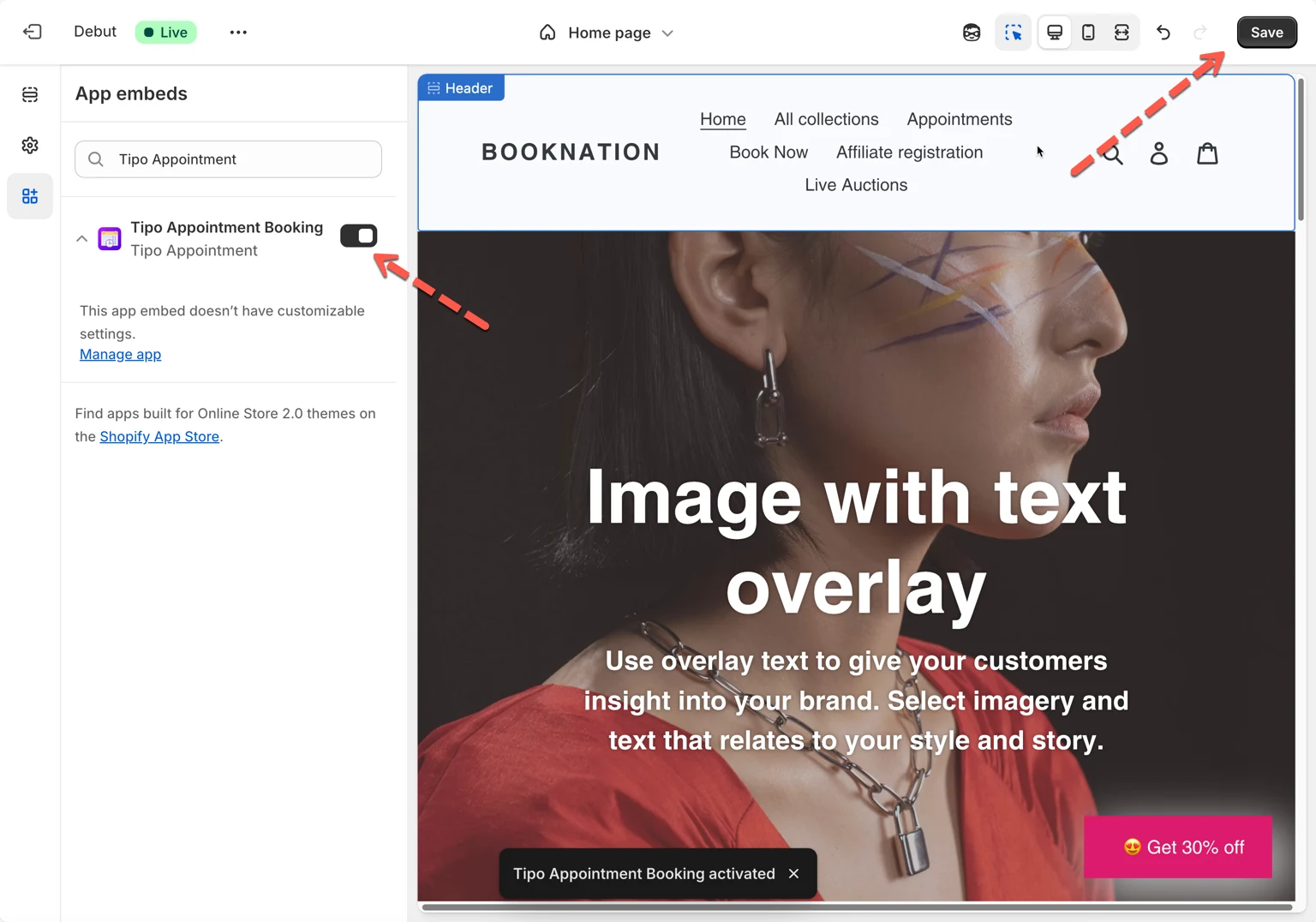
- Make sure the app embed is enabled on the live theme, not an unpublished one.
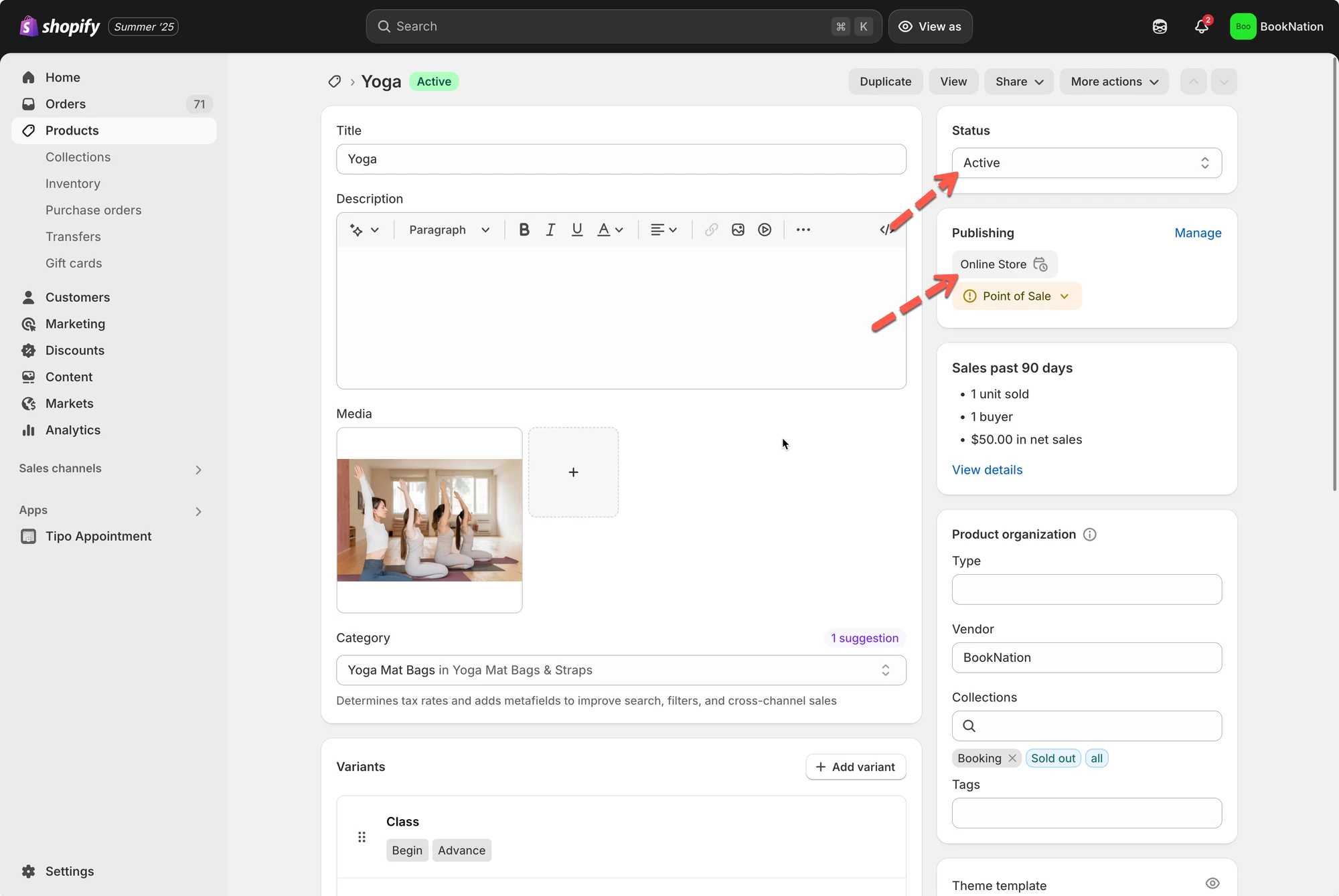
- Set the service product's Product status to Active.
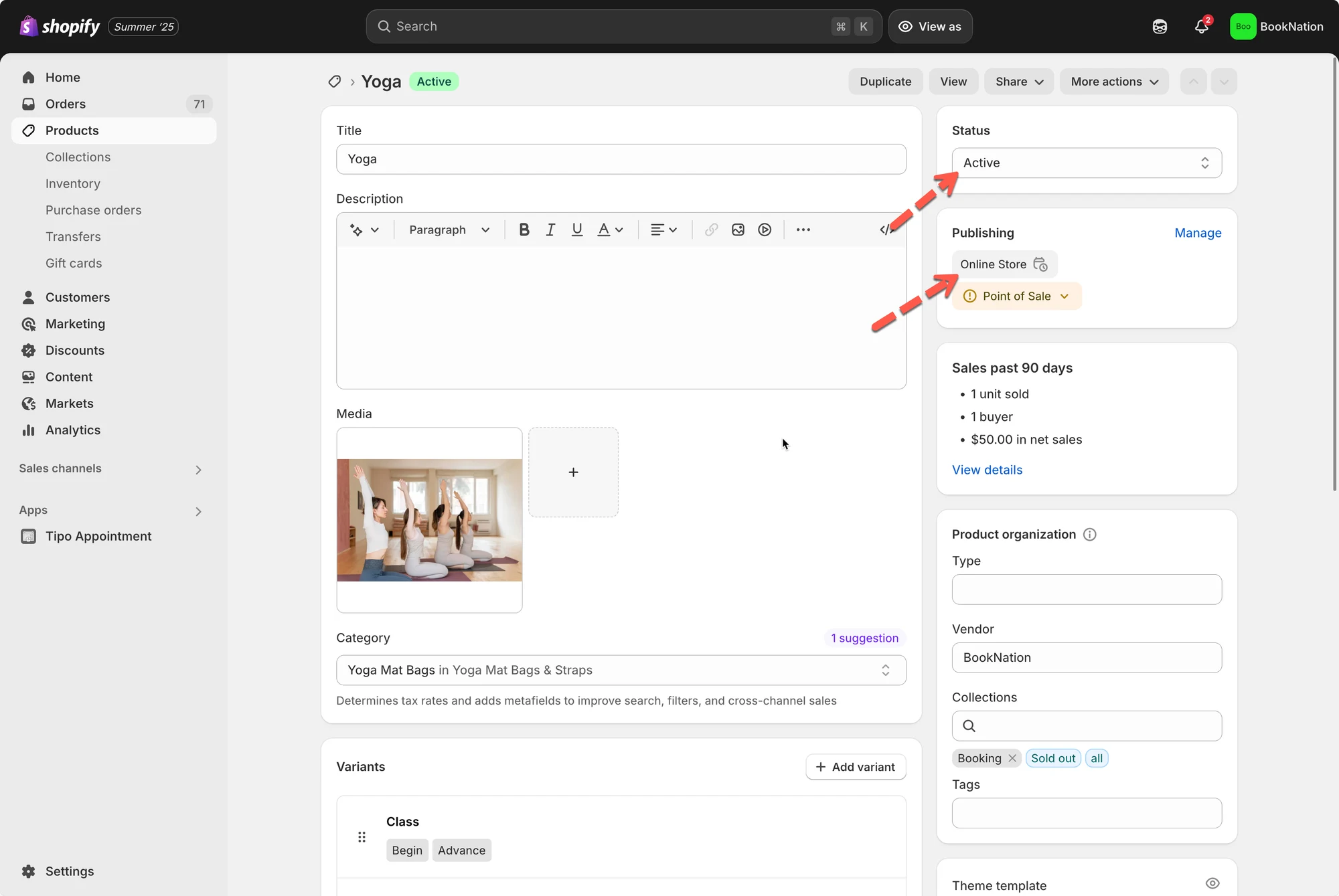
- Check Online Store is selected under Sales channels and apps.
- Enable Buy buttons / Add to cart in the Product page template of the theme editor.
- If still missing, email hi@tipo.io with the details listed in the article.
Summary generated by AI. It can make mistakes, so check the full guide below.
After you create a service, you visit the Shopify product page, but the booking form doesn’t appear. Use this checklist to find the cause and fix it.
1- Check you’re editing the same theme you’re viewing
Section titled “1- Check you’re editing the same theme you’re viewing”If the app embed is enabled on an unpublished theme, you won’t see the booking form on your live storefront.
To show the booking form on the live website, please integrate the app to the live theme and check again. Activate the app embed on the theme here
2- Make sure the service product is Active
Section titled “2- Make sure the service product is Active”Tipo uses a Shopify product to power a service. If the product is not Active, the product page (and booking form) may not be visible to customers.
What to do
- Go to Shopify admin → Products
- Open the product that is linked to your service
- Set Product status to Active.
3- Confirm the product is published to the Online Store sales channel
Section titled “3- Confirm the product is published to the Online Store sales channel”Even if a product is Active, it still needs to be available on the Online Store channel to show on your storefront.
What to do
- Go to Shopify admin → Products
- Open the service product
- In Sales channels and apps, click Manage
- Ensure Online Store is checked, then save.
4- Make sure your theme shows the Buy/Add to cart button
Section titled “4- Make sure your theme shows the Buy/Add to cart button”Tipo displays the booking form based on the theme’s Buy button / Add to cart button area. If the theme hides that button, the booking form may not appear.
What to do
- Go to Online Store → Themes → Customize.
- Open the Product page template.
- Check the product section settings and make sure Buy buttons / Add to cart are enabled.
5- Still not showing? Contact support
Section titled “5- Still not showing? Contact support”If you’ve checked all items above and the booking form still doesn’t appear, contact the support team at hi@tipo.io.
Tip: Include these details to speed things up:
- Store URL
- Product URL where the form is missing
- Theme name (live theme)
- A screenshot of the App embed toggle enabled
🙋 Still need support?
If you still need help, please feel free to contact us at hi@tipo.io. We’ll be happy to assist you further.