
Translate booking widget text
AI Overview
Translate the Tipo Appointment Booking widget so it matches the language of a multilingual Shopify store. You add a language in Translations settings and edit its text. When a customer switches language on your storefront, the booking calendar shows the translated text automatically.
View moreView less
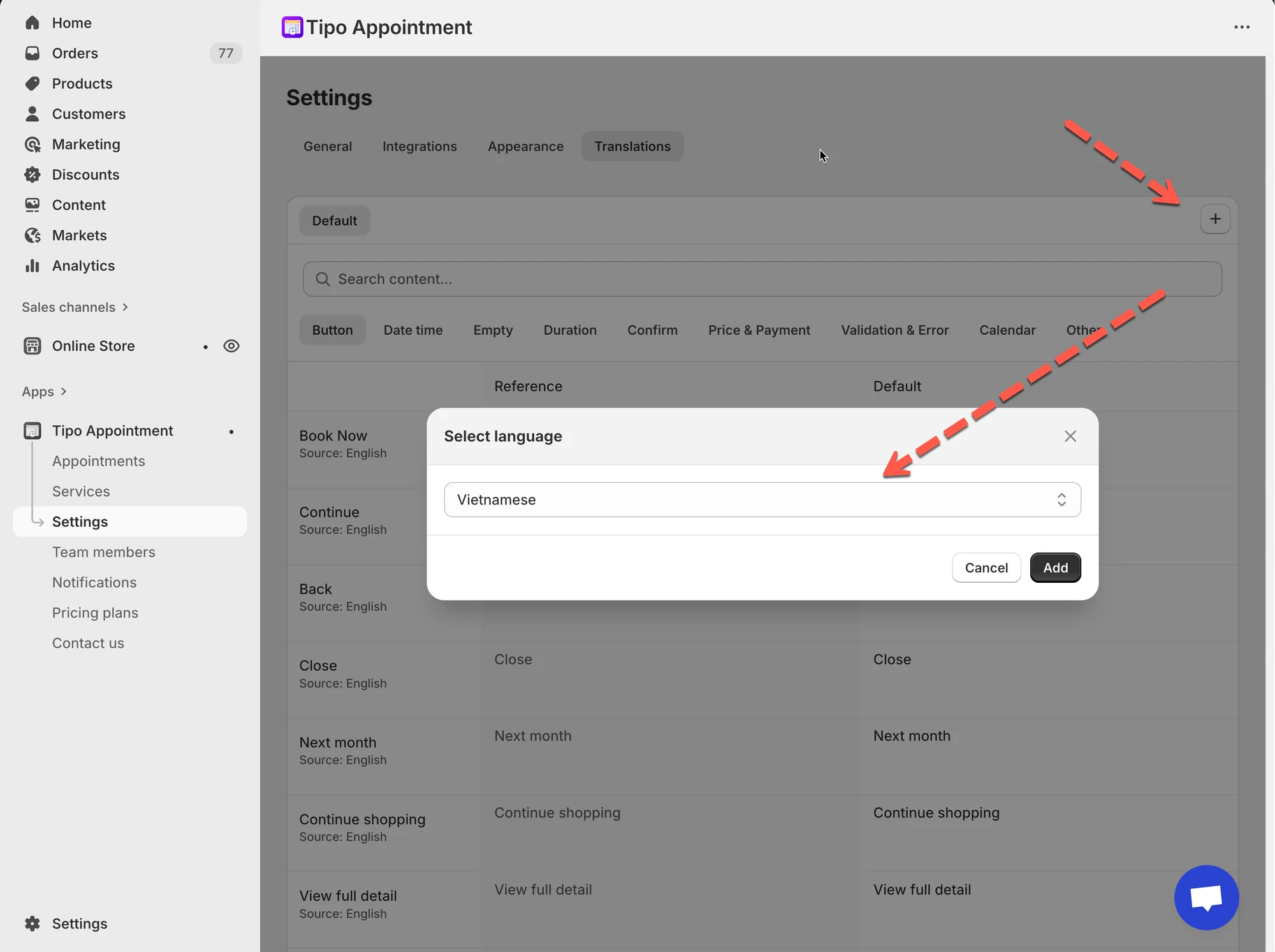
- Open the app, click Settings > Translations.
- Click the ➕ button, select a language, and click Add.
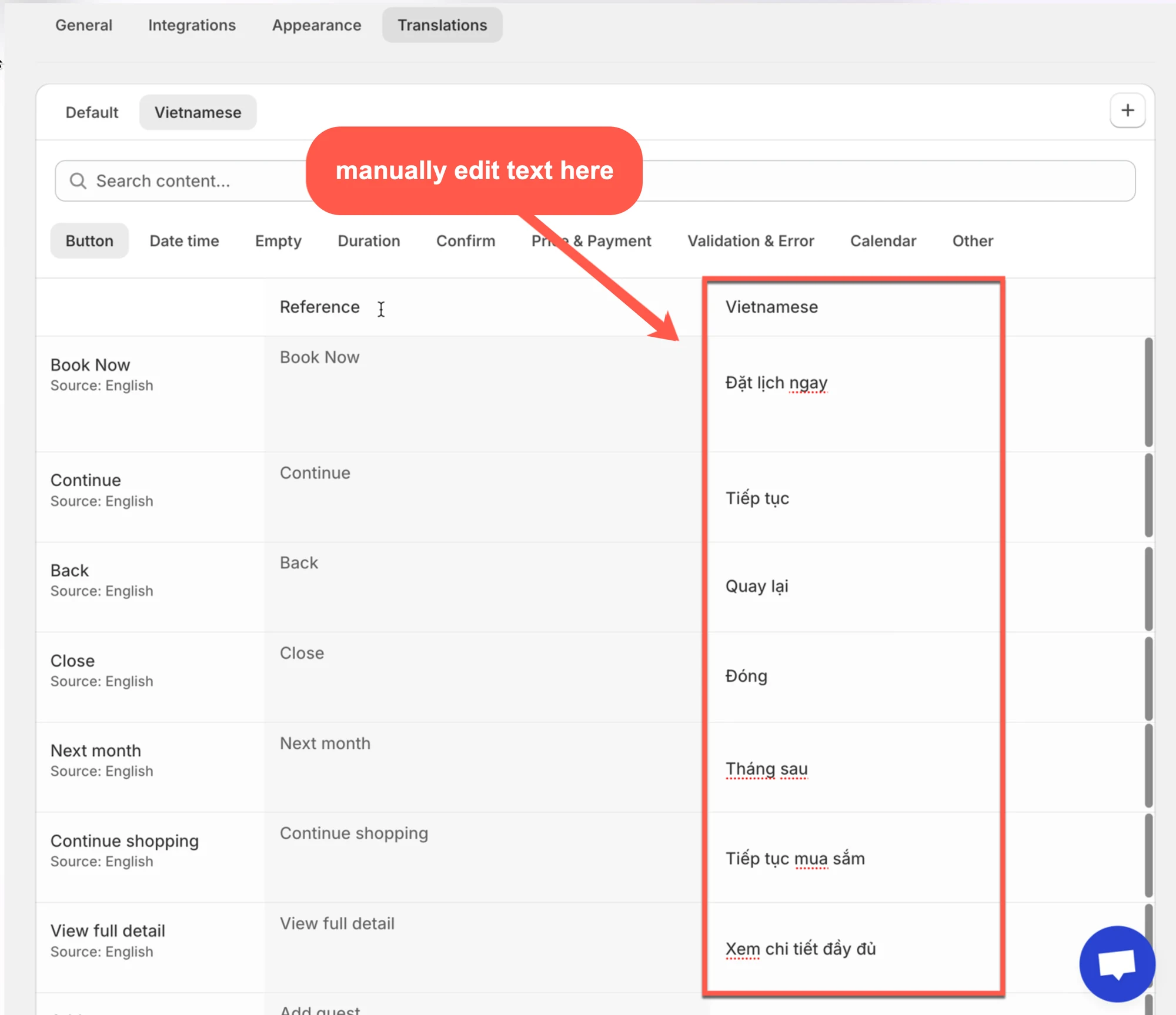
- Open the added language and edit text by category: Button, Confirm, Calendar, Validation & Error, Other.
- Click Save and check the widget on the storefront.
- Keep style consistent and do not change placeholders such as `{{ ... }}`.
Summary generated by AI. It can make mistakes, so check the full guide below.
If you’re running a multilingual Shopify store, you can customize the language of the Tipo Appointment Booking calendar so it matches your storefront language. This ensures a seamless experience for your customers.
🛠️ Steps
Section titled “🛠️ Steps”- Open the app > click Settings > Translations
- Click the ➕ button (top-right) > select a language (example: Vietnamese) > click Add
- Click the language you just added (example: Vietnamese) > use the category tabs to locate text:
- Button (Book Now, Continue, Back…)
- Confirm (confirmation messages)
- Calendar (Next month, days, labels…)
- Validation & Error (error messages)
- Other (misc text)
- Edit text in the language column (right side)
Note: Use the Search content… field to quickly locate a word like:
- “Book”
- “Confirm”
- “Next month”
- Click Save to update the changes
- Check your widget on the storefront
On the online store, when customers select a new language, the text of the booking app is changed based on selected language too.
💡 Tips & best practices
Section titled “💡 Tips & best practices”Icon: 💡
- Keep translation style consistent (formal vs friendly).
- Avoid changing special variables/placeholders (if your text includes ones like
{{ ... }}). - Translate the most visible items first: buttons + calendar + confirmation.\
🌐 How the text displays on your storefront
Section titled “🌐 How the text displays on your storefront ”When a customer selects a different language on your storefront, the booking calendar will automatically display the translated text based on the selected language as long as you’ve configured it in the app.
🙋 Still need support?
If you still need help, please feel free to contact us at hi@tipo.io. We’ll be happy to assist you further.