
Edit “Confirm” Button Text
AI Overview
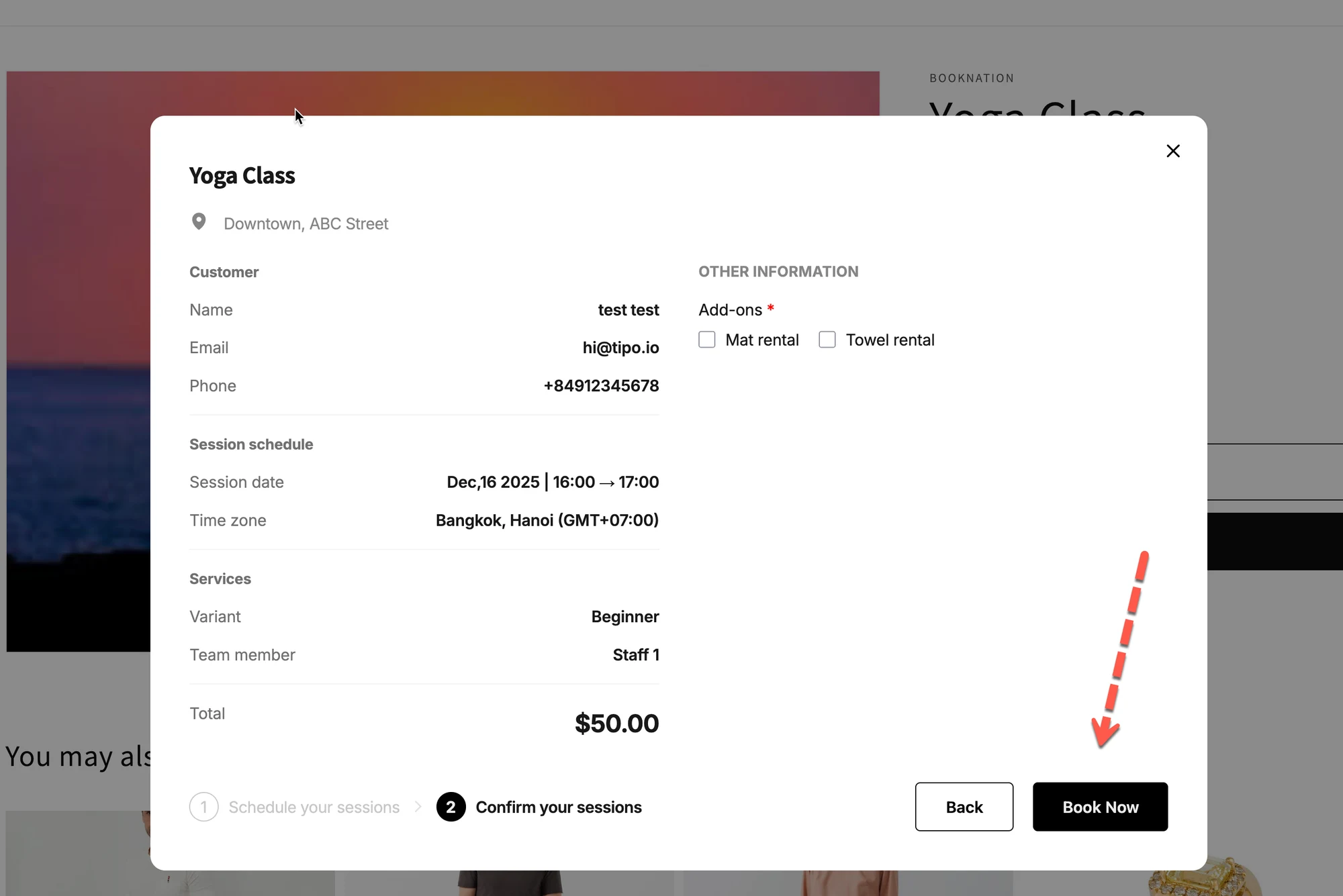
Customize the text of the Book Now button, the final action customers click to complete a free or paid booking in the Tipo widget. The change applies to all services using the same widget language and affects only the widget, not Shopify checkout buttons or email notifications.
View moreView less
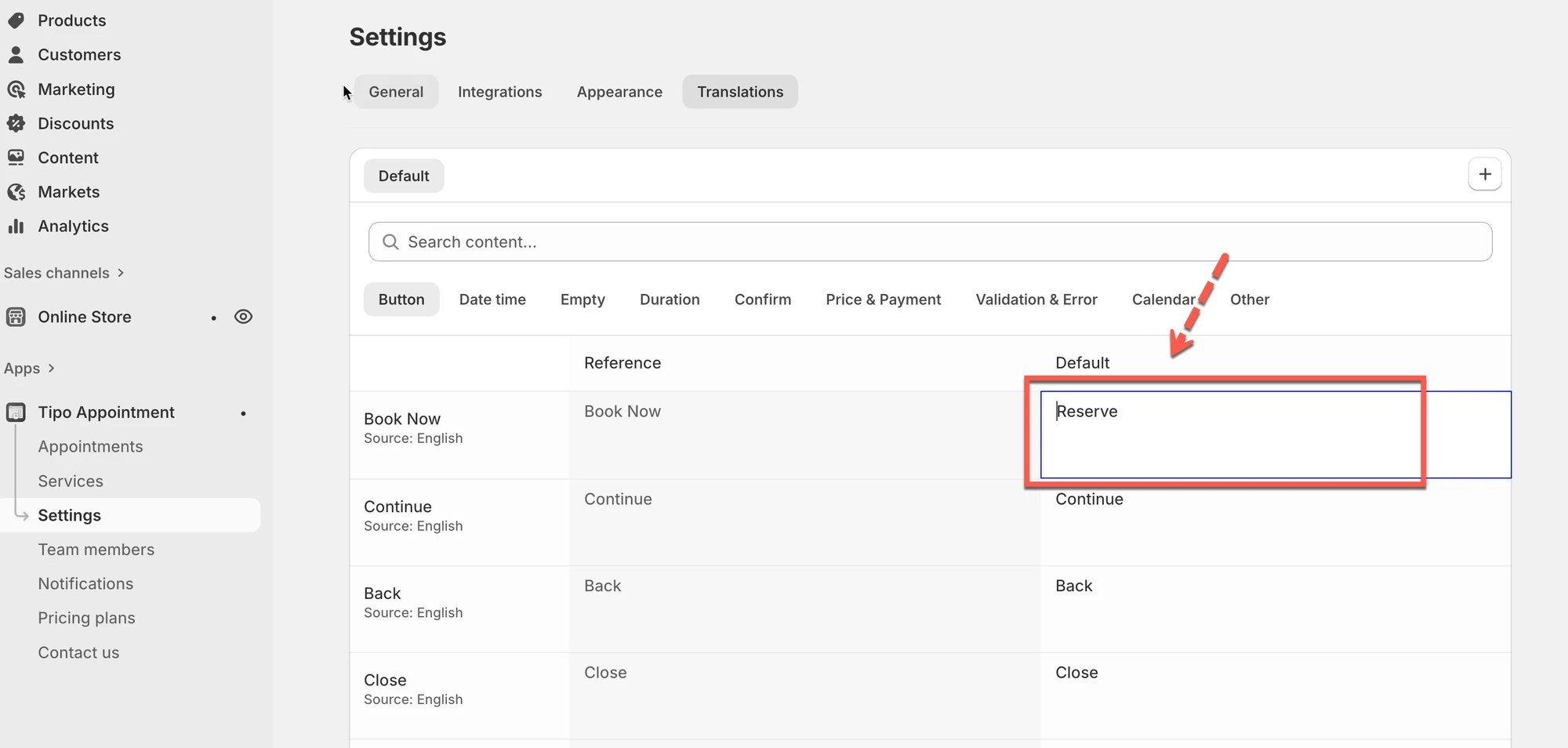
- Open the app, click Settings, then the Translations tab.
- Make sure you are editing the correct language.
- Edit the Book Now row in the Default column and click Save.
- Keep text short (1-3 words) and action-based, such as Pay & confirm.
- If it does not change, refresh the storefront and check the field and language.
Summary generated by AI. It can make mistakes, so check the full guide below.
The Book Now button is the final action customers click to complete their booking.
Customizing this text helps match your brand tone and makes the booking flow clearer for customers.
📍 Where this text appears
Section titled “📍 Where this text appears”- On the last step of the booking widget
- Right before the booking is completed
- Used for both free and paid bookings
Typical default text:
Book Now
🛠️ How to edit the Confirm button text
Section titled “🛠️ How to edit the Confirm button text”- Open the app > click Settings
- Open the Translations tab
- Make sure you are editing the correct language (example: English – United States)
- Edit text of the Book Now row, Default column
✏️ Example changes
| Default text | Custom text idea |
|---|---|
| Book now | Complete booking |
| Book now | Pay & confirm |
| Book now | Reserve appointment |
💡 Keep it short (1–3 words) so the button looks clean on mobile
- Click Save.
🧪 Example (what customers see)
Section titled “🧪 Example (what customers see)”Before
Button: Book Now
After
Button: Pay & confirm
This makes it clearer that payment is required before finishing the booking.
⚠️ Important notes
Section titled “⚠️ Important notes”- This setting affects all services using the same widget language
- The Book Now button text does not change:
- Shopify checkout buttons
- Email notifications
- Only the booking widget UI is updated
✅ Best practices
Section titled “✅ Best practices”✔ Use action-based wording (Book, Pay, Reserve)
✔ Match wording with your payment flow
✔ Avoid long sentences on buttons
❌ Don’t use unclear text like “Submit” or “OK”
🔧 Troubleshooting
Section titled “🔧 Troubleshooting”“The button text didn’t change”
Section titled ““The button text didn’t change””Try the following:
- Refresh the storefront page
- Make sure you edited the Book Now field (not confirmation messages below)
- Check you’re editing the correct language
🙋 Still need support?
If you still need help, please feel free to contact us at hi@tipo.io. We’ll be happy to assist you further.