
Google Calendar integration
AI Overview
Sync Tipo bookings to Google Calendar so appointments appear as calendar events automatically. After connecting, new bookings made through the Tipo widget are added as events, and Google Calendar sends an invitation email to participants. You can optionally push existing bookings with Sync calendar.
View moreView less
- Open the app, click Settings > Integrations, and turn Activate on.
- Click Connect, log in to Google, choose a Calendar, add the event title and description, and click Save.
- To sync existing bookings, click Sync calendar and choose Upcoming bookings, Past bookings, or All.
- Select the destination calendar and click Sync now; it can take minutes.
Summary generated by AI. It can make mistakes, so check the full guide below.
Sync Tipo bookings to Google Calendar so appointments appear as calendar events automatically.
🔌 Connect Tipo to Google Calendar
Section titled “🔌 Connect Tipo to Google Calendar”- Open the app > click Settings > Integrations
- Turn Activate on
- Click Connect button and log in your Google account
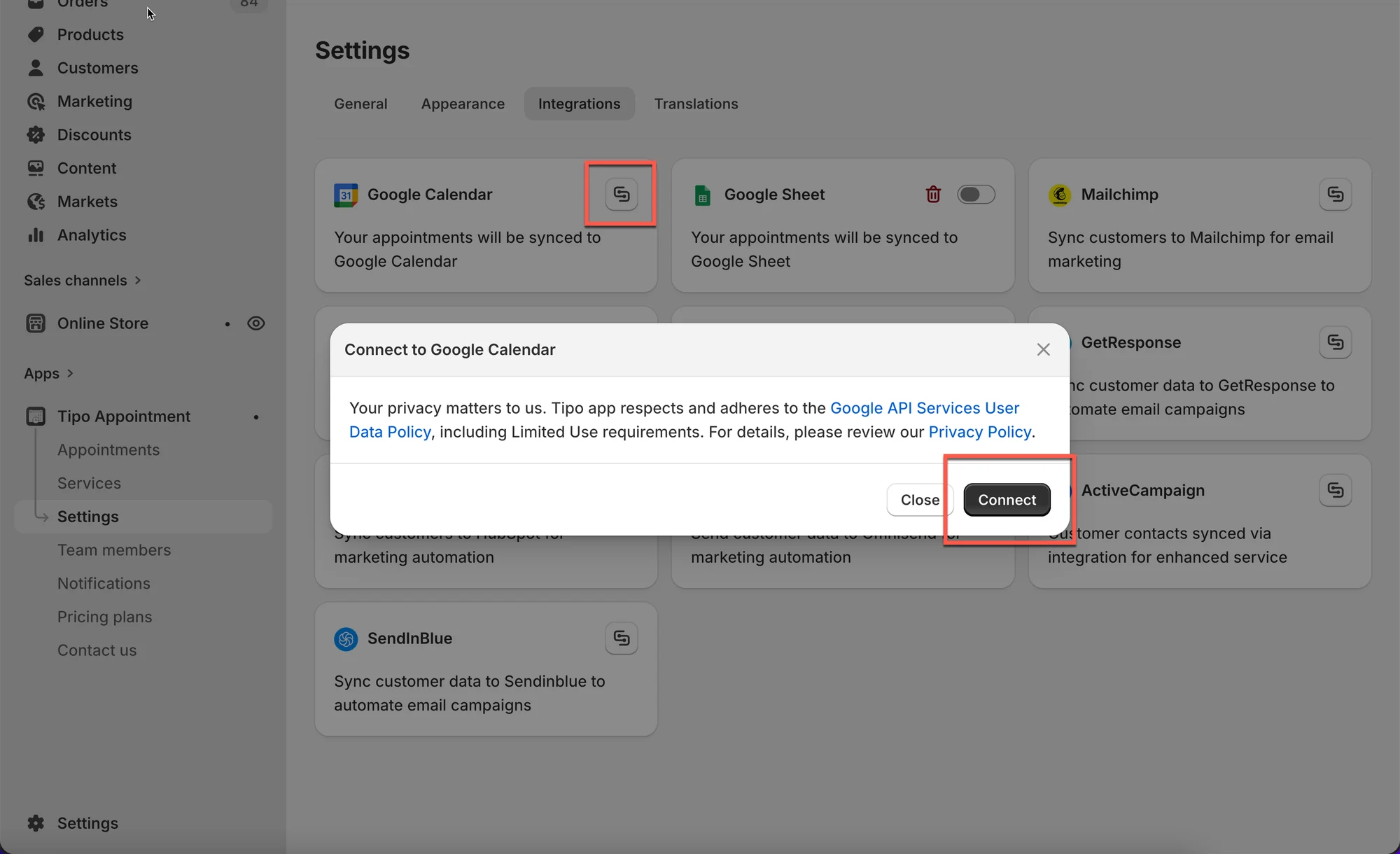
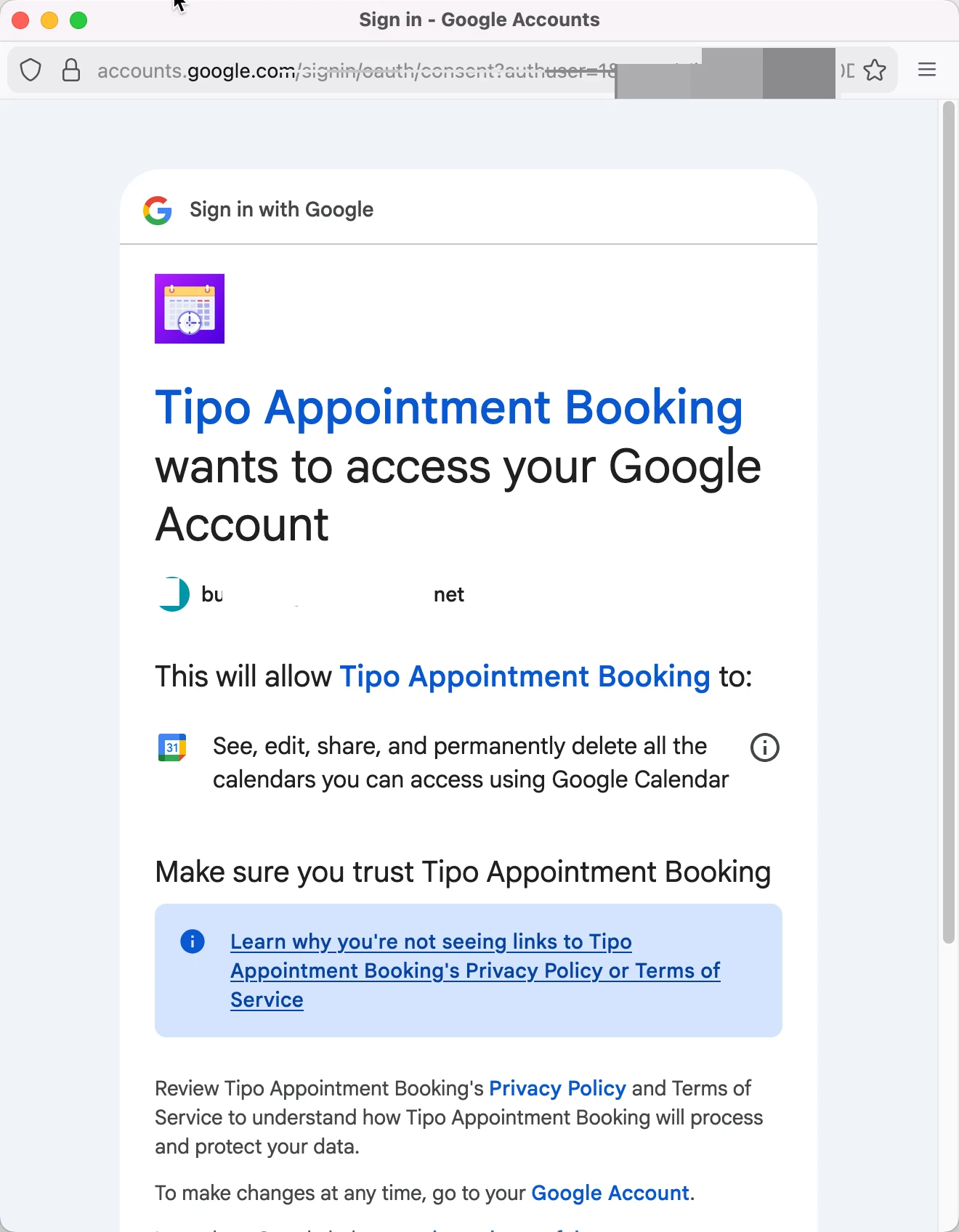
- Select a Calendar you want to connect with and add the title and description for event in Google calendar
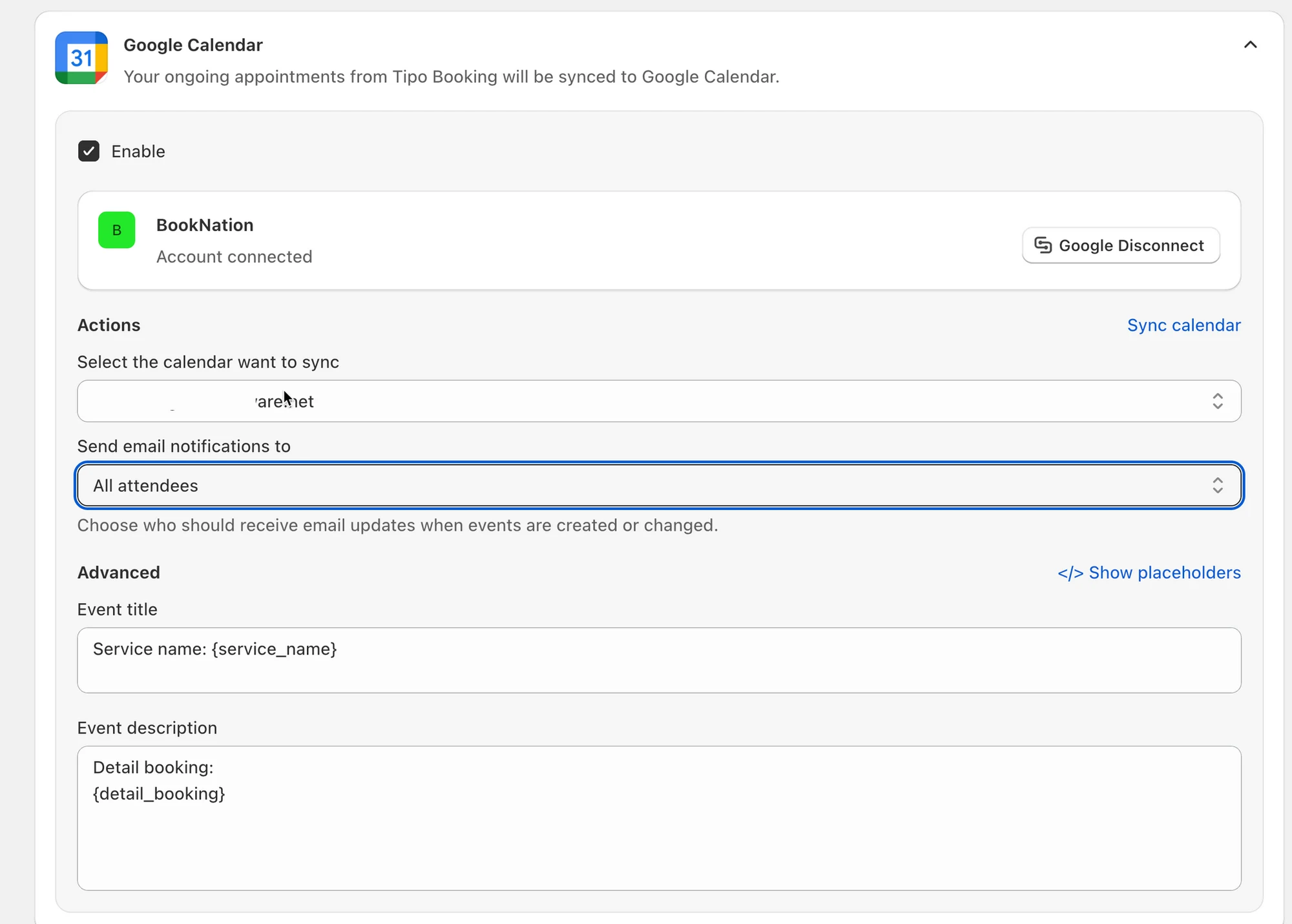
- Click Save to update the changes
Now your Google Calendar is completely connected to Google Calendar. Your ongoing appointments from Tipo Booking will be synced to Google Calendar as new events.
🔁 Sync existing appointments (optional)
Section titled “🔁 Sync existing appointments (optional)”If you want to push your existing bookings into Google Calendar too, use Sync calendar.
This process will take minutes to complete depending on the number of bookings.
Steps
- Open the app > click Settings > Third party integration > check Google Calendar
- Click Sync calendar
- Choose what to sync:
- Upcoming bookings
- Past bookings
- All
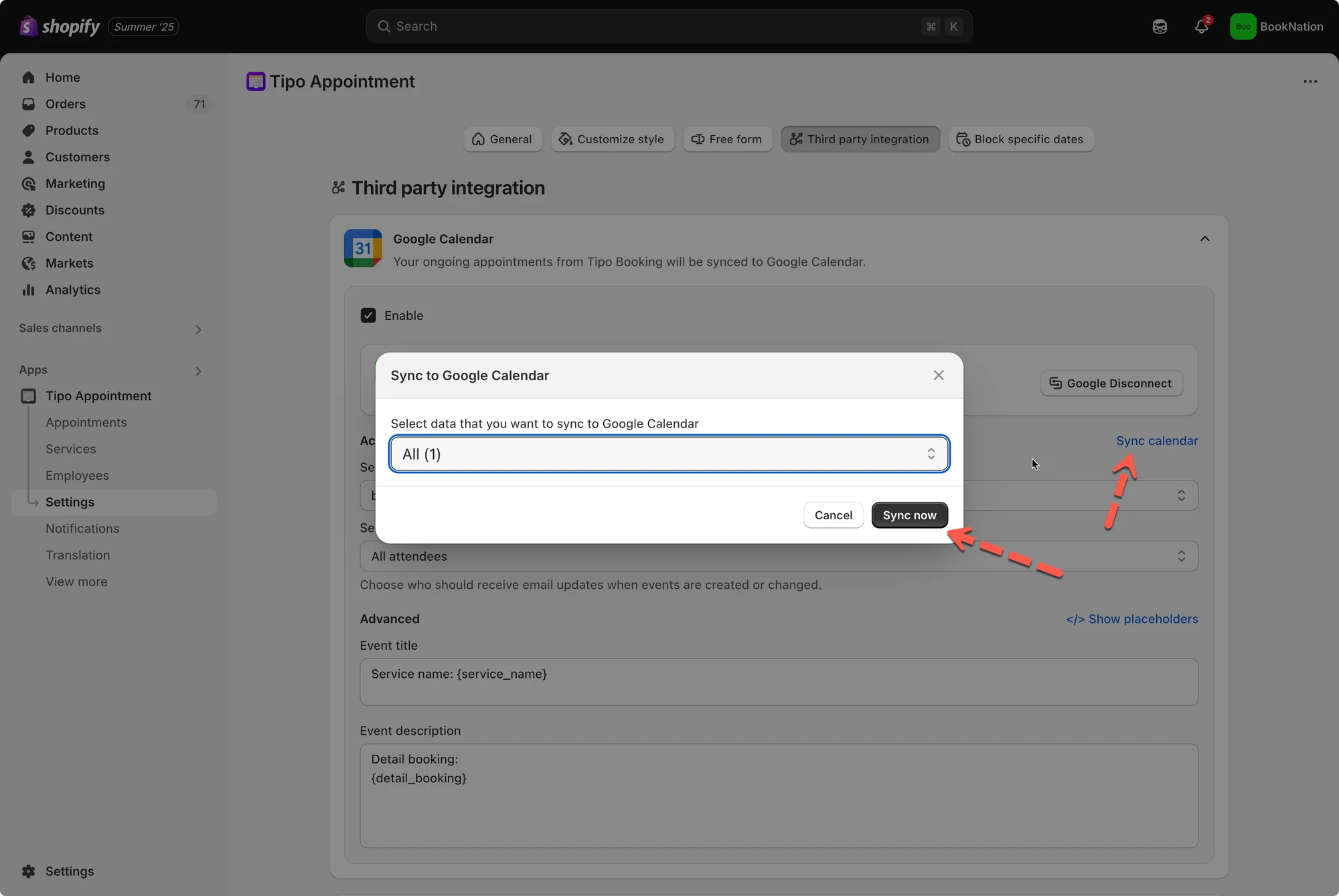
- Select the destination calendar
- Click Sync now.
✅ What gets synced
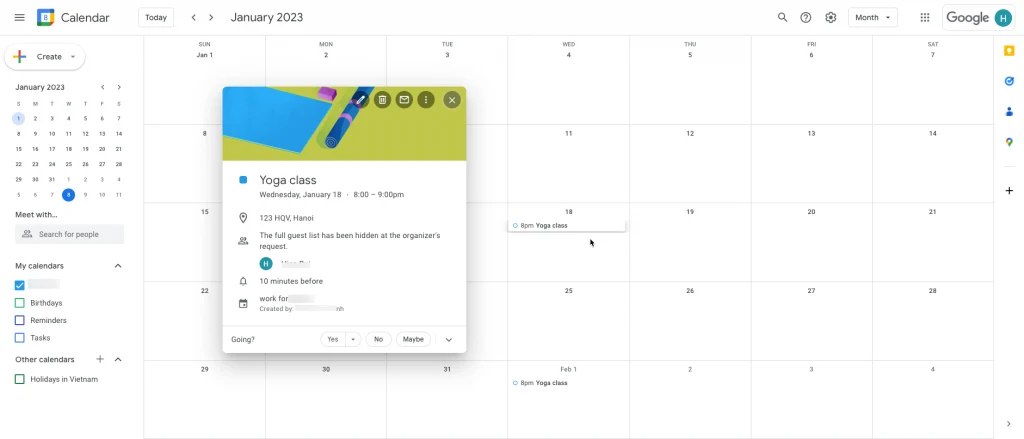
Section titled “✅ What gets synced”After an appointment is booked through the Tipo booking widget, an event will be automatically added to your Google Calendar.
Additionally, Google Calendar will send an invitation email to all participants with the event details.
🙋 Still need support?
If you still need help, please feel free to contact us at hi@tipo.io. We’ll be happy to assist you further.