
Booking reminders
AI Overview
Booking reminders automatically send emails before an appointment starts, helping reduce no-shows. They are timed relative to the appointment, not to when it was booked. You can enable them separately for customers, team members, and merchants, and add several reminders per booking.
View moreView less
- Open the app, go to Notifications, choose Customer, Merchant, or Team member, and select Booking reminder.
- Click Add a reminder, enter a number, choose Minutes, Hours, or Days, and toggle it ON.
- Add multiple reminders, for example 1 day, 3 hours, and 30 minutes before.
- Edit the reminder email subject, content, and variables, then click Save.
- Test with a near-future booking, using minutes.
Summary generated by AI. It can make mistakes, so check the full guide below.
Booking reminders automatically send emails before an appointment starts. They help reduce no-shows by reminding customers, team members, or merchants about upcoming bookings.
💡 How booking reminders work
Section titled “💡 How booking reminders work”Booking reminders are based on time before the appointment, not when the booking is created.
You can:
- Send multiple reminders for the same booking
- Choose the time unit (minutes, hours, or days)
- Enable reminders separately for:
- Customers
- Team members
- Merchants (admin)
🛠️ How to set
Section titled “🛠️ How to set”- Open the app > go to Notifications
- Choose who should receive reminders:
- Customer
- Merchant
- Team member
- Select Booking reminder
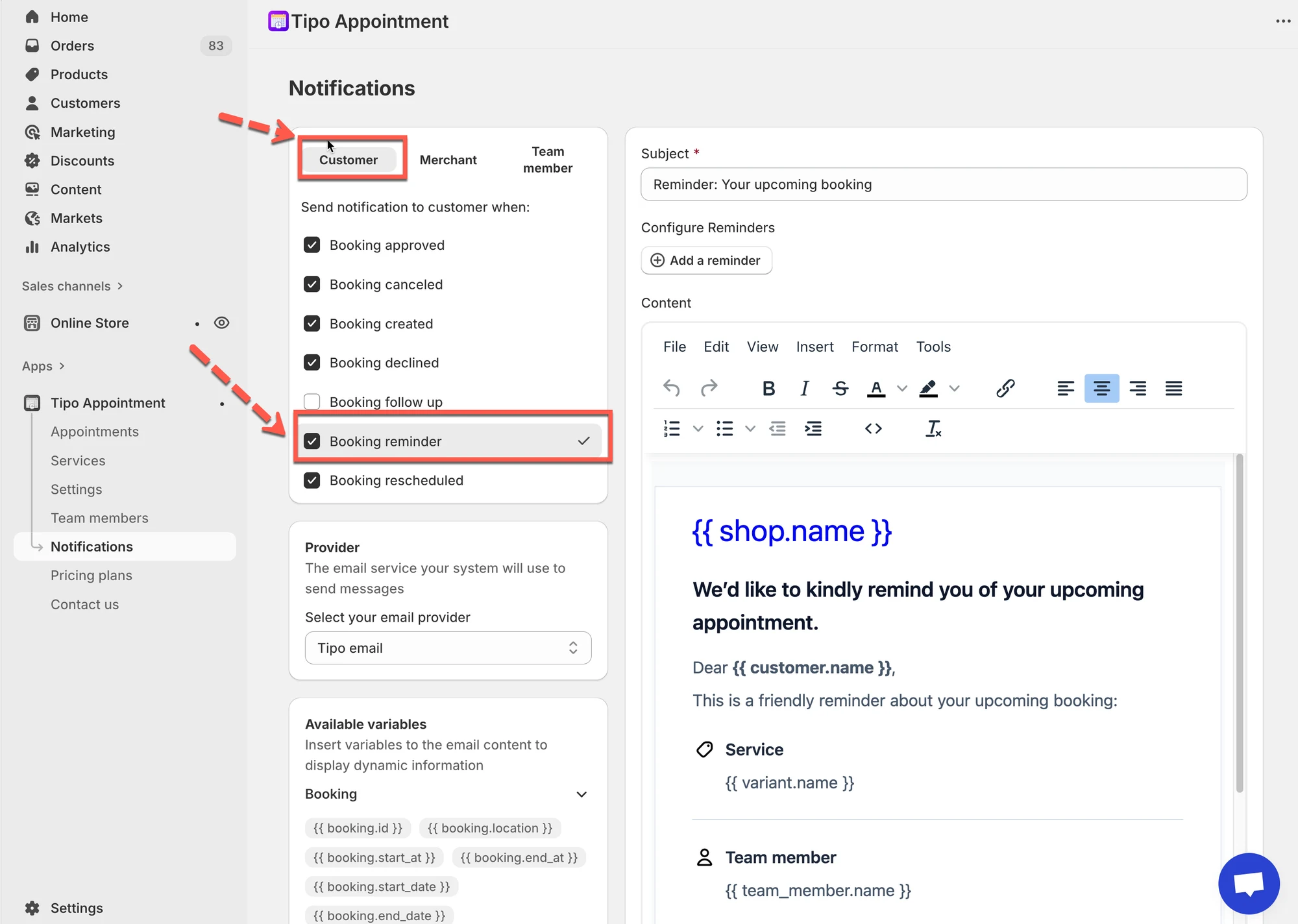
- Add a reminder
- Click Add a reminder
- Enter a number (for example:
1) - Choose the time unit:
- Minutes
- Hours
- Days
- Toggle the reminder ON
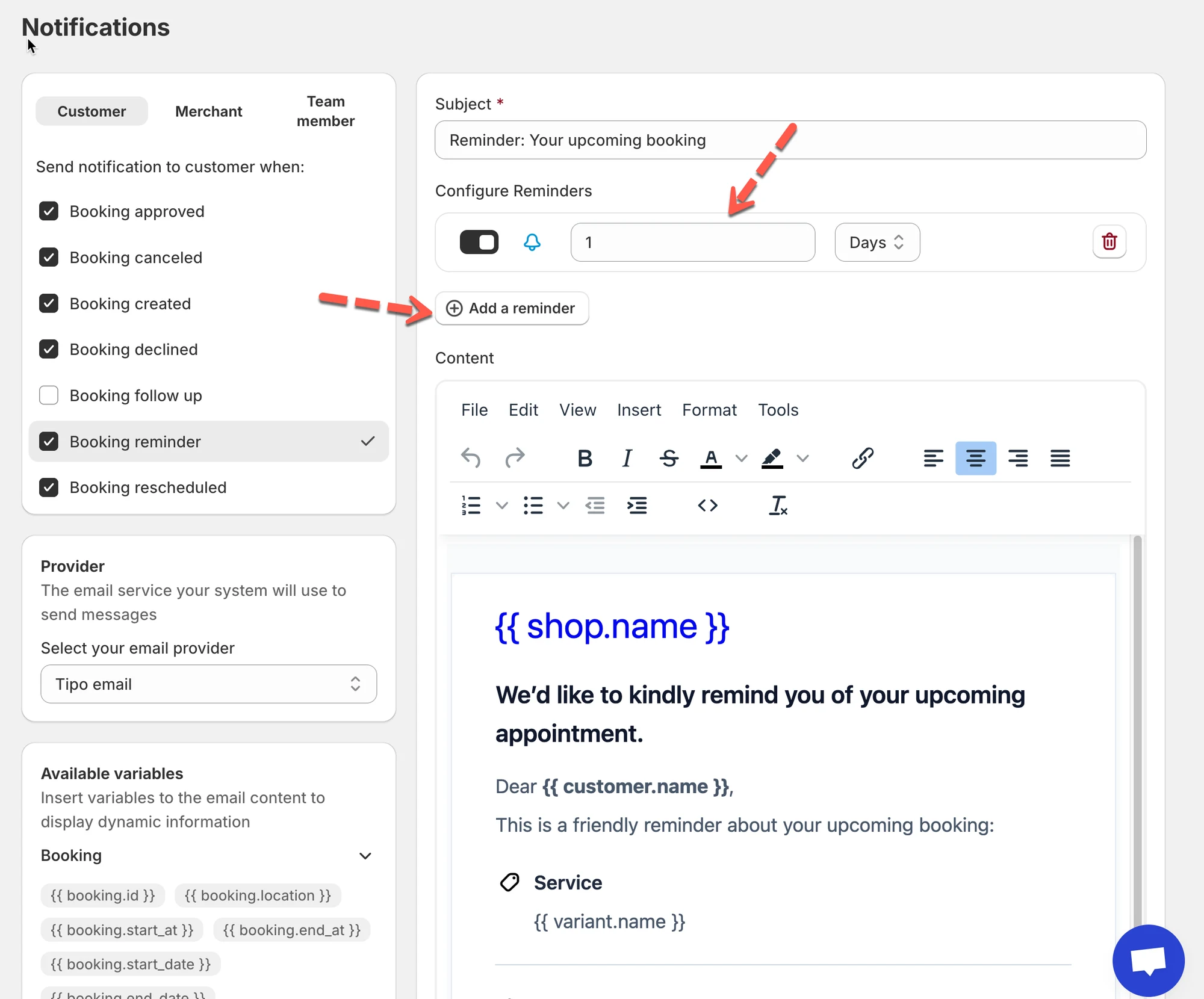
➕ Multiple reminders (recommended)
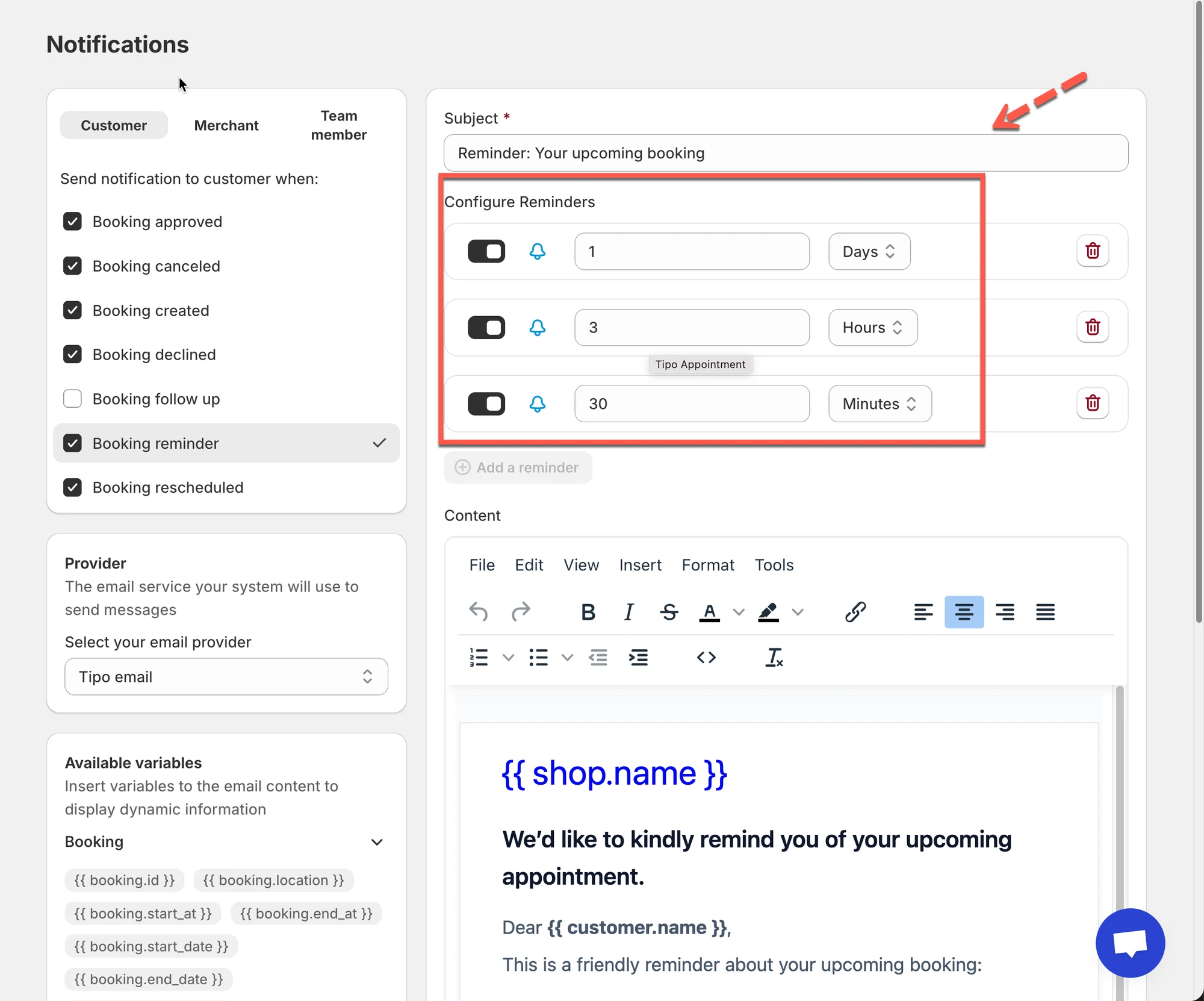
Section titled “➕ Multiple reminders (recommended)”You can add more than one reminder for the same booking.
Example setup:
- 1 day before the appointment
- 3 hours before
- 30 minutes before
This creates a clear reminder flow without overwhelming customers.
- Customize reminder email content
Each reminder uses the Booking reminder email template.
You can edit:
- Subject
- Email content
- Variables (customer name, service, date, time, location)
6 Click Save to update the changes.
🧪 Test your reminders
Section titled “🧪 Test your reminders”- Create a test booking scheduled in the near future
- Confirm the reminder email is received at the correct time
Tip: Use minutes for testing instead of hours or days.
🙋 Still need support?
If you still need help, please feel free to contact us at hi@tipo.io. We’ll be happy to assist you further.