
Google Sheet integration
AI Overview
Export Tipo bookings to Google Sheets to track appointments, build reports, and share data with your team. Once connected, each new booking is added automatically to the sheet you select.
View moreView less
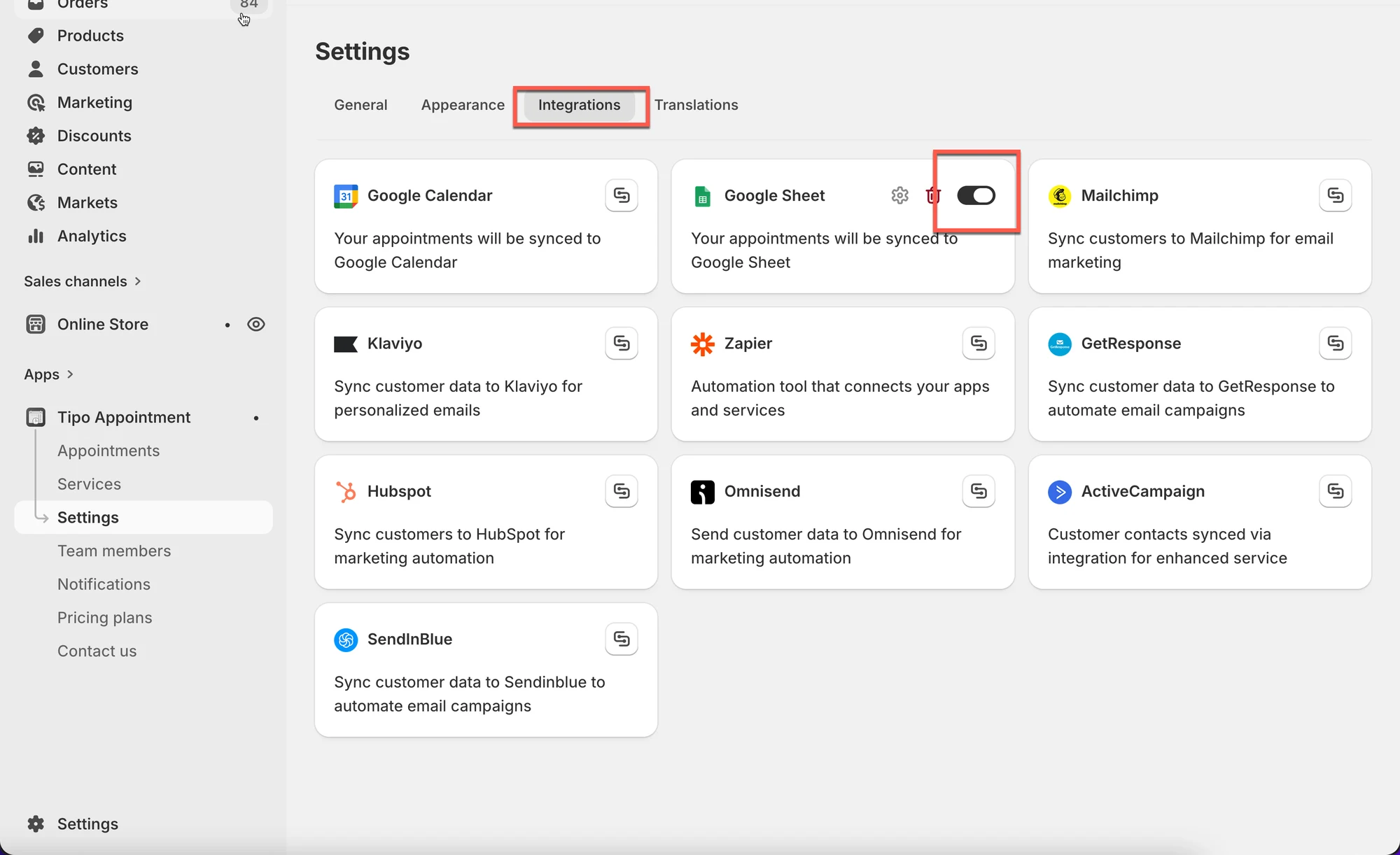
- Open the app, click Settings > Integrations, and turn Google Sheets ON.
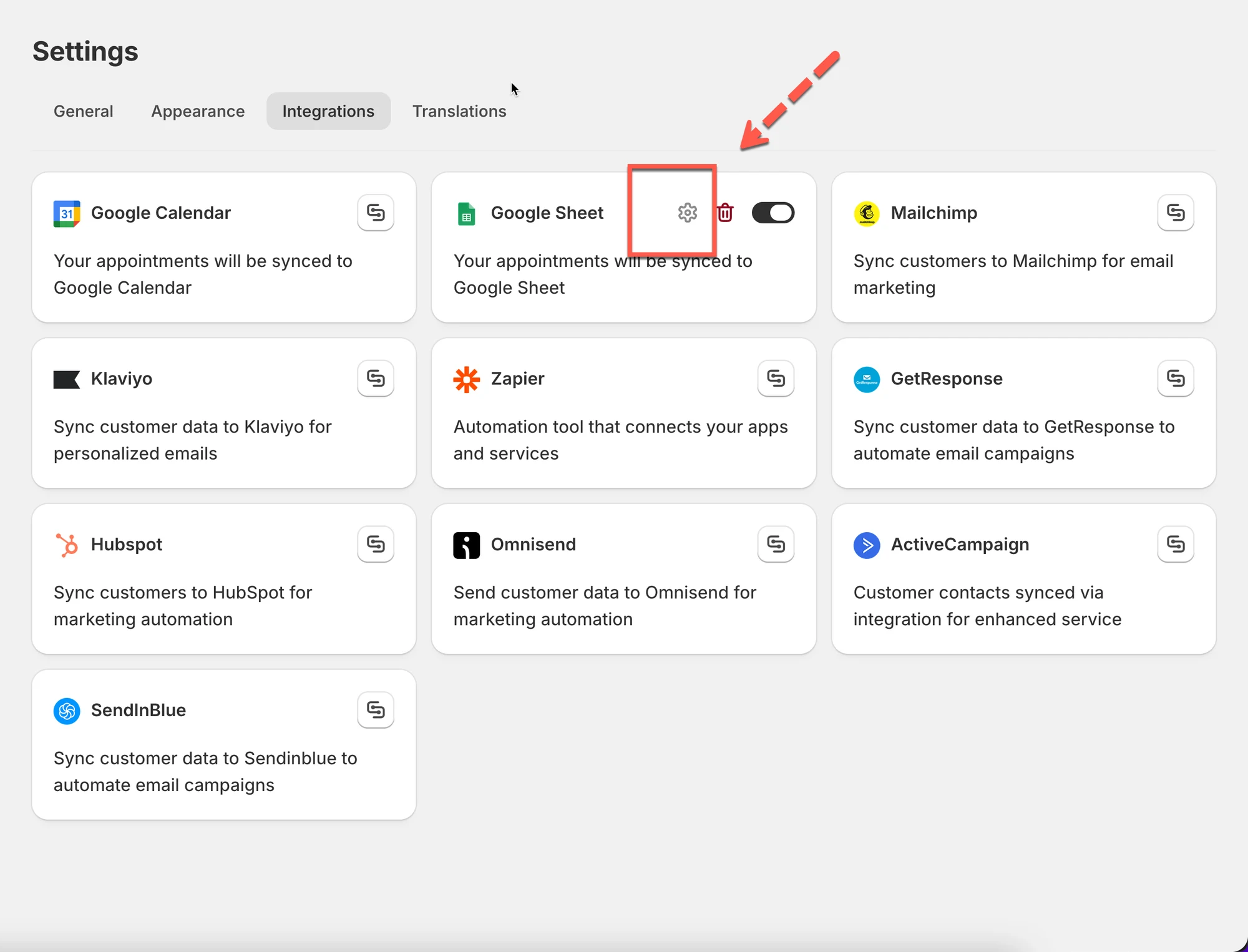
- Click the gear icon, log in to your Google account, and select a sheet or click Create sheet.
- Optionally tick Show appointment booking information (service, employee, date time, duration, and more).
- Click Save; booked appointments are then added to the selected sheet automatically.
Summary generated by AI. It can make mistakes, so check the full guide below.
Export bookings to Google Sheets so you can track appointments, build reports, and share data with your team.
🔌 Connect Tipo to Google Sheets
Section titled “🔌 Connect Tipo to Google Sheets”1. Open the app > click Settings > Integrations > find Google Sheets option
- Turn Google Sheets option ON
- Click Gear icon to configure
- Log in your Google account
- Select an available sheet in your account or click Create sheet to generate a new list
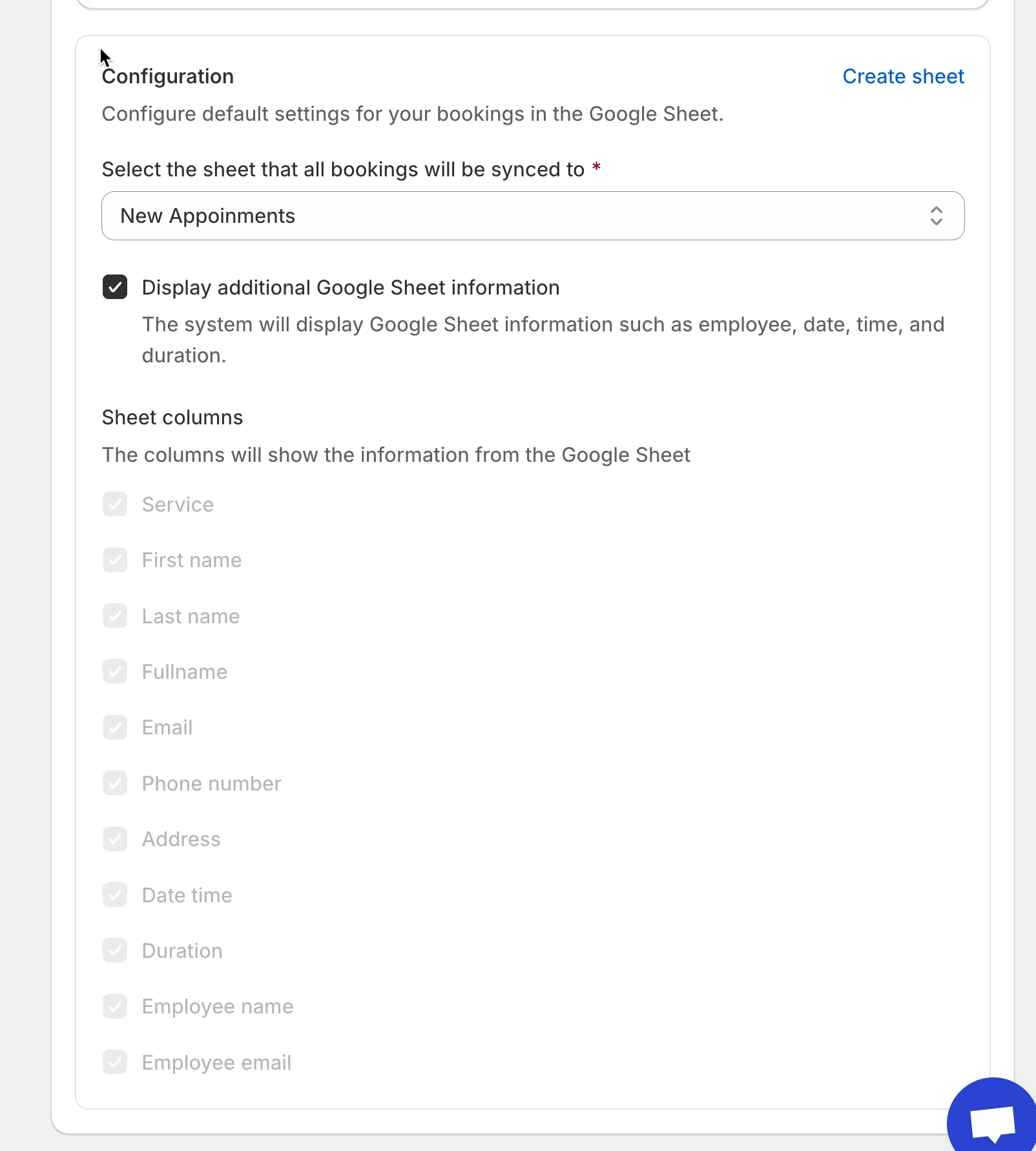
- Tick on checkbox Show appointment booking information (service, employee, date time, duration, …) (optional)
- Click Save
✅ How it work
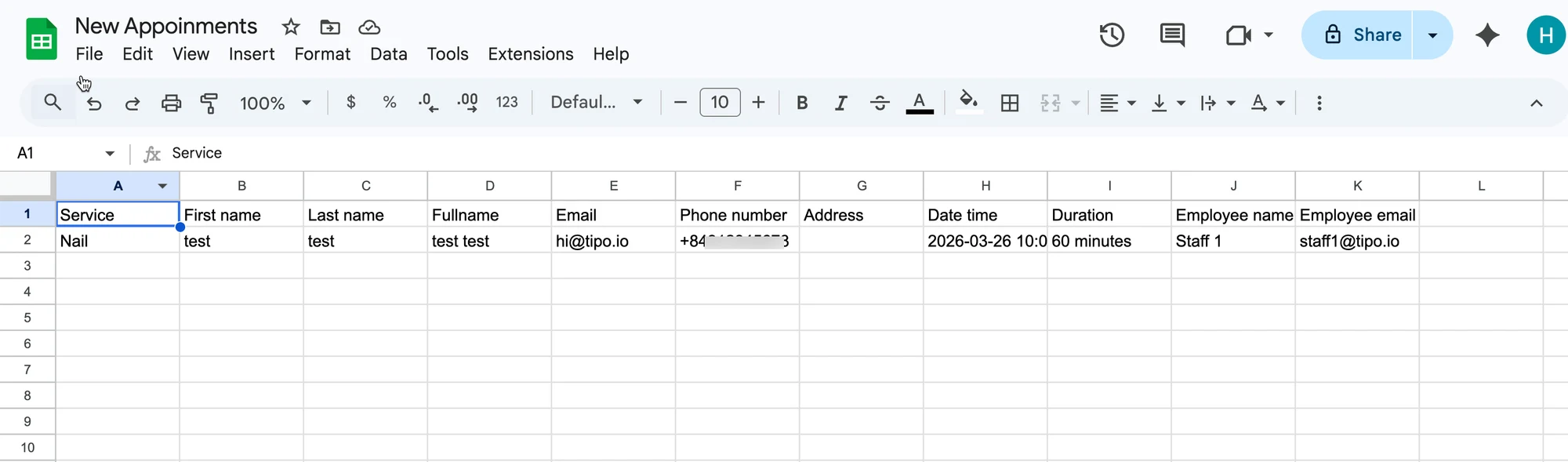
Section titled “✅ How it work”After the appointment is booked in the app, the data will be automatically added to the selected table in your Google Sheet.
Appointment in app:
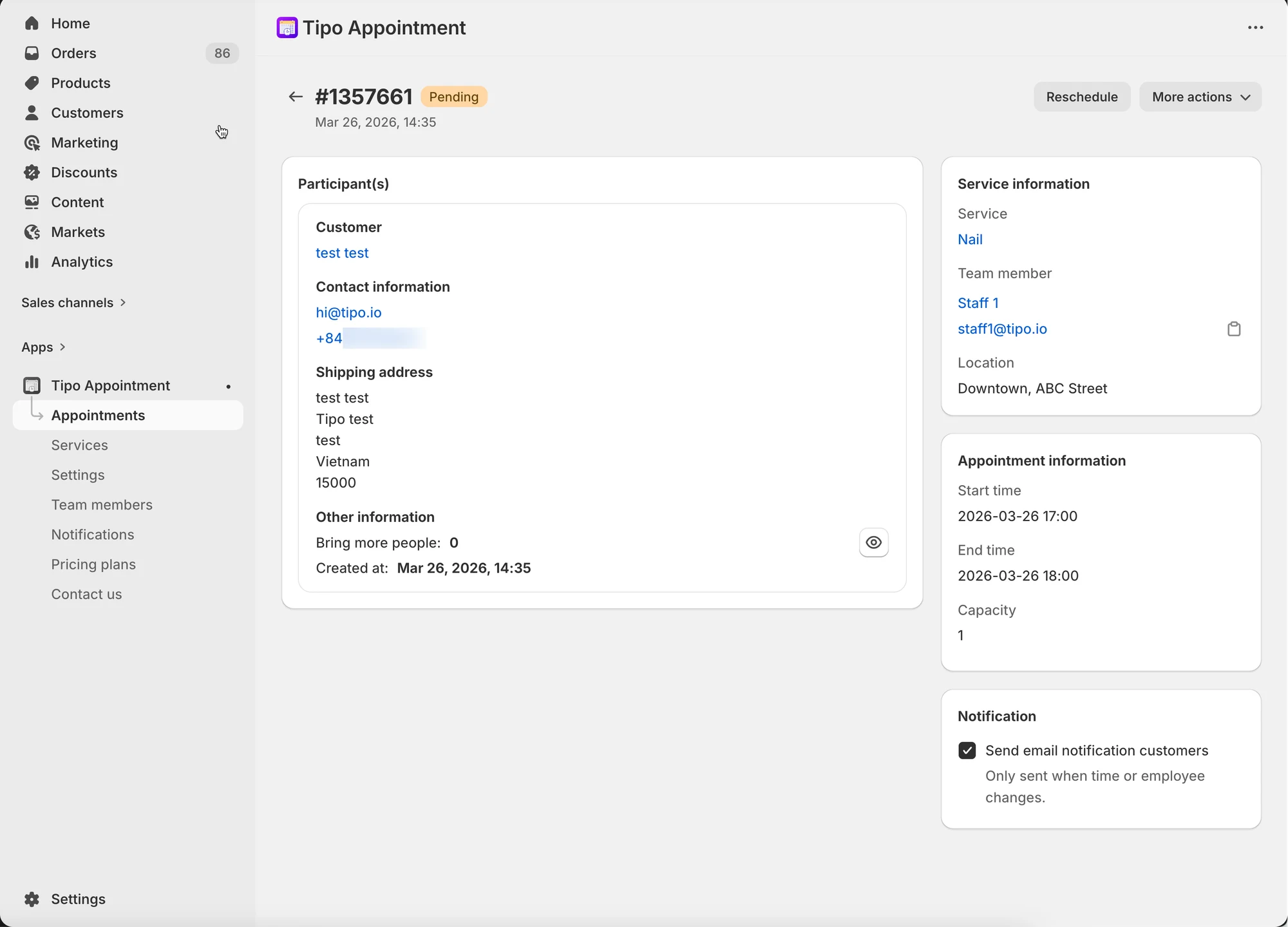
Data is added to the selected sheet in Google Sheets:
🙋 Still need support?
If you still need help, please feel free to contact us at hi@tipo.io. We’ll be happy to assist you further.