# Google Sheet integration
Export bookings to Google Sheets so you can track appointments, build reports, and share data with your team.
### 🔌 Connect Tipo to Google Sheets
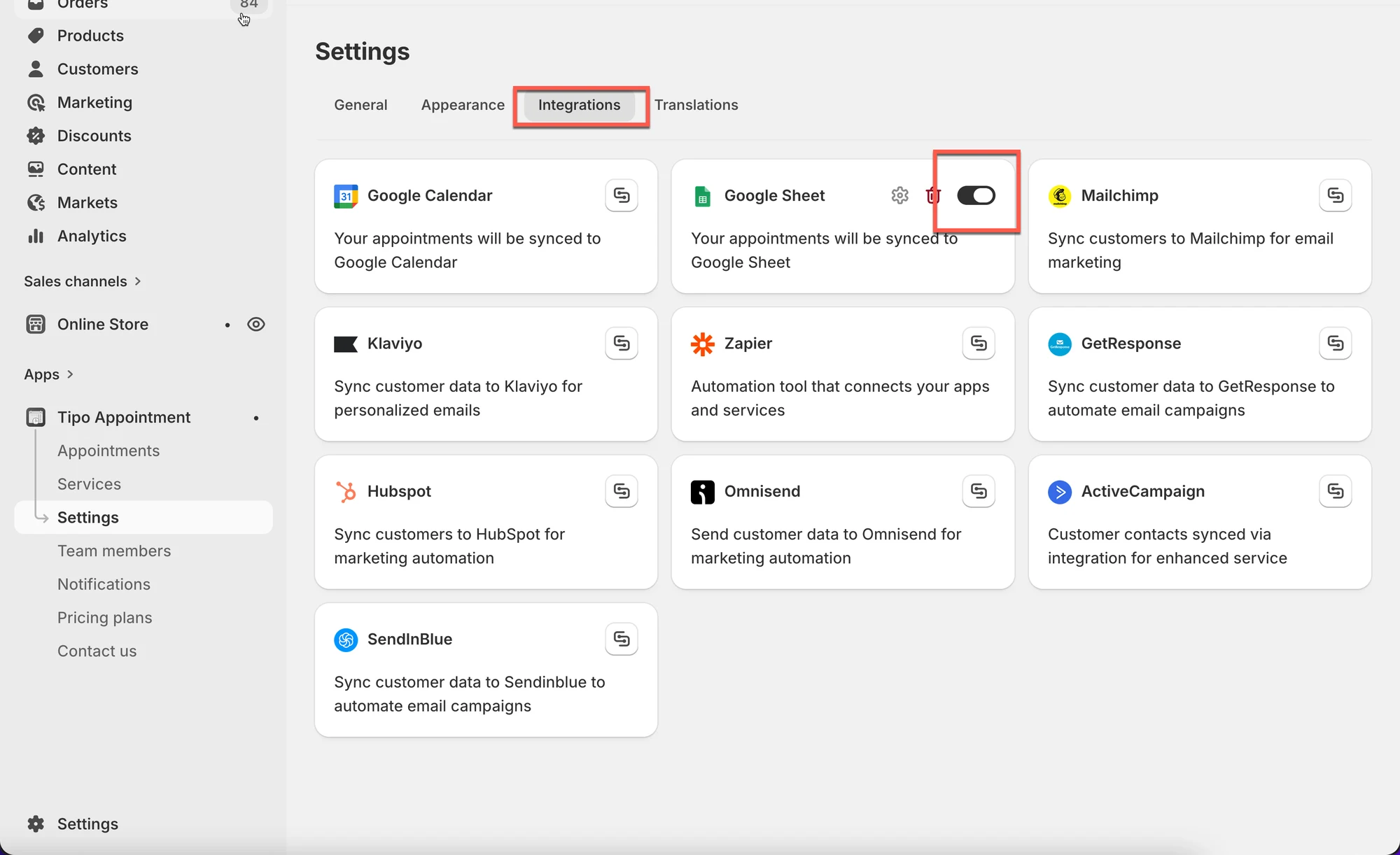
1\. Open the app > click **Settings** > **Integrations** > find **Google Sheets** option
2. Turn **Google Sheets** option ON
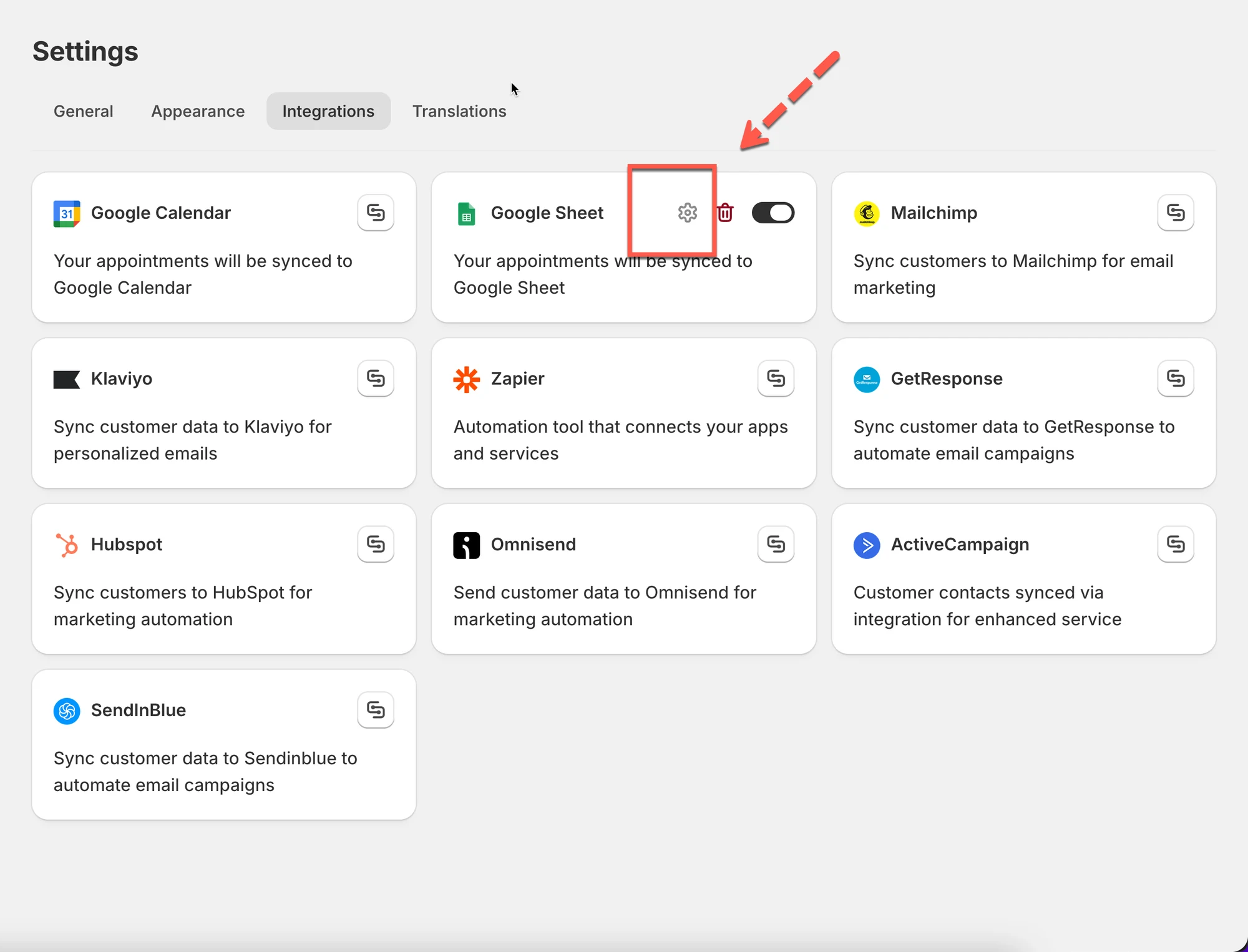
3. Click Gear icon to configure
3. Log in your Google account
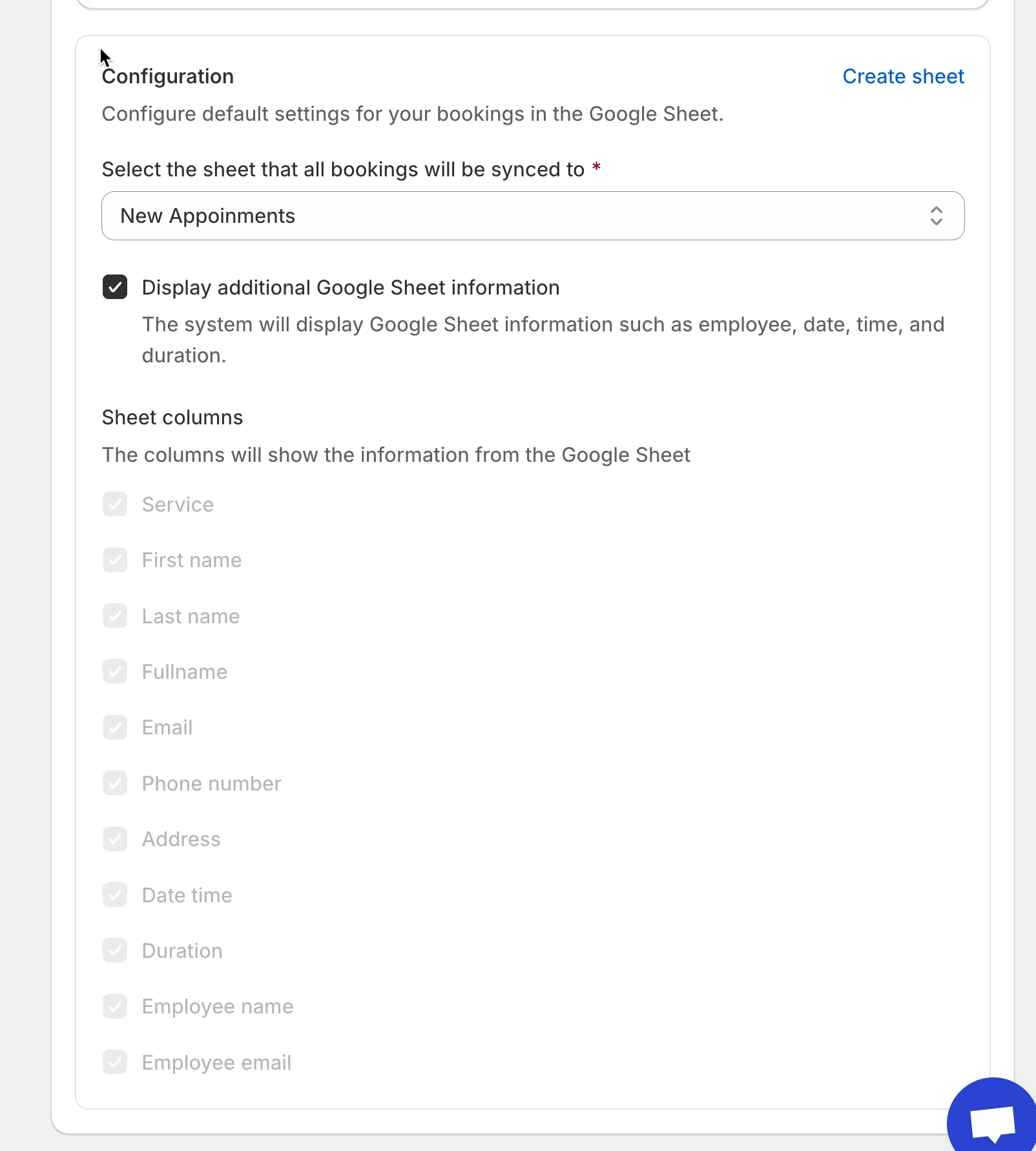
4. Select an available **sheet** in your account or click **Create sheet** to generate a new list
5. Tick on checkbox **Show appointment booking information (service, employee, date time, duration, …)** (optional)
6. Click **Save**
***
### ✅ **How it work**
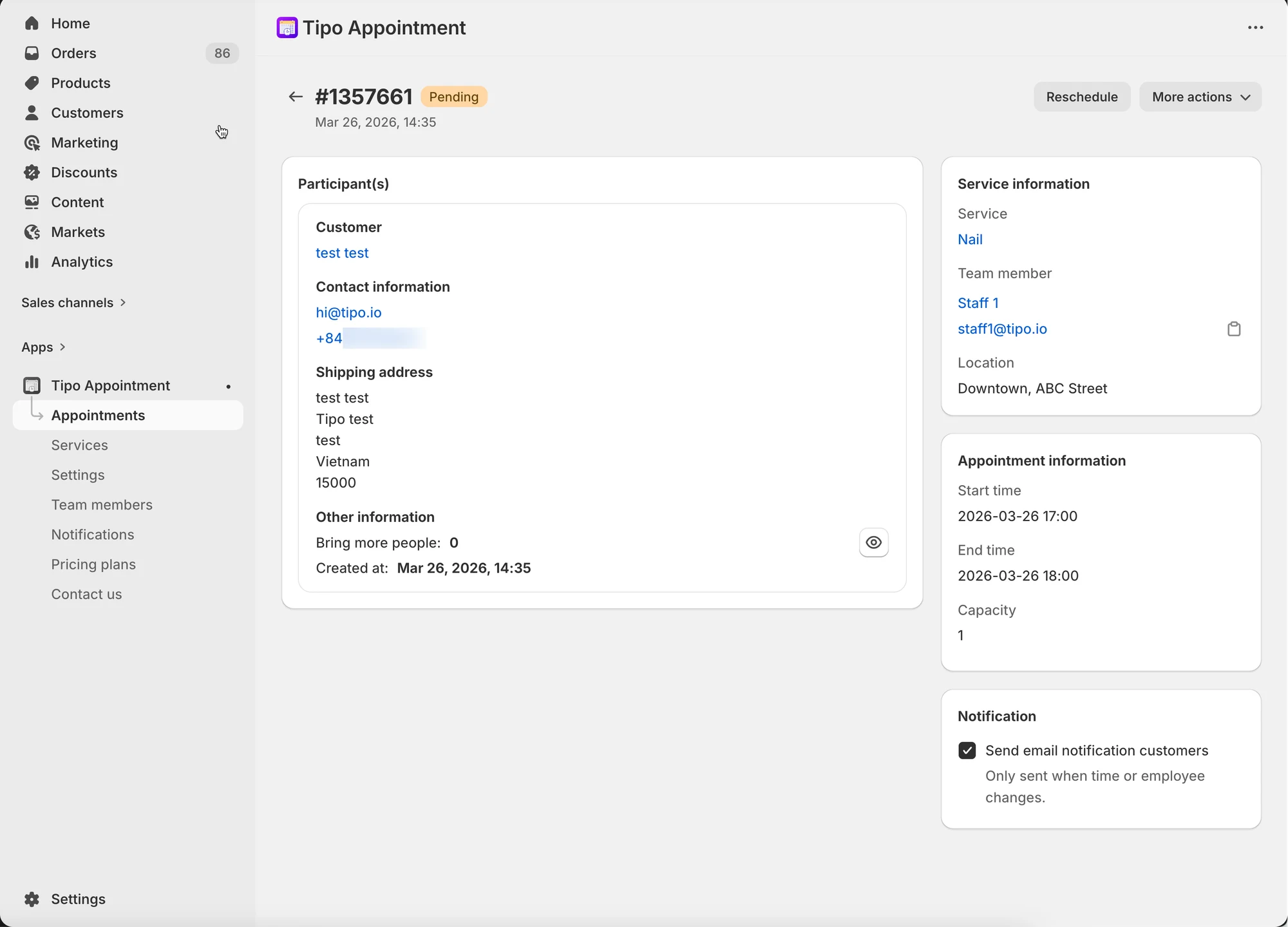
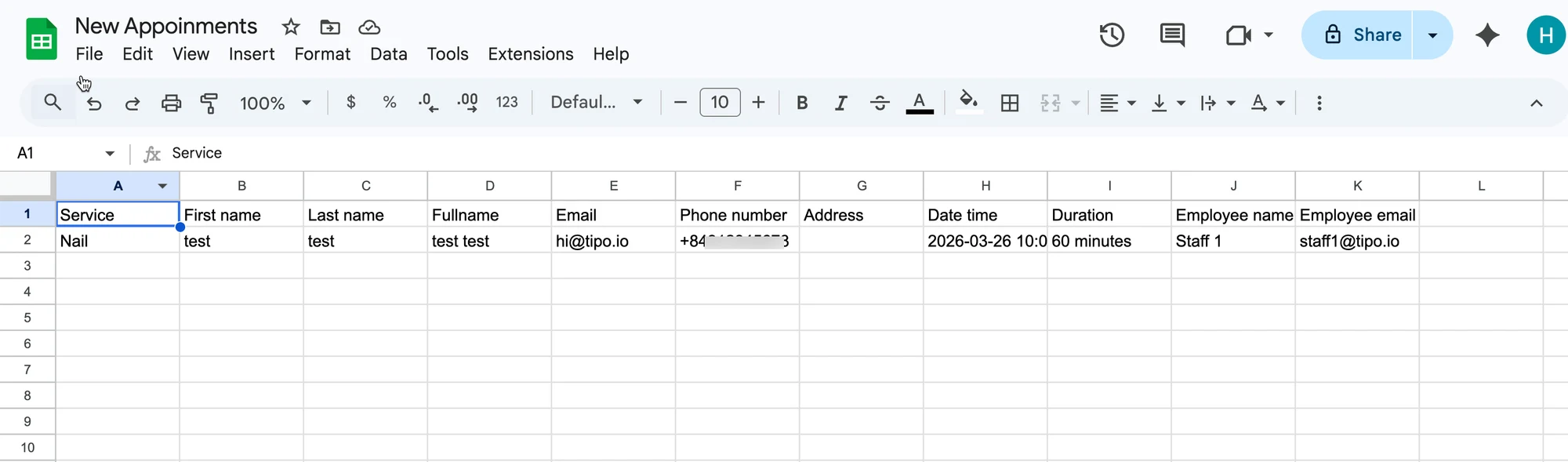
After the appointment is booked in the app, the data will be automatically added to the selected table in your Google Sheet.
Appointment in app:
Data is added to the selected sheet in Google Sheets:
This screenshot is unavailable in the original documentation.
***
**🙋 Still need support?**
If you still need help, please feel free to contact us at . We’ll be happy to assist you further.